Table of Contents
In Windows 11, open Settings > Bluetooth & devices > Mouse and move the Mouse pointer speed slider. In Windows 10, open Settings > Devices > Mouse. You can also open the classic Mouse Properties panel on any of these versions by pressing Windows + R, entering main.cpl, and pressing Enter.

Adjust mouse speed in Windows 11
- Press Windows + I.
- Select Bluetooth & devices > Mouse.
- Move Mouse pointer speed left for slower movement or right for faster movement.
- Move the mouse across the full screen and make small selections to test both speed and control.
Change one or two steps at a time. A very high setting may make small targets difficult to select, while a very low setting can require excessive arm or wrist movement.
Adjust mouse speed in Windows 10
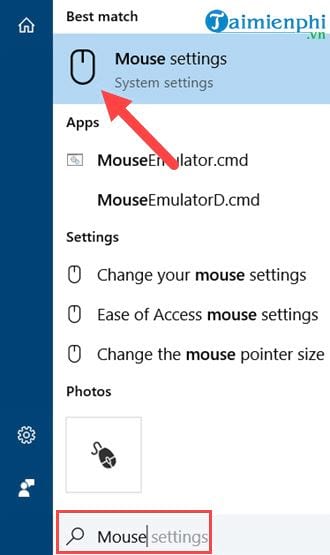
- Open Start and search for Mouse settings.
- Move Cursor speed on newer Windows 10 builds, or select Additional mouse options on older builds.
The screenshots below show the classic route from an earlier Windows 10 interface.
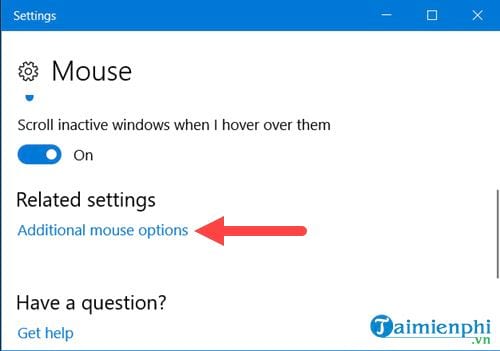
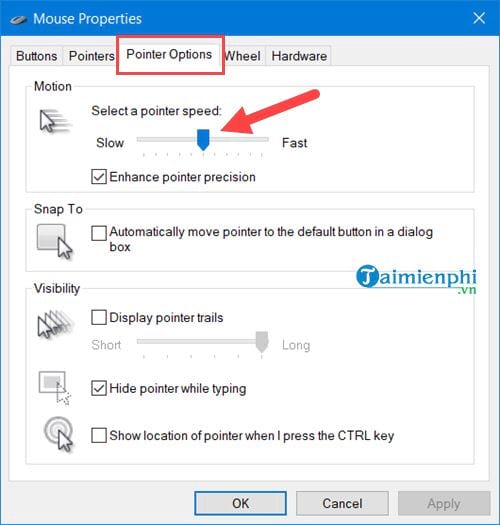
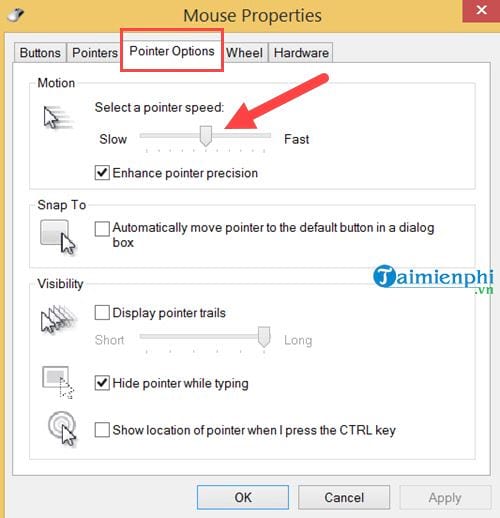
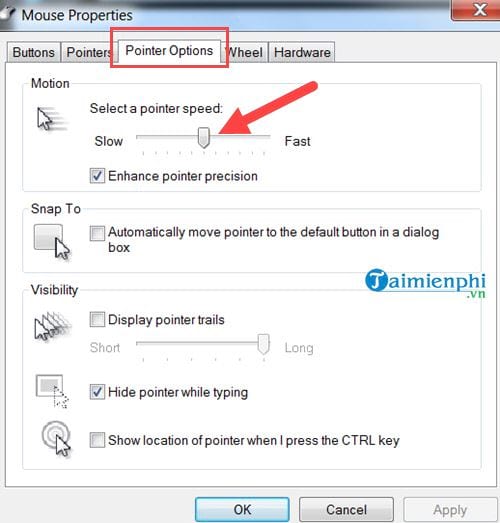
Under Pointer Options, move Select a pointer speed, then select Apply.
Use Mouse Properties on any supported Windows version
- Press Windows + R.
- Type
main.cpland press Enter. - Open the Pointer Options tab.
- Move Select a pointer speed.
- Select Apply, test the movement, and select OK.
This panel also controls pointer trails, visibility while typing, and the option to show the pointer location when pressing Ctrl. TipsMake's Windows mouse-settings guide covers button swapping, double-click speed, wheel scrolling, and other options.
What Enhance pointer precision does
Enhance pointer precision applies mouse acceleration: the distance the pointer travels depends partly on how quickly the mouse moves, not only on physical distance. It can help everyday desktop navigation, but it can make repeated movements feel less predictable.
- Leave it on if the pointer feels natural and you value quick screen traversal.
- Try it off for drawing, precision work, or games that use raw mouse input or benefit from repeatable movement.
- After changing it, give yourself time to adapt before deciding.
There is no universal best choice. Games may ignore this Windows setting when raw input is enabled.
Mouse DPI and Windows pointer speed are different
A mouse's DPI or CPI setting changes how many sensor counts are reported for physical movement. Windows pointer speed changes how the operating system turns those counts into on-screen motion.
| Control | Where it is set | Main effect |
|---|---|---|
| Windows pointer speed | Settings or Mouse Properties | System-wide pointer scaling |
| DPI/CPI | Mouse button or manufacturer software | Hardware sensor sensitivity |
| In-game sensitivity | Game settings | Camera or aim movement within that game |
| Touchpad sensitivity | Settings > Bluetooth & devices > Touchpad | Touchpad response and gestures |
If a gaming mouse has a DPI button, pressing it accidentally can cause sudden speed changes. Choose one stable DPI level, then tune Windows and app sensitivity separately. Use the device manufacturer's current software only when you need profiles, buttons, lighting, or firmware updates.
Adjusting mouse speed in Windows 8
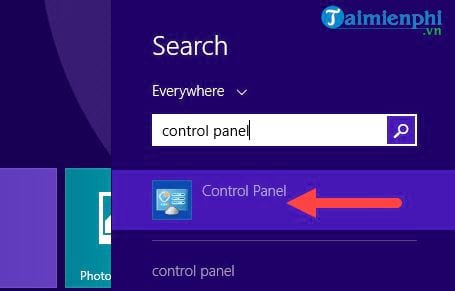
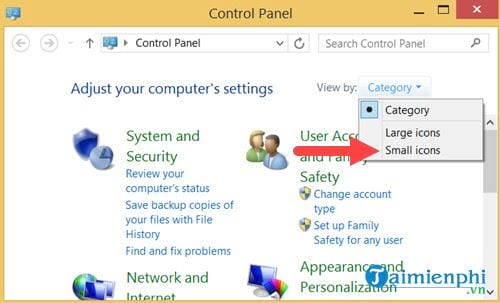
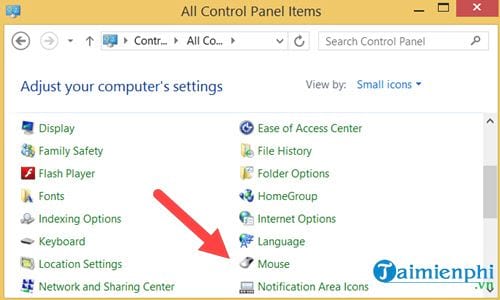
Windows 8 uses the classic Control Panel:
- Search for and open Control Panel.
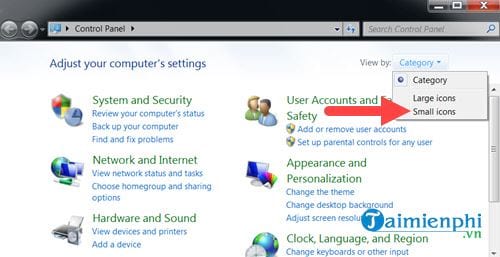
- Set View by to Small icons.
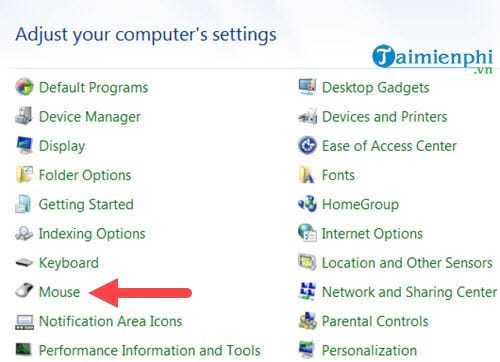
- Select Mouse > Pointer Options.
- Adjust Select a pointer speed, then apply the change.
Adjusting mouse speed in Windows 7
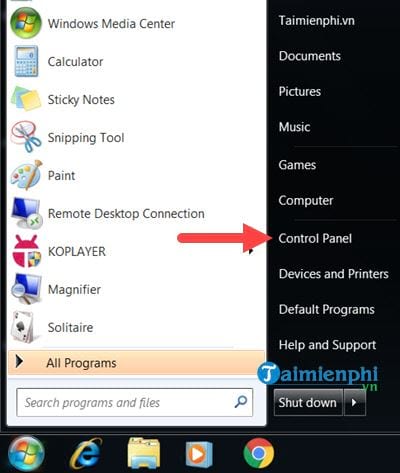
Windows 7 uses the same Mouse Properties setting. This operating system is no longer supported for normal consumer use, but the steps remain relevant on a legacy offline or specially managed PC.
- Open Start > Control Panel.
- Choose Small icons, then Mouse.
- Open Pointer Options and adjust the speed.
Do not use pointer speed to fix a tracking problem
If motion is jumpy, delayed, or inconsistent, changing the slider may hide rather than solve the cause. Check:
- Surface: use a clean, non-reflective mouse pad; glass and glossy patterns can confuse some sensors.
- Sensor: remove dust with air and a soft, dry method; do not insert tools into the opening.
- Wireless link: charge or replace batteries, move the receiver closer, and reduce USB 3.x or radio interference.
- Connection: connect directly rather than through a suspect hub or dock.
- Display scaling: pointer speed may feel different across monitors with different resolution, refresh rate, or scaling.
- Software: disable conflicting mouse utilities and test with another user account or mouse.
TipsMake's guide to mouse movement settings in Windows shows the same classic control, while its pointer visibility guide can help if speed is comfortable but the cursor is hard to find.
Choose settings for comfort and control
A comfortable speed lets you reach screen edges without repeated lifting while still selecting small controls accurately. If you develop persistent wrist, hand, or arm discomfort, review device size, grip, desk height, and break habits; a sensitivity slider alone may not correct an ergonomic problem.
Related Articles
 Steps to Adjust Mouse Speed on Windows 115 minutes read
 How to Adjust the Mouse Speed in Windows 102 minutes read
 How to Adjust Mouse Speed on Windows 10 and 114 minutes read
 Adjust the Speed of the Mouse on the Computer Screen2 minutes read
 3 Simplest Ways to Adjust Mouse Speed: Best Options Compared6 minutes read
 How to Speed Up Mouse Drag on Windows4 minutes read
Reader Comments 0
Sign in with email or Google to join the discussion.