Table of Contents
Use Chrome Remote Desktop, TeamViewer, AnyDesk, or Microsoft's Windows App when you need to see and operate the full Windows desktop from Android. Use Unified Remote or KDE Connect when the phone only needs to act as a touchpad, keyboard, media controller, or presentation remote on the same network.
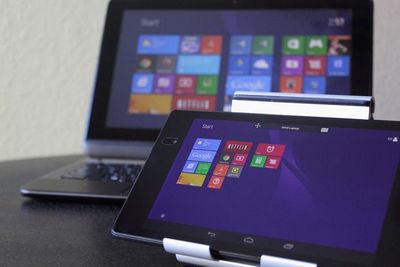
Windows 10 note: Microsoft ended normal Windows 10 support on October 14, 2025. A Windows 10 PC still works, but internet-facing remote access is a poor idea unless the device receives Extended Security Updates or is otherwise covered by a supported lifecycle. Upgrade a compatible PC to Windows 11 before enabling remote control.
Choose the right type of control
| App | Control type | Best use |
|---|---|---|
| Chrome Remote Desktop | Full desktop | Simple access to your own PC |
| TeamViewer Remote | Full desktop | Cross-platform access and attended support |
| AnyDesk | Full desktop | Portable support and flexible permissions |
| Windows App | Microsoft RDP | Windows Pro/Enterprise on a trusted network or VPN |
| Unified Remote | Mouse, keyboard, media, app remotes | Controlling a nearby PC from the sofa or meeting room |
| KDE Connect | Local input, media, files, commands | Open-source phone and PC integration |
1. Chrome Remote Desktop: simplest full-desktop option
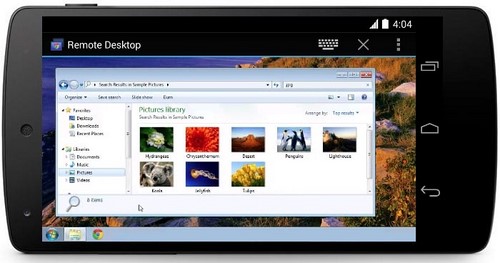
Chrome Remote Desktop is a strong first choice for accessing your own Windows PC. On the computer, open Chrome Remote Desktop, install the host component, give the PC a name, and create a PIN. On Android, open the official app, sign in to the same Google account, select the computer, and enter the PIN.
The remote host runs separately from an open Chrome window, so the browser does not need to remain on screen. The tradeoff is a smaller business-management feature set than dedicated support products.
Security: protect the Google account with two-step verification, use a unique PIN, and disable remote access from the web page when it is no longer needed.
2. TeamViewer Remote: attended support and saved devices
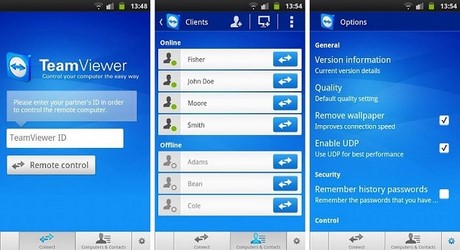
TeamViewer's Android app can control Windows, macOS, and Linux computers that run the appropriate TeamViewer client. It supports attended sessions and account-based access to managed devices, with features that can include file transfer, multi-monitor navigation, and chat.
For one-time help, keep the remote user present and use a temporary session code or random password. For your own unattended PC, assign the device only to a verified account, enable two-factor authentication, and limit access. TeamViewer is free only for use that meets its current personal-use terms; business use requires suitable licensing.
See our guide to controlling a PC with TeamViewer for the connection steps.
3. AnyDesk: portable sessions and permission profiles
AnyDesk provides Android and Windows clients and can start an attended connection with an AnyDesk ID or Alias. On the Windows PC, open AnyDesk and share the current address with the phone user. On Android, enter that address and start the request. The Windows user should review the permissions before selecting Accept.
AnyDesk can run in portable mode for an attended session. Installation is more appropriate for access after restart or sign-out. Configure unattended access only for a PC you own or administer, with a unique password and two-factor authentication if available. Our AnyDesk remote-control walkthrough explains the full setup.
4. Windows App: native Remote Desktop Protocol
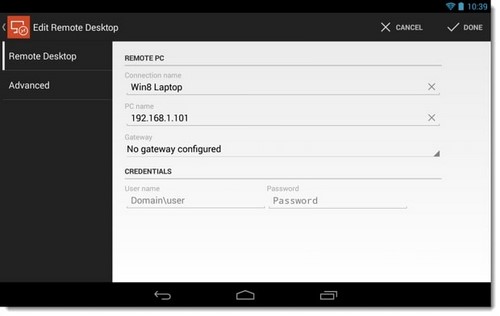
Microsoft's current Android client is Windows App. It can connect to a remote PC and to organization-provided desktops and apps. For a direct PC connection, the host normally needs a Windows edition that can accept Remote Desktop connections, such as Pro or Enterprise; Windows Home cannot act as the built-in RDP host.
- On the supported Windows PC, open Settings > System > Remote Desktop, enable it, and note the PC name.
- Make sure the Windows user account has a real password and permission to connect remotely.
- Install Windows App for Android, add a PC connection, and enter the PC name or approved address.
- Connect with the permitted Windows credentials.
Do not forward TCP port 3389 directly from a home router to the internet. Use RDP on a trusted local network, through a properly configured VPN, Remote Desktop Gateway, or an organization-managed service. This option is best for users who understand the Windows account and network configuration.
5. Unified Remote: phone as mouse, keyboard, or media remote
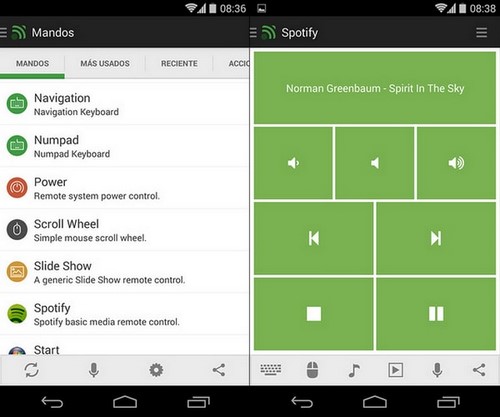
Unified Remote does not need to stream the entire desktop for basic tasks. Install Unified Remote Server on Windows and the official Android app on the phone. With both devices on the same trusted network, pair the app with the server.
The free controls include basic mouse and keyboard input and common media or power actions; additional app-specific remotes and screen viewing are part of its broader feature set and may require the paid version. Enable password protection and encryption in the server, and allow it through the firewall only on trusted network profiles.
6. KDE Connect: open-source local integration
KDE Connect pairs an Android device and Windows PC on the same local network. Depending on platform support, it can provide remote input, media control, file sharing, clipboard integration, notifications, and user-defined commands.
- Install KDE Connect for Windows and the official Android app from the links on KDE Connect's site.
- Connect both devices to the same trusted Wi-Fi or LAN.
- Open KDE Connect on both devices and accept the pairing request only after matching the device names.
- Enable only the plug-ins you intend to use, such as Remote Input or Multimedia Control.
KDE Connect is ideal for nearby control, not a substitute for a full remote desktop across the internet. If discovery fails, check local-network permissions and firewall rules rather than disabling the firewall.
Apps removed from the older list
ASUS Remote Link and some older “Remote Control Collection” downloads are no longer dependable default recommendations for a current security-focused guide. Do not install an abandoned Android APK or an unsigned Windows server merely to reproduce an old workflow.
Remote-control safety checklist
- Download the Android app from Google Play and the Windows component from the vendor's official site.
- Keep Android, Windows, and both app components updated.
- Use a unique password or PIN and enable multi-factor authentication when offered.
- Prefer manual approval for one-time support; use unattended access only on devices you manage.
- Do not let an unexpected caller control the PC to process a refund, payment, bank issue, or investment.
- Disconnect when finished and revoke access for old phones, technicians, or accounts.
If you want a broader cross-platform comparison, see our guide to controlling a computer from an iPhone or Android phone and our list of free remote desktop software.
Related Articles
 Steps to Run Android Apps on Windows 115 minutes read
 An Application for Controlling Your PC Using Your iPhone or Android Phone4 minutes read
 How to Experience Android on PC14 minutes read
 This Is How Android Apps Work on Windows 115 minutes read
 The Best Android Apps9 minutes read
 How to Run Android Apps on Windows 10 with Genymotion7 minutes read
Reader Comments 0
Sign in with email or Google to join the discussion.