Table of Contents
Text that looks “spread out” in Word can have three different causes: expanded character spacing, automatic spacing added while pasting, or paragraph and line spacing. Identify which gap is wrong before changing the document.
Quick diagnosis
- Gaps appear between individual letters: reset character spacing in the Font dialog.
- Gaps appear mainly between words after pasting: review Smart Cut and Paste settings and the paragraph's alignment.
- Whole lines or paragraphs are too far apart: change paragraph spacing and line spacing.
- One line stretches from margin to margin: it may be justified text ending with a manual line break.
Fix extra spacing introduced when pasting
Word's Smart Cut and Paste feature can adjust spaces around pasted text. If the problem repeatedly appears after copying content from another document or a website, test this setting:
- Select File.
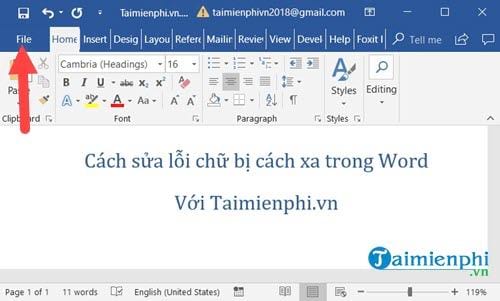
- Select Options.
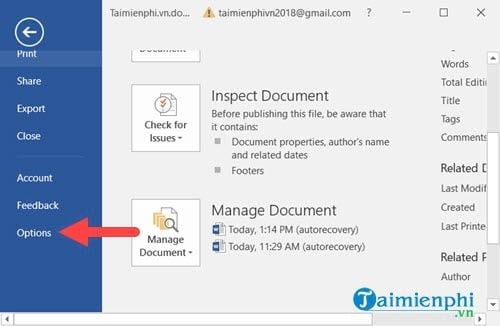
- Select Advanced and find Use smart cut and paste.
- Select Settings next to that option.
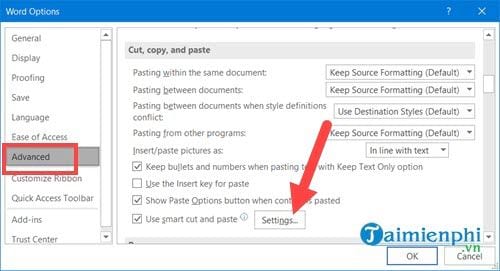
- Clear Adjust sentence and word spacing automatically, select OK, and paste a small sample again.
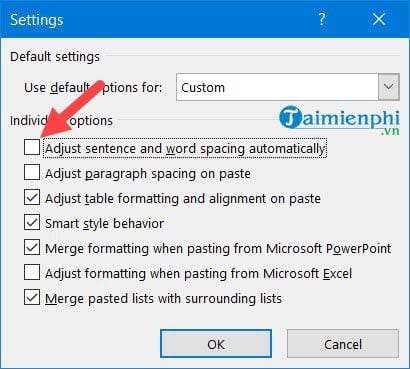
This option affects future paste operations. It may not repair text that is already in the document, so use the next steps on existing content.
Reset spacing between letters
- Select only the affected text. Press Ctrl+A only if the entire document has the problem.
- On the Home tab, open the Font dialog box using the small launcher in the Font group.
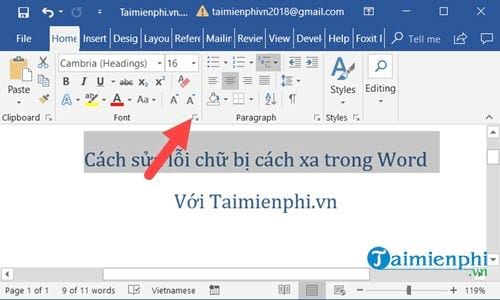
- Open the Advanced tab, called Character Spacing in some older versions.
- Set Scale to 100%, Spacing to Normal, and Position to Normal.
- Select OK.
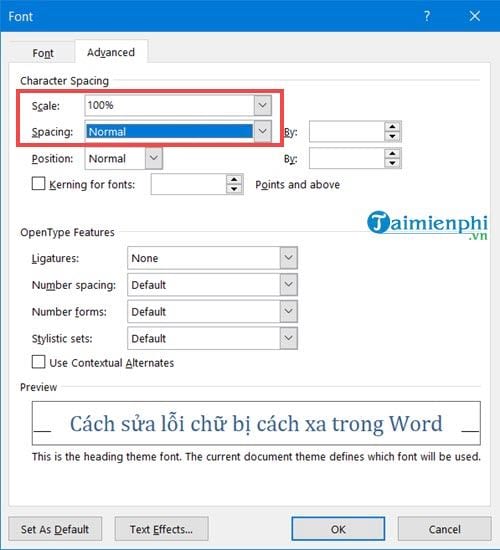
If a particular style keeps reapplying expanded spacing, modify or clear that style instead of fixing each paragraph separately. TipsMake's guide to Word styles explains how styles control repeated formatting.
Fix large gaps between lines or paragraphs
- Select the affected paragraphs.
- On the Home tab, open the Paragraph dialog box.
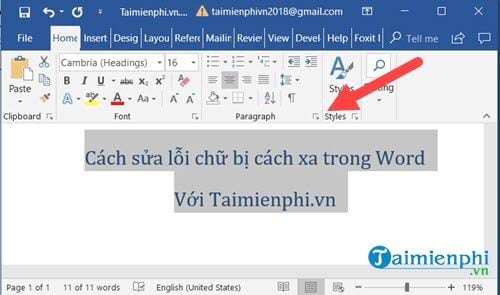
- Under Spacing, set Before and After to the values the document requires. Use 0 pt to remove added paragraph spacing.
- Set Line spacing to Single for normal single spacing, then select OK.
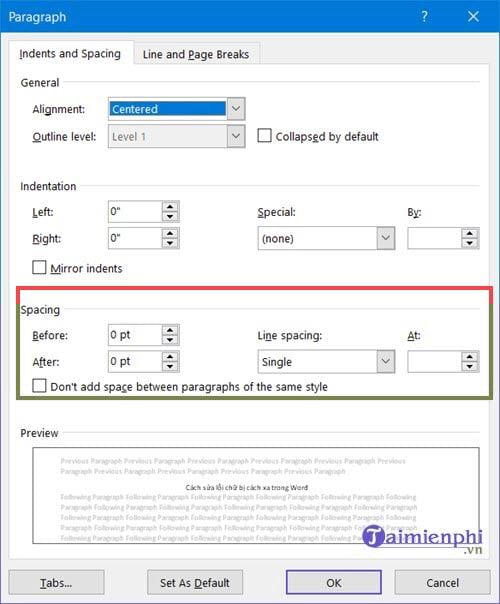
The paragraphs should return to a consistent layout.
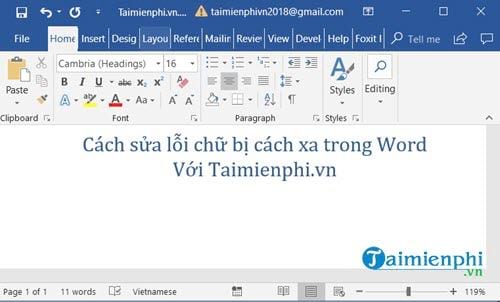
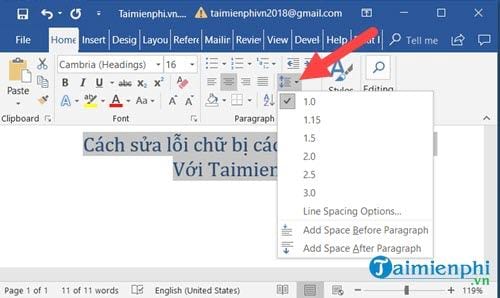
You can also use the Line and Paragraph Spacing menu in the Paragraph group for a quick adjustment.
For a detailed explanation of Before, After, indentation, and line-spacing controls, see how to format paragraphs in Word. If your document intentionally requires double spacing, use the settings in the Word double-spacing guide.
Fix stretched words in justified text
Justified alignment expands spaces so both edges of a paragraph reach the margins. The effect becomes extreme when a line ends with a manual line break created by Shift+Enter.
- Turn on formatting marks with Home > ¶ to reveal line and paragraph breaks.
- Replace an unwanted manual line break with a normal paragraph break, or use left alignment for that paragraph.
- Do not add repeated spaces to position text; use tabs, indents, or a table instead.
If only copied text is affected
Use a paste option such as Keep Text Only to discard web or source-document formatting, then apply the destination document's style. If you must keep the original formatting, paste into a separate document first and inspect the font, style, and paragraph settings before merging it into the final file.
Make a backup before clearing formatting across a long document. Broad formatting changes can also remove intentional emphasis, headings, and list structure.
Related Articles
 How to Fix Word Errors in Word Are Spaced, Words Are Far Away in Word7 minutes read
 Control Formatting When Pasting Text in Word24 minutes read
 Align Text, Adjust Font in Word 20138 minutes read
 Full Word Tutorial 2016 (Part 4): Formatting Text: Word 20165 minutes read
 How to Use Hidden Text in a Word Document9 minutes read
 Guide to Word Word 2016 (Part 19): Inserting Text Box4 minutes read
Reader Comments 0
Sign in with email or Google to join the discussion.