Table of Contents
A Word document can open as read-only for several unrelated reasons. Before changing security settings, check the message at the top of the window: it usually identifies whether the file is in Protected View, marked read-only, locked by permissions, or protected by its author.
If Word shows a Protected View banner
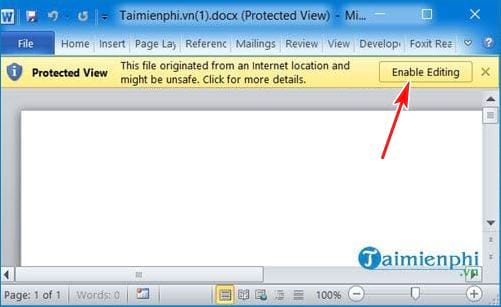
Protected View is a safety feature for files downloaded from the internet, received as attachments, or opened from potentially unsafe locations. If you trust the file and know where it came from, select Enable Editing on the yellow banner.
Do not enable editing for an unexpected attachment or an untrusted download. Scan the file first and verify it with the sender. Disabling Protected View globally removes an important layer of protection and is usually unnecessary.
Check whether the Windows file is marked read-only
- Close the document in Word.
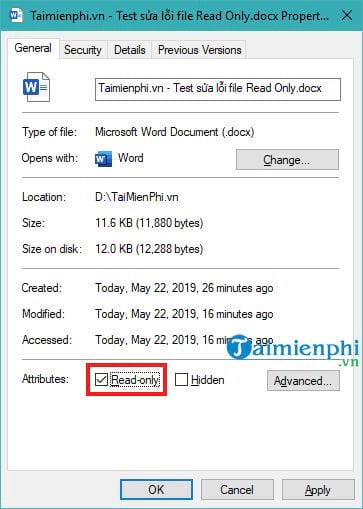
- In File Explorer, right-click the file and select Properties.
- On the General tab, clear Read-only if it is selected.
- Select Apply, then OK, and reopen the document.
If the checkbox returns or is unavailable, the file may be stored in a folder where your account lacks write permission. Try File > Save As and save an editable copy in your Documents folder. For another walkthrough, see how to remove the read-only attribute from Word files.
Check the document's Word settings
Marked as Final
Open File > Info > Protect Document. If Mark as Final is active and you are authorized to edit the file, select it again to remove the status. Mark as Final discourages editing but is not strong access control.
Restricted Editing
Open Review > Restrict Editing. If protection is enforced, select Stop Protection. Word may require the password set by the document owner. Do not attempt to bypass a password you do not have; ask the owner for an editable copy or the correct permission.
Opening email attachments or temporary copies
Save the attachment to a normal local folder before editing. Some mail clients and preview windows open a temporary read-only copy. Use Save As, close the preview, and open the saved file directly in Word.
Review Protected View settings only when necessary
The controls are under File > Options.
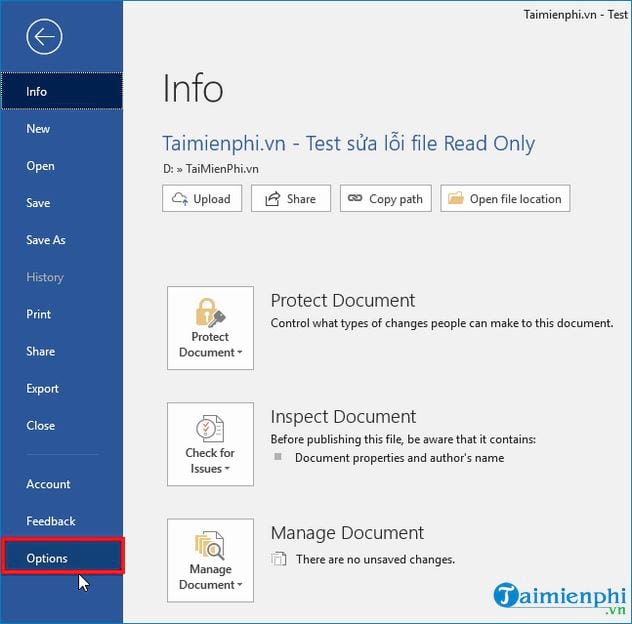
Select Trust Center > Trust Center Settings > Protected View.
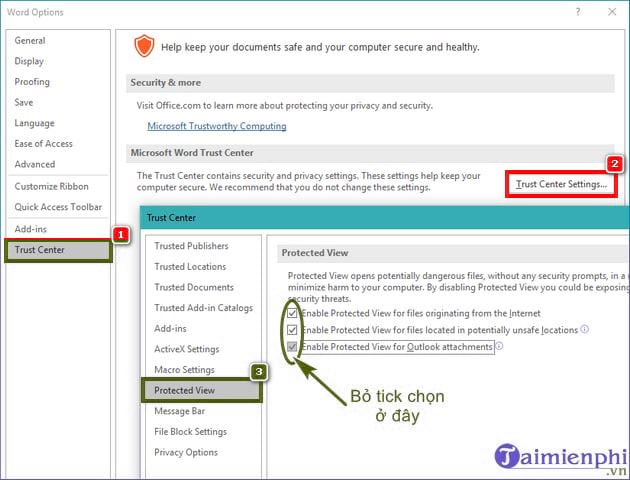
Keep the protections enabled unless a managed workplace workflow requires a different configuration. For a trusted recurring location, ask your administrator whether a Trusted Location is appropriate instead of turning off protection for all internet files and attachments. TipsMake's overview of Word's Protected View settings shows where the controls are, but changing them has security consequences.
Check sharing, storage, and permissions
- OneDrive or SharePoint: confirm that you have Edit permission, not View permission, and check whether someone else has locked the file.
- Network drive: copy the file locally only if policy allows, or ask the folder owner for write access.
- USB drive or external media: check whether the device is write-protected or full.
- Another program has the file open: close other Word windows and ask collaborators to close desktop copies, then try again.
If Word still will not accept typing
Test a new blank document. If you cannot type there either, the issue is not the file's read-only state. Word activation, an add-in, or the application itself may be the cause; follow the checks in the guide to Word not accepting typed text.
If only one document fails, save a copy in DOCX format and test that copy. Avoid copying content into a new file if doing so would discard required restrictions, signatures, tracked changes, or document metadata.
Safe order of fixes
- Read the banner or status message.
- Use Enable Editing only for a file you trust.
- Save an editable copy to a folder you can write to.
- Check the file's Read-only attribute and your access permission.
- Review Mark as Final or Restrict Editing settings.
- Leave global security protections enabled unless an administrator directs otherwise.
Related Articles
 How to Remove 'Read Only' Attribute on MS Word Files: Step-by-Step Guide9 minutes read
 How to Turn Off, Turn on Enable Editing When Opening Word, Excel2 minutes read
 How to Enable Dark Mode in Ubuntu 20.04 LTS5 minutes read
 Protected View Word: Ways to Remove the Read Only Message in Word4 minutes read
 How to Edit a Word File That Says Read Only4 minutes read
 How to Enable Focus Mode in Word - a Feature5 minutes read
Reader Comments 0
Sign in with email or Google to join the discussion.