Table of Contents
A printer that produces pages of random symbols, unreadable characters, or incorrect fonts is usually receiving data it cannot interpret correctly. The cause may be one document, a damaged print job, the wrong printer language or driver, a faulty connection, or—less often—printer hardware.
First, identify the scope
Run three quick tests before reinstalling anything:
- Cancel the current job and print the printer’s built-in configuration or status page from its control panel.
- Print a Windows test page.
- Print a short document from a different application using a common font.
| Result | What it suggests |
|---|---|
| Only one file prints incorrectly | The document, embedded fonts, or application is the likely cause. |
| Every job from one computer is garbled | Check the queue, driver, port, cable, and application settings on that PC. |
| Several computers produce the same problem | Check the printer configuration, firmware, network path, or hardware. |
| The built-in status page is also corrupt | The fault is inside the printer rather than the computer’s document pipeline. |
1. Clear the damaged job and restart the print path
- Cancel every job in the affected printer queue. If a job remains stuck, restart the Print Spooler service or restart Windows.
- Turn the printer off. Wait for it to shut down completely, then disconnect power briefly if the manufacturer’s instructions allow it.
- Reconnect power, start the printer, and send a one-page plain-text test.
This clears incomplete page-description data from the queue and printer memory. Do not repeatedly resend the original job while pages of gibberish are still printing; cancel it to avoid wasting paper.
2. Check the cable, port, or network connection
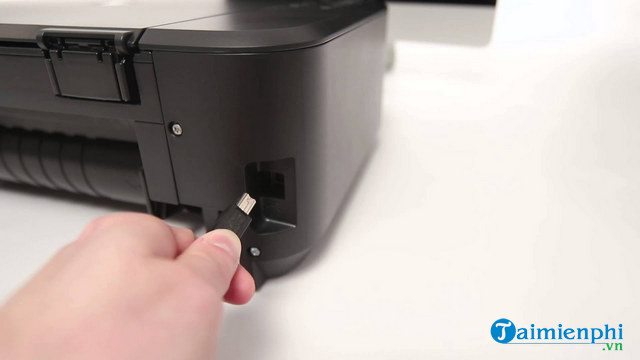
- For USB, connect the printer directly to the computer and try a known-good, undamaged cable of the correct type. Avoid an unpowered hub during testing.
- For Ethernet or Wi-Fi, confirm that the job is going to the intended printer and not an old queue with a reassigned IP address.
- Open Printer properties > Ports and verify that the selected port belongs to this printer. Do not change a working port merely because several similar entries appear.
A connection problem is more likely when output changes randomly between jobs. Consistently substituted fonts in one file point more strongly to the document or driver.
3. Install the correct printer driver
A model-specific driver tells Windows which page-description language and features the printer supports. A driver for a similar-looking model can still send incompatible PCL, PostScript, CAPT, or proprietary data.
- Note the exact printer model and Windows architecture.
- Download the supported driver from the printer manufacturer or use the model-specific driver offered through Windows.
- Remove duplicate or obsolete queues only after confirming which one is active.
- Install the correct driver, restart if requested, and print a Windows test page before retrying the document.
If the manufacturer offers PCL and PostScript variants, use the one supported by the printer and recommended for your applications. Do not install a generic driver-update utility simply to solve this symptom.
4. Test the document and its fonts
- Save a copy of the document, then print one page that shows the error.
- Change the affected text to a common font such as Arial or Times New Roman. If it prints correctly, the original font file, font embedding, or glyph support is the likely issue.
- Copy the content into a new document without carrying over complex styles, or export a fresh PDF.
- Open the file on another computer or print it to another printer. This separates file corruption from a device-specific problem.
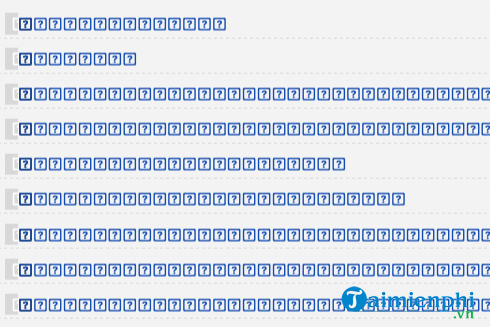
Missing boxes or blank characters can also mean that the selected font does not contain the required language glyphs. Choose a font that supports the script instead of repeatedly reinstalling the printer.
For missing letters rather than random control characters, compare the checks in Printer loses letters: practical fixes.
5. When a PDF prints incorrectly
First update or change the PDF viewer and print a newly downloaded or re-exported copy. In Adobe Acrobat Reader, a useful diagnostic is:
- Open File > Print.
- Select Advanced.
- Enable Print as Image, then print one affected page.
Rasterizing the page bypasses some font and transparency processing, so it can fix a PDF that looks correct on screen but prints with missing or substituted elements. It can take longer, use more memory, and produce less crisp text, so treat it as a workaround rather than the default for every document.
6. Check application and printer-language settings
If only one program fails, reset its print settings, disable unusual font-substitution or “use printer fonts” options, and try its current supported version. In business systems that generate raw print streams, confirm that the application output language matches the printer or print server.
Do not lower print resolution as a general font repair. Resolution changes image detail but do not fix an incompatible driver or corrupt font; they are useful only if a particular renderer is running out of resources.
When hardware or firmware is the likely cause
Request service when the printer’s own internal status page contains corrupt characters, the control panel behaves abnormally, or garbled output continues from multiple computers after a verified driver and connection test. Provide the technician with a sample page, the file type, driver name, connection method, and whether the built-in page prints normally.
If Windows cannot establish a stable connection at all, use the targeted steps in Windows cannot connect to the printer. If the problem is limited to a Canon LBP 2900 queue, see Canon LBP 2900 printer errors on Windows.
Related Articles
 Summary of Printer Errors and How to Fix Them20 minutes read
 Printer Error Printing 1 Copy to Many Copies - Causes and5 minutes read
 Fix Printer Errors: Fix Simple Errors on the Printer10 minutes read
 Inkjet (Inkjet) and Laser Printers: Which Type Is Right for You?13 minutes read
 How to Check and Install the IP Address for the Printer4 minutes read
 The Printer Prints Slowly - Causes and Effective and Quick6 minutes read
Reader Comments 0
Sign in with email or Google to join the discussion.