Table of Contents
A low-supply warning is the clearest sign that a cartridge is nearly empty, but it is not the only evidence—and faded output does not always mean “out of ink.” Inkjet printers use liquid ink, while laser printers use toner powder; their symptoms and safe troubleshooting steps differ.

Reliable signs of low ink or toner
- The printer, driver, or manufacturer app displays a low-supply or replace-cartridge message.
- An inkjet loses one color consistently, and a nozzle-check pattern shows missing sections after the recommended cleaning cycle.
- A laser printer’s text becomes evenly lighter across the page, and gently redistributing the toner produces a temporary improvement.
- The cartridge has reached or passed the approximate page yield expected for your usage, although page coverage makes any estimate inexact.
Supply gauges are estimates. Some printers continue after a low warning, while others stop when the cartridge chip reports empty. Read the message carefully: “low,” “very low,” “replace,” and “cartridge not recognized” describe different conditions.
Check the printer’s supply level
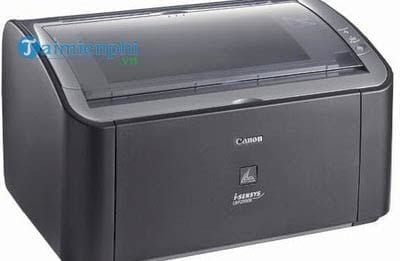
- Printer display: open the Supplies, Ink, Toner, Status, or Maintenance menu.
- Windows: select the printer under Settings > Bluetooth & devices > Printers & scanners, then open its management or manufacturer utility. Windows does not expose an accurate gauge for every model.
- Printed report: many printers can produce a configuration, supplies-status, or quality page from the control panel.
- Embedded web page: for a network printer, enter its local IP address in a browser and check the supplies page.
Older or basic models may not report a percentage. In that case, use a diagnostic page and the pattern of the defect rather than guessing from one faint document.
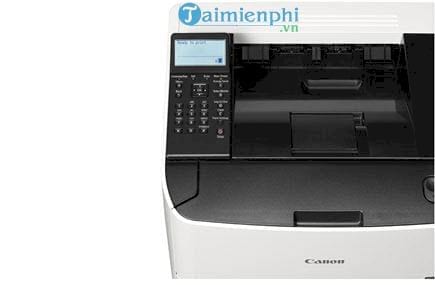
When faded output is probably not a low cartridge
| Print defect | More likely cause | First check |
|---|---|---|
| A white line or band in the same place | Clogged inkjet nozzles, debris, a scratched drum, or another imaging component | Print the model’s nozzle check or quality diagnostic page. |
| One edge is light and the other is dark | Uneven toner distribution, cartridge seating, optics, drum, or transfer problem | Reseat the cartridge and inspect the diagnostic page. |
| Ink smears or rubs off | Wrong paper setting, unsuitable media, wet ink, fuser, or cartridge problem | Match the paper type and allow inkjet pages to dry. |
| Random missing characters | Document, font, connection, or driver problem | Print a test page from another application. |
| Completely blank page | Protective seal not removed, empty cartridge, clogged head, transfer/fuser issue, or a blank source page | Check cartridge installation and print an internal test page. |
For repeating bands or blurred text, use the defect-specific checks in Fix printer errors with blurred text and lines. Smearing requires a different diagnosis; see printer ink-smudge causes and fixes.
What to do with an inkjet printer
- Print the built-in nozzle check. This shows whether a particular color or group of nozzles is missing.
- Run one normal printhead-cleaning cycle from the printer’s maintenance menu. Print another nozzle check.
- If the pattern improves but is still incomplete, wait for the interval specified by the manufacturer before repeating. Excessive cleaning wastes ink and can fill the waste-ink system.
- Reseat the indicated cartridge and verify that its protective tape or vent seal was removed according to its instructions.
- Replace the empty or faulty cartridge with the correct type. Handle it by the plastic body and avoid touching electrical contacts or nozzles.
Do not shake a liquid-ink cartridge unless its manufacturer explicitly instructs you to do so. Shaking can leak ink, introduce bubbles, or contaminate contacts.
What to do with a laser printer
Some toner cartridges can be redistributed temporarily when output becomes evenly faint:
- Turn the printer off and follow the model’s cartridge-removal procedure.
- Hold the toner cartridge level by its designated grips. Gently rock it from side to side a few times; do not shake it vigorously or tip it over.
- Reinstall it and print a test page.
If output briefly improves, prepare a replacement cartridge. The improvement may last only a short time, so do not promise a fixed number of additional pages. Toner dust should not be inhaled or cleaned with a household vacuum; follow the manufacturer’s spill guidance.
Replace or refill?

A new compatible cartridge is the simplest controlled test. If you choose a refill or remanufactured cartridge, use a reputable provider that supports the exact model and cartridge chip. Poor sealing, incorrect toner formulation, damaged contacts, or an unreset chip can cause leaks, recognition errors, or weak output.
For compatible Canon ink cartridges, review the model-specific precautions in How to refill Canon printer ink. Do not apply an inkjet refill procedure to a laser toner cartridge.
Confirm the fix
After installing the cartridge, print the device’s diagnostic page before changing driver settings. If the level warning remains, reseat the cartridge and restart the printer once. If a known-good cartridge produces the same defect, stop replacing supplies and investigate the printhead, drum, transfer, fuser, or service code for the exact model.
Related Articles
 Signs of Printer Running Out of Ink and Effective, Easy Fixes8 minutes read
 6 Signs That Your Printer Is Running Low on Ink and the Simplest Ways to Fix It5 minutes read
 Show You 8+ Simple Steps to Refill Printer Ink for Beginners at Home9 minutes read
 Fix the Spooler Print Service Service Not Running on Windows 103 minutes read
 Common Errors on the Printer and How to Fix Them7 minutes read
 How to Share a Printer via LAN5 minutes read
Reader Comments 0
Sign in with email or Google to join the discussion.