Table of Contents
Cancel an unwanted print job from the computer's queue first. If the printer has already started, press its Cancel or Stop button as well. Switching the printer off may only pause the job, which can resume when power returns.
Cancel a job in Windows 11
- Open Settings > Bluetooth & devices > Printers & scanners.
- Select the correct printer and choose Open print queue.
- Right-click one document and select Cancel, or use the queue menu to cancel all jobs.
- Wait for the status to clear before sending another document.
Windows may list separate queues for USB, network, Wi-Fi Direct, or shared versions of the same printer. Open the one that received the job.
Cancel a job in Windows 10
Open Settings > Devices > Printers & scanners, select the printer, and choose Open queue. Cancel the individual job where possible; canceling all documents affects other pending work in that queue.
Clear a stuck Print Spooler queue
- Save open work and confirm no one else relies on the shared Windows queue.
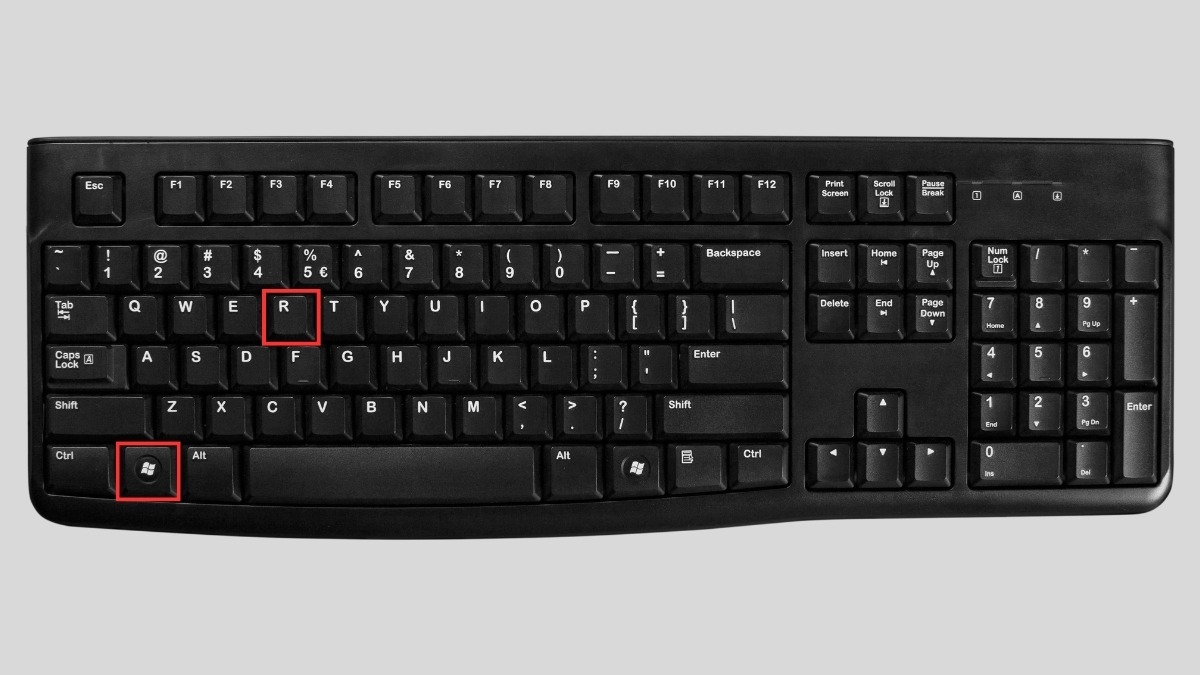
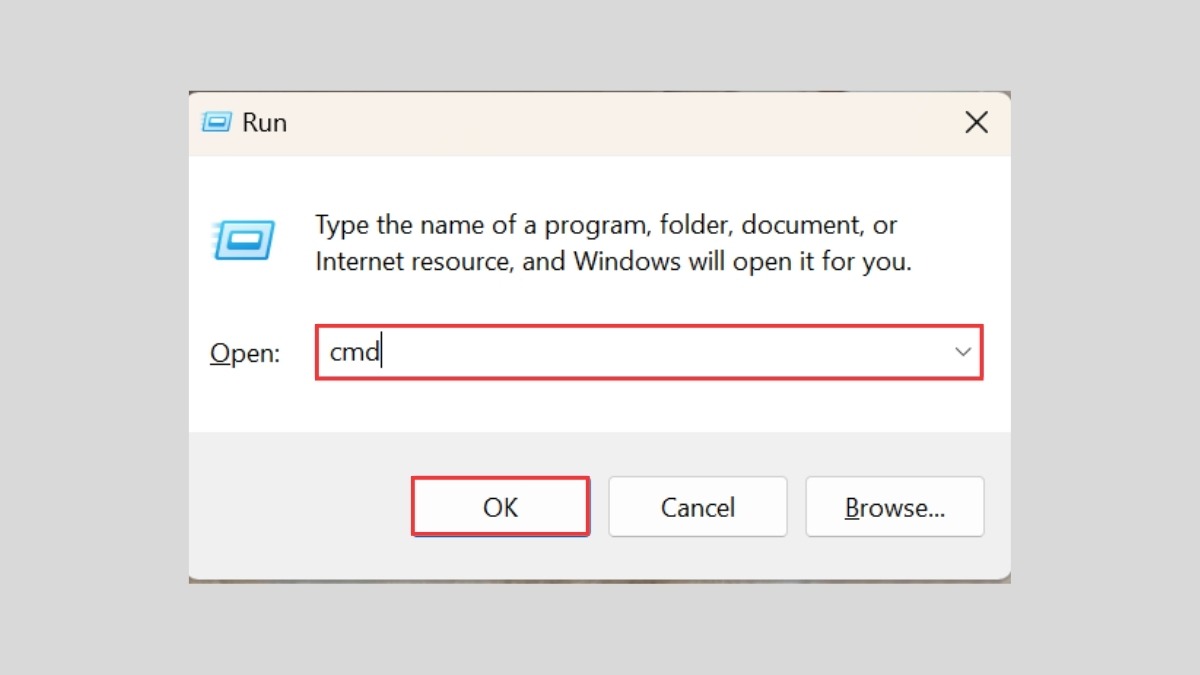
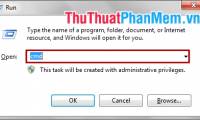
- Press Windows + R, enter
services.msc, and press Enter. - Right-click Print Spooler and select Stop.
- Open
C:WindowsSystem32spoolPRINTERSand delete only the files inside that folder. - Return to Services and start Print Spooler.
This clears jobs for every printer managed by that Windows spooler. Do not delete the folder itself or unrelated files.
Command-line option
From an administrator Command Prompt, net stop spooler stops the service and net start spooler restarts it. Stopping alone does not necessarily remove queued files, so use the graphical queue before service-level repair.
Cancel a job on macOS
- Open System Settings > Printers & Scanners.
- Select the printer and open its queue.
- Select the unwanted job and click the delete or X control.
- If the queue is paused, remove the wrong job before resuming.
If printing continues
- Press Cancel/Stop on the printer; a page already in the mechanism may finish.
- Clear the job on every phone, Mac, PC, print server, or cloud service that submitted it.
- Restart the printer only after the source queue is empty.
- Test a simple one-page document and update the official printer driver if jobs repeatedly stick.
Do not pull paper from a moving print path or cut power during firmware updates, cleaning, or head movement.
What canceling does
Removing a print job does not delete the original document. It may, however, remove held jobs belonging to other users if you clear the entire queue. For repeated failures, see how to clear a stuck Windows print job and how to troubleshoot a printer that will not print.
Related Articles
 How to Cancel a Print Job on Word, Excel4 minutes read
 How to Cancel the Print Job Immediately: Step-by-Step Guide3 minutes read
 How to Delete, Cancel Print Orders on Canon, HP4 minutes read
 How to Delete and Cancel the Print Job Immediately7 minutes read
 How to Cancel a Print Job in Windows 84 minutes read
 How to Delete, Cancel a Print Job on Windows, Mac Computers4 minutes read
Reader Comments 0
Sign in with email or Google to join the discussion.