Table of Contents
If a Canon LBP 2900 starts a print job but does not pull paper from the tray, first reload a small stack of dry, supported paper and check for scraps or foreign objects. Repeated slipping, clicking, or a pickup roller that turns without moving the sheet can indicate contamination or wear.
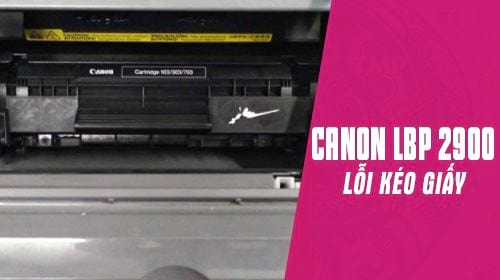
Identify the paper-feed symptom
- No attempt to feed: the job may not be reaching the printer, the tray may not be detected, or a cover sensor may be open.
- Roller turns but paper stays in the tray: paper condition, tray loading, a dirty or worn pickup roller, or the separation pad is the likely area to inspect.
- Several sheets enter together: the stack may be damp or overfilled, or the separation pad may be worn.
- Paper enters and then stops: check the paper path for a jam, torn scrap, obstruction, or incorrectly seated toner cartridge.
Record the status light pattern or the exact Canon CAPT status message before clearing the job. A Windows “paper out” message does not by itself prove that the pickup roller has failed.
1. Reload the paper correctly

- Remove the paper and inspect it. Discard curled, torn, wrinkled, sticky, or damp sheets.
- Fan a fresh stack, tap its edges on a flat surface, and load a small number of sheets for the test.
- Place the printable side and leading edge as specified for the media. Do not mix sizes, weights, or paper types in the same stack.
- Move the paper guides so they touch the stack without squeezing or bowing it.
- Keep the stack below the tray’s load-limit mark.
Use paper that matches the model’s supported size and weight range. Very thin, heavy, coated, or glossy media can feed poorly if it is not approved for the printer. Store paper flat in its packaging and away from humidity.
2. Match the driver’s paper settings
A mismatch between the loaded paper and the print job can stop or delay feeding. In the Canon driver, check Page Size, Output Size, and Paper Type. Confirm that the selected paper source matches the tray you loaded.
Cancel the stalled job, correct the settings, and print a one-page test. The Canon 2900 usage guide explains the model’s paper-size and basic print controls.
3. Check for scraps and obstructions
- Turn the printer off, unplug its power cable, and allow it to cool. The fuser area can remain hot after printing.
- Open the accessible covers and remove the toner cartridge according to the manual. Keep the cartridge out of bright light and do not touch the drum surface.
- Use a light to inspect the tray entrance and visible paper path. Remove loose paper scraps or foreign objects without using sharp metal tools.
- Reinstall the cartridge and close every cover firmly.
Do not force a jammed sheet through the fuser or dismantle covers that the user manual does not identify as removable. If a sheet tears inside an inaccessible area, arrange service.
4. Inspect the pickup roller and separation area
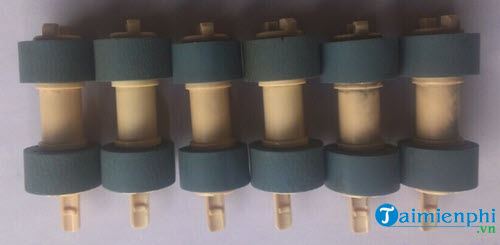
The pickup roller provides the grip that moves the top sheet into the printer. Paper dust can reduce that grip; after extensive use, the roller surface and separation pad can also wear.
- If the service documentation for your exact LBP 2900 variant provides a roller-cleaning procedure, follow it with the specified lint-free material.
- Do not pour cleaner into the tray, spray the mechanism, rotate gears by force, or apply oil to rubber parts.
- If cleaning helps only briefly, or the surface looks polished, cracked, or misshapen, the pickup roller or separation component may need replacement.
Replacement requires the correct part and procedure. The fuser does not pull the initial sheet from the tray, so replacing or cleaning the fuser is not the first response to a no-pickup symptom.
5. Rule out a job or driver problem
If the printer does not make a pickup attempt, cancel all queued jobs, restart the printer and computer, and print a Windows test page. Check that the USB cable is secure and that the correct Canon LBP 2900 queue is selected.
If Windows shows an error rather than a paper-feed alert, use the targeted steps in How to fix Canon LBP 2900 printer errors on Windows. Reinstalling the driver is useful for communication or queue problems, but it will not repair a slipping mechanical roller.
What the result tells you
| Test result | Likely next step |
|---|---|
| A small stack of fresh paper feeds normally | Replace the old or damp paper and review tray loading. |
| One sheet feeds but a full stack does not | Check the load limit, guides, paper condition, and separation components. |
| The roller audibly slips on every sheet | Use the documented cleaning procedure; consider roller service if wear is visible. |
| Paper stops at the same point | Inspect that part of the path for scraps, an obstruction, or a serviceable sensor. |
| No feed motion and a software error appears | Resolve the queue, driver, cover, or connection error before replacing parts. |
When to request repair
Arrange service if the printer grinds, repeatedly tears paper, feeds multiple sheets after correct loading, contains an inaccessible scrap, or continues to slip after the approved cleaning procedure. Tell the technician whether the roller turns, how far the sheet travels, and what the status light or CAPT window reports; those details are more useful than “paper jam” alone.
Related Articles
 Printer 2900 Pulls the Wrong Paper - How to Fix Printer 29007 minutes read
 Canon 2900 Printer Not Recognizing Ink Cartridge, How to Fix It6 minutes read
 How to Fix Printer Error Canon 2900 Not Receiving Print Job3 minutes read
 Should I Buy a Canon or Brother Printer?7 minutes read
 Canon's Direct Photo Printer, Smart Paper Processor1 minutes read
 Popular Genuine Canon Inks2 minutes read
Reader Comments 0
Sign in with email or Google to join the discussion.