Table of Contents
To stop an unwanted Brother print job, cancel it from the printer first, then clear the Windows or macOS print queue if documents keep returning. Turning off the printer alone may pause the job rather than remove it from the computer.
Stop the current page at the printer
Press the printer's Cancel, Stop/Exit, or X button. On touchscreen models, select the cancel option shown for the active job. Button names vary, so check the model's control-panel guide. Paper already moving through the print path may finish; do not pull it out.
Cancel jobs in Windows 11 or Windows 10
- Open Settings > Bluetooth & devices > Printers & scanners.
- Select the Brother printer, then choose Open print queue.
- Right-click the unwanted document and select Cancel, or use the queue menu to cancel all documents.
Confirm you opened the correct printer, especially if Windows has separate copies for USB, Wi-Fi, Wi-Fi Direct, or a shared queue.
If a job is stuck in Windows
- Wait briefly after choosing Cancel.
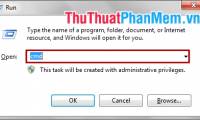
- Press Windows + R, enter
services.msc, and press Enter. - Right-click Print Spooler and select Stop.
- Open
C:WindowsSystem32spoolPRINTERSand delete only the files inside that PRINTERS folder. Administrator approval may be required. - Return to Services, start Print Spooler, and reopen the queue.
Do not delete the PRINTERS folder itself or unrelated system files. This clears queued jobs for all Windows printers, not just the Brother device.
Command-line method
From an administrator Command Prompt, stop and restart the spooler with:
net stop spoolernnet start spoolerStopping the service does not by itself delete queued files. Use the graphical queue first; clear the spool folder only for a genuinely stuck job.
Cancel a print job on a Mac
- Open System Settings > Printers & Scanners.
- Select the Brother printer and open its queue.
- Select the job and click the delete or X button.
If the queue is paused, cancel the incorrect job before resuming it.
If the same job prints again
- Cancel it from every computer or phone that submitted it.
- Check a print server or shared computer if the printer is networked.
- Restart the printer only after the sending queue is clear.
- Update the Brother driver or firmware from Brother's official support page for the exact model.
Repeated stuck jobs can indicate a damaged document, incompatible driver, connection failure, or low printer memory. Test a simple one-page document. For broader Windows issues, see how to clear a stuck print queue and printer troubleshooting steps.
Avoid data loss and hardware damage
Do not repeatedly cut power while the printer is updating firmware, cleaning, or moving its print head. Save the source document before restarting the computer, and remove paper only by following the model's jam-clearing instructions.
Related Articles
 How to Delete, Cancel Print Orders on Canon, HP4 minutes read
 Brother Printer Error Print Unable 0B - Causes and Ways to5 minutes read
 Brother Printer Error Print Unable 02 - Causes and Ways to5 minutes read
 How to Cancel a Print Job on Your Computer Easily and Instantly9 minutes read
 How to Cancel a Print Job in Windows 84 minutes read
 How to Cancel the Print Job Immediately: Step-by-Step Guide3 minutes read
Reader Comments 0
Sign in with email or Google to join the discussion.