Table of Contents
Imagine being able to find any file on your computer with just a few keystrokes! File Explorer offers powerful search features that make locating files…
File Explorer includes helpful filters that can help you refine your search and locate files more efficiently. If you have a general idea of the file type, the last modified date, or even the approximate size, these filters can significantly narrow down your search results. Imagine being able to find any file on your computer with just a few keystrokes! File Explorer offers powerful search tricks that make locating files easy.
5. Use the Built-in Filter
File Explorer includes useful filters that can help you refine your search and locate files more effectively. If you have a general idea of the file type, the last modified date, or even the approximate size, these filters can significantly narrow down your search results.
For example, if you're looking for a specific file format, you can use the filter `kind:` followed by the file type, such as `kind:document` for text files or `kind:image` for images. If you remember when you last modified the file, the `datemodified:` filter lets you search by date, such as `datemodified:last week` or ` datemodified:03/15/2024`.
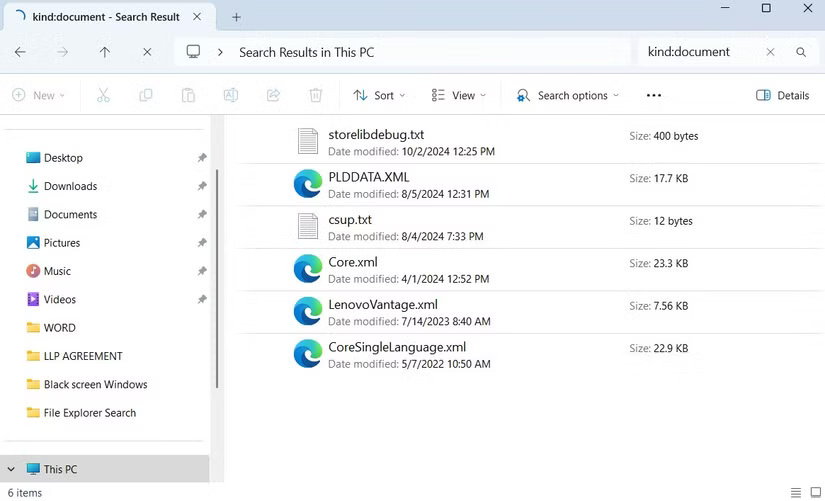
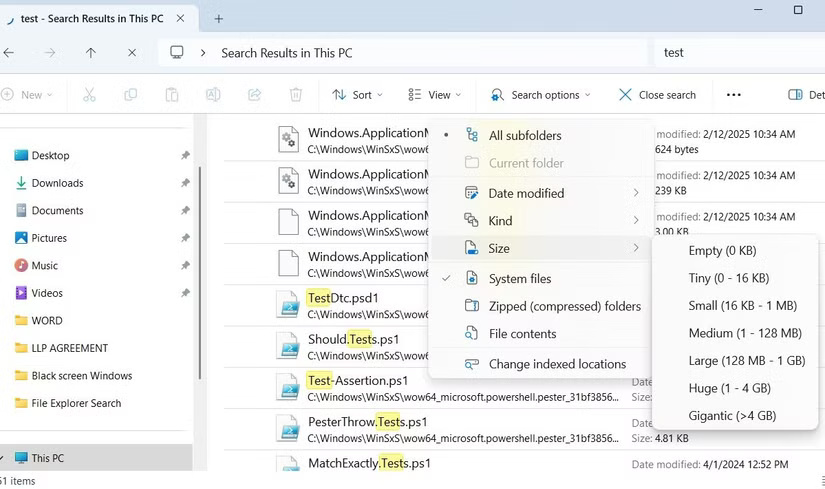
If you're trying to find large files on your PC to free up storage space, you can use the `size: ` filter with parameters like `size:>50MB` to find files larger than 50MB or `size:tiny` to find very small files under 10KB. You can even use these filters together, such as `kind:image ext:.png date:last week` to find all PNG images saved or edited in the past week.
These are just a few examples; there are many search filters that can help you find files quickly on Windows. If you don't want to remember them, you can also click the Search options menu after entering your search query.
4. Use Appropriate Syntax
In addition to filters, you can also use search operators to refine your search. For example, if you want File Explorer to only show results that match an exact phrase, you can put that phrase in quotation marks, such as " project report ".
Similarly, you can exclude certain terms by using a minus sign. For example, `report -2024` will display files that contain `report` in their name while ignoring any files that contain 2024.
Wildcards can also be useful when you're unsure about part of a file name. Using asterisks (*) allows for flexible searching. For example, * audit* will return files that start with "audit" , such as audit1.docx and audit_final.docx. Similarly, if you type *.docx , File Explorer will list all files that end with ".docx" , such as report.docx and report2024.docx.
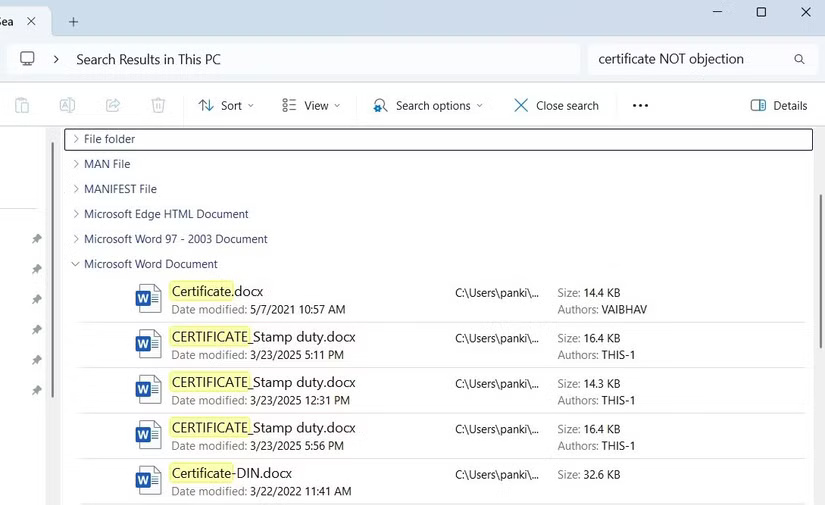
Finally, you can use boolean operators like AND, OR , and NOT to refine your search. AND finds files containing both words, OR locates files containing one of the words, and NOT excludes specific terms. For example, to find files with "certificate" in their name but exclude those containing "objection ," you could type "certificate NOT objection ."
3. Item Group
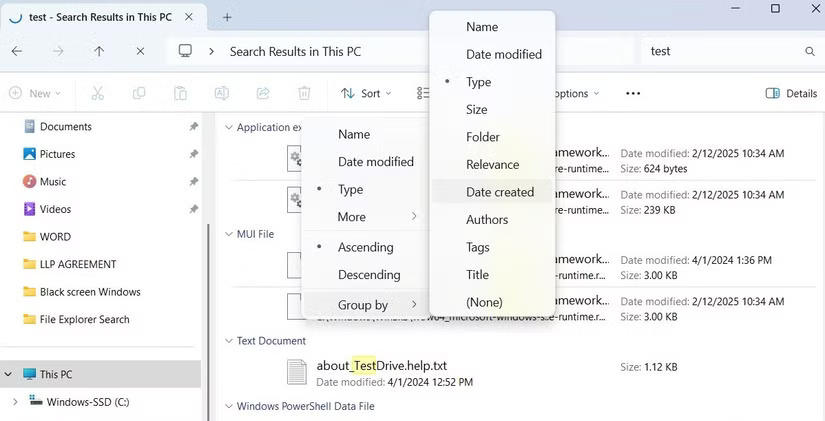
If File Explorer returns a long list of results even after fine-tuning your search, you can sort them using the Group by option in Sort . Grouping search results helps you quickly scan and locate files without sifting through a cluttered list.
This method is useful if you don't want to apply filters or syntax every time you search. For example, if you're looking for recently edited documents, the " Date Modified" group will put the most recent files at the top. Similarly, the " Type" group will separate images, PDFs, and Word documents, making it easier to find what you need.
2. Save Search
If you frequently search for the same file or folder, you don't need to manually enter filters every time. Instead, you can save your File Explorer search to save time and effort.
After performing a search, right-click anywhere in the empty area of the results pane or preview pane and select Save search . Give it a meaningful name, specify where you want it, and click Save .
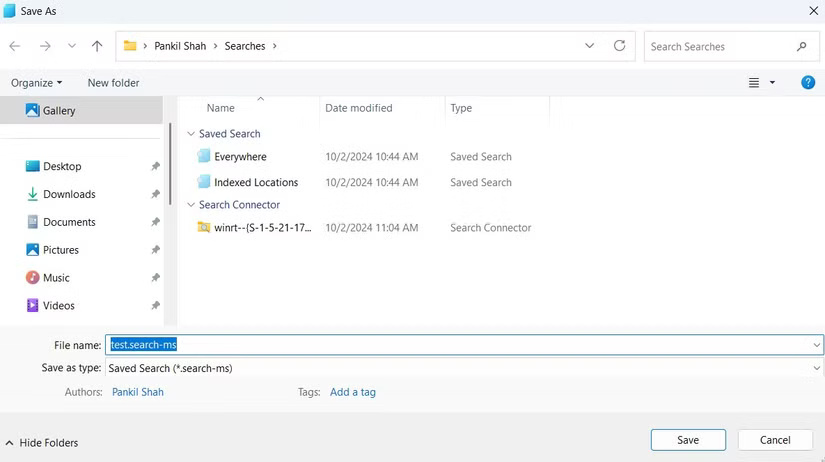
Your saved searches will appear as shortcuts, so the next time you need them, just double-click them. File Explorer will automatically retrieve the most recent results based on your criteria. This way, you don't need to type syntax and filters while performing the same search query multiple times.
1. Using Third-party Tools
Although Windows File Explorer offers useful search features, you can also use third-party tools for more advanced search capabilities.
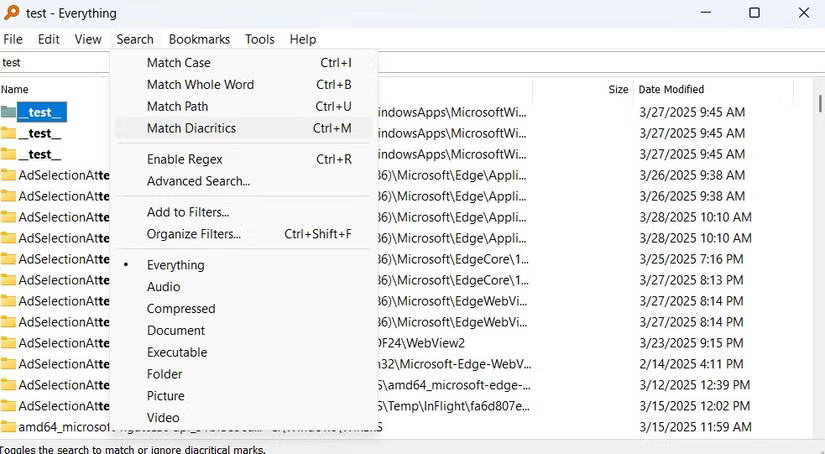
A popular option is Everything. Unlike File Explorer, which scans folders in real time, Everything indexes all files on your PC so it can provide search results almost instantly. It also offers useful search filters, sorting options, and an intuitive interface to enhance your search experience.
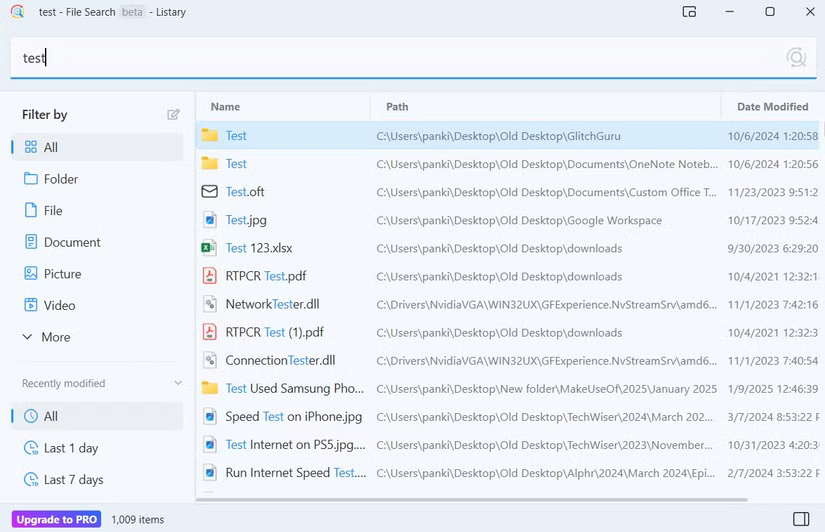
For those willing to invest in a premium tool, Listary is a great option. It offers extremely fast search speeds and a modern interface that integrates seamlessly with Windows 11.
One of its best features is Spotlight Search, just like on a Mac. You simply press Ctrl twice to bring up the search bar and enter your query instantly. Listary also offers a free version, allowing you to try it out before committing.
When you have thousands of files on your PC, simply typing the filename might not always yield the desired results. However, once you get used to the tips above, you'll be able to find almost any file quickly and efficiently.
Give them a try! If you prefer a simpler approach, you can always use specialized search tools for faster results.
FAQ
What is the main point of 5 file explorer search tips you need to know?
Imagine being able to find any file on your computer with just a few keystrokes! File Explorer offers powerful search features that make locating files...
Why is this development important?
Key takeaway: Imagine being able to find any file on your computer with just a few keystrokes!
What are the key takeaways?
File Explorer includes helpful filters that can help you refine your search and locate files more efficiently.
Related Articles
 How to Fix the File Explorer Not Working Search Error on Windows 105 minutes read
 How to Delete Folder and File Search History on File Explorer6 minutes read
 Disable Search History on Windows File Explorer6 minutes read
 Wipe Recent Files Search History on File Explorer Windows 103 minutes read
 Faster Search Tips in Windows 10: What You Need to Know3 minutes read
 How to Fix File Explorer Lag on Windows 11: Step-by-Step Guide8 minutes read
Reader Comments 0
Sign in with email or Google to join the discussion.