Table of Contents
An APK is an Android application package that can be installed outside Google Play. Sideloading is useful when a developer distributes an app directly, an open-source app is hosted in another repository, or a compatible release is unavailable through your device’s store. It also removes some of the safeguards provided by a managed app store.
Use Google Play first when it offers the correct app for your device. If you need an APK, prefer the developer’s official HTTPS website or verified release repository. A third-party catalog should be a fallback, not a way to obtain paid apps for free or bypass regional, licensing, or device restrictions.
Checks to make before installing an APK
- Confirm the app identity: check the developer name, package name, version, and source. Similar icons and names are easy to imitate.
- Choose the correct variant: Android version, CPU architecture, screen density, and package format can affect compatibility. Do not install a random variant merely because it downloads successfully.
- Keep Play Protect enabled: Google states that Play Protect checks apps during installation and periodically scans the device. Review the official Play Protect guidance.
- Review permissions: a simple utility should not demand unrelated access to messages, accessibility controls, device administration, or accounts.
- Do not ignore warnings: if Android or Play Protect blocks the package, investigate the source and signature rather than disabling protection.
- Limit “install unknown apps” access: grant it only to the browser or file manager needed for this installation, then turn it off afterward.
Every installable APK is cryptographically signed. Android uses the signing key to determine whether an update matches the installed app, but a valid signature alone does not prove that the signer is trustworthy. When updating an existing app, an unexpected signature mismatch is a reason to stop.
For a wider view of non-Google catalogs, compare these alternatives to the Google Play Store. If an app uses separate data files, see what OBB files are and how Android apps use them.
Third-party APK sources and their tradeoffs
APKMirror
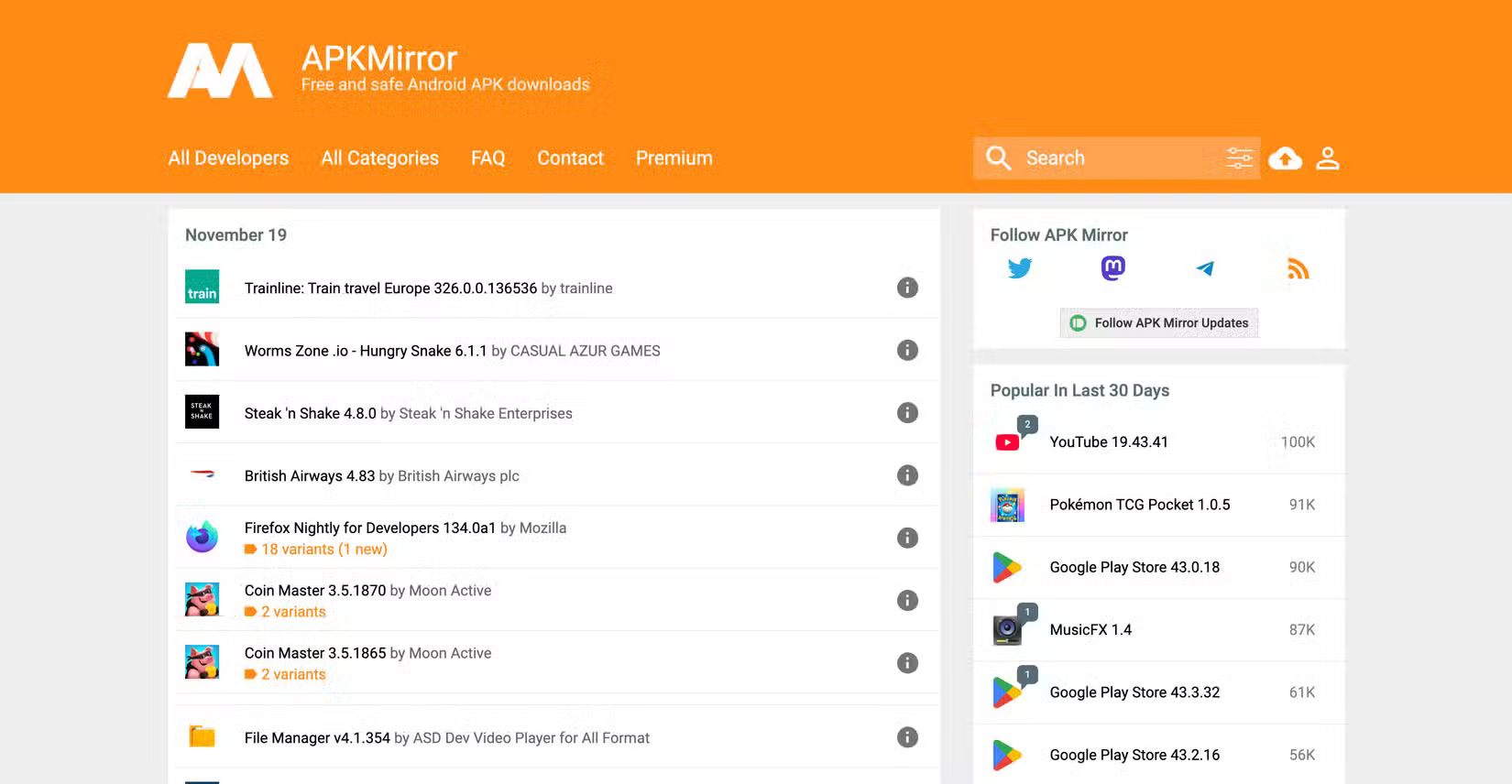
APKMirror focuses on unmodified releases and compares signing information across versions. Its FAQ explains that hosted APKs use official release keys and that a mismatched signature can prevent an update. Even so, confirm the package, developer, version, and device variant yourself.
Some downloads use bundle formats such as APKM rather than a single APK. These may require a compatible installer. Do not rename a bundle in an attempt to make it install.
F-Droid
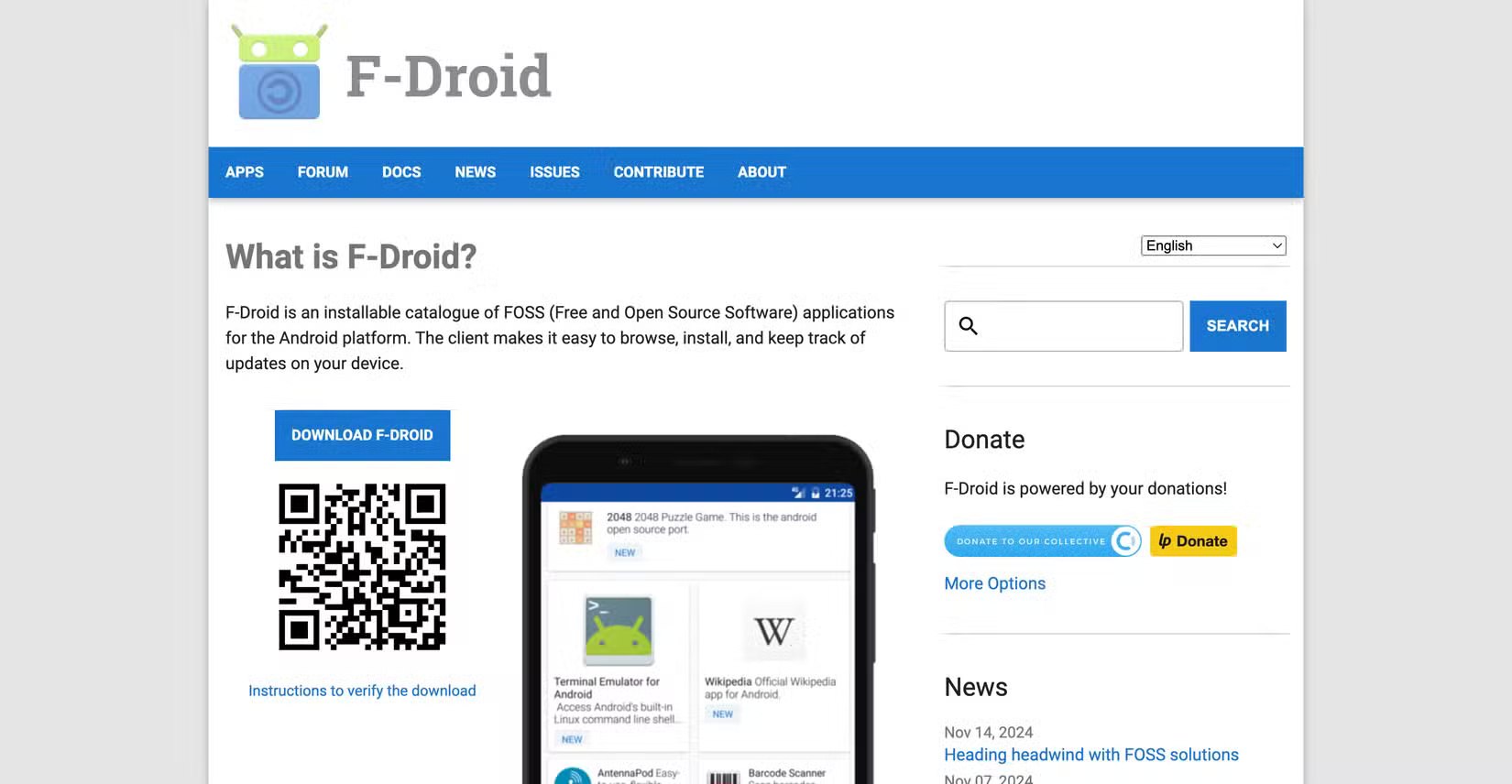
F-Droid specializes in free and open-source Android software. Listings can identify “anti-features” such as advertising, tracking, or reliance on non-free services, which helps users evaluate tradeoffs before installing. F-Droid also documents its repository security model and work on reproducible builds.
The catalog is smaller than Google Play and not every package is built or signed in the same way. Read the individual app page, source link, anti-feature notices, and update information.
APKPure
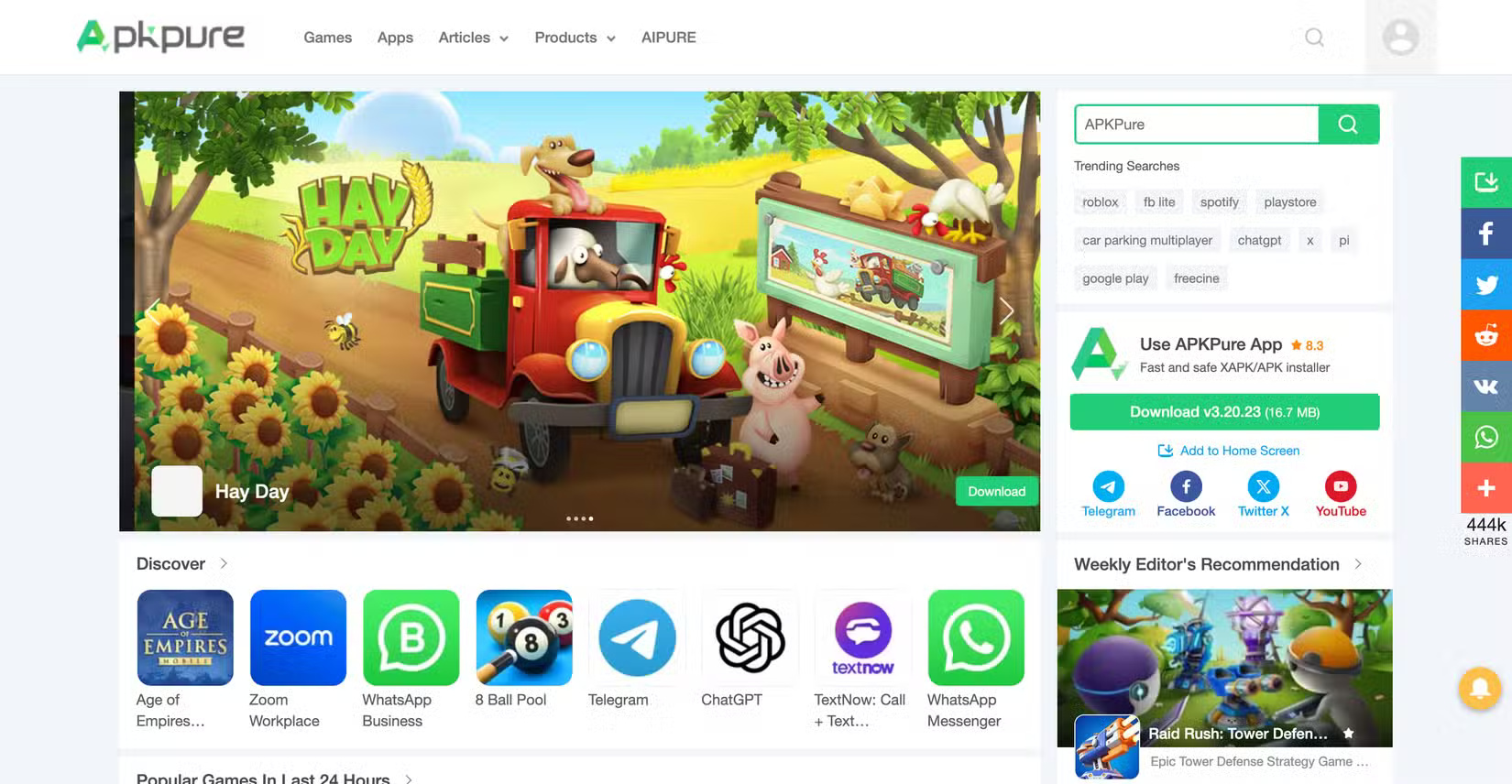
APKPure provides app metadata, previous versions, and multiple package formats. The service describes security and signature checks, but no third-party catalog can make every download risk-free. Verify the publisher and signature, avoid unnecessary installer apps, and do not assume that an older version is safer merely because it once worked.
Uptodown

Uptodown lists Android packages alongside software for other platforms and publishes app descriptions and version history. Treat its scanning and signature information as one signal. Cross-check the release with the developer’s own page and be careful with prompts to install a separate store or updater.
Aptoide
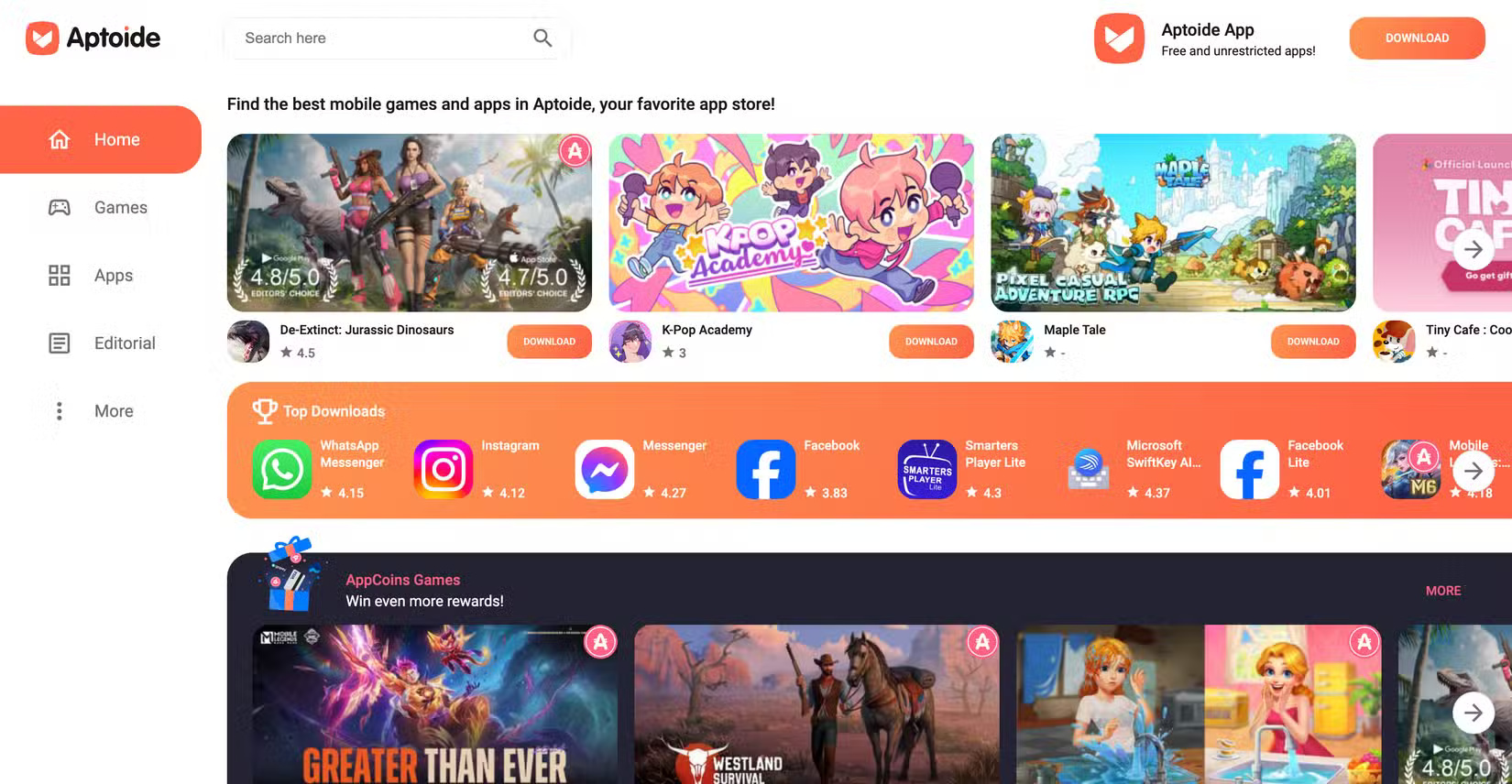
Aptoide operates as a marketplace with stores managed by different publishers. That model creates more variation in provenance than a single curated repository. Check who published the package, whether the listing carries a meaningful trust indicator, and whether the signing identity matches the official app. Avoid modified, unlocked, or “premium free” packages.
After downloading
- Scan the package with Play Protect and any security controls required by your organization.
- Open the installation prompt and review the app name and requested permissions.
- Install only if the source, package identity, signature behavior, and permissions are consistent.
- Disable the source app’s permission to install unknown apps when finished.
- After launch, review runtime permission requests and deny access the app does not need.
- Uninstall the app if it behaves unexpectedly, displays unexplained overlays, requests accessibility control without a clear reason, or cannot be updated from a trustworthy source.
Sideloading can be legitimate, but “downloaded successfully” is not a security check. The safest practical choice is the official store or the developer’s own authenticated distribution channel, followed by careful verification when a third-party source is genuinely necessary.
Related Articles
 The Safest Seat When Traveling by Car, Train, Plane5 minutes read
 How to Download Music to USB Is Simple and Fastest3 minutes read
 How to Set the Safest PC Protection on Windows 103 minutes read
 How to Download Videos on YouTube Fastest in 20204 minutes read
 How to Download the Entire Playlist Video on YouTube to the3 minutes read
 How to Download Pho Anh Hai iOS, Android: Step-by-Step Guide5 minutes read
Reader Comments 0
Sign in with email or Google to join the discussion.