Table of Contents
No scanner can prove that an APK is safe. Before sideloading an Android app, verify its source and signing identity, scan the file, review its permissions, and keep Google Play Protect enabled. A clean result lowers risk but does not rule out new, hidden, or behavior-triggered malware.
Before scanning: verify the APK source
- Prefer Google Play or the developer’s official site. Avoid links from ads, chat messages, shortened URLs, and “mod” repositories.
- Confirm the exact package name, version, file size, and published checksum if the developer provides one.
- For an update, make sure Android accepts it as an update to the installed package. A different signing certificate indicates a different publisher and normally cannot replace the original app without uninstalling it.
- Do not install an app that asks you to disable Play Protect, grant Accessibility access without a clear need, or install additional unknown apps.
An APK can be renamed easily, so the filename and icon are weak evidence. A split app may also arrive as APKM, XAPK, or several APK files; those packages require a compatible installer and should be verified at the same level as a single APK.
Scan with Google Play Protect
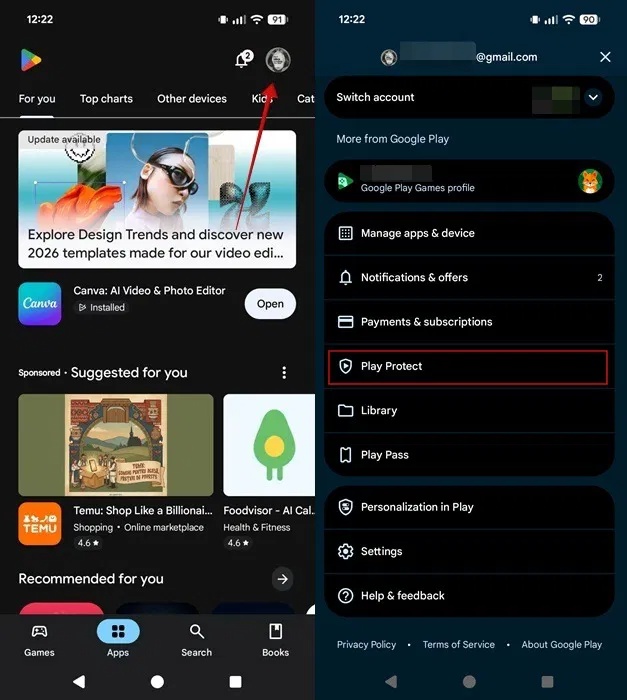
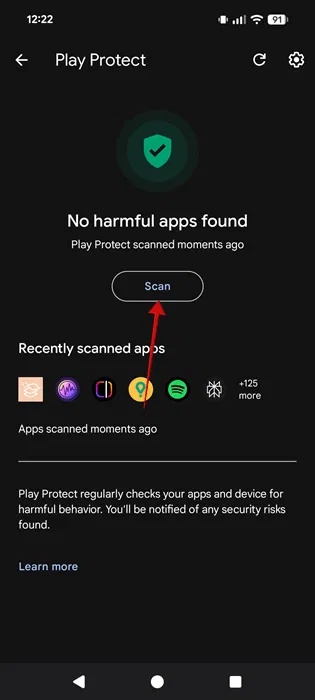
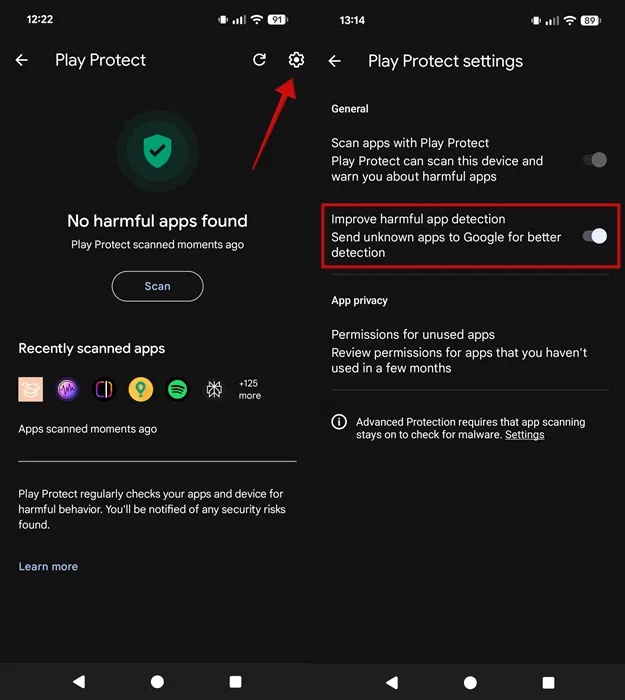
Play Protect checks apps from Google Play and can analyze apps installed from other sources. In the Play Store, tap the profile icon, select Play Protect, and tap Scan. Open the gear icon and keep Scan apps with Play Protect enabled. The optional harmful-app detection setting may send unknown apps to Google for analysis.
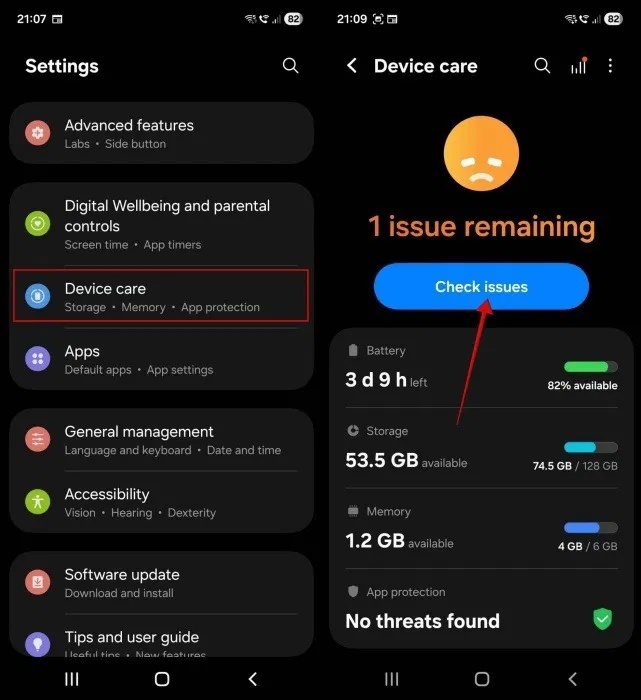
Some phones also expose Play Protect under Settings > Security and privacy > App security. Manufacturer menus differ. Samsung devices may offer an additional app-protection scan under Device care, but that is a supplement rather than a reason to turn off Play Protect.
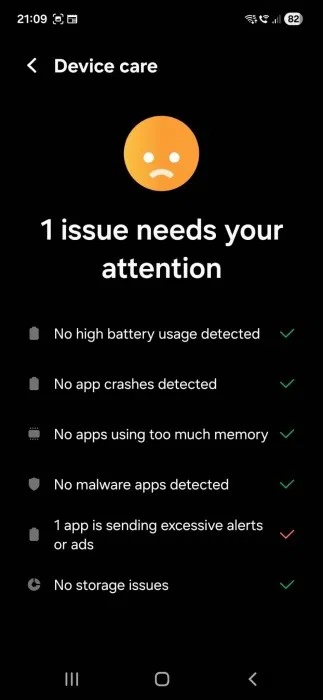
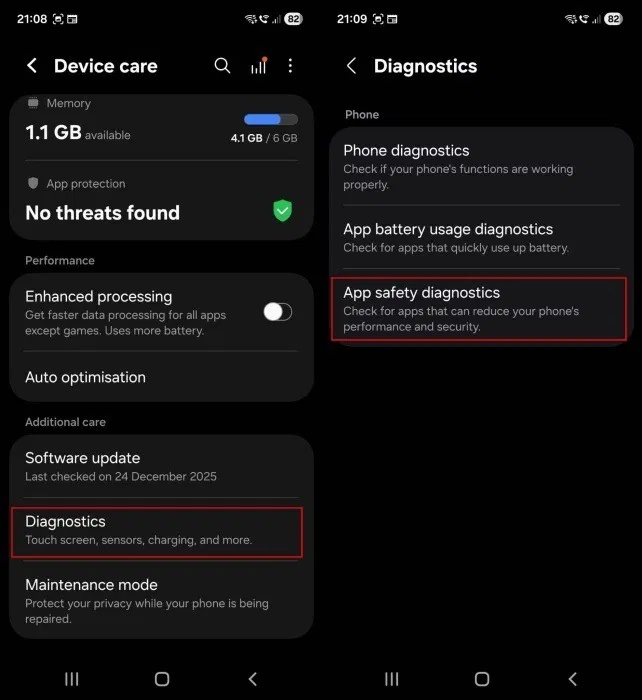
Google documents the current controls in Play Protect Help.
Check an APK with VirusTotal
On VirusTotal, choose File, upload the APK, and wait for the analysis. If the developer publishes a SHA-256 hash, searching that hash may retrieve an existing report without another upload.
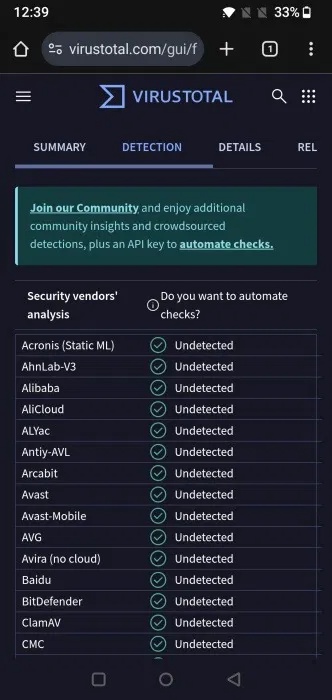
Interpret the result carefully:
- One generic detection can be a false positive, but it still deserves investigation.
- Multiple specific detections, suspicious behavior, an unexpected signer, or contact with known malicious infrastructure are strong reasons not to install.
- Zero detections does not guarantee safety; a new or targeted sample may not be recognized.
- Do not upload private, proprietary, or unreleased APKs unless the organization’s policy allows it. Samples submitted to public malware-analysis services may be shared with security researchers and partners.
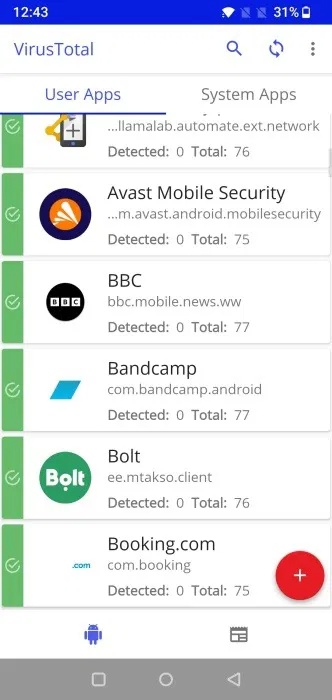
A mobile client can show reports for installed packages, but use the official VirusTotal website and verify the app publisher before installing any companion app.
About single-engine web scanners
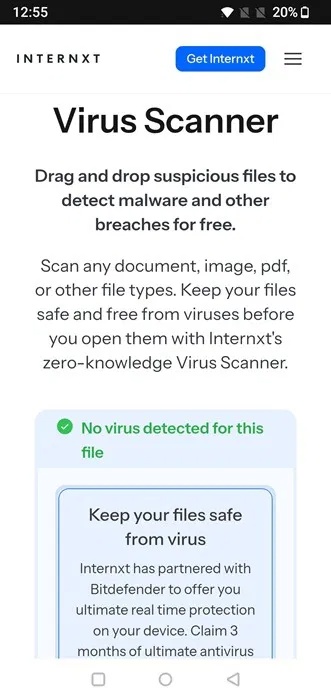
A second web service may be convenient for a large file, but “clean” from one engine is less informative than corroborating source, signature, permissions, and behavior. The following screenshot shows the previously documented Internxt scanner; limits and underlying engines can change, so check the service’s current privacy terms before uploading.
Review permissions before and after installation
Android shows requested access during use, not necessarily every capability at install time. Ask whether each request fits the app’s purpose. A simple PDF viewer should not normally need SMS, call-log, Accessibility, device-admin, notification-reading, or “install unknown apps” access.
After installation, open Settings > Apps > [app] > Permissions and remove anything unnecessary. Also check Special app access for Accessibility, device admin, display over other apps, notification access, VPN, and unknown-app installation. Menu names vary by manufacturer.
Install with the smallest possible risk
- Update Android and Play system components.
- Back up important data.
- Temporarily allow unknown-app installation only for the specific browser or file manager you are using.
- Open the verified APK and read every warning.
- After installation, revoke that installer’s Install unknown apps permission.
- Run Play Protect again and watch for unusual battery, data, accessibility, notification, or administrator activity.
If Play Protect blocks the file, do not bypass the warning merely because a download page says it is a false positive. Obtain a fresh copy from the developer and ask the developer to resolve the detection.
If you already installed a suspicious APK
Disconnect the device if theft appears active, remove sensitive account sessions from a separate trusted device, and change important passwords there. Revoke suspicious Accessibility or device-admin privileges before uninstalling the app. Run Play Protect, install system updates, and consider a factory reset if persistent compromise is suspected. Restore only known-good data—not the same APK.
For general background, see TipsMake’s guide to online malware scanning services. Treat scanning as one layer of verification, not a certificate of safety.
Related Articles
 How to Scan Virus Files Zip, Rar with Zipezip3 minutes read
 Why Can't Google Drive Scan This File for Viruses? How to Fix Explained7 minutes read
 Check the Safety of Files from Windows 10 Desktop Easily with4 minutes read
 How to Use PowerShell to Scan for Viruses on Windows4 minutes read
 How to Check If a URL Is Safe?5 minutes read
 Instructions for Scanning APK Files for Viruses to Ensure Safety Before6 minutes read
Reader Comments 0
Sign in with email or Google to join the discussion.