Table of Contents
Install the Steam desktop client only from Valve's official Steam website. After setup, sign in, secure the account, and install games from your Library. Each game has its own operating-system, storage, memory, and graphics requirements, so check the store page before downloading it.

Download Steam safely
- Open the official Steam download page.
- Select Install Steam for your operating system.
- On Windows, confirm that the file is named
SteamSetup.exeand was downloaded from a Valve/Steam domain. Avoid third-party download portals and modified installers.
Install Steam on Windows
Open the Downloads folder and double-click
SteamSetup.exe. Approve the Windows security prompt only after verifying the publisher information.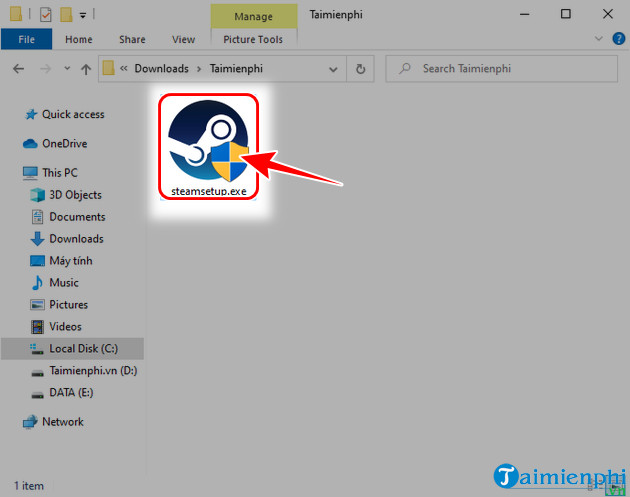
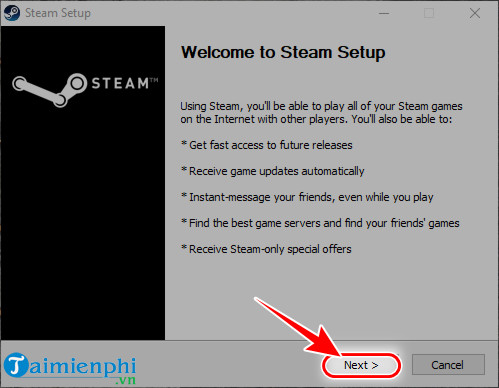
On the setup welcome screen, select Next.
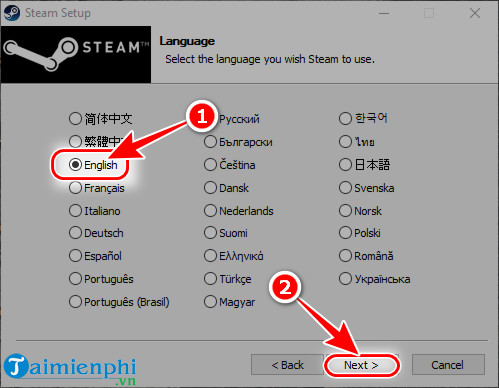
Choose an available interface language and continue. You can change the language later in Steam settings.
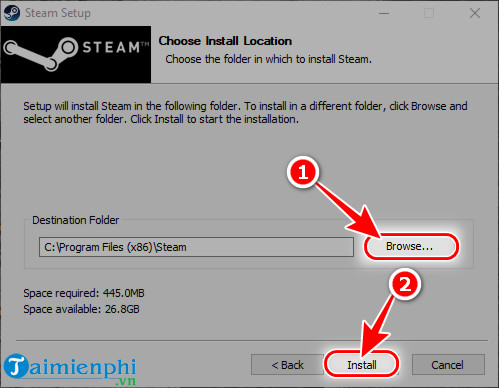
Select the client installation folder and choose Install. This folder is for Steam itself; large game libraries can be placed on another drive later.
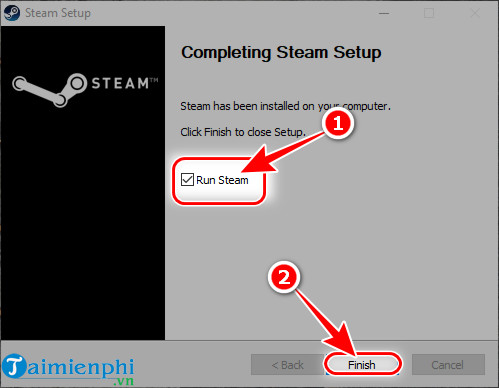
Leave Run Steam selected and choose Finish.
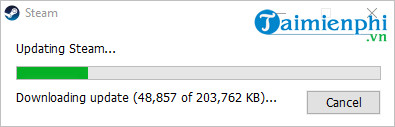
Steam downloads current client components. Let the update finish without closing the installer or disconnecting the network.
A fixed storage estimate for the Steam client quickly becomes outdated. Keep enough free space for the client, its updates, download cache, and the games you plan to install.
Sign in or create an account
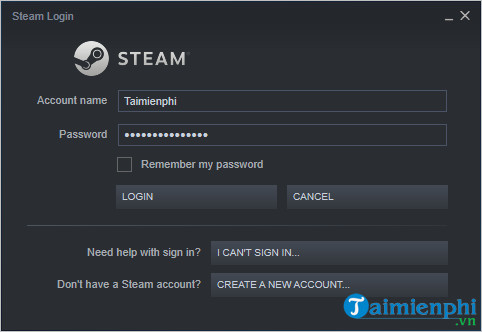
Enter your Steam account name and password, then complete any Steam Guard verification requested. If you are new to Steam, choose the account-creation option or follow the guide to create a Steam account.
- Use a unique password that you do not reuse on email or other gaming services.
- Protect the email account linked to Steam with its own strong password and multi-factor authentication.
- Enable Steam Guard and keep recovery information current.
- Never enter credentials into a link sent by an unknown trader, chat contact, or giveaway page.
Install a game from Steam
- Open the Store, find a game, and read its supported platforms and system requirements.
- Purchase the game or select the install/play option for a free title.
- Open Library, select the game, and choose Install.
- Choose a library drive with enough free space, review shortcut options, and confirm.
- Wait for the download and installation to complete, then select Play.
To create or move a library on another drive, open Steam > Settings > Storage. The exact labels can change with client updates.
Change Steam's interface language
Open Steam > Settings > Interface, choose a supported language, and restart the client when prompted. Vietnamese is available in supported current clients; see the illustrated steps for switching Steam to Vietnamese.
If Steam will not install or open
- Restart Windows and run the official installer again.
- Check that the system date, time, and network connection are correct.
- Make sure security software has not quarantined the verified Steam files.
- Install pending Windows updates and confirm there is free storage.
- Do not use random DNS, proxy, or “unblock” scripts merely because an old article suggests them. First check the Steam service status and local network.
If Windows reports a missing or failed steamui.dll after an update, use the targeted Steam UI troubleshooting guide. Avoid downloading individual DLL files from third-party sites.
Related Articles
 How to Download and Install Steam to Play Copyrighted Games4 minutes read
 How to Use Steam Play to Play Windows Games on Linux6 minutes read
 How to Limit the Download Speed of Steam5 minutes read
 How to Install Origin on Your Computer to Download Games Quickly4 minutes read
 Free Kholat Horror Game for $ 14.99 Is Free4 minutes read
 How to Install and Registering a Steam Account on Your Computer5 minutes read
Reader Comments 0
Sign in with email or Google to join the discussion.