Table of Contents
This updated guide examines Erase Shadow from Photo: How to Delete Shadows from Photos and organizes the essential facts, background, and practical takeaways in clear American English.
- How to delete text on photos in Photoshop
- How to delete objects in photos using the Snapseed application
- How to delete any details in an image with GIMP
How to remove shadows from photos with Adobe Photoshop
Shadows often appear when shooting in contrast conditions, especially under sunlight. Because it is difficult to retrieve details from overexposed areas, it's best to leave the images in the brightest parts such as the sky.

Fortunately, the way to delete it is easy with Photoshop.
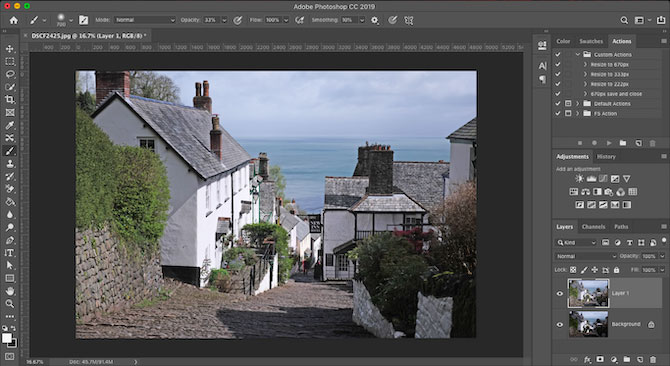
First, pressCtrl+Jon Windows orCmd+Jon Mac to make a copy of the image on the new layer. This will allow you to discard the changes as needed by simply deleting this class.

Go to Image> Adjustment> Shadows / Highlights . You should see the default settings do a pretty good job. If not, click Show More Options to adjust it.

First, in Shadows , adjust the Amount slider. Move it to the right to make it shiny and move to the left to darken it.
Move the Tone bar to the left to reduce the shadow range and move to the right to increase the range. For example, setting it to 10 to see only the darkest part of the image, while leaving it at 90 to see some of the mid tones toned.
When you're satisfied with the changes, click Ok to save your changes.
How to delete shadows from photos without using Photoshop
You do not need expensive software to remove shadows from the image. Free photo editing apps like GIMP can do that. Go to Colors> Shadows-Highlights and drag the Shadows bar to the left or right to make changes.

Google Photos usually automatically corrects the contrast in photos. If not, you can do it manually by going to Edit> Basic adjustments> Light , then using the Shadows slider.
In Apple Photos, you can make similar adjustments using Edit> Light> Options> Shadows .
In fact, most basic photo editing applications can do this simple correction as long as the Shadows slider.
For shadows that are harder to erase, you need Photoshop, GIMP, or other photo editing software.
How to remove shadows on the face
The shadow on a person's face or on the wall behind an object is harder to erase. This can be a problem when shooting in bright light conditions such as the sun or with the flash facing forward.
It is difficult to completely remove these balls, but you can reduce them to the least noticeable.

We will erase the shadow with the Mask tool to make some selective shadow adjustments.
Upload photos to Photoshop. In the Adjustments box, click Levels to create a new adjustment layer on the image.

Click on the middle tab below the Levels chart and drag it to the left until the shadow reaches your desired brightness level. Don't worry if the other parts of the photo are too bright, this is only temporary.
Now, select the Levels layer, click on the Mask button. Reverse the mask by pressingCtrl+Ion Windows orCmd+Ion the Mac. Your photo will be back to the original dark level.
Select the Brush tool and set the color to white. In the Options bar at the top, set the Hardness for the brush to a low level of about 5 to 10%. Alternatively, set the Opacity to about 30 to 50 percent. Experiment with different brush sizes.
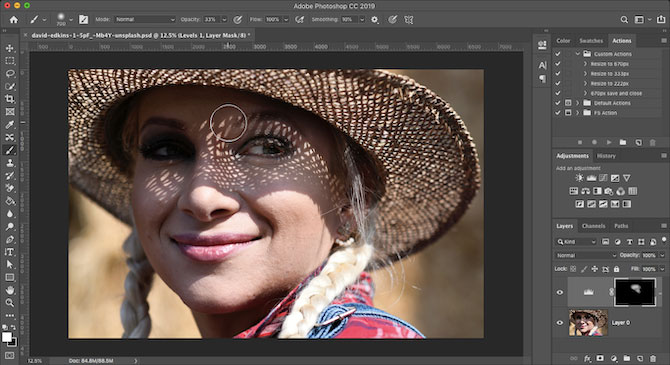
Now start using the brush for the shadowed area in the image. When brushing to where, shiny light up there. Where you did not edit it will remain the same.
Because we put the opacity quite low, the effect is very subtle. Use the brush for the same area multiple times to create the effect.
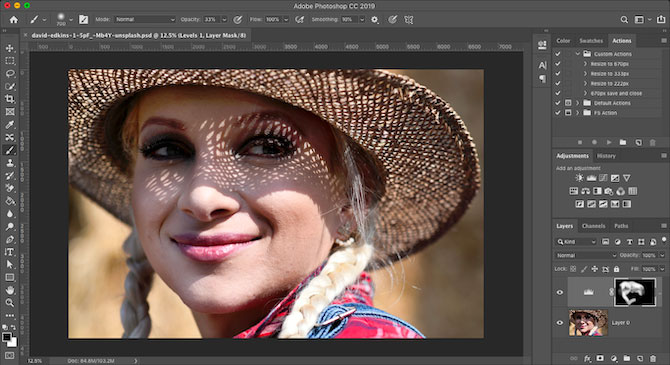
If you accidentally lighten the areas you want to darken, change the brush to white and paint over those areas again.
How to avoid unwanted balls
Instead of trying to fix unwanted shadows in your photos, it's best to avoid them when taking photos.
That is not easy because you often have no control over the light at the time of shooting, but there are a few things you can try:
- When taking photos on the phone, turn on Auto HDR mode to reduce contrast and shadows.
- Some other mirrorless and specialized cameras have HDR mode. If not, try the Exposure Bracketing option. This mode captures three separate photo steps at different exposures so you can choose the best photo (or merge them all in Photoshop).
- If possible, use an off-body flash to control the direction of the light. The flash attached to the camera creates shadows and glare on the subject.
- When using the front flash, keep a blank sheet of paper below or the side to cast light out of the ceiling or wall, creating a more attractive effect. Also, leave the white paper in front of the flash to diffuse it and make the light softer.
- When photographing your face in harsh sunlight, keep a white card or white paper inclined toward the face to reflect the light and soften the shadow.
I wish you successful implementation!
FAQ
What is Erase Shadow from Photo: How to Delete Shadows from Photos about?
It provides a structured overview of erase shadow from photo, explains the main context, and highlights practical takeaways for readers.
Why does this topic matter?
Understanding the main concepts helps readers evaluate the issue, avoid common mistakes, and make better-informed decisions.
How should readers use this information?
Use the guidance as a practical starting point, confirm details that may have changed, and follow current product, safety, or security recommendations.
Related Articles
 Shadow in Photography: Balls in Photography8 minutes read
 Configuring Seriko Shadows Die Twice on Computer, Laptop4 minutes read
 How to Delete Multiple Photos Saved on iPhone for a While7 minutes read
 Take Shading Photos: Use Shading and Contrast in Photography5 minutes read
 How to Delete Selfies and Photos Tagged on Facebook?2 minutes read
 How to Create Shadows in AI3 minutes read
Reader Comments 0
Sign in with email or Google to join the discussion.