Table of Contents
The correct way to update iTunes depends on where it was installed. A Microsoft Store copy is updated through the Store; an older copy downloaded directly from Apple can use Help > Check for Updates or Apple Software Update. Avoid third-party download sites and obsolete version links.
Download iTunes safely
For a current Windows PC, start with Apple's Windows app download page. Apple now separates many former iTunes functions among Apple Music, Apple TV, and Apple Devices, while iTunes remains available for podcasts and audiobooks and for some legacy configurations.
- Open the Microsoft Store and search for iTunes, or follow the Microsoft Store link from Apple's page.
- Confirm that Apple is listed as the publisher.
- Select Install, then open the app after installation.
Apple also lists standalone iTunes installers for older supported situations. Choose those only when you have a compatibility reason; do not install the obsolete 12.6.2 packages mentioned in the original guide.
Update a Microsoft Store installation
- Open Microsoft Store.
- Select Library, then choose Get updates or Check for updates.
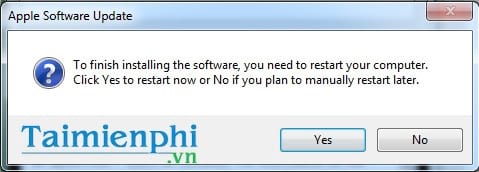
- Install the iTunes update if it appears. Restart Windows if the installer requests it.
Store apps normally update automatically. Apple's current Windows software update instructions cover iTunes and the newer Apple apps.
Update an iTunes copy downloaded from Apple
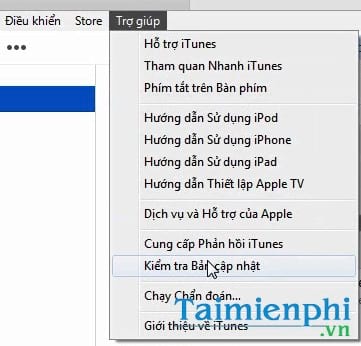
- Open iTunes and choose Help > Check for Updates.
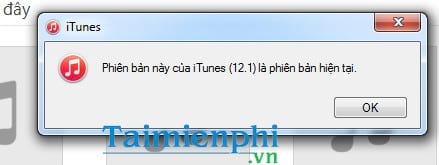
If iTunes reports that the installed version is current, no action is required.
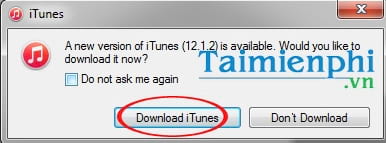
If an update is available, follow the download prompt.
A directly downloaded installation may open Apple Software Update. Select iTunes and any required Apple components, then install the updates.
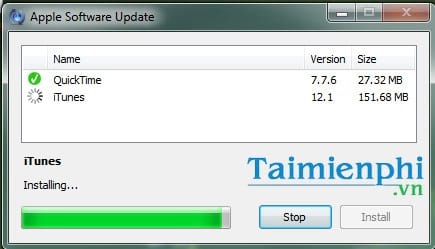
Restart the computer if requested. Do not disconnect an iPhone or iPad while its software, backup, or sync operation is in progress.
Check the installed iTunes version
Open iTunes and choose Help > About iTunes. The version number appears in the information window. Compare it with the version offered by your installation source, rather than a number from an old tutorial.
Change the display language
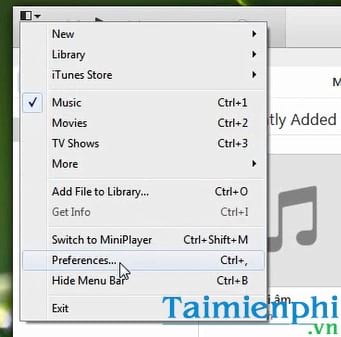
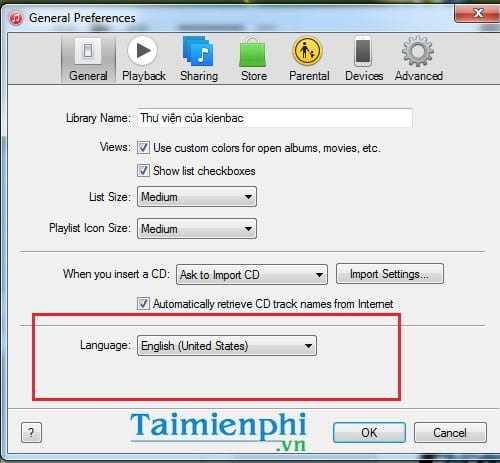
For the classic Windows edition, choose Edit > Preferences, open General, select the preferred language, and restart iTunes if necessary.
If iTunes will not update
- Install pending Windows updates, restart the PC, and try again.
- Make sure the signed-in Windows account can install applications.
- For a Store copy, use Microsoft Store's update and repair options instead of running a standalone installer over it.
- For a directly downloaded copy, update Apple Software Update and other required Apple components.
- If installation remains damaged, back up the library, uninstall the affected Apple components in the supported order, and reinstall from Apple or Microsoft.
After the update, see how to use iTunes. If the application opens but a connected device does not appear, work through the connection checks in how to add a device to iTunes.
Related Articles
 How to Update Itunes to the Latest Version6 minutes read
 How to Update Software in Your iPhone Device9 minutes read
 Instructions for Upgrading iOS 11 for iPhone, Ipod Touch and iPad6 minutes read
 How to Manually Update Itunes3 minutes read
 How to Update Your iPhone to the Latest iOS Version5 minutes read
 How to Download Itunes4 minutes read
Reader Comments 0
Sign in with email or Google to join the discussion.