Table of Contents
Grok Tasks can run a saved prompt on a schedule and deliver the result without requiring you to retype the request. It is useful for recurring summaries, reminders, and monitoring prompts, but it should not be used as an unsupervised system for purchases, account changes, or other consequential actions.
The feature, its limits, and model options may vary by account and platform. If Tasks is not shown in your Grok menu, update the app or check the web version and current plan details.
Create a scheduled task
- Open Grok and select your profile or main menu.
- Choose Tasks.
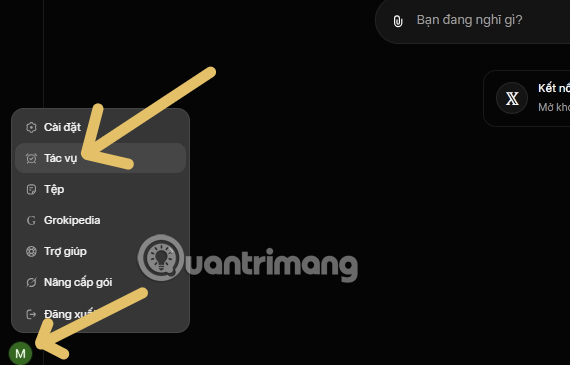
- Select Create Task.
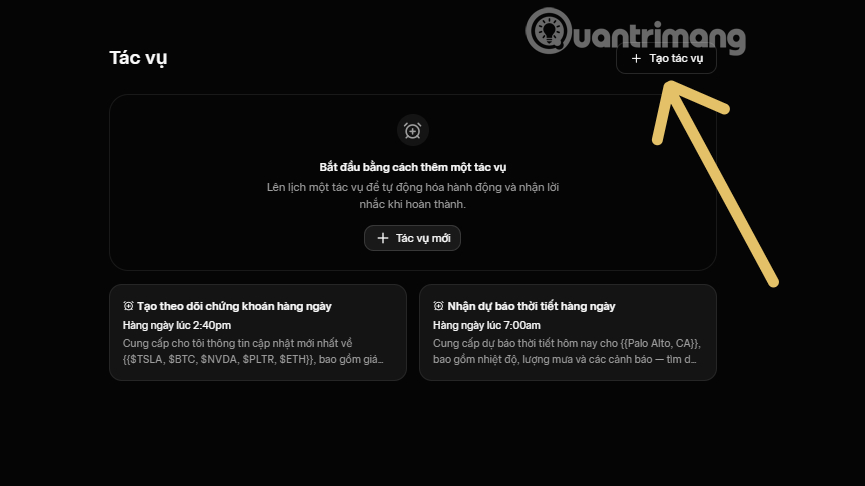
- Choose the date, time, time zone, and recurrence. Check whether the task should run daily, weekly, monthly, or only once.
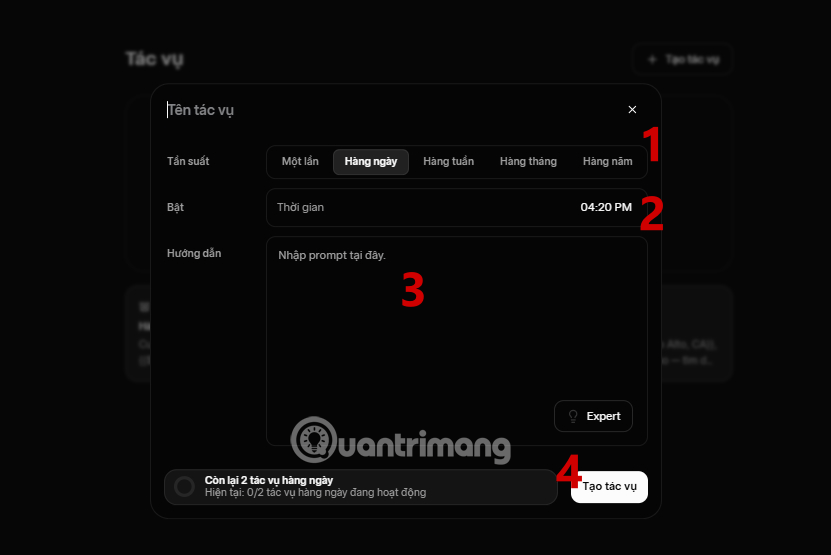
- Write the prompt and select any available model or reasoning option appropriate to the task.
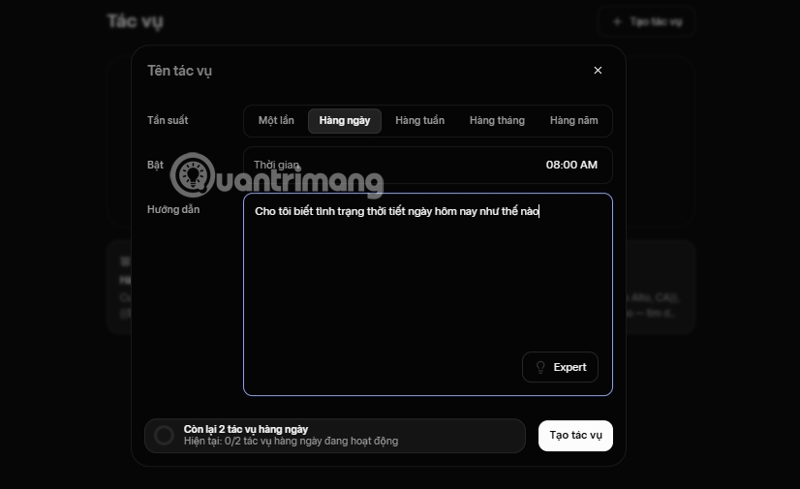
- Review the schedule and prompt, then select Create Task.
Write a prompt that will still make sense later
A scheduled prompt runs without the context you would normally add in the moment. Define the time window, sources, audience, format, and behavior when no relevant information is found.
Every weekday at 8:00 a.m. Asia/Ho_Chi_Minh:
Find technology announcements published in the previous 24 hours.
Prioritize primary company or regulator sources.
Return at most five items in a table with:
- event
- publication time
- direct source URL
- confirmed facts
- why it may matter to a Vietnamese software team
If nothing meets the criteria, say so. Do not fill the list with older items.
Do not ask the model to reveal private chain-of-thought. Request concise evidence, source links, assumptions, and a clear explanation that can be checked.
Test the first run
Run the task manually when that option is available. Open every cited link and confirm that the date, claim, and source type match the prompt. Check how the task handles an empty result and duplicated stories.
One successful run is not enough for a changing web query. Review several runs before depending on the output.
Edit, pause, or remove a task
Return to the Tasks list to inspect scheduled items. Use the edit control to change the prompt or timing, and pause a task that is no longer needed or is producing unreliable results.
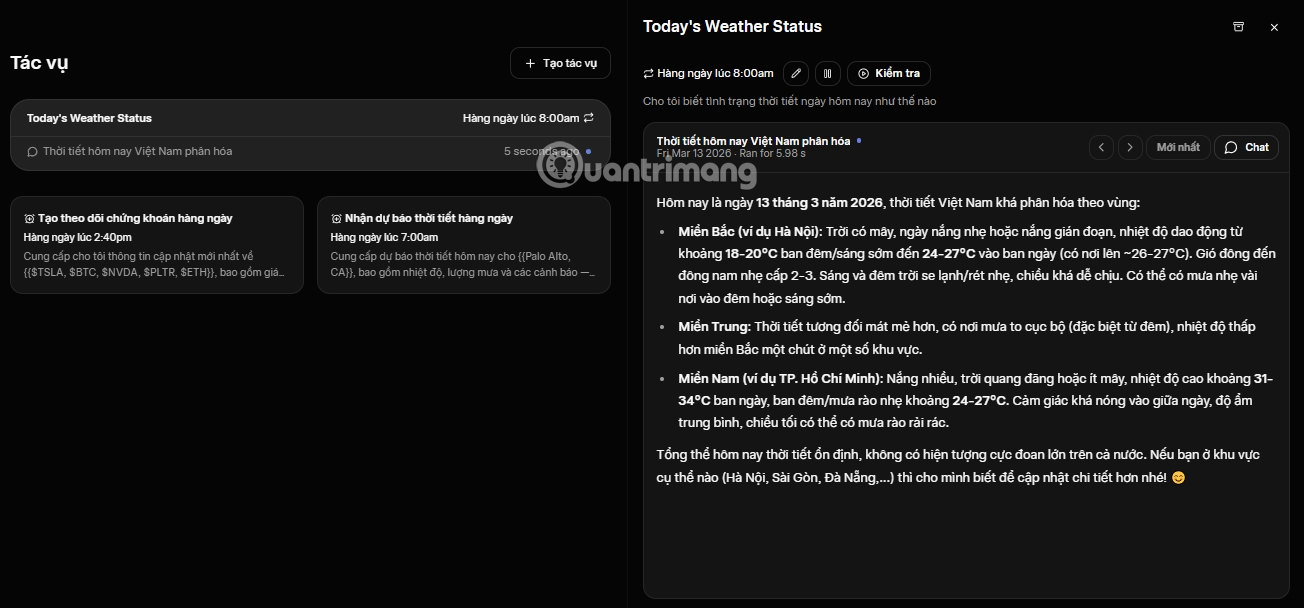
Delete obsolete tasks so they do not continue generating notifications or consuming plan limits. After daylight-saving changes or travel, verify that the displayed time zone is still correct.
Good uses for Grok Tasks
- a daily briefing with direct source links;
- a weekly reminder to prepare a recurring report;
- monitoring a public page for a clearly defined change;
- generating a recurring set of brainstorming prompts;
- summarizing updates from a known list of sources.
Tasks that need stronger safeguards
Do not rely on a scheduled chatbot alone to send messages, trade assets, buy products, change permissions, publish content, or act on health, legal, or security information. Use a workflow with explicit confirmation, access limits, logs, and a deterministic system for any action.
If you connect Grok Tasks to an external automation platform, treat that integration as a software system. Protect credentials, restrict scopes, validate generated data, handle retries without duplicate actions, and test failure behavior before enabling a recurring schedule.
Related Articles
 Experience the Hilarious Grok AI Chatbot on X3 minutes read
 How to Write Basic Code with Grok: Step-by-Step Guide11 minutes read
 How to Create Videos on Grok AI7 minutes read
 Creating Videos from Photos Using Grok9 minutes read
 How to Prevent Grok from Collecting Personal Data to Create AI Images4 minutes read
 Negative Prompt AI Techniques5 minutes read
Reader Comments 0
Sign in with email or Google to join the discussion.