Table of Contents
Grok Imagine can create short videos from a text description or animate a still image. The most reliable workflow is to define one clear shot, specify the subject and camera movement, generate a draft, and refine only the elements that are wrong. Available duration, resolution, audio and account options can change, so use the controls shown in your current Grok interface.
xAI's current Imagine documentation describes text-to-video, image-to-video and video editing capabilities. The API and consumer Grok app do not always expose identical settings.
Create a video from a text prompt
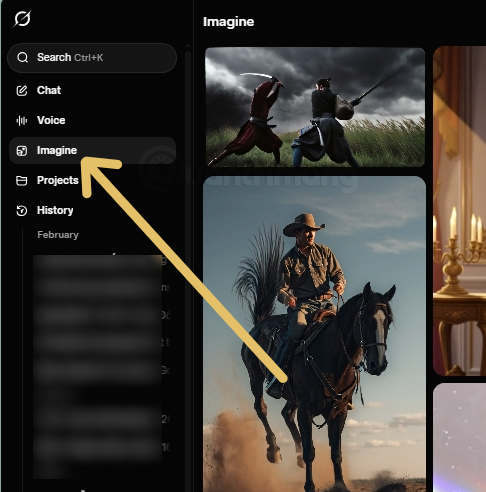
1. Open Imagine and choose video
Open Grok, select Imagine, and choose the video-generation option. If the interface starts in image mode, switch to Create video.
2. Set the output format
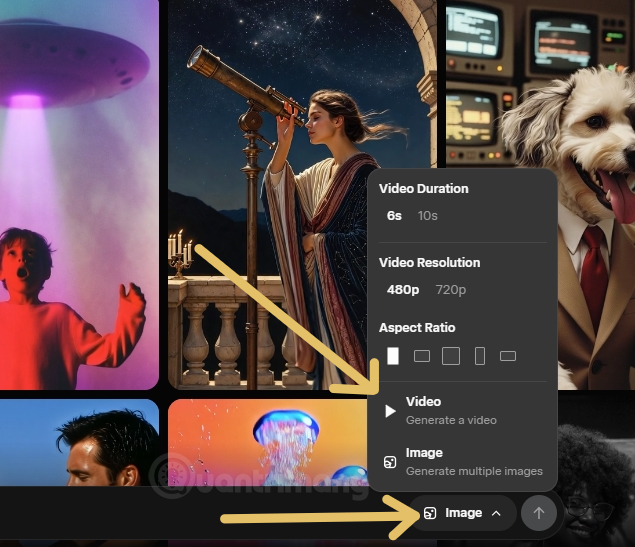
Choose the duration, resolution and aspect ratio offered by your account. Match the ratio to the destination before generation: 16:9 for a landscape player, 9:16 for vertical mobile content, or 1:1 for a square post. Higher resolution or longer duration may use more credits or require a different plan.
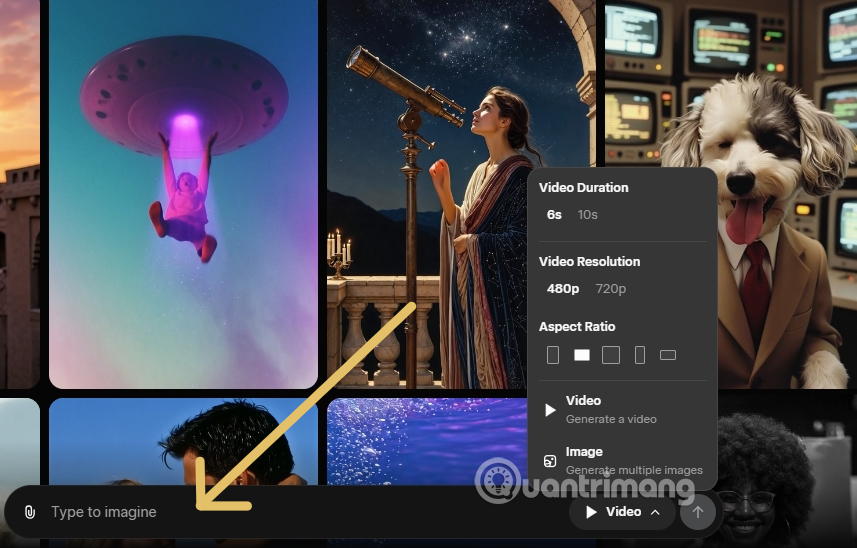
3. Describe one shot precisely
Write the prompt in a practical order:
- Subject: who or what is visible.
- Action: one main movement during the shot.
- Setting: location, time and relevant background.
- Camera: static, pan, tracking shot, push-in or another clear move.
- Look: lighting, color and visual style.
- Audio: ambient sound, effects or silence, if supported.
A red tram moves slowly through a rainy old-city street at dusk. Low tracking shot beside the tram, wet pavement reflecting warm shop lights, realistic motion, gentle rainfall and distant traffic ambience. No text or logos.Use motion verbs such as walks, turns, drifts or pushes in. Avoid several simultaneous actions or conflicting camera directions in a short clip.
4. Generate and review the whole clip
Start generation and watch the result from beginning to end. Check subject identity, hands and faces, object continuity, camera motion, text, logos, shadows and audio synchronization. Do not publish a clip based only on its first frame.
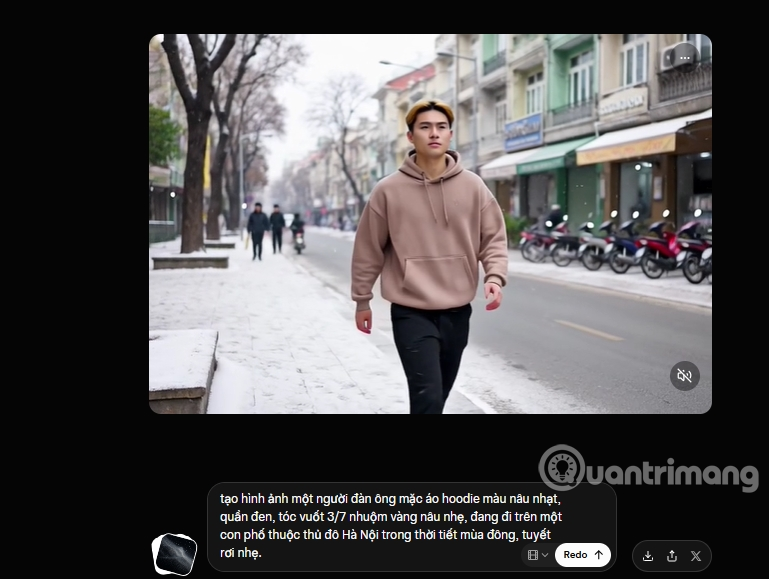
Animate an image created in Grok
Starting from a selected image gives you more control over the first frame than pure text-to-video.
1. Generate and select the still image
Choose image generation, describe the composition, and create several versions. Select the image with the correct subject, framing and background before adding motion.
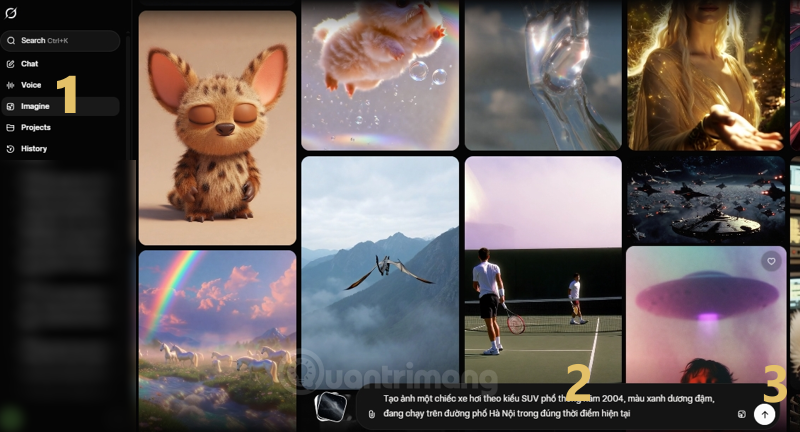
2. Open the image-to-video control
Select the chosen image and use the video or animation control. The initial image anchors the opening frame, but later frames can still drift or introduce artifacts.
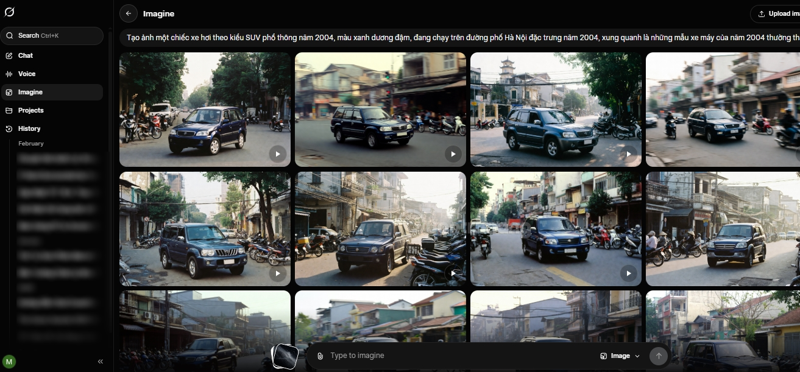
3. Add a motion prompt
Describe what should move and what should remain stable. For example: The car moves forward at a steady speed; the camera tracks beside it; buildings remain stable; subtle engine and street ambience; no new vehicles enter the frame.
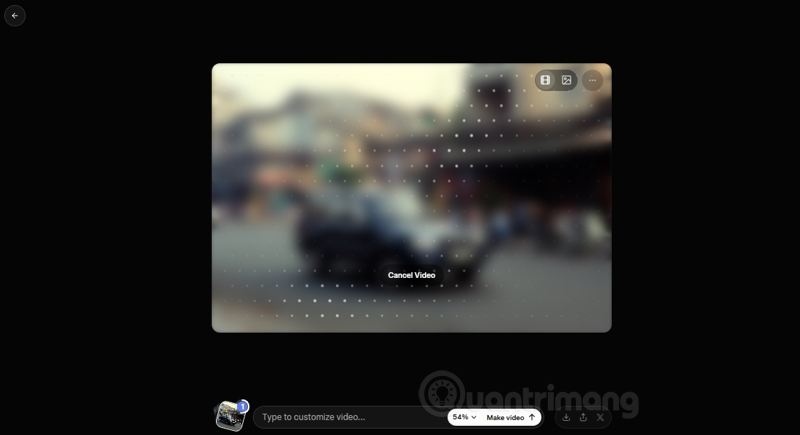
If the default animation is close but not correct, request one focused change such as slower camera movement, softer wind or removal of an unwanted sound. Regenerating with many new directions at once makes it difficult to identify what improved.
Create a video from your own image
1. Upload an authorized image
Choose the attachment or upload control and select a clear, high-resolution image. Upload only content you own or have permission to use. Obtain consent before animating an identifiable person, and do not create deceptive impersonations.
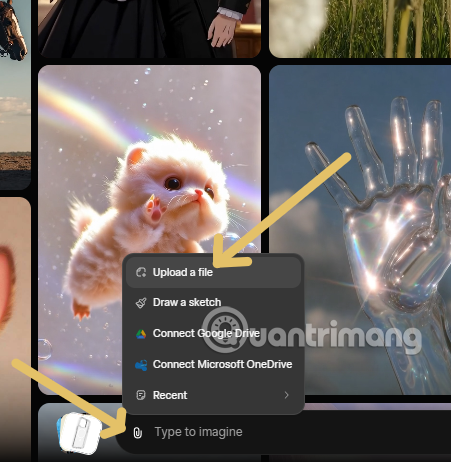
2. Choose video and describe the motion
Select image-to-video, then state the intended motion, camera behavior and sound. Portraits usually benefit from subtle movement; products need stable geometry and accurate logos; landscapes can handle broader camera motion.
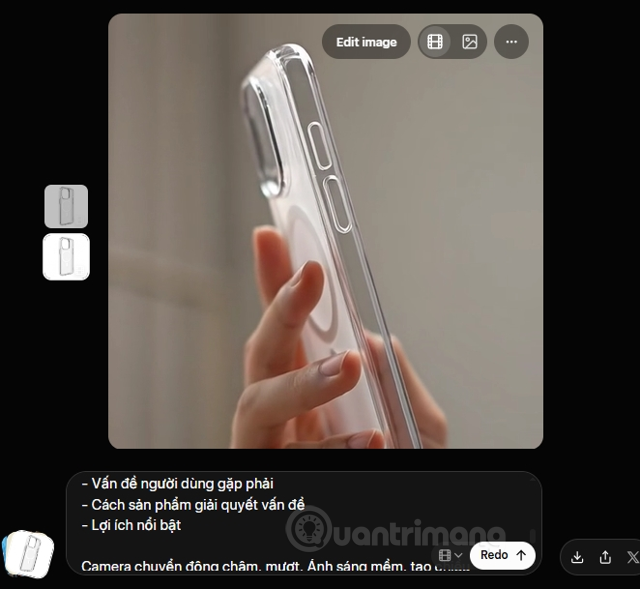
If the interface offers style presets or audio mixes, preview each one instead of assuming its label predicts the result. A dramatic preset may alter faces, product details or composition more than expected.
How to improve weak results
- Subject changes: use a still-image reference and ask to preserve identity and clothing.
- Too much motion: request a static camera and one subtle action.
- Warped details: simplify the scene or shorten the action.
- Wrong framing: define shot size and aspect ratio before generation.
- Unwanted text: ask for no captions, signs or logos, then inspect every frame.
- Poor audio: describe the specific ambience or export without relying on generated sound when that option exists.
Before exporting or publishing
- Confirm the clip does not misrepresent a real person or event.
- Check image, music, voice and brand rights.
- Inspect the downloaded file for full duration, resolution and synchronized audio.
- Add captions when spoken content matters.
- Disclose AI generation where the platform, law or context requires it.
To compare other workflows, see these AI video creation tools and Sora alternatives. Features and pricing change quickly, so compare current output controls and usage terms before choosing a tool for a production project.
Related Articles
 How to Create a Long Video on Grok10 minutes read
 Guide to Creating 3D Animated Videos About Smartphones with Grok AI6 minutes read
 How to Create Professional 16:9 Aspect Ratio Videos Using Grok Imagine5 minutes read
 How to Export a PDF File in Grok: Step-by-Step Guide5 minutes read
 How to Create Videos on Grok AI7 minutes read
 Grok Chat History Deletion Guide4 minutes read
Reader Comments 0
Sign in with email or Google to join the discussion.