Table of Contents
Gemini can use Google Calendar as a connected app to find events and help create or manage schedule entries. The feature works only when the required Google Workspace connection is available for your account and allowed by any organization administrator.
Always review the title, date, time zone, recurrence, calendar, and guests before confirming a change. Natural-language date expressions such as “next Friday” can be interpreted differently from what you intended.
Connect Google Workspace in Gemini
- Open Gemini while signed in to the same Google account used for Calendar.
- Open the menu and choose Settings & help, then Apps or Connected Apps. Google has used both labels in different interfaces.
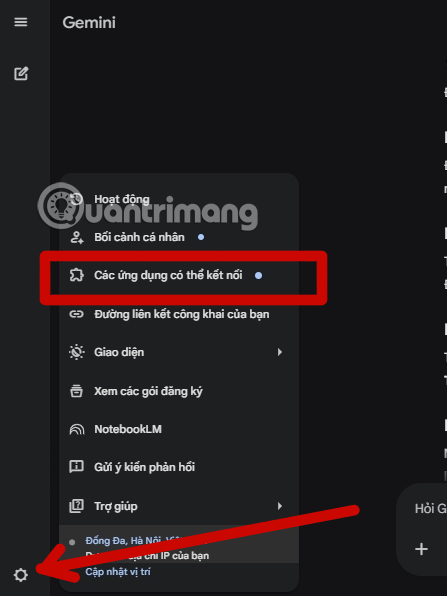
- Find Google Workspace and turn on the connection.
- Read the permission notice, confirm the account, and select Connect if you accept it.
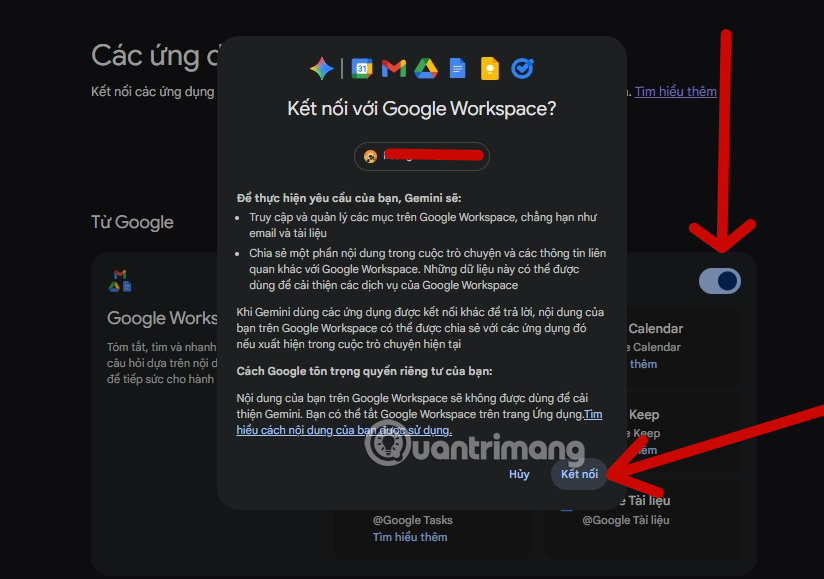
This connection may cover Calendar along with services such as Gmail and Drive. It does not merge the apps or make every file and message public; Gemini can access supported data under the signed-in account and current permissions when you ask it to use the connected service.
Find events with clear prompts
Name the calendar task and a precise time range:
@Google Calendar, list my events from September 14 through September 18. Include start time, time zone, and location.What is the first 60-minute gap between 9 a.m. and 4 p.m. on my work calendar next Tuesday?Find events titled “Project Orion” this month. Do not change anything.
If the @ mention is not available, write “Use Google Calendar” in the request. Check the returned dates in Calendar itself before relying on the summary.
Create an event

Include all details that matter rather than expecting Gemini to infer them:
Use Google Calendar to draft an event:
Title: Marketing review
Date: September 17, 2026
Time: 10:00–10:30 a.m. America/New_York
Location: Video meeting
Description: Review homepage launch copy
Do not invite anyone or save it until you show me the details.
When the preview is correct, tell Gemini to create the event. Open Google Calendar afterward and verify that it appears on the intended calendar.
Handle recurring events cautiously
State the start date, frequency, end date, and exceptions explicitly:
Create “Gym” every Monday and Wednesday from 6:00–7:00 p.m.,
starting September 21 and ending December 16, in my local time zone.
Show the recurrence rule before saving.
When editing a recurring series, confirm whether the change should affect one event, this and future events, or the entire series.
Calendar tasks Gemini may not complete
Support varies by account and interface. Gemini may be unable to perform certain actions involving secondary calendars, guest permissions, room resources, appointment schedules, attachments, or complex recurrence. When a task is unsupported, open Google Calendar and make the change directly.
Gemini also cannot see events your account lacks permission to view. “Find a time when everyone is free” works only when the relevant availability is shared and accessible.
Privacy and account checks
- Use the correct Google account, especially when personal and work profiles are open together.
- Review the Workspace connection and Gemini activity controls in your Google account.
- For managed accounts, follow the organization's data and AI policy.
- Do not place confidential details in an event title or description unless all attendees are authorized to see them.
- Disconnect Google Workspace from Gemini when you no longer want the integration.
If Google Calendar is missing
- Confirm that Gemini and Calendar use the same account.
- Check Apps or Connected Apps for Google Workspace.
- Ask a Workspace administrator whether the connection is enabled.
- Try the Gemini web or mobile interface supported in your region.
- Update the app and restart it if the connection control does not load.
The integration is useful for quick schedule work, but Calendar remains the authoritative place to verify what was actually created or changed.
Related Articles
 How to Use Google Calendar to Schedule Classes8 minutes read
 Steps to Integrate Google Calendar into Outlook 20134 minutes read
 10 Ways to Maximize Your Experience with Google AI Studio and Gemini5 minutes read
 5 Tools and Tricks for Google Calendar7 minutes read
 How to Turn Off Gemini in Google Docs10 minutes read
 Which Calendar App Helps You Stay on Schedule Best?8 minutes read
Reader Comments 0
Sign in with email or Google to join the discussion.