Table of Contents
Google Photos has been rolling out a slew of new features, including the ability to turn your favorite photos into custom stickers.
Google Photos has been rolling out a slew of new features that make the app smarter and more versatile than ever. One of the coolest additions is the ability to turn your favorite photos into custom stickers. Here's how to create stickers right in Google Photos on your iPhone to send to any app.
How to create stickers using Google Photos
Step 1:
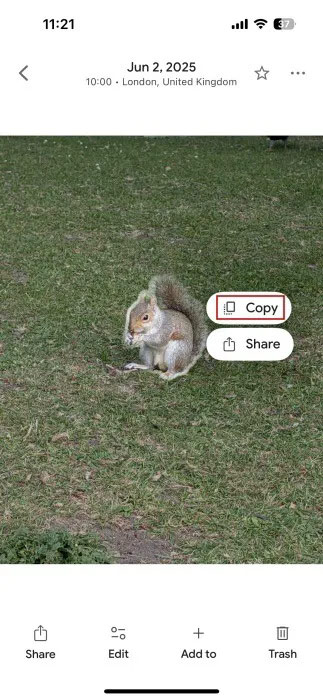
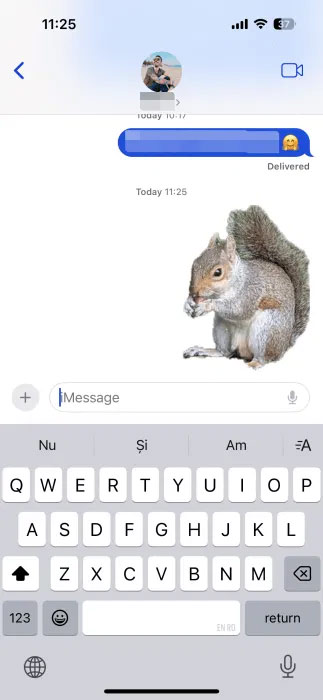
You open the image in Google Photos then Press and hold on the image And Select Copy To copy the subject. Next, open Any application On iPhone and Paste the newly copied image .
Now you will see the image sent as a sticker and automatically remove the background as shown below.
Step 2:
Google Photos doesn't let you save stickers for later. Stickers also won't show up in the Stickers section on your iPhone.
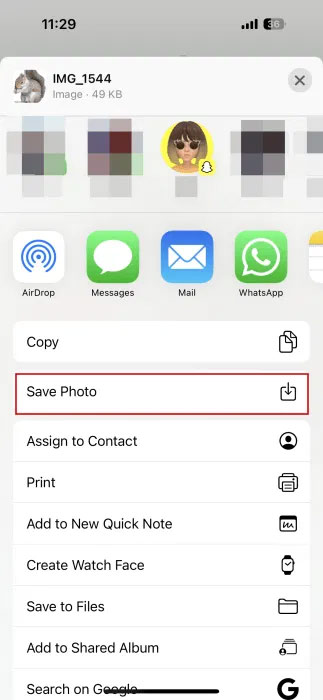
Tap on the sticker and then select The share icon Below, then select Save Photo In the displayed menu to save this sticker in the album on iPhone.
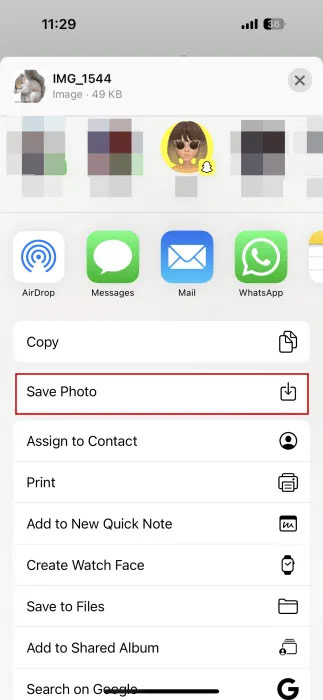
The sticker will now appear in your Photos app. You can then use the sticker in any app you want.
This feature is currently only available for iPhone users, not yet available on Android. Before trying it, make sure you have updated your Google Photos app to the latest version.
FAQ
How do you create stickers using Google Photos on iPhone: step-by-step guide?
In practical terms, Google Photos has been rolling out a slew of new features, including the ability to turn your favorite photos into custom stickers.
What should you check before getting started?
Review the requirements, compatible device or software version, and any warnings described in the guide before making changes.
What should you do if the steps do not work?
Repeat the steps in order, confirm that your app or system is up to date, and review the troubleshooting details provided above.
Related Articles
 minutes read
 How to Create Stickers from Photos on Samsung: Step-by-Step Guide4 minutes read
 How to Manually Create Stickers in Messages on iPhone3 minutes read
 How to Create Stickers on Messenger Using AI2 minutes read
 How to Inserting Stickers Into Photos on iPhone3 minutes read
 How to Create Stickers from Photos on Messenger3 minutes read
Reader Comments 0
Sign in with email or Google to join the discussion.