Table of Contents
No. You can no longer create a HAKUNA Live account. The company suspended new registrations on July 29, 2024 and ended the HAKUNA Live service on October 1, 2024. Old tutorials, app-store pages, and APK archives that still describe registration are obsolete.
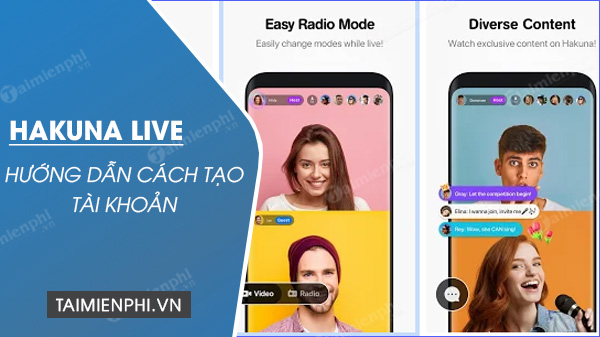
Why registration no longer works
The official HAKUNA Live service-termination notice set out the following timeline:
- July 29, 2024: new account registrations were suspended.
- August 20, 2024: purchases of Diamonds and subscription services were suspended.
- October 1, 2024: livestreaming operations ended.
- November 1, 2024: the stated deadline for eligible Diamond refund or Star payout requests passed.
The notice said limited access after shutdown was intended only for refund or payout requests, not ordinary viewing, chatting, or livestreaming. It also said personal information collected for the service would be deleted.
Do not install an old HAKUNA APK
An archived installation file cannot restore the retired servers or create a valid account. Avoid websites that promise a “working” HAKUNA Live account, modified APK, unlimited Diamonds, or a regional workaround.
- Do not enter Google, Facebook, X, Apple, email, or payment credentials into an unofficial copy.
- Do not pay for an existing HAKUNA account; normal service has ended.
- Do not grant camera, microphone, storage, contacts, or notification access to an abandoned build.
- Remove any old HAKUNA app that no longer has a legitimate use, then review connected-account access in the identity provider you used.
What the old registration process looked like
The screenshots below are retained as a historical reference only. They do not describe a process that works today.
1. Older Android versions offered several social sign-in methods.
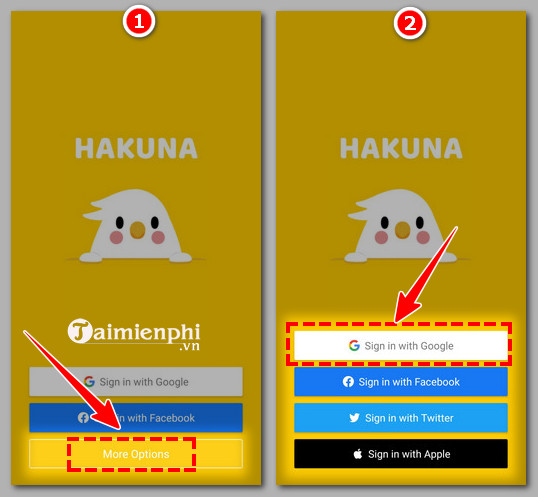
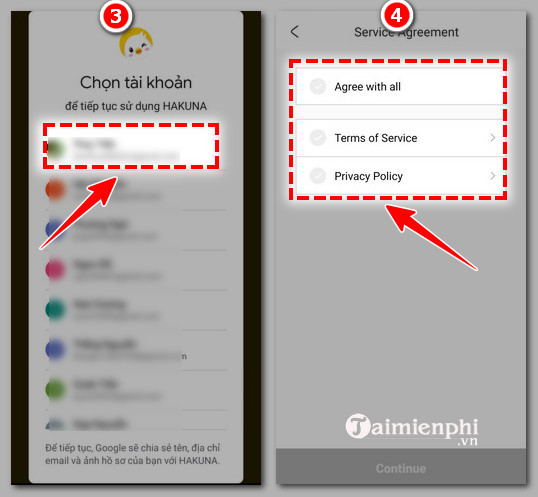
2. A user selected an identity-provider account and reviewed the service agreements.
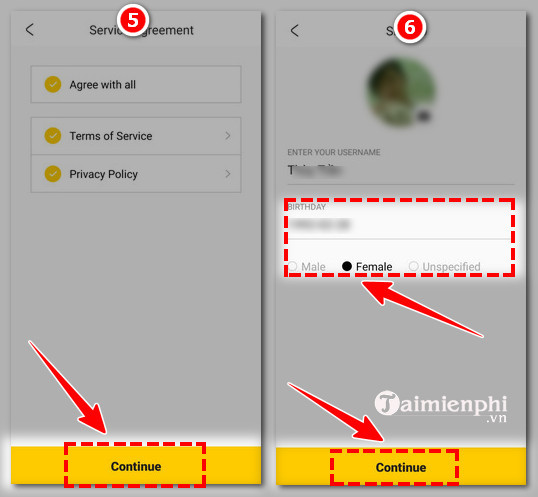
3. The app requested profile information such as birth date and gender.
4. The app reviewed profile details and introduced camera and microphone access.
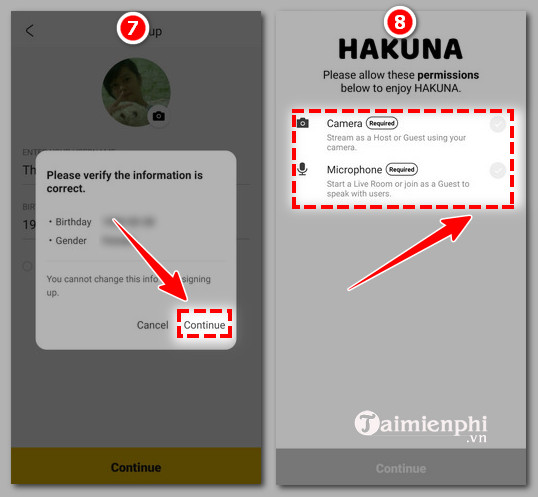
5. Android displayed the system camera permission.
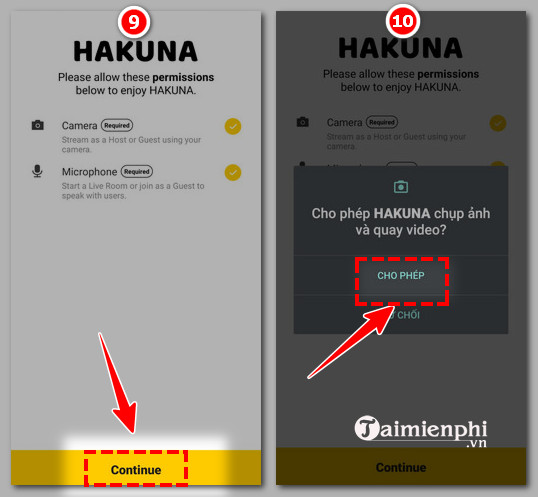
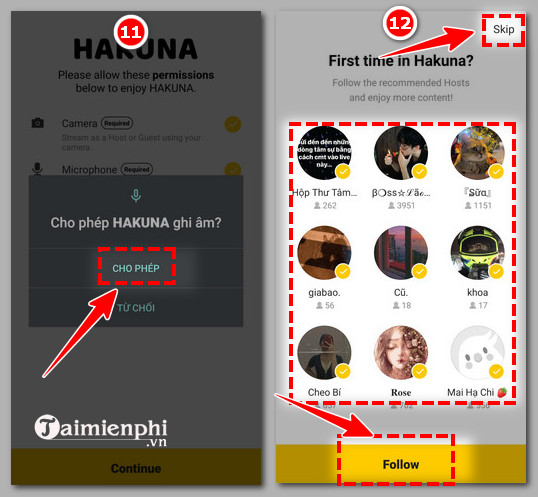
6. The app requested microphone access and suggested accounts to follow.
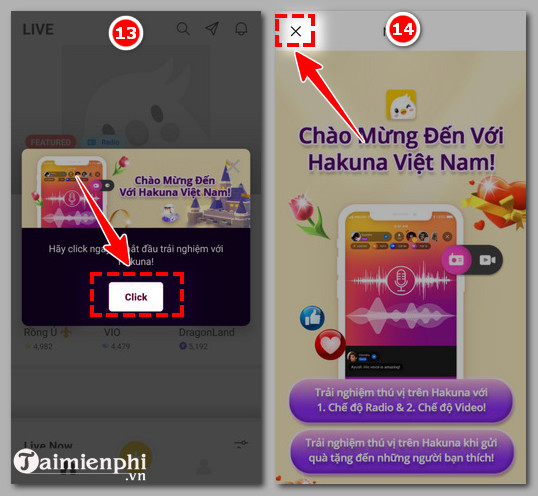
7. A regional welcome panel completed onboarding.
If you previously used HAKUNA Live
- Uninstall the retired app if it remains on your phone.
- Open the security settings for the Google, Facebook, X, or Apple account used to sign in and remove HAKUNA's access if an old connection remains.
- Review account activity and change a password if it was reused anywhere else.
- Check Apple App Store or Google Play subscriptions to confirm no unrelated subscription with a similar name remains active.
- Treat messages offering late refunds, Diamond conversions, or account recovery as suspicious. The official claim deadline in the shutdown notice has passed.
Choose a current livestream service
Before moving, check whether a replacement supports your country, age group, content type, moderation needs, privacy preferences, and payout method. Do not assume that gifts or livestream activity guarantee income.
Start with our list of current livestreaming apps. Creators who prefer a desktop production workflow can also compare Streamlabs Desktop and OBS Studio before selecting software.
Related Articles
 Instructions for Creating V LINE Account: V LIVE7 minutes read
 How to Create a Booyah! Live Account5 minutes read
 Instructions for Creating the Fastest Microsoft Account3 minutes read
 Instructions for Creating Talktv Accounts and Managing Chat Rooms5 minutes read
 How to Set up an Xbox Live Account on a Computer5 minutes read
 What Is TikTok Live Studio? Instructions for Using TikTok Live Studio3 minutes read
Reader Comments 0
Sign in with email or Google to join the discussion.