Table of Contents
You can combine photos on an iPhone without a dedicated collage app by using Apple's Shortcuts app. The Photo Grid Gallery shortcut creates a quick grid; if it is not available on your device, you can build the same workflow with the Select Photos and Combine Images actions. Google Photos is a useful alternative when you want editable templates.
Create a collage with the Photo Grid shortcut
Shortcuts is included with current iOS releases and can be downloaded again from the App Store if it was removed. To find the ready-made workflow:
- Open Shortcuts and tap Gallery.
- Search for Photo Grid.
- Open the result to review its actions, then tap Add Shortcut or Set Up Shortcut.

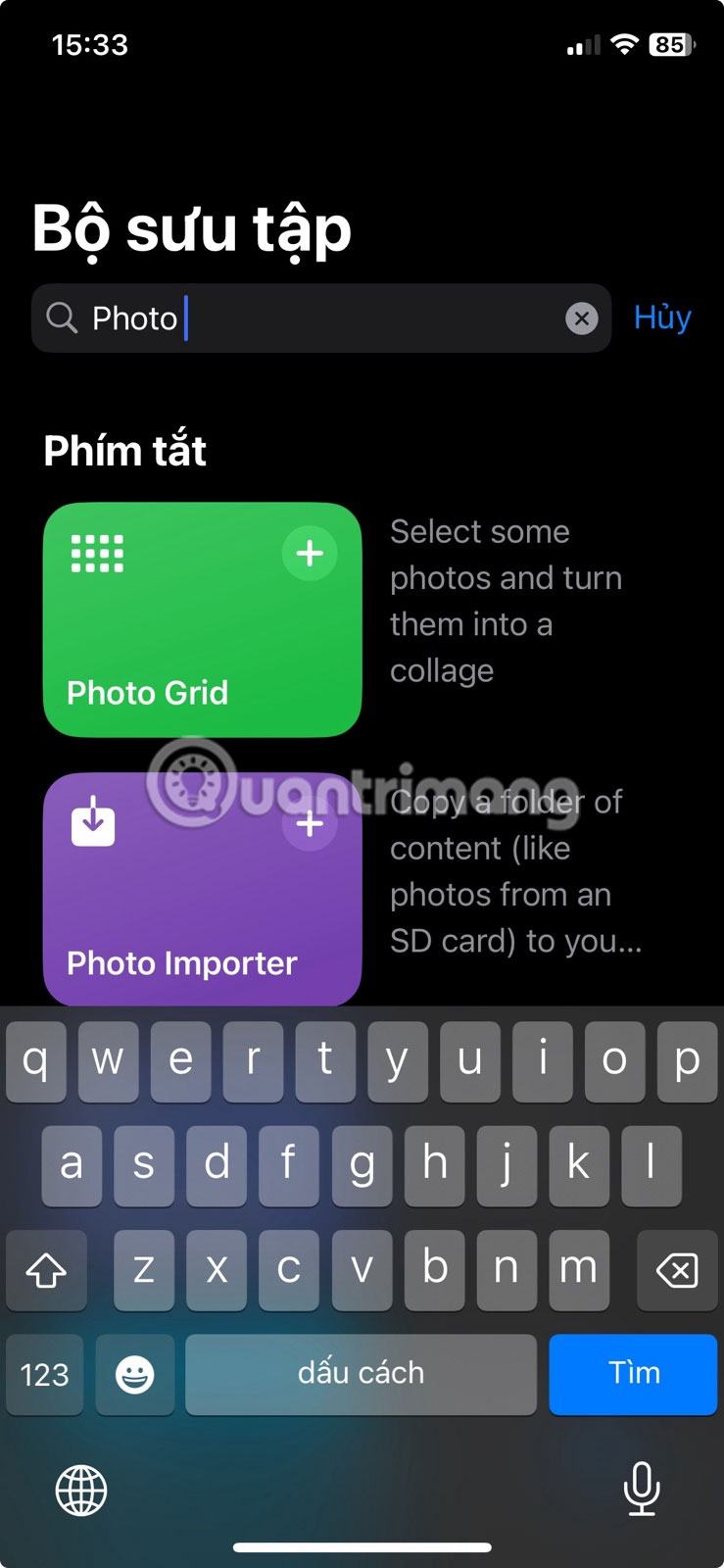
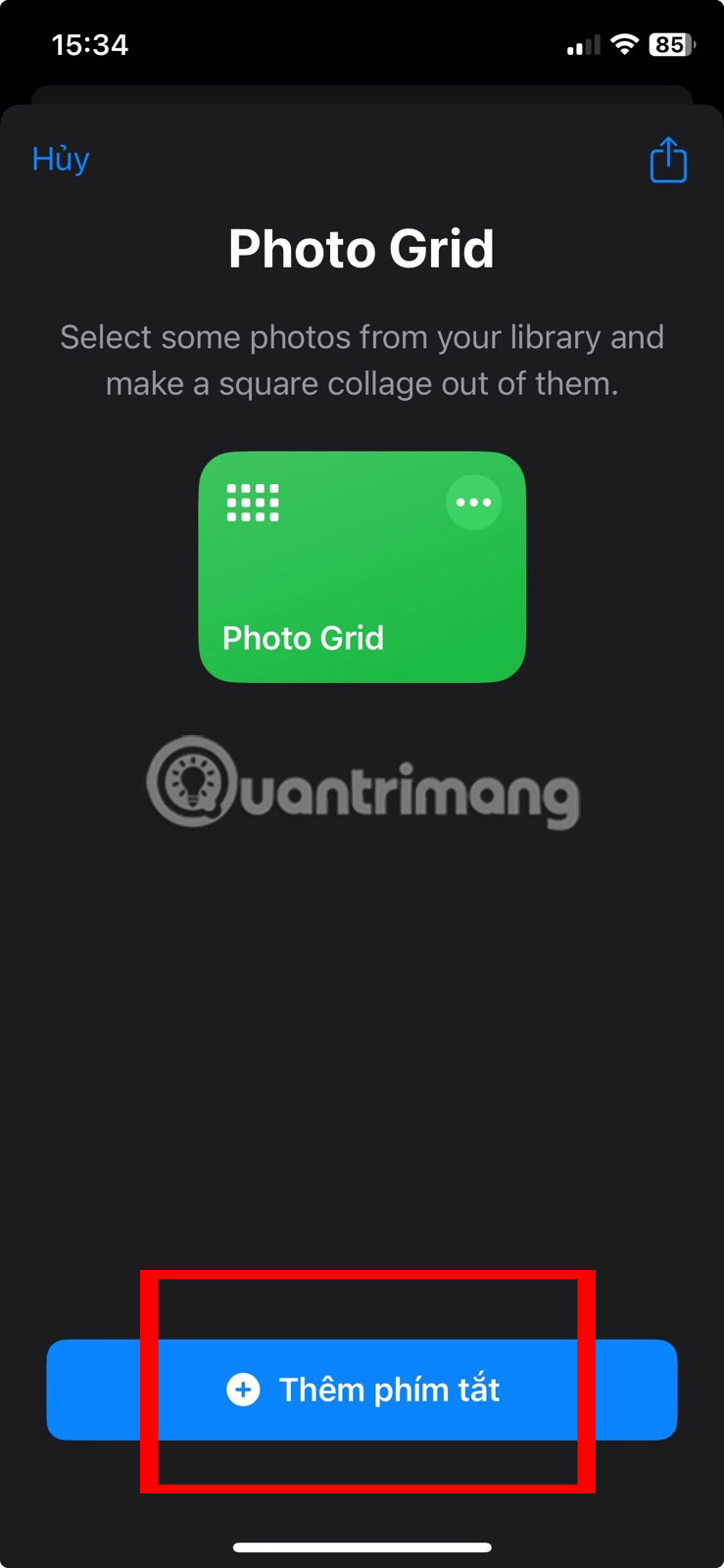
Gallery contents can vary by iOS version and region. If Photo Grid does not appear, use the custom-shortcut instructions below rather than installing an unfamiliar shortcut from a random website.
Run Photo Grid and save the result
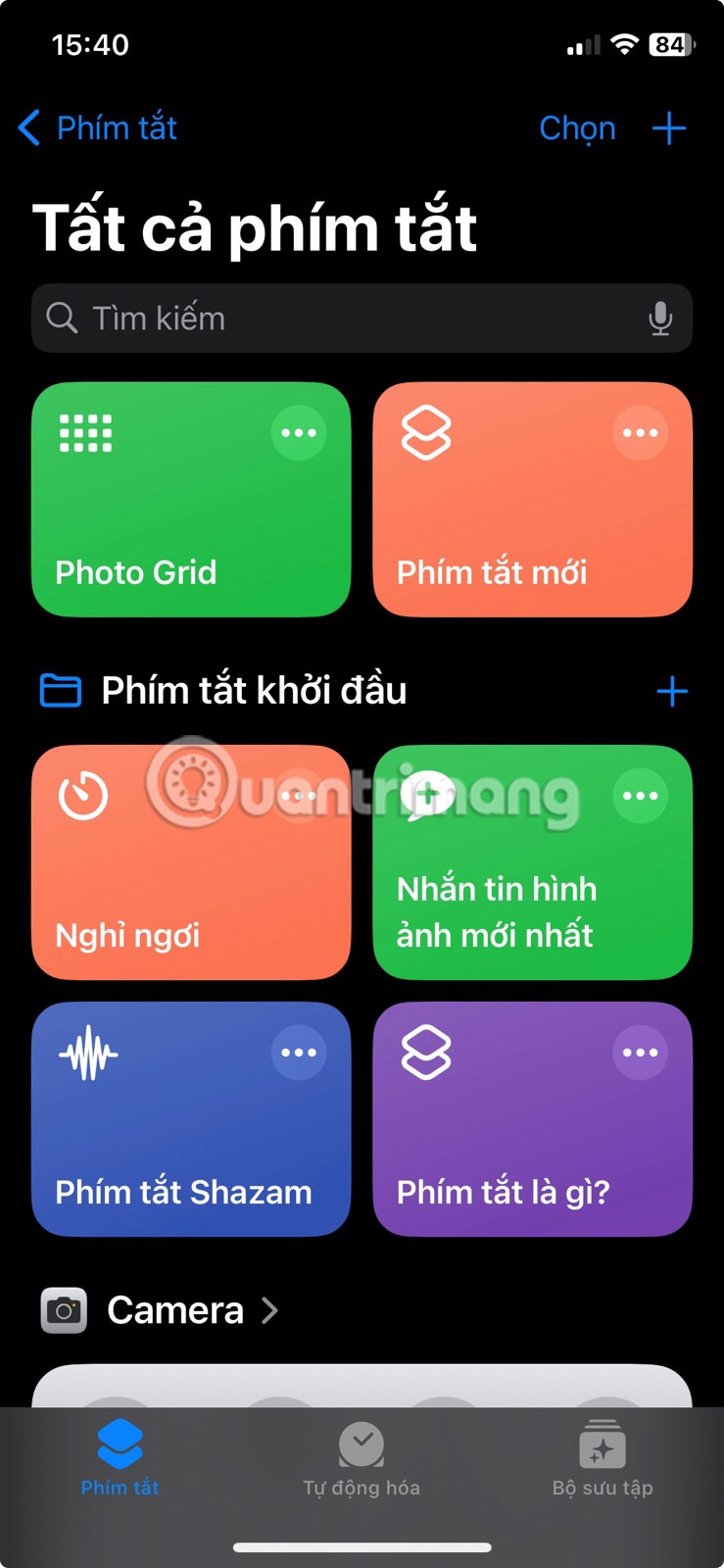
- In Shortcuts, tap Photo Grid.
- Allow Photos access if prompted. Select the pictures for the collage, then tap Add.
- Wait for the preview. Tap the Share button and choose Save Image to add the collage to Photos, or select another destination.
- Tap Done when finished.

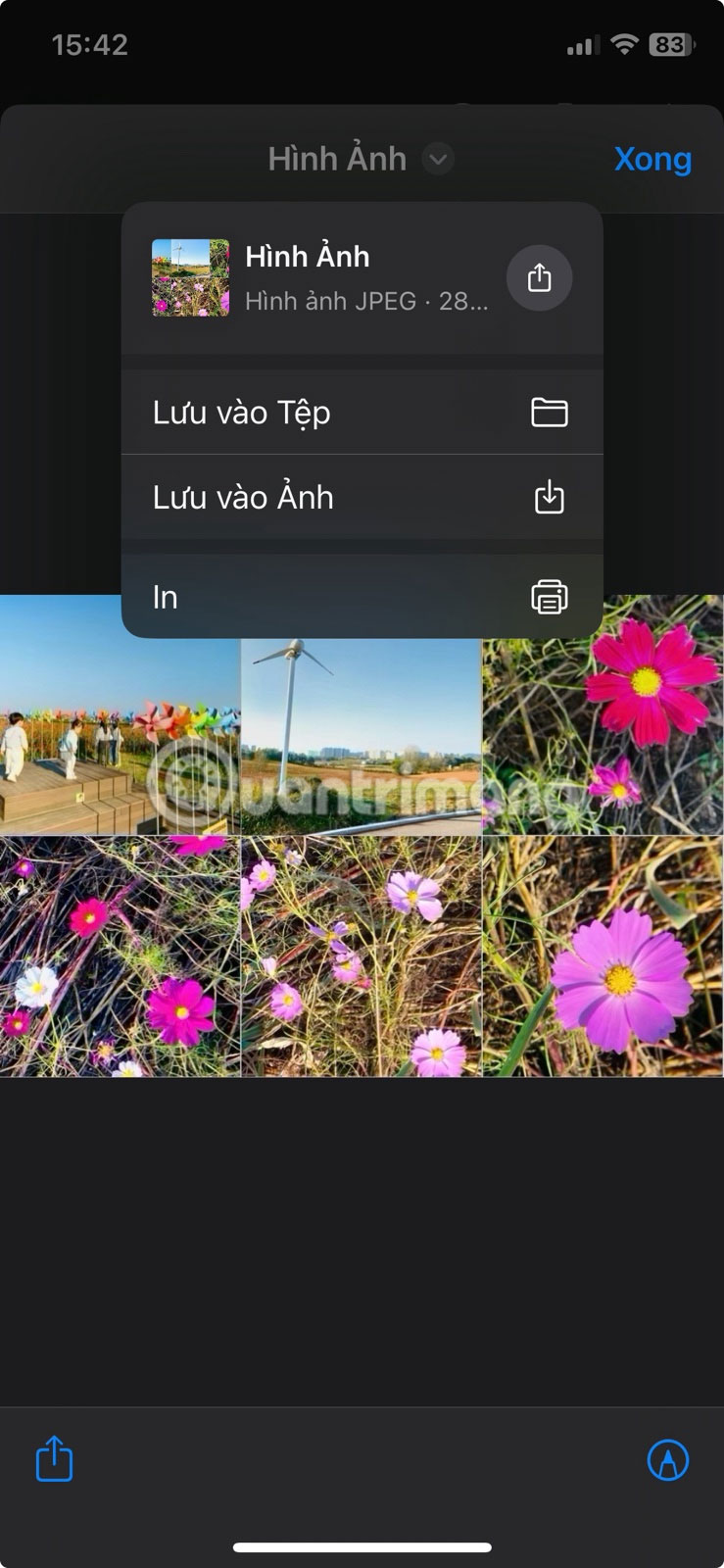
The shortcut produces a simple, evenly spaced grid. Photos with different aspect ratios may be cropped or leave uneven space, depending on how the shortcut is configured. Put important subjects near the center and test with a few images before building a large collage.
Build your own collage shortcut
A custom shortcut gives you control when the Gallery version is unavailable or its layout is not suitable:
- In Shortcuts, tap the plus button to create a shortcut.
- Add the Select Photos action and enable Select Multiple.
- Add Combine Images. Choose In a Grid, Horizontally, or Vertically, and set the spacing.
- Add Quick Look if you want to inspect the result before saving.
- Add Save to Photo Album, or use a Share action so you can choose the destination each time.
- Name the shortcut and run a test. If photos appear in the wrong order, select them in the order you want them placed.
Apple's Shortcuts Gallery guide explains how to inspect and add Gallery shortcuts. You can also learn how to customize the iPhone share sheet if the save or sharing action you need is difficult to find.
Create a collage in Google Photos
Google Photos provides templates and lets you adjust the layout after selecting pictures:
- Open Google Photos and select up to six photos.
- Tap Create > Collage. You can also begin from the Create area and choose a collage template first.
- Choose a design, then replace, reorder, crop, or rotate images using the available controls.
- Tap Save. Confirm that the finished collage appears in the library before deleting any source files.
The exact position of Create may change with an app update; Google's current collage instructions for iPhone and iPad show the supported entry points.
Choose the right method
- Photo Grid: fastest for a plain grid and keeps the process inside Apple's tools.
- Custom shortcut: best for a repeatable horizontal, vertical, or grid layout with your own spacing.
- Google Photos or another editor: better when you need templates, manual positioning, text, borders, or filters.
For more elaborate designs, compare these online photo editors for computers and phones. Before sharing, zoom in on the exported collage to check that faces, text, and edges were not cropped unexpectedly.
Related Articles
 How to Combine Multiple Photos into One Photo Frame on Your Phone4 minutes read
 How to Merge Two Photos Side by Side on iPhone6 minutes read
 How to Merge Photos on Macbook, Merge Multiple Photos into 16 minutes read
 How to Create a Music Notebook to 'Live Virtual': Record the Name of4 minutes read
 Collage Photos into Frames with Photoshine3 minutes read
 How to Combine Multiple Screen Shots into a Single Photo on iPhone5 minutes read
Reader Comments 0
Sign in with email or Google to join the discussion.