Table of Contents
The simplest way to set up a VPN on an iPhone or iPad is to install the official app from your VPN provider, sign in, and allow it to add a VPN configuration. Manual setup is appropriate when an employer, school, or VPN administrator gives you a server address, account credentials, and protocol details.
What a VPN does—and does not do
A VPN encrypts traffic between your device and the VPN server. This is useful on untrusted Wi-Fi and for reaching a private work or school network. It can also make websites see the VPN server's IP address instead of your normal public IP address.
A VPN does not make you anonymous. The VPN operator may be able to observe connection metadata, websites can still recognize signed-in accounts or cookies, and phishing or malware remains dangerous. Choose a provider with clear ownership, a readable privacy policy, current apps, and independent security documentation. A paid service is not automatically trustworthy, and a free service is not automatically unsafe—the business model and technical practices matter.
Set up a VPN with the provider's app
- Get the provider's official app from the App Store. Confirm the developer name before installing it.
- Open the app and sign in, or import the configuration supplied by your organization.
- Tap Connect, Quick Connect, or the equivalent control.
- When iOS asks whether the app may add VPN configurations, tap Allow and authenticate with your passcode, Face ID, or Touch ID.
- Wait until the app reports that the connection is active. A VPN indicator may also appear in the status area or Control Center.
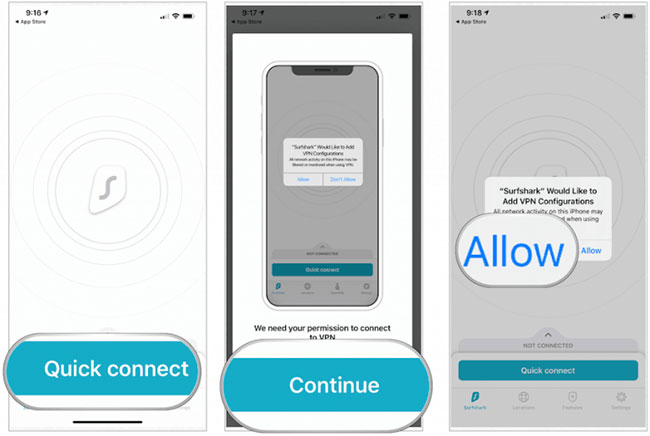
The app usually chooses a nearby server automatically. Select a different location only when you need a specific regional endpoint or your administrator tells you which gateway to use. Features such as multihop, split tunneling, and automatic connection vary by provider and iOS version.
Configure a VPN manually
Do not guess the values. Ask the VPN administrator for the protocol, server address, remote ID, authentication method, username, certificate or shared secret, and proxy settings. Consumer VPN subscriptions often expect you to use their app unless they publish separate manual-configuration instructions.
- Open Settings > General > VPN & Device Management > VPN.
- Tap Add VPN Configuration.
- Choose the type specified by the administrator: IKEv2, IPSec, or L2TP. These types require different fields and are not interchangeable.
- Enter a recognizable description, then supply the server, remote ID, local ID, account, certificate, secret, and other values exactly as provided. Only the fields relevant to the selected protocol appear.
- Configure a proxy only if the administrator supplied manual proxy details or an automatic configuration URL.
- Tap Done, select the new configuration, and turn on its status switch.
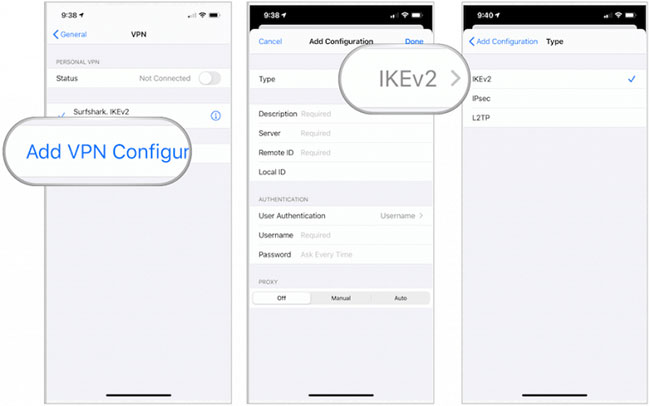
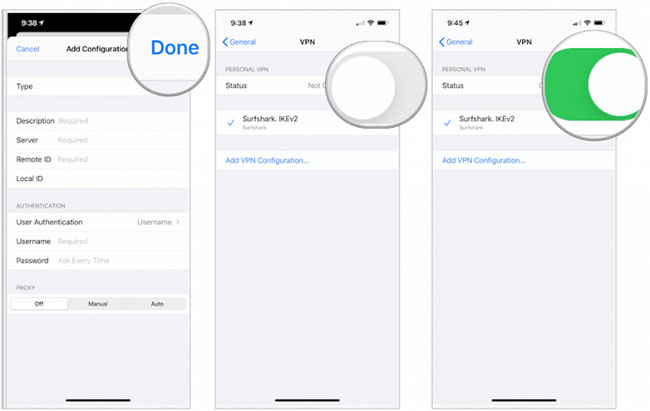
The menu wording can differ slightly by iOS or iPadOS release. For organization-managed devices, a configuration profile may install the VPN and prevent users from changing it. Apple's deployment documentation describes the supported VPN configuration options for Apple devices.
Connect, disconnect, or remove the VPN
Use the provider's app for normal connection controls. You can also open Settings > General > VPN & Device Management > VPN to check or change a manually configured connection. To remove one, tap its information button and choose Delete VPN; deleting the provider's app alone may not remove every configuration.
Troubleshoot a VPN that will not connect
- Test the internet without the VPN. If ordinary pages do not load, fix the Wi-Fi or cellular connection first.
- Try another server. A single endpoint may be unavailable or overloaded.
- Check credentials and time. A mistyped password, expired account, certificate problem, or incorrect device time can stop authentication.
- Avoid competing configurations. Disconnect another VPN and temporarily disable conflicting DNS, firewall, or content-filter apps.
- Update carefully. Install the provider's current app and supported iOS updates, then restart the device if the problem persists.
- Ask the administrator. For a work or school VPN, report the error message rather than repeatedly changing server fields.
Privacy and practical checks
After connecting, confirm that the intended site or private resource works. If you use a consumer service for privacy, you can also compare the public IP address before and after connecting. Remember that private browsing and a VPN solve different problems: private mode mainly limits history stored on the device. See how to start a browser in private mode, and review these browser protection features for additional layers of defense.
Disconnect the VPN if a trusted local device, such as a printer, becomes unreachable, or if an app blocks VPN traffic. On an organization-managed device, follow the administrator's policy instead of deleting the profile.
Related Articles
 Sync Data Between iPhone and iPad in Just a Few Simple Steps5 minutes read
 What to Do When the iPhone or iPad Can't Turn On?6 minutes read
 Detailed Instructions on How to Disconnect Your iPad from Your iPhone4 minutes read
 6 Simple Ways to Fix the Situation of iPhone and iPad Crashes While6 minutes read
 Overview of Security Deployment for Iphone and Ipad18 minutes read
 How to Fix iPad Errors Are Disabled6 minutes read
Reader Comments 0
Sign in with email or Google to join the discussion.