Table of Contents
Locket is a social photo app whose Home Screen widget displays pictures sent by approved friends. After you create an account, add at least one friend, place the widget on your iPhone, and take a photo in the app, the recipient's widget updates automatically. It is designed for casual sharing—not for transferring original photo files.
Set up Locket on iPhone
- Install the official Locket Widget app and open it.
- Follow the setup prompts. If the app requests phone verification, enter your number and the one-time code sent to you. Never share that code with another person.
- Choose your display name and review each permission request. Camera access is required to take photos; contacts access is optional if you prefer adding people by username or invitation link.
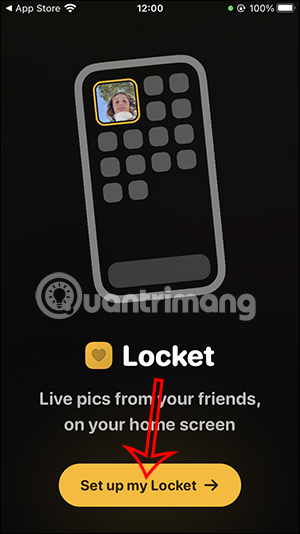
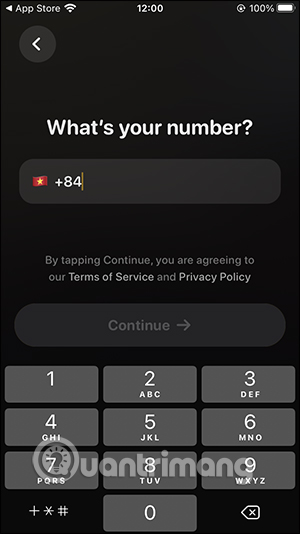
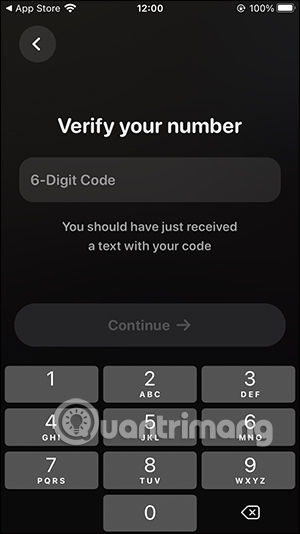
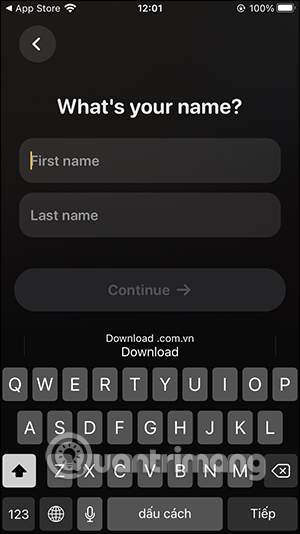
The screens may look different after an app update, but the sequence—account setup, friend approval, widget placement, then posting—remains the same.
Add friends safely
Open the Friends area at the top of Locket. You can search your contacts, search for a username, or send an invitation link through another app. The other person must accept the friend request before you can exchange photos.
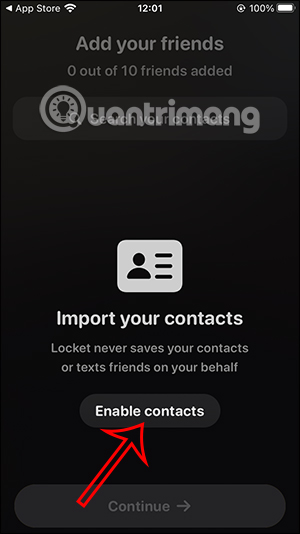
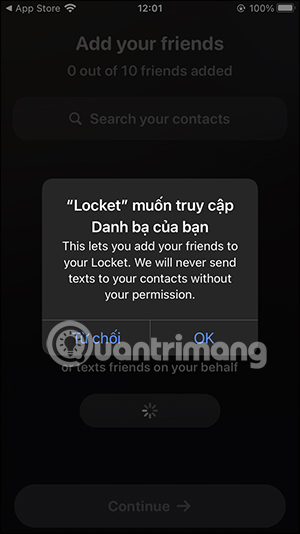
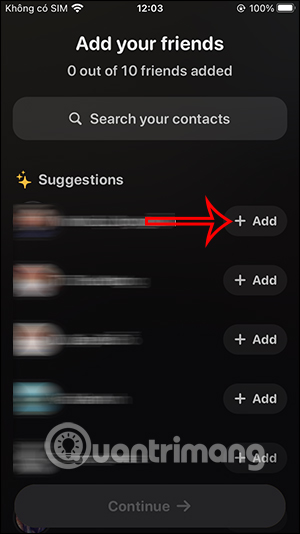
You do not need to upload your entire address book merely to add one person; a username or invitation link can be more private. Add only people you recognize, and remember that a recipient can photograph or otherwise retain anything shown on their screen. Locket's current friend-adding guide lists all supported methods.
Add the Locket widget to the Home Screen
- Touch and hold an empty area of the Home Screen until the icons begin to move.
- Tap Edit in the upper-left corner, then Add Widget. On older iOS versions, tap the plus button directly.
- Search for Locket, choose a size, and tap Add Widget.
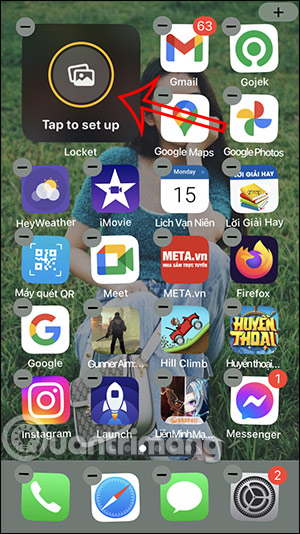
- Drag the widget to the desired position and tap Done.
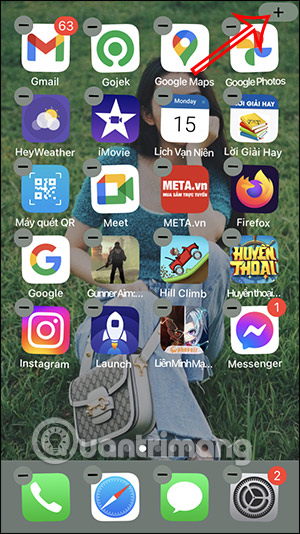
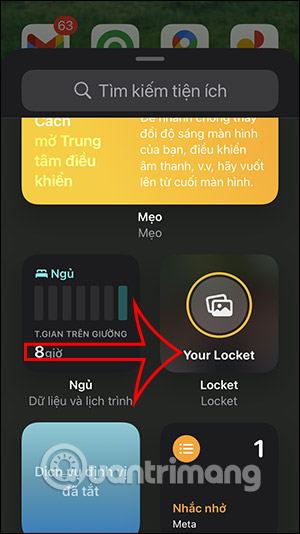
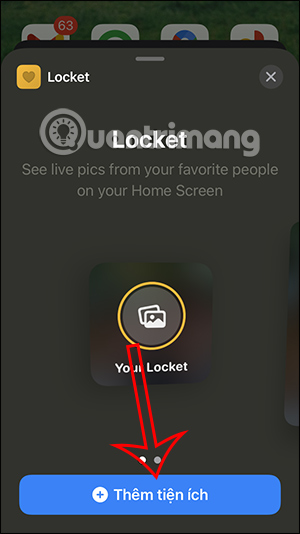
For more detail on widget placement and sizing, see how to add and customize iPhone Home Screen widgets.
Take and send a photo
- Open Locket, or tap the widget to open its camera.
- Frame the picture and tap the shutter button. Allow camera access if prompted.
- Add a caption or supported label if desired.
- Select one or more friends, check the preview, and send.
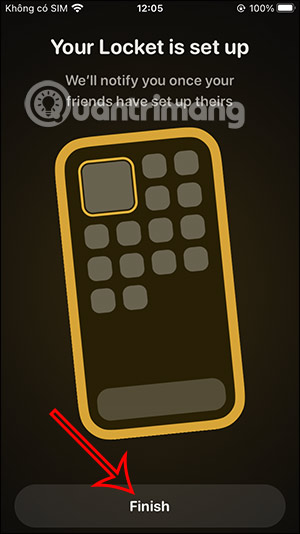
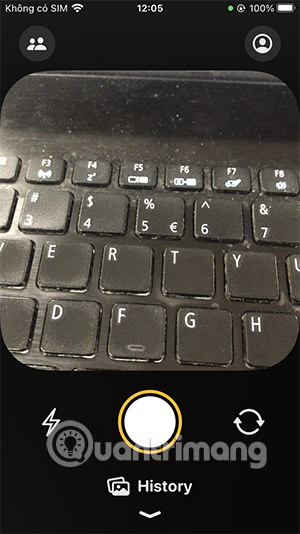
A newly received picture can take a few minutes to appear because iOS controls when widgets refresh. Open the Locket app to see the latest activity if the Home Screen has not updated yet.
Fix common Locket problems
- No Locket widget appears: Open the app and finish setup first, restart the iPhone, then search the widget gallery again.
- You cannot send a photo: Make sure at least one friend has accepted your request and that the phone is online.
- The camera is blank: Go to Settings > Privacy & Security > Camera and allow Locket access, then reopen the app.
- The widget is stale: Update Locket and iOS, open the app once, and restart the phone if the delay continues.
- The wrong friend's photos appear: Touch and hold the widget, tap Edit Widget if available, and review its friend or audience setting.
Locket versus AirDrop
Locket is for ongoing social sharing and a glanceable photo feed. It does not guarantee an untouched, full-resolution original. If you need to send an original file to a nearby Apple device, use AirDrop on iPhone instead. For either method, check the recipient before sending and avoid sharing private documents, location details, or images that everyone shown in the photo has not agreed to share.
Related Articles
 How to Use Locket Widget on iPhone4 minutes read
 Learn About Locket: a Snapchat Alternative to Sharing Photos with4 minutes read
 How to Use Quicksnap on Instagram Similar to Locket: Step-by-Step Guide4 minutes read
 Snap. Do Removal Guide on Chrome, Firefox and Internet Explorer4 minutes read
 How to Turn Off Snap Feature in Windows 103 minutes read
 How to Enable // Disable the Aero Snap Feature in Windows 104 minutes read
Reader Comments 0
Sign in with email or Google to join the discussion.