Table of Contents
Format Factory can convert MP3, AAC, WMA, and other supported audio files to WAV. Choose uncompressed PCM WAV when an editor, audio application, or older device requires it. The result will usually be much larger than the source, and converting a lossy file to WAV does not restore quality that was removed during the original encoding.
Convert an audio file to WAV
- Open Format Factory. If it is not installed, download it from the official Format Factory site and review every installer option.
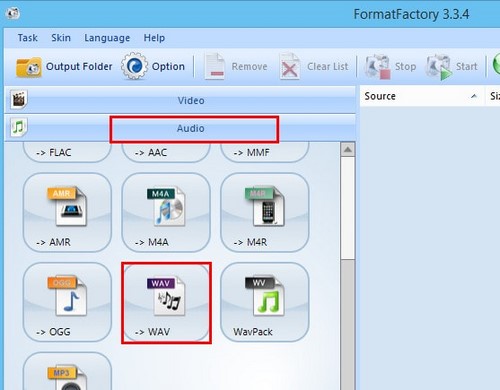
- Expand Audio and select WAV.
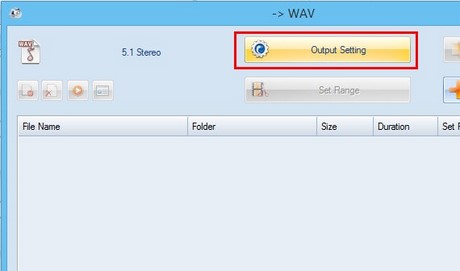
- In the WAV conversion window, select Output Setting.
- Choose a profile or configure the audio parameters. For broad editing compatibility, use uncompressed PCM and keep the source sample rate and channel layout unless the destination has a specific requirement.
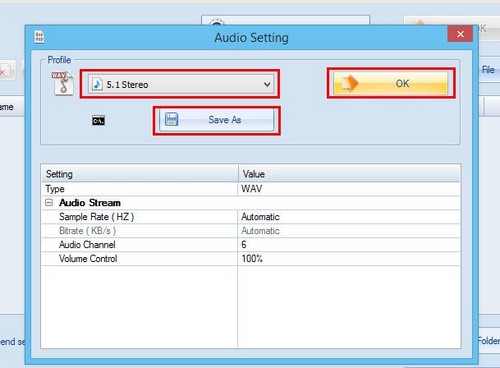
Do not select “5.1” simply because it appears to be a higher setting. 5.1 is a surround channel layout, not a quality level or a form of stereo. Use it only when the source contains six meaningful channels and the destination supports surround audio. For a normal song, podcast, or voice recording, keep stereo or mono to match the source.
- Select an Output Folder. Use a separate folder so the new WAV files are easy to distinguish from the originals.
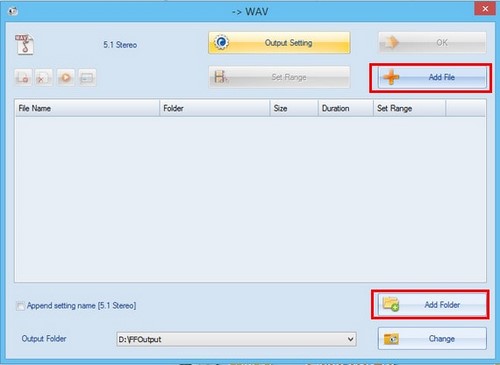
- Click Add File for one or more files, or Add Folder to queue a folder of supported audio.
- If you need only part of a track, use Set Range and enter the start and end points. Preview the range where possible so a word or musical note is not cut accidentally.
- Click OK to return to the main queue, review the source and destination, and click Start.
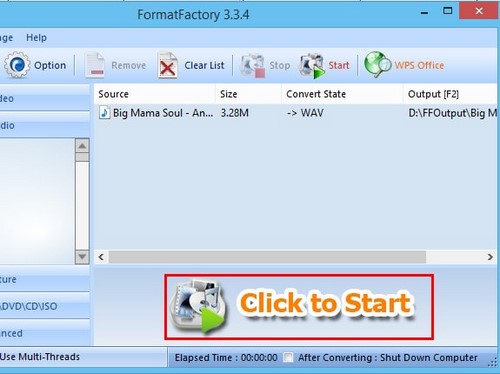
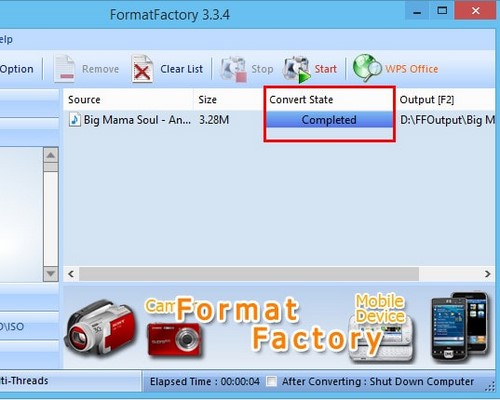
- Wait until the job shows Completed, then open the output folder.
Choose the right WAV settings
| Setting | Practical choice | Why it matters |
|---|---|---|
| Codec | PCM for maximum compatibility | Some WAV files can contain compressed codecs that an editor may not accept |
| Sample rate | Match the source or the destination project | Unnecessary resampling does not add real detail |
| Bit depth | Match the project; 16-bit for many playback tasks, 24-bit for editing workflows that use it | Higher bit depth increases file size and headroom but cannot recover lost source data |
| Channels | Match the source: mono, stereo, or genuine surround | Adding channels does not create a better recording |
When WAV is useful
- An audio editor or transcription tool does not accept the source format.
- You need an uncompressed intermediate file for editing and repeated processing.
- A hardware device or production workflow specifically requires PCM WAV.
- You want to avoid another lossy encoding stage while editing.
WAV is not automatically the best storage format. For a music library, FLAC can preserve PCM audio losslessly in a smaller file, while MP3 or AAC is more space-efficient for portable listening. Converting an MP3 to WAV creates a larger representation of the already compressed audio; it does not turn the track back into its original master.
Verify the output
- Play the beginning and end of the WAV.
- Compare its duration with the source.
- Confirm that stereo has not become mono and that channel order is correct for surround material.
- Check that the editor or device can open it.
- Keep the original until the WAV has been accepted by the destination workflow.
For a careful installation walkthrough, see how to install and use Format Factory. If file size is the main concern, review these ways to reduce an audio file's size. For other editing and conversion options, compare these free audio editors.
Related Articles
 How to Convert Audio with Format Factory Quickly and Simply3 minutes read
 Link to Download Format Factory 5.5.0.09 minutes read
 How to Install Format Factory on Your Computer5 minutes read
 Convert Videos with Format Factory3 minutes read
 How to Combine Multiple Videos into One with Format Factory3 minutes read
 How to Convert Audio Formats with Online Audio Converter6 minutes read
Reader Comments 0
Sign in with email or Google to join the discussion.