Table of Contents
You can control a laptop from an Android phone or iPhone with a remote-desktop app. For personal access to your own computer, Chrome Remote Desktop is a simple starting point. TeamViewer and AnyDesk add support-oriented features and unattended-access options, but they require careful permission and account setup.
The laptop must be powered on, connected to the internet, and awake enough to run the remote-access service. Set up and test the connection while you are physically beside the laptop before relying on it away from home.
Choose the right kind of remote access
| Need | Good starting option | Important limit |
|---|---|---|
| Reach your own computer from anywhere | Chrome Remote Desktop | The host must be online and signed into the configured remote-access service. |
| Help another person while they are present | TeamViewer or AnyDesk attended session | The person at the laptop should verify and accept the request. |
| Manage your own unattended computer | TeamViewer Host or AnyDesk Unattended Access | Protect the account or unattended password and restrict permissions. |
| Control a PC only on a private network | Windows App/RDP or a LAN tool | Setup is more technical; do not expose RDP directly to the public internet. |
A remote desktop is useful for retrieving a file, checking a download, running a light desktop application, or helping a relative. It is not a replacement for local use when the task needs low latency, precise color, high frame rate, or sustained graphics performance.
Prepare the laptop and phone
- Install both the computer host and phone app from the developer's official site, Google Play, or App Store.
- Update the laptop, browser, remote-access app, and phone before setup.
- Use a unique account password and enable multi-factor authentication when offered.
- Adjust sleep settings so the laptop does not suspend before you need it; restore a sensible timeout later.
- Leave the laptop connected to power for a long unattended session.
- Confirm that your network or workplace policy permits remote access.
- Do not test with confidential data until connection and permission controls are understood.
Remote access over the internet does not require both devices to be on the same Wi-Fi network. Local-only tools and direct RDP setups may have different network requirements.
Method 1: Chrome Remote Desktop
Chrome Remote Desktop is suited to basic access to your own computer. On the laptop:
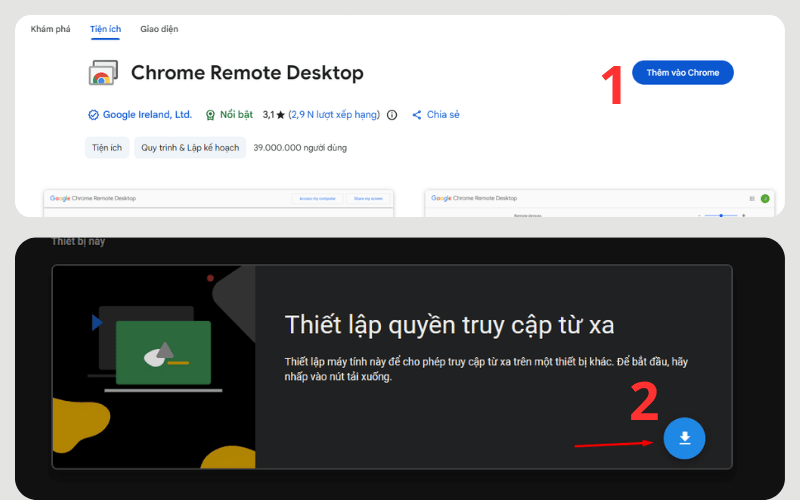
- Open Chrome Remote Desktop in Chrome.
- Under Set up remote access, select the download option and install the official host component.
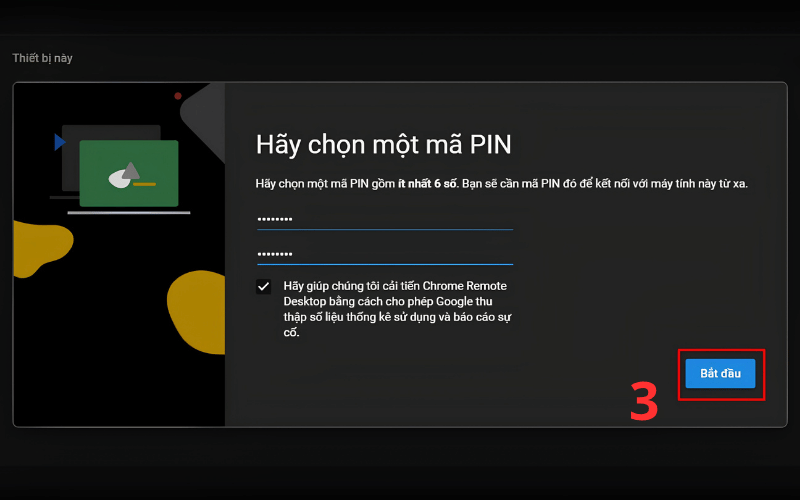
- Give the computer a recognizable name.
- Create a PIN that is not easy to guess and is not reused as an account password.
- Confirm that the computer appears online in the Remote Access page.
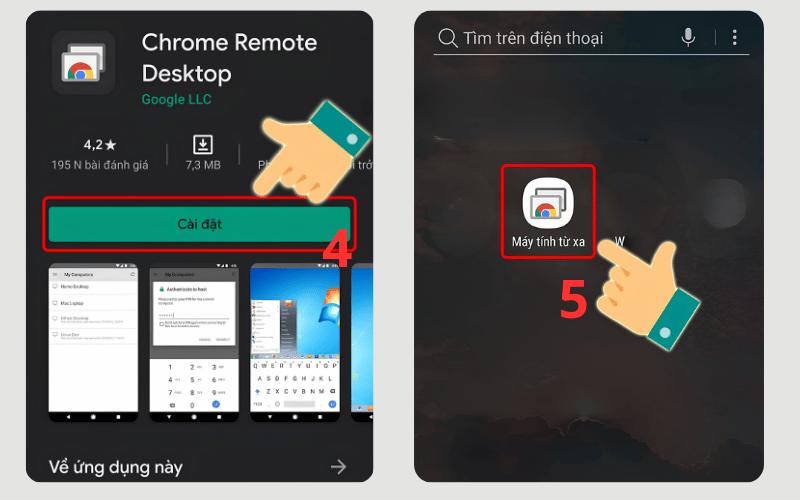
On Android, install Google's Chrome Remote Desktop app; on supported mobile platforms, use Google's current client or web flow. Sign in with the same Google Account, select the online computer, and enter the PIN. Google's current Android instructions describe the setup and touch controls.
For temporary help with someone else's computer, use Chrome Remote Desktop's separate Remote Support flow and its one-time access code. Do not use your permanent PIN as a support code.
Method 2: TeamViewer
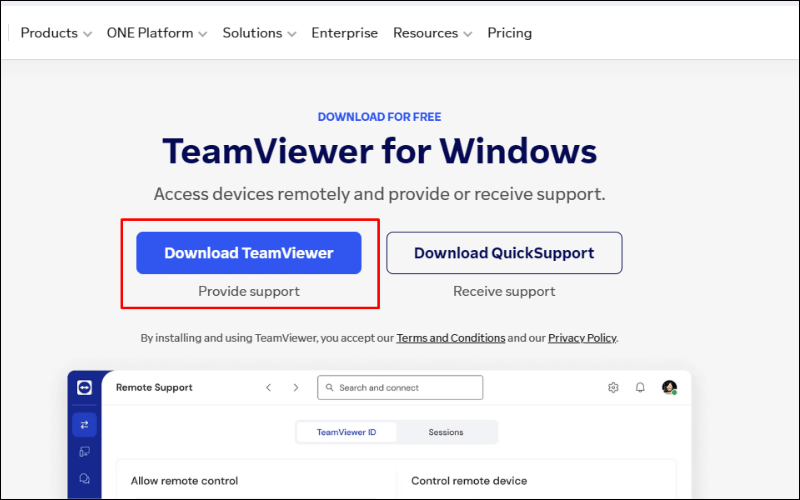
TeamViewer offers attended support and account-managed unattended access. Interfaces and licensing terms change, so follow the current prompts rather than expecting a fixed ID-and-password screen on every release.
For an attended support session
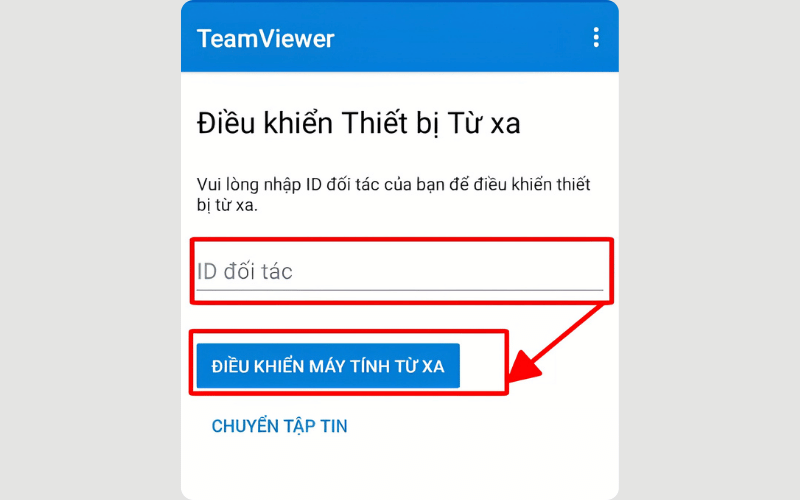
- Install the official TeamViewer client on the laptop and the official Remote Control app on the phone.
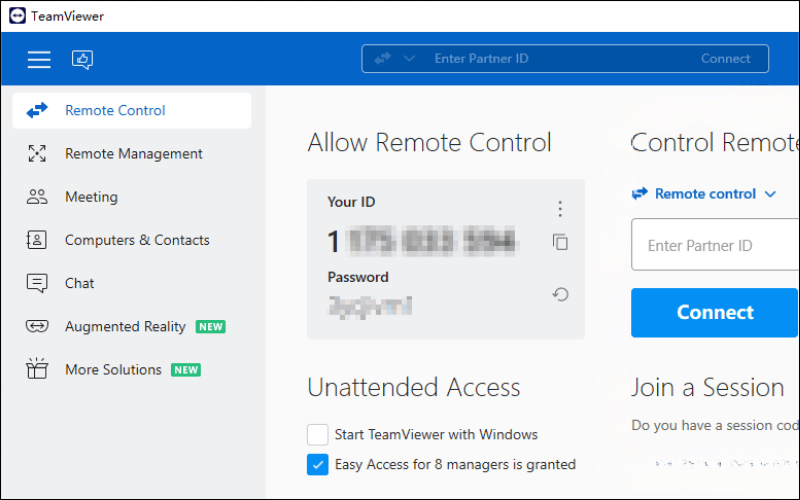
- Start a support session from the laptop and share the displayed session code or device ID only with the person providing support.
- Verify the connection request and identity at the laptop before accepting.
- Grant only the controls needed for the task.
- End the session and close the support client when finished.
For your own unattended laptop
TeamViewer's current approach uses TeamViewer Host or a managed device assigned to your account. Install the host, choose Manage this device, sign in, and add the laptop to your device list. TeamViewer's unattended-access documentation gives the current flow. Protect that account with multi-factor authentication and remove devices you no longer control.
Method 3: AnyDesk
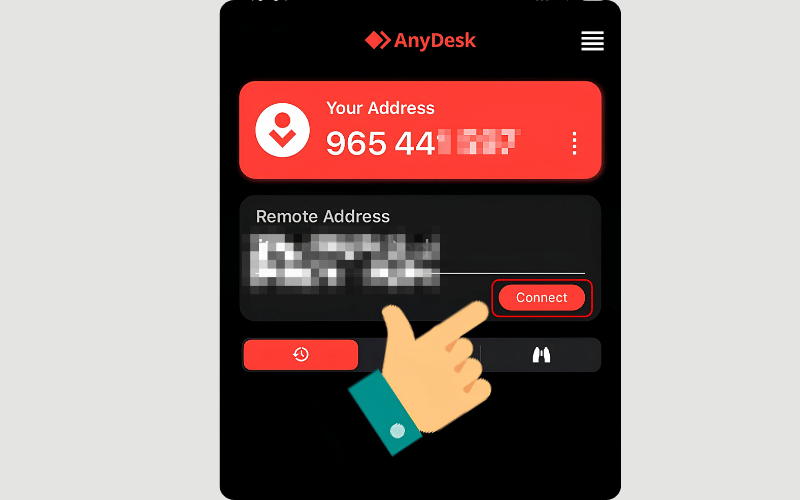
One-time attended connection
- Install AnyDesk from its official source on the laptop and phone.
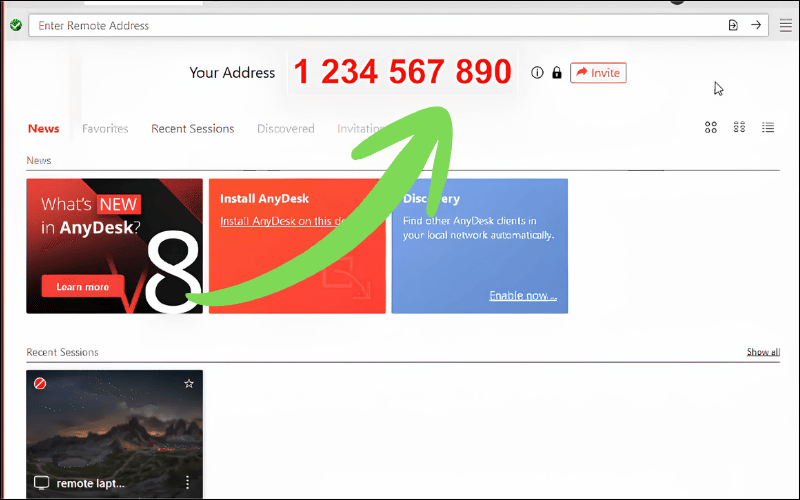
- Open AnyDesk on the laptop and locate its address.
- Enter that address in the phone app.
- At the laptop, verify and accept the request.
- Review permissions such as keyboard and mouse control, clipboard, audio, and file transfer.
Unattended access to your own laptop
Open Settings > Access on the laptop and configure Unattended Access with a strong, unique password. AnyDesk's current documentation also describes saved-login controls. Do not allow clients to save the unattended password unless the phone is personal, locked, encrypted, and under your control.
Remote-access security checklist
- Reject unsolicited help. Banks, government agencies, online stores, and legitimate refund teams do not need you to install remote-control software for an unexpected call.
- Never share verification codes. A session code, unattended password, account password, one-time code, recovery code, and browser cookie are all sensitive.
- Use attended mode for support. Watch the screen, limit permissions, and end the session as soon as the task is complete.
- Restrict unattended access. Use device allowlists or access-control lists when available, and disable the feature when no longer needed.
- Protect the phone. Use a screen lock, current OS, and remote-wipe capability because the phone can become a key to the laptop.
- Keep the host updated. Old remote-access software increases risk.
- Review logs and devices. Remove unfamiliar sessions, trusted devices, and saved credentials.
- Lock the remote computer. End the session and lock Windows or macOS when finished.
TipsMake compares additional options in its guides to controlling a computer from a phone and free remote-control software. Verify current publisher, platform support, and licensing before installing any older recommendation.
Connection troubleshooting
| Problem | Checks |
|---|---|
| Laptop appears offline | Confirm it is powered on, awake, online, and running the host service. Check whether a recent restart is waiting for sign-in. |
| PIN or password is rejected | Check keyboard layout and account identity. Reset the credential from the laptop rather than repeatedly guessing. |
| Black screen or no control | Review screen-recording, accessibility, input-control, or operating-system permissions on the host. |
| Session is slow | Reduce display quality or resolution, close video playback, and test both devices on more stable networks. |
| Connection works locally but not away | Check VPN, firewall, organization policy, and whether the chosen tool supports internet relay. Do not solve this by opening random router ports. |
| Laptop sleeps | Adjust power settings or configure a supported Wake-on-LAN setup; test it before leaving. |
If you need only one file, a properly secured cloud folder may be safer and simpler than leaving full remote control enabled. Use remote desktop when you genuinely need the computer's interface or local applications.
Related Articles
 How to Fix a Laptop That Hangs Effectively to Help You Use5 minutes read
 How to Set Up Bluetooth on Your Laptop Quickly and Easily6 minutes read
 How to Connect Your Phone to Your Laptop Quickly and Easily14 minutes read
 How to Use Android Phone Control Sony TV6 minutes read
 TV Control Applications on the Phone6 minutes read
 Tips for Charging Your Phone When the Laptop Is in Sleep Mode4 minutes read
Reader Comments 0
Sign in with email or Google to join the discussion.