Table of Contents
Most Windows laptops install a Bluetooth driver through Windows Update. If the Bluetooth switch is missing or the adapter has an error, identify the exact laptop and wireless-card model before installing anything. A driver cannot add Bluetooth hardware to a laptop that does not have it.
Confirm the hardware and Windows version
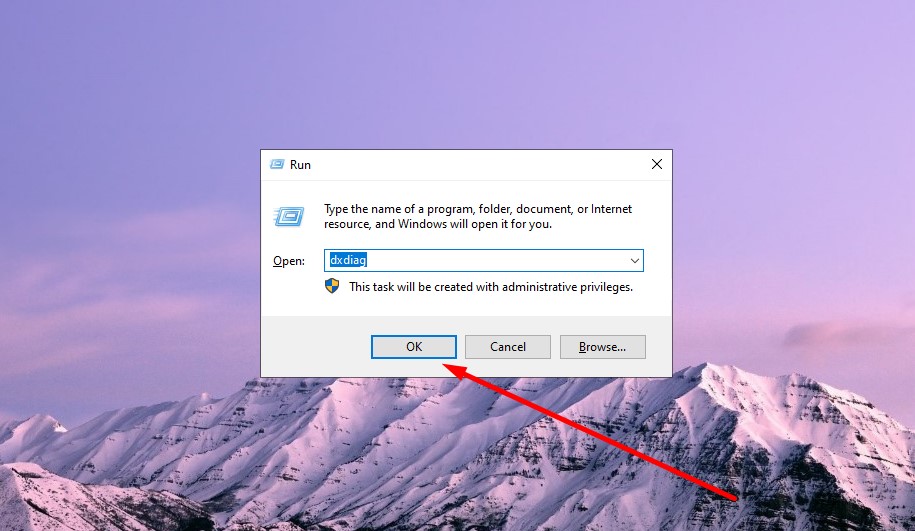
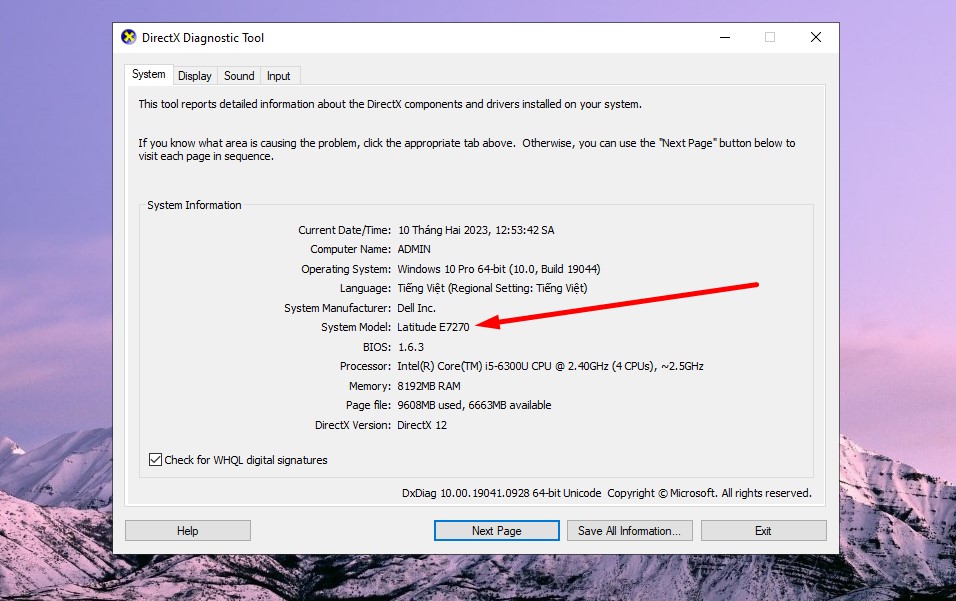
- Press Windows + R, enter
msinfo32, and note System Manufacturer, System Model, and System Type. - Open Device Manager and expand Bluetooth and Network adapters.
- Open the adapter's properties, then note the device name, provider, and hardware IDs.
- Check the laptop maker's specifications to confirm the shipped configuration includes Bluetooth.
Product families may use different Intel, Realtek, MediaTek, Qualcomm, or other wireless cards, so the laptop name alone may not identify the correct package.
Install through Windows Update first
- Open Settings > Windows Update and install normal stable updates.
- Open Advanced options > Optional updates.
- Expand Driver updates and install a Bluetooth driver only when it matches the hardware or manufacturer guidance.
- Restart Windows and check Settings > Bluetooth & devices.
Do not install every optional driver merely because it appears.
Install from the laptop manufacturer
- Go directly to the official support site for the exact brand.
- Search using the serial/service tag or exact model.
- Select the installed Windows version and architecture.
- Download the matching Bluetooth driver; some systems also require the corresponding Wi-Fi, chipset, hotkey, or firmware package.
- Verify the installer's digital publisher, run it, restart, and test.
On a managed laptop, use the organization's software portal or contact IT.
Use Device Manager for diagnosis
Right-click the adapter and choose Update driver to search Windows or select a driver you already downloaded. If a recent update broke Bluetooth, use Properties > Driver > Roll Back Driver. If the adapter has a persistent error, uninstall that specific device and restart—but download the replacement first.
Do not delete the driver package unless you have a known-good replacement. Bluetooth may share a module with Wi-Fi.
If Bluetooth appears as an unknown device
Open the unknown device's properties and copy the first Hardware Ids value. Match its vendor and device identifiers against the laptop maker's supported packages. Do not paste an unknown ID into a random driver-download site.
Avoid driver-updater utilities
Bulk third-party tools can install a generic or wrong driver, bundle unwanted software, and make rollback harder. Windows Update and the laptop or adapter maker are the appropriate sources. A driver-scanning program is not necessary for this task.
Pair a device after installation
- Turn Bluetooth on under Settings.
- Select Add device > Bluetooth.
- Put the accessory into its documented pairing mode.
- Select it and confirm any matching code.
If the adapter remains missing, use missing Bluetooth troubleshooting. If it is present but pairing fails, see how to fix Bluetooth pairing.
When hardware may be faulty
Suspect hardware if Bluetooth and Wi-Fi disappear together, the adapter is absent from firmware and Device Manager after the correct drivers, or the problem followed impact, liquid, or repair. A compatible USB Bluetooth adapter can be a practical alternative, subject to required profiles and company policy.
Related Articles
 How to Turn on Bluetooth on Windows 10 Laptop Correctly3 minutes read
 How to Connect Bluetooth Headphones to Your Phone, Laptop, or PC8 minutes read
 How to Quickly Connect Bluetooth Headphones to a Laptop9 minutes read
 The Software Supports Bluetooth Connection with the Computer5 minutes read
 How to Fix 3 Common Errors of Bluetooth Connectivity10 minutes read
 How to Connect Your Phone to Your Laptop Quickly and Easily14 minutes read
Reader Comments 0
Sign in with email or Google to join the discussion.