Table of Contents
There are two supported ways to install Roblox on a Windows laptop: start an experience from the official Roblox website and install Roblox Player when prompted, or install the current Roblox - Windows app from Microsoft Store. Avoid third-party download sites, modified clients, “free Robux” tools, and unofficial launchers.
The Microsoft Store route is straightforward, while the website route is useful if you normally browse experiences on Roblox.com. If one official version has a technical problem, Roblox support may recommend reinstalling or trying the other supported version.
Check the current Windows requirements
Roblox's current computer requirements say the client installs on 64-bit Windows 10 or Windows 11. Windows 7 and 8.1 are not supported installation targets. The official page recommends at least 1 GB of memory and 300 MB of system storage for installation, but individual experiences and Windows itself can need substantially more resources.
| Item | Current starting point |
|---|---|
| Operating system | 64-bit Windows 10 or Windows 11 |
| Graphics | DirectX 10 or newer feature support |
| Memory | At least 1 GB recommended by Roblox; more is practical for Windows and demanding experiences |
| Installation storage | At least 300 MB recommended, plus room for updates and cached experience data |
| Website browser | A current version of Edge, Firefox, or Chrome |
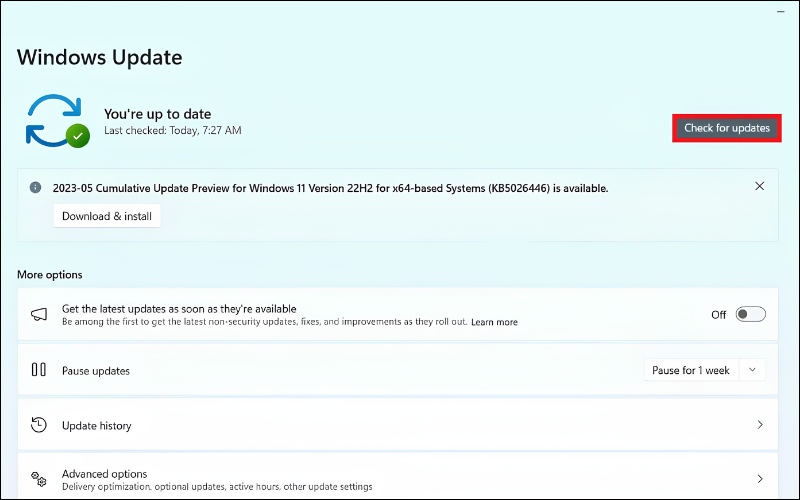
Keep Windows and the graphics driver updated through Windows Update or the laptop/GPU manufacturer's official tools. A hardware upgrade is not a general fix for a failed installer; diagnose the specific problem first.
Method 1: Install Roblox from the official website
- Open Roblox.com in a current browser and sign in. Create an account if needed.
- Open the page for any experience and select the green Play button.
- When Roblox says the Player must be installed, accept the official installer download.
- Open the downloaded Roblox installer from the browser's downloads list or the Windows Downloads folder.
- Allow the installer to finish, return to the experience page, and select Play again if it does not launch automatically.
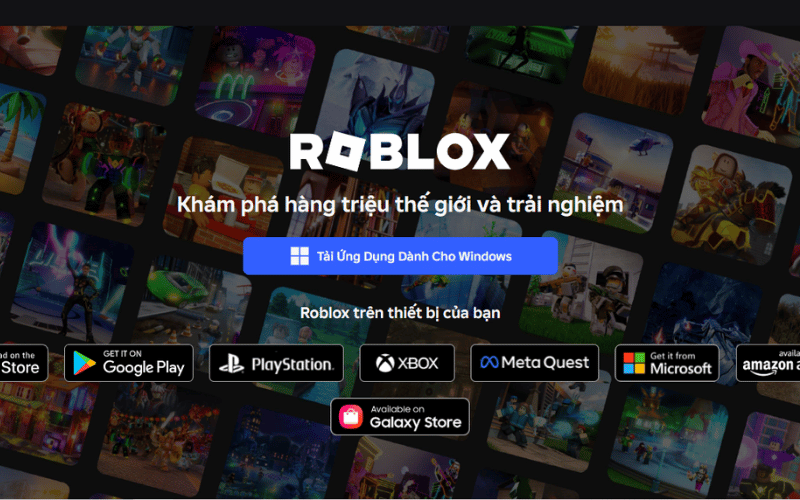
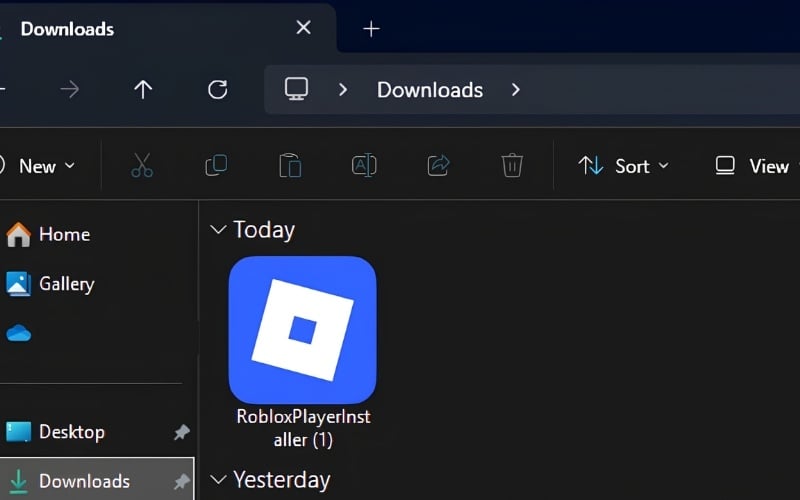
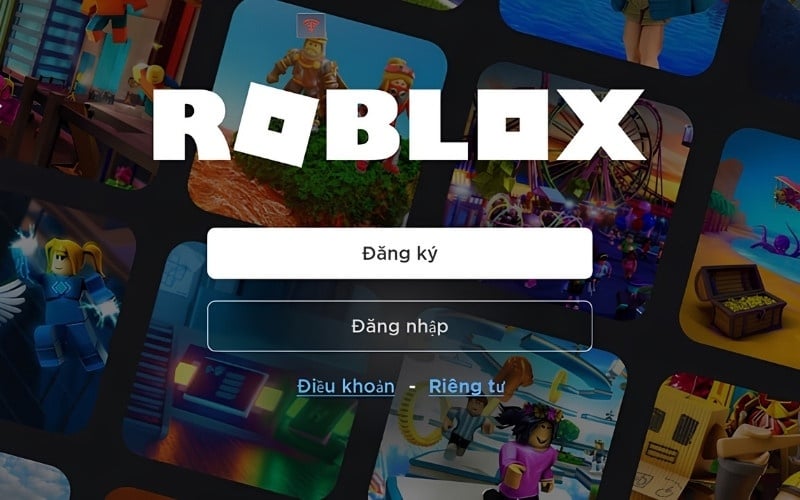
Roblox documents this flow in its official installation guide. Do not use a direct installer link copied from a forum or video description, because it may be outdated or unsafe.
Method 2: Install Roblox from Microsoft Store
- Open Microsoft Store from the Start menu.
- Search for Roblox - Windows.
- Verify the listing and publisher before selecting Get or Install.
- Open the app after installation and complete any Microsoft, Xbox profile, or Roblox account prompts shown by the official app.
- Sign in to Roblox and launch an experience.
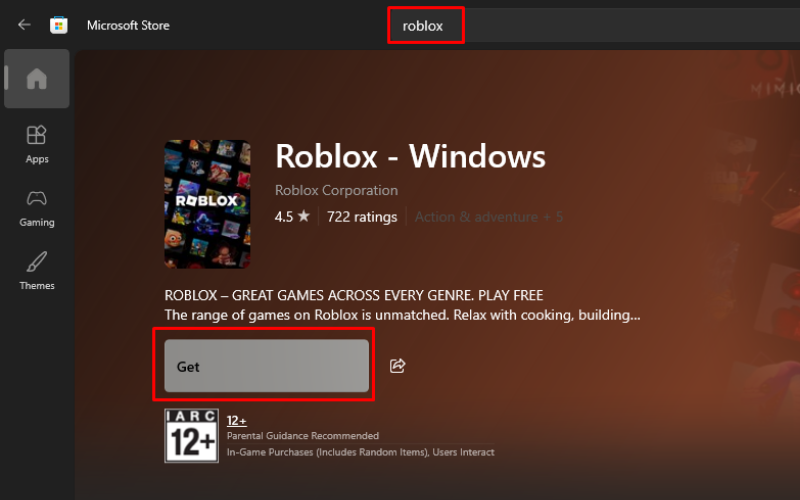
Roblox says the older Store app named simply Roblox is being replaced. After the new Roblox - Windows app is installed and your account works, uninstall the old app to avoid launching the wrong version. Account progress, friends, Robux, and inventory are attached to the Roblox account rather than the local app.
Website or Microsoft Store?
| Consideration | Website install | Microsoft Store |
|---|---|---|
| How installation starts | Select Play on an experience page and run the official installer | Install Roblox - Windows from its verified Store listing |
| Updates | Handled by the Roblox client | Delivered through the Store app framework |
| Account prompts | Roblox account | May also require Microsoft/Xbox profile setup |
| Best reason to choose it | You already find experiences on Roblox.com | You prefer Store-managed installation |
| If it fails | Reinstall, then try the Store version if the problem persists | Repair/reinstall, then try the website version if needed |
Sign in and secure the account
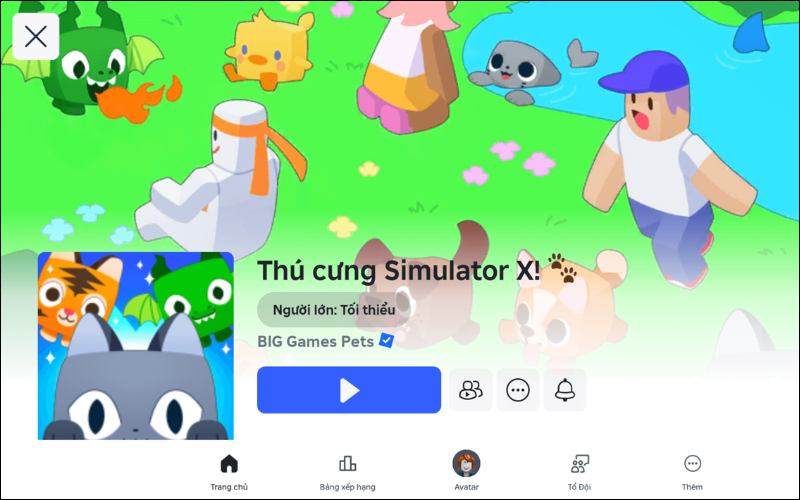
After installation, search for an experience and select Play. Roblox is free to install, but experiences can offer purchases using Robux. Review spending and parental settings before a child uses the account.
- Use a unique password that is not reused on email or other games.
- Enable two-step verification and keep recovery options current.
- Never share a password, verification code, cookie, or recovery code.
- Ignore messages, browser extensions, executables, and websites promising free Robux.
- Use Roblox's parental controls and spending settings for a child account.
- Do not reveal a real name, school, address, phone number, or live location in chat.
If Microsoft Store will not install Roblox
- Confirm Windows is fully updated and the laptop is running a supported 64-bit Windows version.
- Check the internet connection and Microsoft Store service status.
- Sign in to Microsoft Store, reopen it, and retry the verified Roblox - Windows listing.
- Open Settings > Apps > Installed apps, select Microsoft Store's advanced options if available, and use Repair before Reset.
- Restart Windows.
- If the Store route still fails, use the official Roblox website flow.
If the downloaded installer will not open
Delete an incomplete installer and download it again from Roblox.com. Check that the file came from the expected domain, then scan it with Windows Security. TipsMake's guide to detecting and avoiding malicious EXE files explains additional source and signature checks.
Do not disable Windows Security to force the installation. If Windows Security or SmartScreen blocks the official file, update Windows and security definitions, verify the download source, and consult Roblox or Microsoft support. Bypassing a warning for an unverified executable creates a much larger risk than postponing the installation.
If Roblox installs but will not launch
- Restart Windows and try the app again.
- Install pending Windows and graphics-driver updates from official sources.
- Check Roblox's service status if sign-in or experiences fail suddenly.
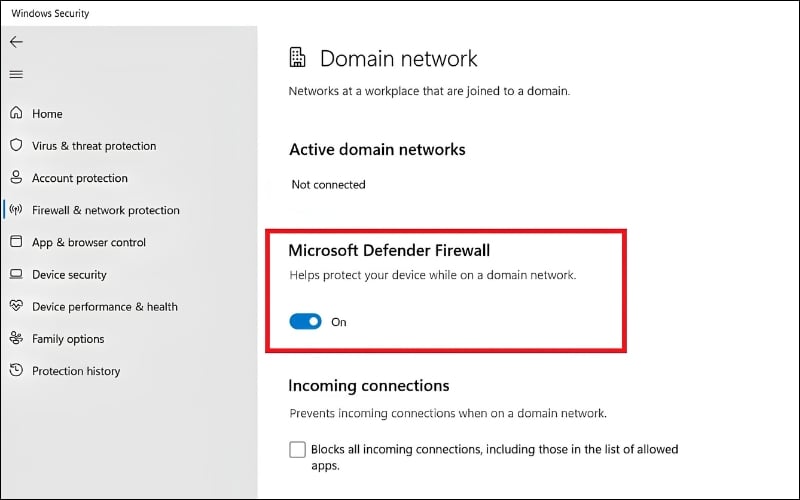
- Allow the verified Roblox app through the firewall only when Windows or your security product identifies the official executable.
- Uninstall Roblox from Windows Settings, restart, and reinstall one supported version.
- If you have both Store versions, keep Roblox - Windows and remove the obsolete app after confirming the new one works.
Reduce lag without risky “boosters”
- Close games, video editors, and excessive browser tabs before playing.
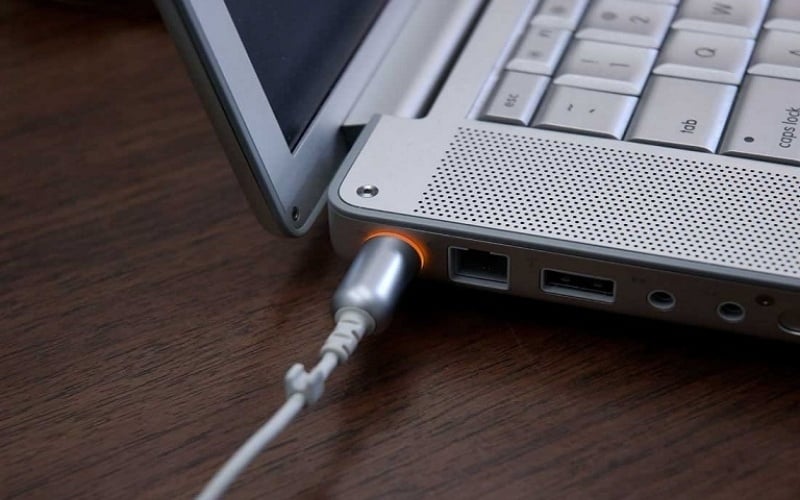
- Connect the laptop to power and choose an appropriate Windows power mode.
- In a Roblox experience, open settings and reduce Graphics Quality when frame rate is low.
- Use a stable network; test Ethernet if Wi-Fi latency varies.
- Keep adequate free storage so Windows and Roblox can update normally.
- Check Task Manager for sustained CPU, memory, disk, or GPU pressure before deciding an upgrade is needed.
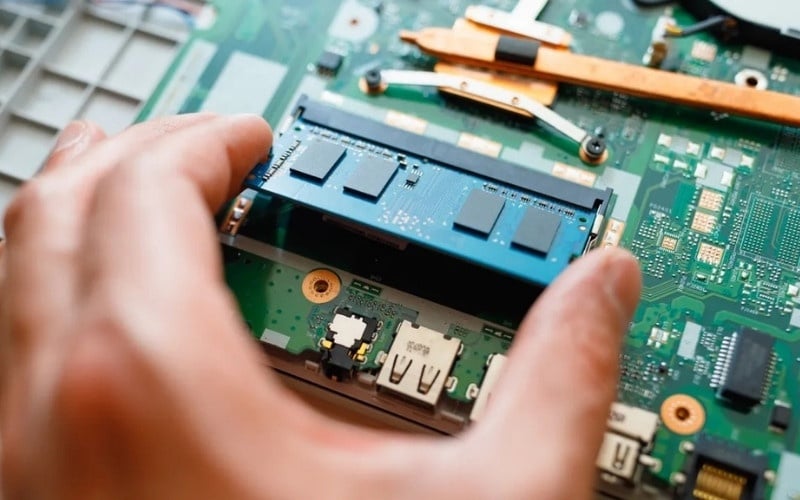
For broader performance diagnosis, see TipsMake's guide to fixing a slow computer. Avoid random “FPS boost” scripts, registry packs, or modified Roblox clients; they can introduce malware, instability, or account problems.
Related Articles
 The Simplest Way to Get Back Your Roblox Account When You Forget4 minutes read
 Roblox Studio13 minutes read
 Download Viber for PC, Laptop Fastest, Simplest8 minutes read
 How to Take Screenshots Win 10 Fastest and Simplest4 minutes read
 5 Simplest and Fastest Ways to Restart Your Laptop: Recommended Choices7 minutes read
 The Fastest Way to Retrieve Your Roblox Pin When You Forget It in4 minutes read
Reader Comments 0
Sign in with email or Google to join the discussion.