Table of Contents
This practical guide explains how to connect Google Drive to grok studio. Follow the steps in order, review the requirements first, and use the troubleshooting notes when a setting or option does not work as expected.
How to connecting Google Drive to Grok Studio
Step 1:
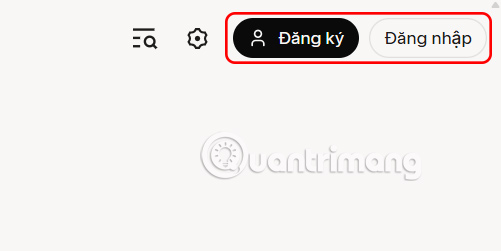
You access the Grok Studio website via the link below then log in with your X account, or create a new account.
- Visit Grok Studio website
Step 2:
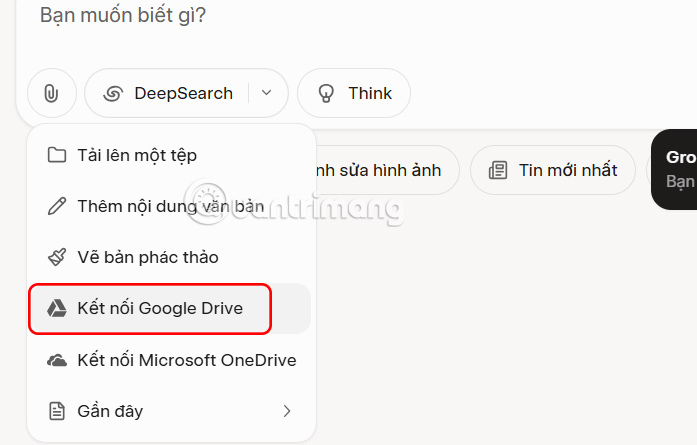
After successfully logging into your Grok Studio account, we access the main interface of Grok. Here, select the pin icon and select Connect Google Drive .
Step 3:
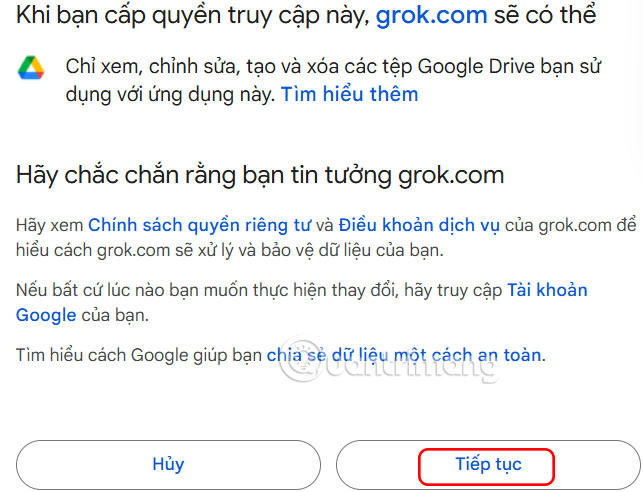
Display Google account for you to choose the account you want to connect to Grok Studio. You choose the Google account you want to use, then press Continue .
Step 4:
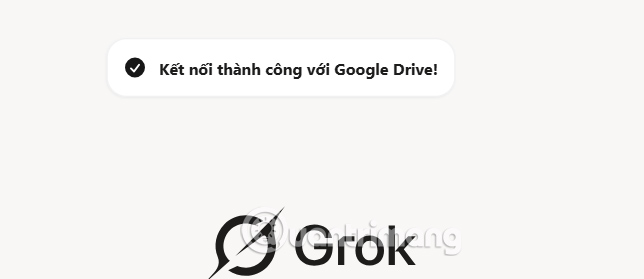
The window will automatically close after you log in and Grok Studio will send you a confirmation message to let you know that the integration is complete.
Step 5:
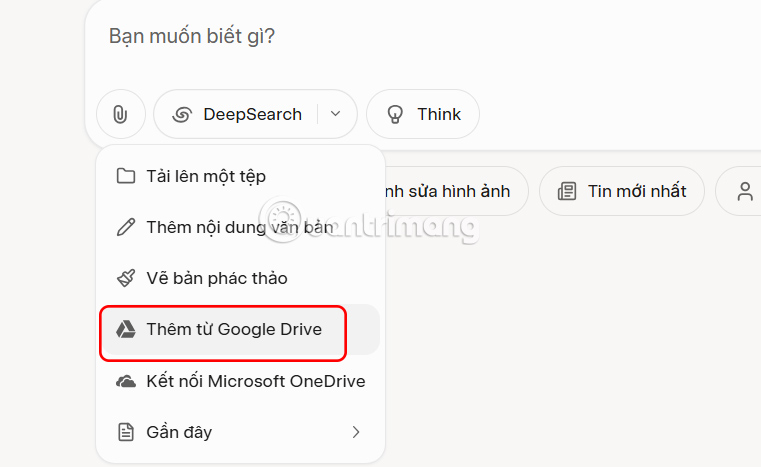
select the clip icon and select Add from Google Drive . Then upload the file to process.
Step 6:
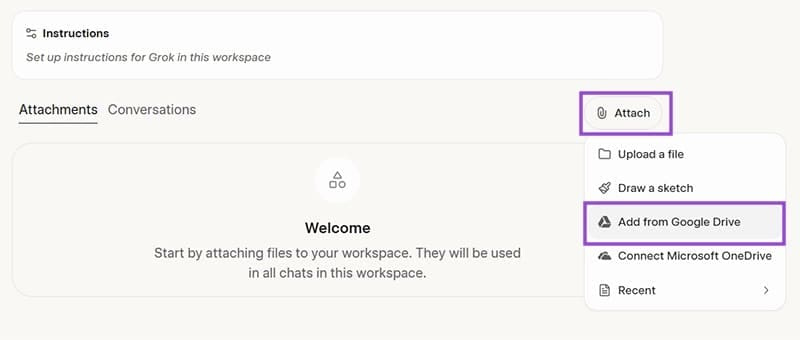
If your team uses shared folders in Google Drive, you can link them to Grok Studio so everyone can view the same content. Tap Workspaces to access them.
Then you click the pushpin icon and select Attach and then click Add from Google Drive to upload the file.
FAQ
How to connecting Google Drive to Grok Studio?
You access the Grok Studio website via the link below then log in with your X account, or create a new account.
What does this guide cover?
This guide explains connect Google Drive to grok studio, including the main steps, important details, and practical considerations.
Who is this guide for?
It is designed for readers who want a clear, practical overview and a reliable process they can follow without unnecessary complexity.
Related Articles
 Experience the Hilarious Grok AI Chatbot on X3 minutes read
 How to Write Basic Code with Grok: Step-by-Step Guide11 minutes read
 Hundreds of Thousands of Conversations with Grok Exposed Publicly4 minutes read
 Negative Prompt AI Techniques5 minutes read
 How to Export a PDF File in Grok: Step-by-Step Guide5 minutes read
 How to Create a Long Video on Grok10 minutes read
Reader Comments 0
Sign in with email or Google to join the discussion.