Table of Contents
This guide provides a clear, practical overview of "Don't Waste Money on Windows 11 Pro Unless You Need This Feature". It organizes the most useful details, explains important considerations, and highlights the steps or choices that matter most.
What is Group Policy Editor? What does it do?
Group Policy Editor, also known as the gpedit.msc Run command, is a control center that lets you configure hundreds of Windows options that aren't available through the regular Settings app. Think of it as Windows' hidden control room, where you can tell your computer what to do, instead of accepting whatever Microsoft decides is best for you.
When you try to control Windows behavior through the regular Settings app, you're limited to what Microsoft thinks most users should change. Learning to navigate the Registry Editor gives you more control, but it's risky; one wrong move and you can break your entire system. The Group Policy Editor sits in the middle, giving you powerful controls with built-in safeguards.
What people love most about Group Policy Editor is its transparency. Unlike the arcane Registry tweaks you find online, every Group Policy setting has a clear description of what it does and what happens when you enable or disable it. You don't have to guess when to make a change. The interface tells you exactly which systems are affected and provides detailed explanations for each setting.
Another reason to use Group Policy Editor is its reliability. When you make changes through Group Policy Editor, Windows respects those decisions. Unlike some Registry tweaks that Windows Updates can overwrite, Group Policy settings persist and maintain your preferences. This consistency means you can set up your computer once and trust that it will be configured the way you want.
Overall, the main advantage of Group Policy over all other methods is the combination of security, robustness and transparency. This is the professional way to manage Windows computers, even in a home environment.
How to Easily Manage Devices Using Group Policy Editor
Most people think of Group Policy Editor as being just for IT departments, but it's one of the most practical tools for home users. Use it to shape your computer into a machine that works exactly the way you want it to, without the usual hassles of Windows.
Getting started is simple; press Win + R , type gpedit.msc , and press Enter . You can also press the Windows key and search for 'Group Policy Editor' to open the menu, or use a variety of other ways to open the local Group Policy Editor on Windows 11.
Once you open it, you don't have to feel overwhelmed. Let's take a look at the different ways you can use Group Policy Editor to help your computer run better!
Tip : After making changes in Group Policy Editor, run gpupdate /force in Command Prompt to apply immediately. Some settings may require a restart or log off.
Control Windows Updates
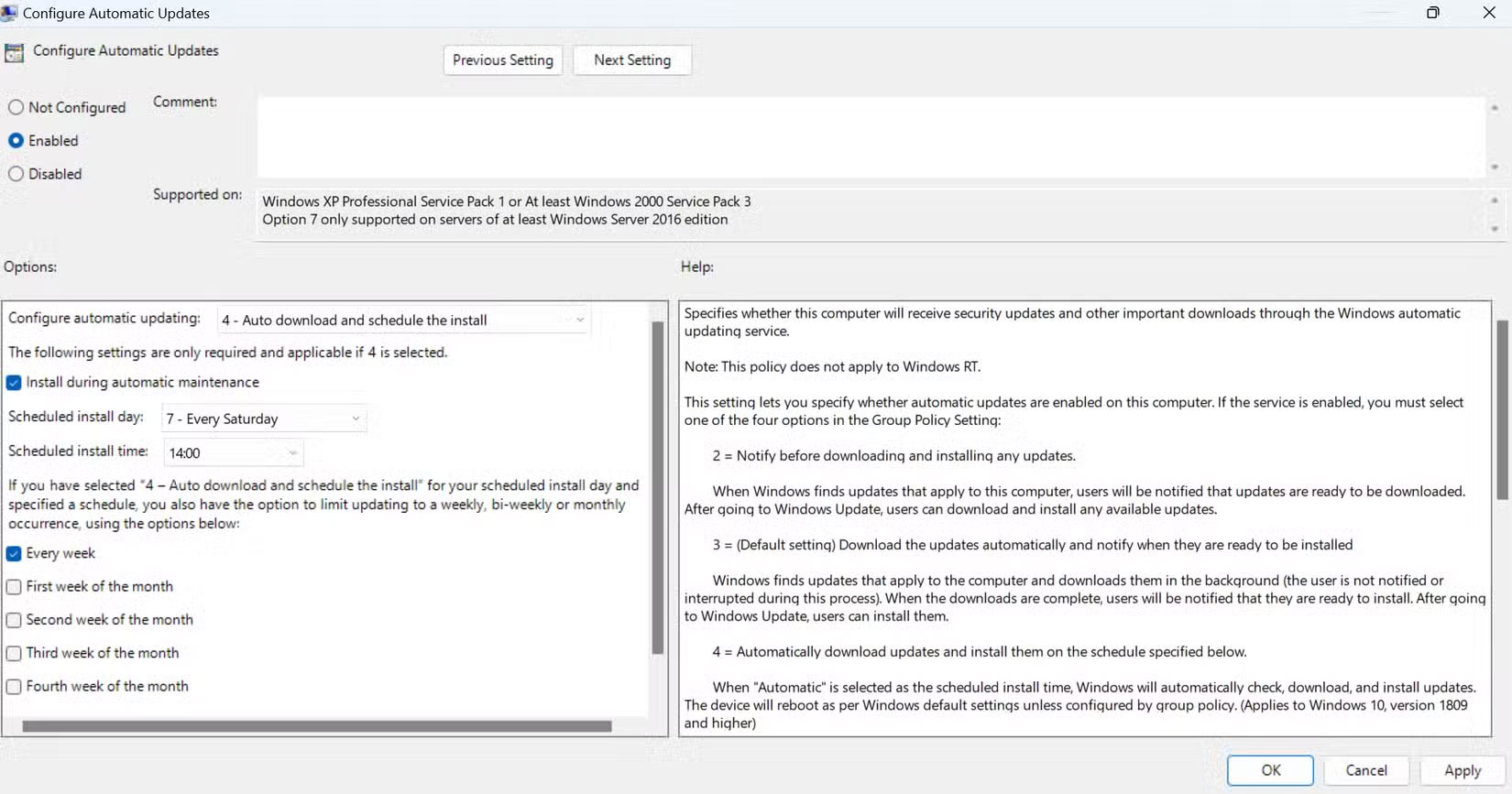
Windows Updates used to drive a lot of people crazy. Your computer would suddenly reboot in the middle of important work, or it would take 20 minutes to install updates when you just needed to quickly grab a file before heading out. Group Policy Editor solved this annoyance.
Navigate to Computer Configuration > Administrative Templates > Windows Components > Windows Update . Here, you can set exactly when updates are installed. Configure your main work computer to only install updates at 2 a.m. on Saturdays, for example.
The best part is controlling which updates are installed automatically. Allow security updates to be installed immediately because they are critical, but delay feature updates for a few weeks. This way, you avoid becoming an unwanted beta tester for Microsoft's latest experiment while still staying safe. Group Policy allows you to strike the perfect balance between security and stability.
Hide Shutdown and Restart options to prevent crashes caused by family members
When your grandchildren come over, do you often let them play on your computer using one of the virtual desktops that you use for other tasks? If you often do your writing projects on this particular computer, having a virtual workspace helps prevent your work from being tampered with. However, there have been many cases of people losing progress because someone accidentally pressed the power button.
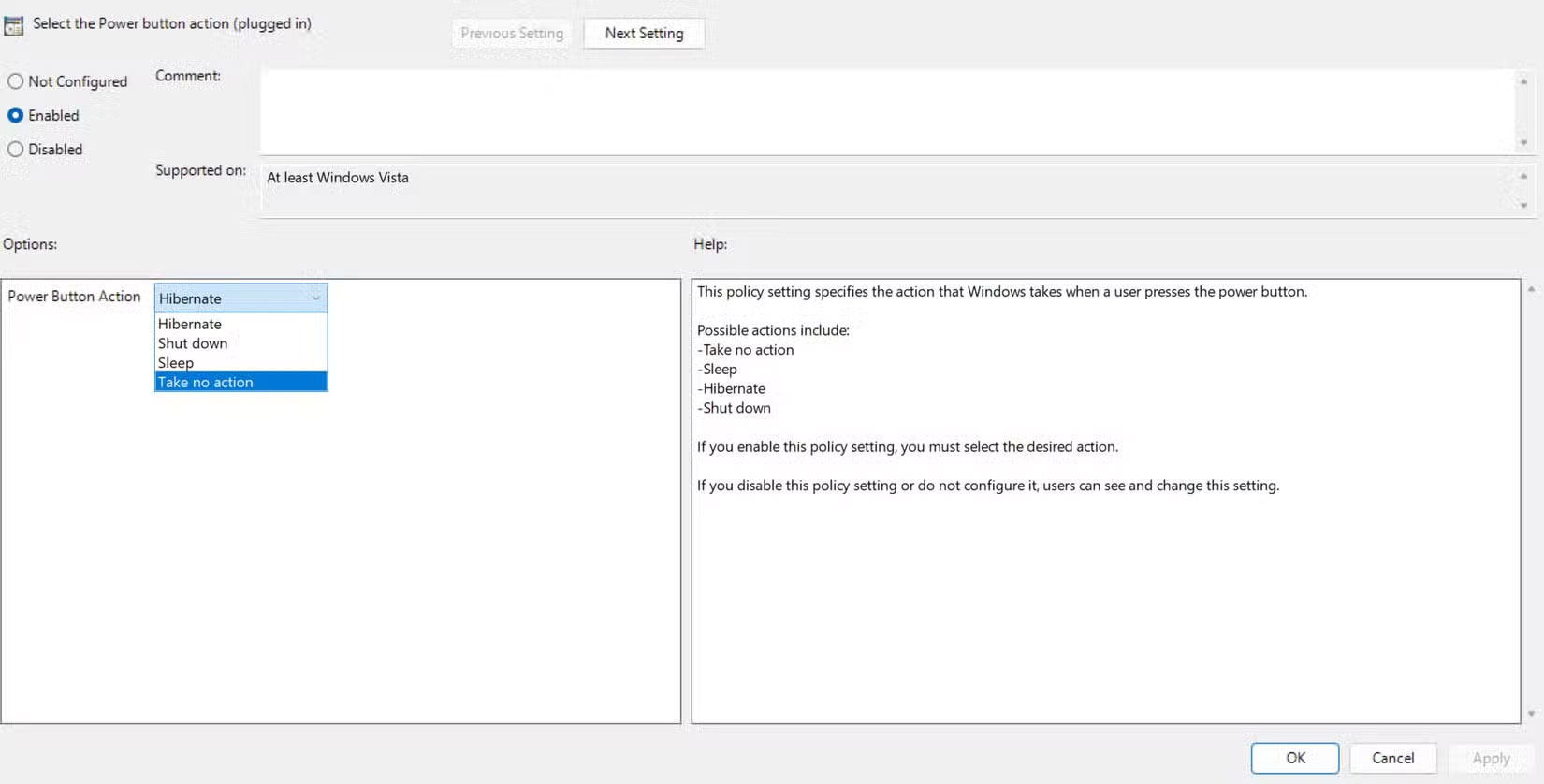
To fix this problem, use Group Policy Editor to disable the power button on your computer. This way, other people can't accidentally shut down your computer while it's downloading or performing certain tasks.
Disabling the power button is easy. Go to Computer Configuration > Administrative Templates > System > Power Management > Button Settings . There, double-click Select the Power Button Action ; set it to Enabled , select Take no action , click Apply , then click Okay . The change will take effect immediately.
Why is this feature worth upgrading to Windows 11 Pro?
These tweaks will help make your Windows 11 Pro devices more manageable, secure, and predictable for everyone in your household.
Whether the Group Policy Editor is worth the $199 upgrade to Windows 11 Pro (or $99 for Home) depends on your situation and computing habits. If you're a casual user who's comfortable with Windows' default behavior and mostly uses your computer for basic tasks, you can probably skip the upgrade. Windows 11 Home handles these everyday needs perfectly well without adding complexity.
However, the upgrade makes a lot more sense if you're tired of fighting Windows' default behavior or need more control when sharing your computer with other family members. The value increases significantly when you consider the other Pro features that come built in. Windows Sandbox provides a safe testing environment for suspicious downloads, BitLocker provides enterprise-grade drive encryption, and Hyper-V enables virtualization to run multiple operating systems. Meanwhile, Remote Desktop adds professional remote access capabilities.
For users who need centralized system control, the ability to manage multiple user accounts, or advanced security features, Windows 11 Pro offers significant value. The time saved from automated management and the peace of mind from comprehensive system control easily justify the cost of the upgrade for anyone who takes their computer seriously. But if you don't need those things, skip Windows Pro and save your money.
FAQ
What is Group Policy Editor? What does it do?
Group Policy Editor, also known as the gpedit.msc Run command, is a control center that lets you configure hundreds of Windows options that aren't available through the regular Settings app. Think of it as Windows' hidden control room, where you can tell your computer what to do, instead of accepting whatever Microsoft decides.
How to Easily Manage Devices Using Group Policy Editor?
Most people think of Group Policy Editor as being just for IT departments, but it's one of the most practical tools for home users. Use it to shape your computer into a machine that works exactly the way you want it to, without the usual hassles of Windows.
What should you know about control Windows Updates?
Windows Updates used to drive a lot of people crazy. Your computer would suddenly reboot in the middle of important work, or it would take 20 minutes to install updates when you just needed to quickly grab a file before heading out. Group Policy Editor solved this annoyance.
What should you know about hide Shutdown and Restart options to prevent crashes caused by family members?
When your grandchildren come over, do you often let them play on your computer using one of the virtual desktops that you use for other tasks? If you often do your writing projects on this particular computer, having a virtual workspace helps prevent your work from being tampered with. However, there have been many cases of.
Related Articles
 The Truth About Recycling E-waste and Its Effectiveness10 minutes read
 Different Ways to Classify Waste: Complete Guide5 minutes read
 7 Tech Misconceptions That Sound Smart but Are Actually a Waste of Money7 minutes read
 The 5 Best VPN Software Currently Available Offer Free Trials and Money-Back Guarantees11 minutes read
 Discontinuing Support for Windows 10 Could Cause Large Amounts of5 minutes read
 How Are People Using Plastic to Destroy Nature?4 minutes read
Reader Comments 0
Sign in with email or Google to join the discussion.