Table of Contents
You cannot ask Google to reveal an old Gmail password. If you own the account, use Google’s official recovery process to verify your identity and set a new password. The verification options are chosen dynamically; a recovery phone or email may be offered, but it is not guaranteed for every attempt.
Start only at accounts.google.com/signin/recovery. Google warns against password-recovery services and does not work with anyone who asks for your password or verification code.
Start Google Account recovery
Step 1: Enter the Gmail address or other email used for the Google Account. Check the spelling and domain.
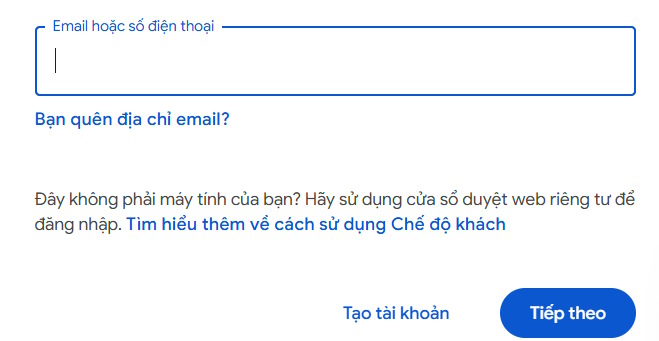
Select Forgot password? or continue through the recovery page.
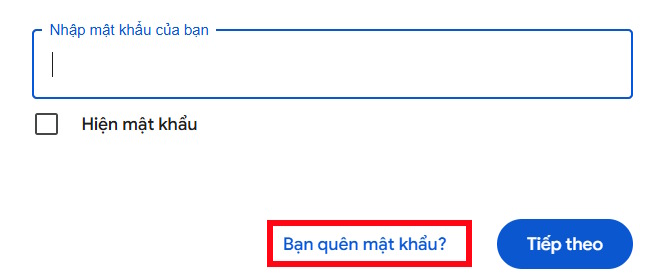
Google may first ask for the most recent password you remember, a prompt on a signed-in device, a security key, a passkey, a recovery phone, or a recovery email. Answer as accurately as possible and use Try another way only when you cannot complete the offered method.
Verify with a recovery phone when offered
Step 1: Select the masked phone number or the phone verification option shown for the account.
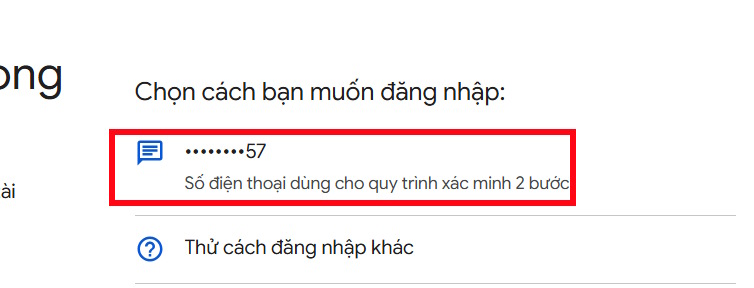
Step 2: Confirm the requested phone details and choose text or call if Google offers a choice. Enter the code only on Google’s page.
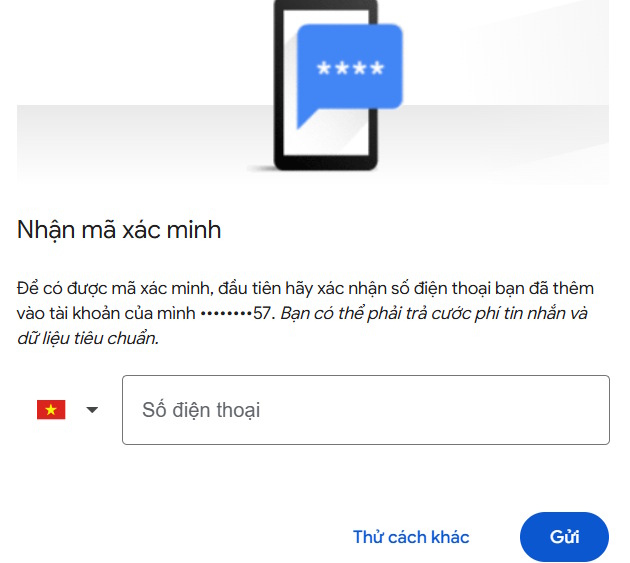
Never read or forward the code to another person, including someone claiming to be Google support. If a code arrives when you did not request it, do not use or share it.
Step 3: If verification succeeds, continue to the password-reset screen.
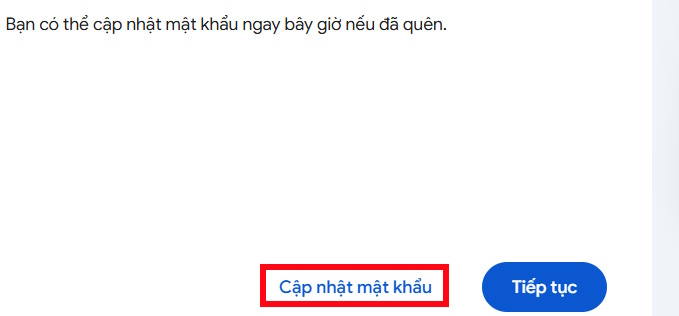
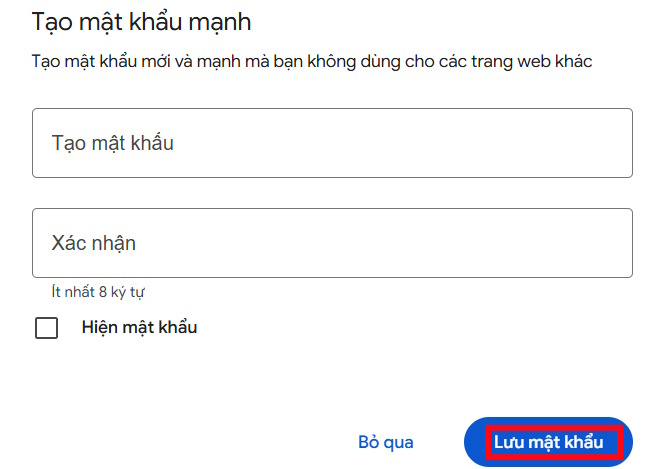
Create a new, unique password that you have not used for this account or another service. A password manager can generate and store it safely.
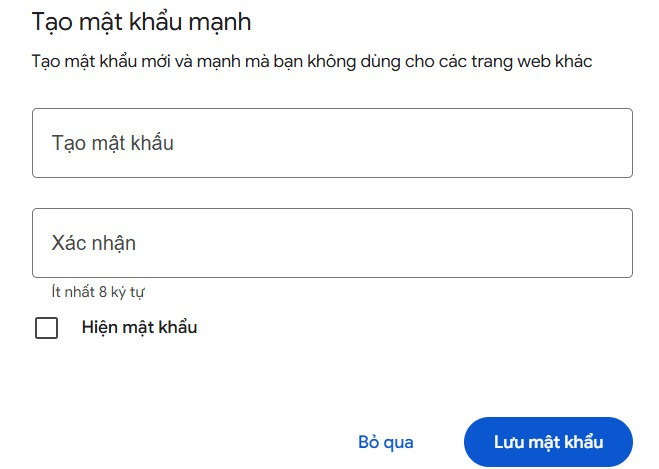
Verify with a recovery email when offered
If phone verification is unavailable, choose Try another way. Google may offer a masked recovery email address.
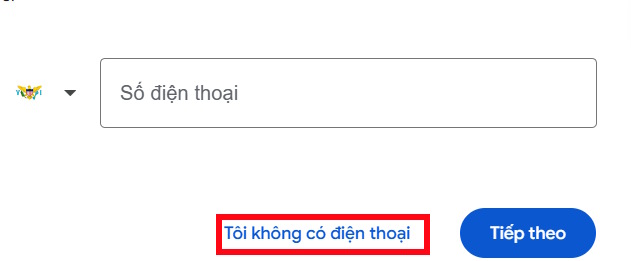
Open the recovery inbox directly—do not follow an unexpected third-party link—and look for Google’s message. Check Spam or Bulk Mail if it is missing. Enter the code on the original Google recovery page.
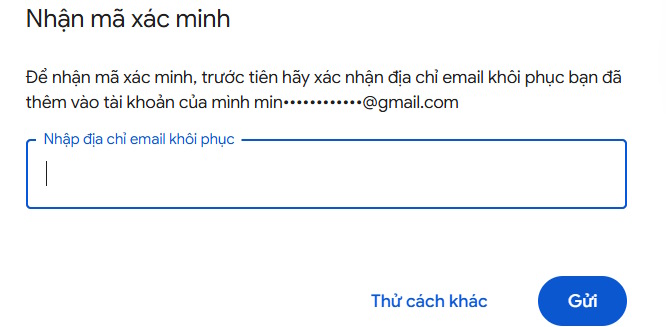
After successful verification, set and confirm a new password.
Improve the chance that Google recognizes you
Google’s official account-recovery tips recommend:
- use a device, browser, and location where you normally sign in;
- answer as many questions as possible instead of guessing wildly or skipping them;
- enter the most recent password you remember exactly;
- use an email address you can access when Google asks for one;
- check spelling and wait for Google’s response rather than submitting many contradictory attempts.
A VPN, new device, private-browsing session, or unfamiliar location can make an attempt look less familiar. Do not clear cookies from a device that previously signed in until recovery is complete.
If the phone number or recovery email is unavailable
Select Try another way and complete whatever Google offers. You cannot force a particular verification channel, and adding new recovery information after losing access does not provide an immediate bypass. Google notes that recovery-information changes may take time to take effect.
For a work or school Google Workspace account, contact the organization’s administrator; its recovery process can differ. For a supervised child account, use the Family Link or guardian workflow. For a free personal account, Google’s automated process is the recovery path—avoid anyone selling “manual recovery.”
If you think the account was stolen
Use Google’s hacked-account recovery guidance. From a clean device, recover the account, change the password, and then review:
- recovery phone numbers and email addresses;
- signed-in devices and recent security activity;
- 2-Step Verification methods, passkeys, and backup codes;
- third-party apps with account access;
- Gmail forwarding, filters, delegates, and sent messages.
Changing the password can sign the account out on many devices, but Google documents some exceptions. Remove unfamiliar access explicitly instead of assuming the reset ended every session.
Prevent another lockout
- Keep both a recovery phone and recovery email current.
- Turn on 2-Step Verification and store backup codes offline.
- Use a unique password stored in a reputable password manager.
- Add passkeys only on devices you control.
- Review Google Security Checkup periodically and remove old devices or apps.
Related Articles
 How to Recover Gmail Account?: Change Gmail Password3 minutes read
 How to Recover Gmail Account When Password Is Forgotten5 minutes read
 Recover Gmail Password: Complete Guide3 minutes read
 How to Retrieve Gmail Password, Google Login Password6 minutes read
 How to Retrieve Facebook Password Using Gmail on Computers5 minutes read
 Instructions: Use Google's Advanced Security Login Feature6 minutes read
Reader Comments 0
Sign in with email or Google to join the discussion.