Table of Contents
This guide provides a clear, practical overview of "Instructions to Enable Adaptive Energy Saver to Improve Windows 11". It organizes the most useful details, explains important considerations, and highlights the steps or choices that matter most.
How to enable Adaptive Energy Saver on Windows 11
Step 1:
Windows 11 is currently working on this feature, but you can still install it for use via the ViveTool tool.
- What is ViVeTool? How to use ViVeTool to enable hidden features on Windows
Step 2:
We download the ViveTool tool to our computer, then search for Command Prompt and open it with the Run as administrator option .
Type the following command to navigate to the ViveTool folder and press Enter.
cd c:folderpathViveTool-v0.x.xNote the path in the command changes to the path to your directory.
Step 3:
Type the command below to enable Adaptive Energy Saver and press Enter.
vivetool /enable /id:56401475Restart your computer and you will enable the Adaptive Energy Saver option. In case the user wants to disable this feature, enter the command below.
vivetool /disable /id:56401475Step 4:
Open Settings on your computer, then select Power & battery and select Energy Saver . Then at Always use energy saver click Adaptive .
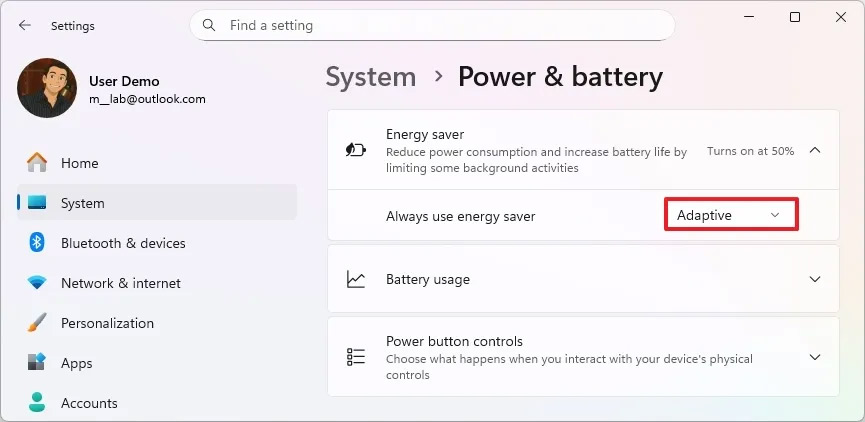
After you complete the steps, the system may turn power saving mode on or off, depending on how much battery is left and how you use your device.
FAQ
How to enable Adaptive Energy Saver on Windows 11?
Windows 11 is currently working on this feature, but you can still install it for use via the ViveTool tool.
What does this guide cover?
This guide explains instructions to enable adaptive energy saver to improve Windows 11, including the main steps, important details, and practical considerations.
Who is this guide for?
It is designed for readers who want a clear, practical overview and a reliable process they can follow without unnecessary complexity.
Related Articles
 Decode Adaptive Battery and Adaptive Brightness, Two Brand New Features on Android Pie 9.06 minutes read
 Instructions to Enable // Disable Windows 10 Battery Saver5 minutes read
 The Way Android P Increases Battery Life8 minutes read
 Steps to Enable Battery Saving Mode (Battery Saver) on3 minutes read
 Learn About Chrome's New Memory Saver and Energy Saver Modes5 minutes read
 How to Enable the Battery Saver Function on Your Laptop6 minutes read
Reader Comments 0
Sign in with email or Google to join the discussion.