Table of Contents
Taking screenshots on an iPhone is similar to taking screenshots on a computer; it helps you save important content. This article will guide you on how to take screenshots on all iPhone models, from iPhone 5, 5s, 6, 6s, 7, 7 Plus, 8/8 Plus to iPhone X, Xr, Xs, iPhone 11, and iPhone 12.
1. Taking a screenshot on an iPhone without a Home button
The iPhone X, iPhone XR, iPhone XS/iPhone XS Max, iPhone 11, iPhone 11 Pro, iPhone 11 Pro Max, and iPhone 12 are devices that have removed the Home button. To take a screenshot on these iPhones, follow these steps:
Step 1: Simultaneously press and release the side button and the volume up button.
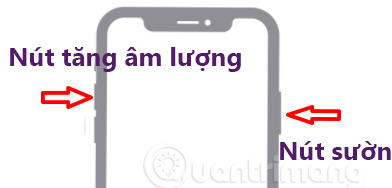
Step 2: Tap the screenshot in the bottom left corner, edit if needed, then tap Done.
Step 3: Save to Photos/Files or share, or delete the iPhone screenshot.
2. Taking a screenshot on an iPhone with a Home button
iPhones 8 and earlier have a physical Home button. To take a screenshot on these iPhones, you press and then release the Home button and the Power button simultaneously (iPhone 4, 5) or the Home button and the side button (iPhone 6, 7, 8).
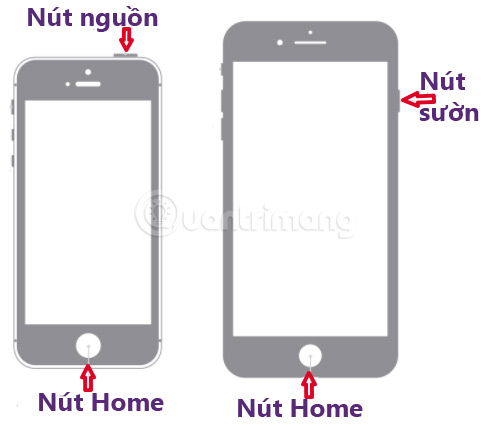
Then follow steps 2 and 3 above.
3. Take a screenshot on your iPhone using the virtual Home button
If you frequently need to take screenshots on your iPhone, you can add this feature to your actions using the virtual Home button for faster capture.
Step 1: Enable the virtual Home button.
Step 2: Access the Virtual Home settings:
- On iOS 13 and 14: Go to Settings > Accessibility > Touch > AssistiveTouch
- On iOS 12 and earlier: Go to Settings > General > Accessibility > AssistiveTouch.
Step 3: Tap on the "Double tap to select action" option. A list of actions will then appear for you to choose from; tap "Take screenshot ". Now, to take a screenshot, simply double-tap the virtual Home button icon.
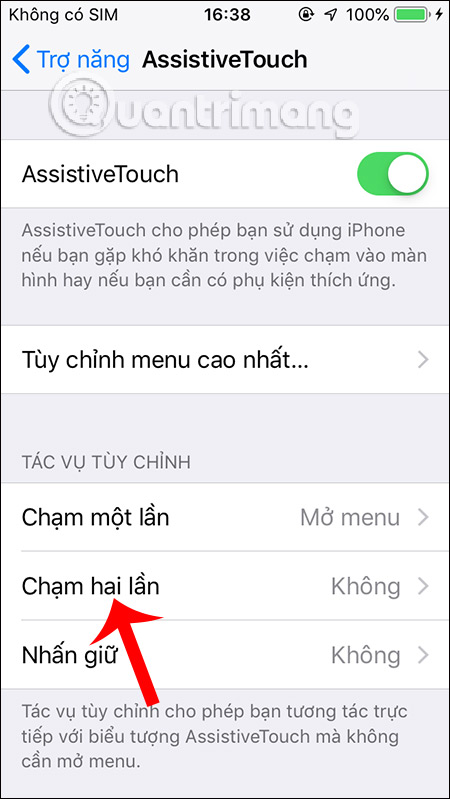
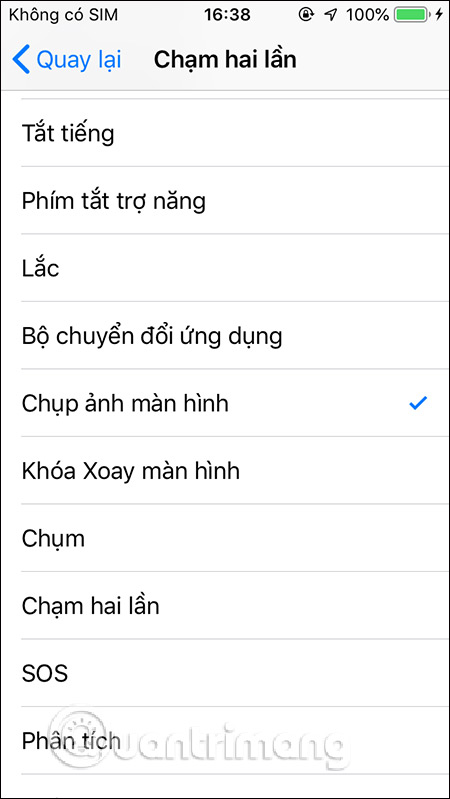
The method of taking a screenshot on an iPhone by double-tapping the virtual Home button is available on most current iPhone models.
- How to copy music, videos, and photos from your computer to your iPhone or iPad.
4. Take screenshots on iPhone and iPad using the virtual Home button
If you're hesitant to use the physical buttons and don't need to take screenshots very often, you can add a screenshot feature to the virtual Home button on your iPhone.
Step 1: Go to the settings for the virtual Home button (AssistiveTouch).
Step 2: Select Customize control menu
Step 3: Click on any icon, then select "Take screenshot" from the list that appears.
Step 4: To take a screenshot on your iPhone, tap the virtual Home button, then select "Screenshot".
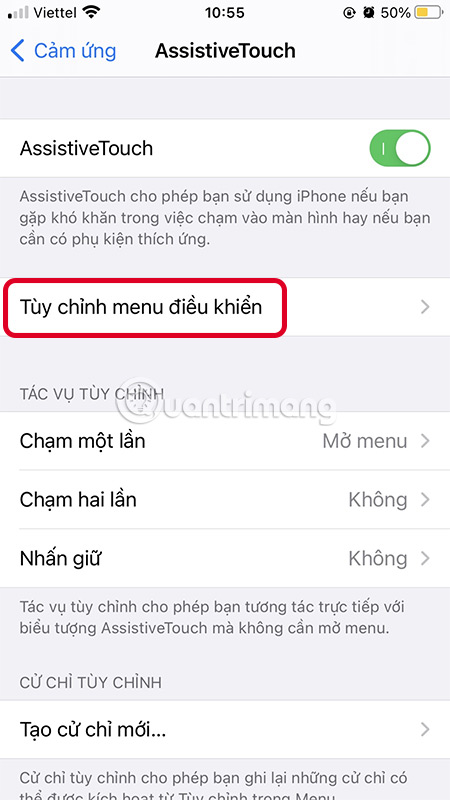
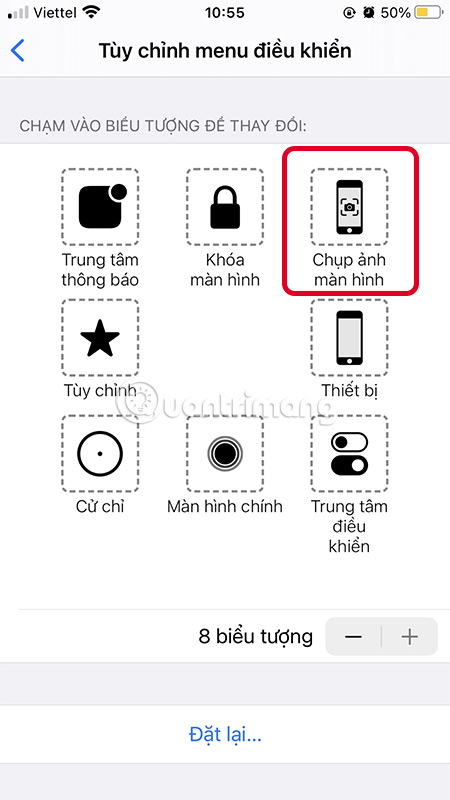
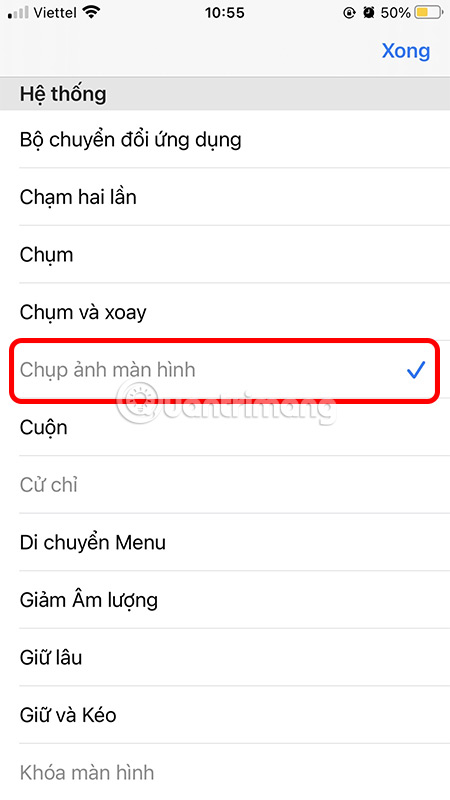
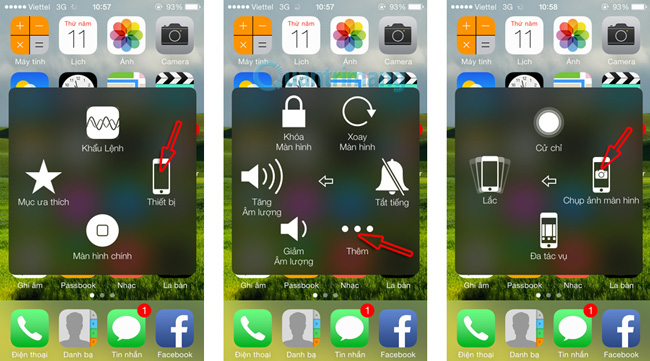
On older iOS versions, after enabling the virtual Home button, simply tap the virtual Home button, select Device, select More, and then select Screenshot. The image will also be saved to your Camera Roll in *.PNG format.
It's simple and easy, isn't it?
5. Take a screenshot by tapping the back of the phone
Starting with iOS 14, Apple added the Back Tap feature, which allows you to take screenshots by tapping the back of your device without needing to perform many other actions.
Setting up the back tap feature to take screenshots is also very easy. You just need to go to Settings > Accessibility > Touch > Back Tap > Double Tap/Triple Tap > Screenshot.
Once set up, you can double-tap the back of your phone to quickly take a screenshot. Note that this feature only supports iPhone 8 and later models running Apple's latest operating system, iOS 14.
Good luck!
Related Articles
 6 Easy Ways to Take Screenshots on Windows 10 And 115 minutes read
 3 Quick Ways to Take Screenshots in Windows 83 minutes read
 14 Hidden iPhone and iPad Gems: Screenshots, Trackpad11 minutes read
 3 Simple and Quick Ways to Take a Screenshot on Your Macbook3 minutes read
 6 Simple Ways to Fix the Situation of iPhone and iPad Crashes While6 minutes read
 8 Ways to Take Screenshots of Macbook Air M1 20205 minutes read
Reader Comments 0
Sign in with email or Google to join the discussion.