Table of Contents
Current Cốc Cốc versions include an ad blocker based on Adblock Plus technology, so you normally do not need to install a separate Adblock Plus extension. Update the browser, confirm that built-in blocking is enabled, and use the shield control to manage YouTube or another site.
Enable Cốc Cốc's built-in ad blocker
- Open Cốc Cốc and install any available browser update.
- Open the Cốc Cốc menu and choose Settings.
- Select Ad blocking.
- Turn on Enable ad blocking.
- Open YouTube and reload the page.
Cốc Cốc says its built-in feature is enabled by default and works on websites including YouTube. The browser's official ad-blocking page describes the current feature.
Change blocking for YouTube or another site
- Open the site in Cốc Cốc.
- Select the shield icon beside the address bar.
- Turn ad blocking on or off for that site.
- Open the advanced ad-blocking settings if you want to change filter mode, Acceptable Ads, or the allowlist.
- Reload the tab after a change.
Use a site-specific exception when video, sign-in, checkout, comments, or another necessary feature stops working. Turning the blocker off for every site is rarely required.
Do not install a second blocker by default
Running Cốc Cốc's built-in blocker alongside Adblock Plus, AdBlock, or another extension can duplicate filters and make troubleshooting difficult. It may also cause anti-adblock warnings or hide a page element the other blocker expects.
If you already installed another blocker:
- Open Cốc Cốc's extensions manager.
- Disable the third-party blocker temporarily.
- Leave the built-in ad blocker enabled and test YouTube again.
- If the result is satisfactory, remove the duplicate extension.
AdBlock and Adblock Plus are separate products. Our AdBlock versus Adblock Plus comparison explains their differences, but neither is normally necessary when Cốc Cốc's integrated option meets your needs.
The old extension method is now a legacy reference
The original tutorial opened the Chrome Web Store, searched for Adblock Plus, and added the extension to Cốc Cốc. The screenshots below are preserved for historical context, but the built-in feature is the current first choice.
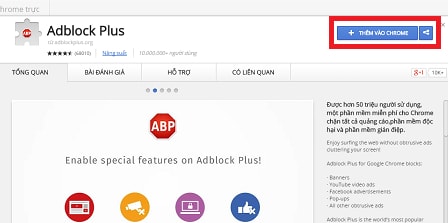
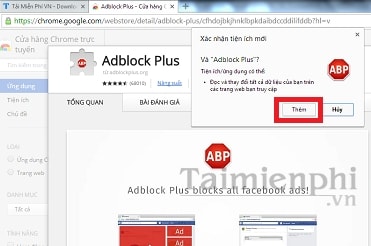
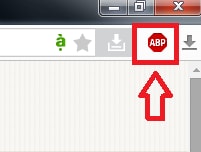
If a current support case genuinely requires an extension, install it only from the browser's recommended store, verify the publisher, and review permissions. Disable the built-in blocker during the test so you can identify which product caused any problem.
If YouTube ads still appear
- Update Cốc Cốc and restart it.
- Confirm that built-in ad blocking is enabled globally and for youtube.com.
- Reload the video with Ctrl+R or Command+R.
- Disable duplicate blockers, privacy extensions, and custom scripts one at a time.
- Restore the default filter mode if you changed lists or advanced settings.
- Check whether the promotion is a creator-read sponsorship embedded in the video; a network filter cannot remove that automatically.
Ad filtering can change when YouTube updates its player or anti-blocking behavior. No blocker can guarantee uninterrupted removal of every current and future ad.
If YouTube detects an ad blocker
- Update Cốc Cốc and reload the page.
- Check that only one blocker is active.
- Clear YouTube's site data if the warning persists after changing the blocker, then sign in again.
- Temporarily allow YouTube through the shield menu if playback remains unavailable.
Do not install a patched browser, modified YouTube app, or unsigned extension to bypass a warning. YouTube Premium is the platform's supported paid option for ad-free playback while signed in on supported devices.
Use the built-in blocker on Cốc Cốc Mobile
On Android or iPhone, open Cốc Cốc's settings, choose Ad blocking, and turn the feature on. Menu placement can differ by mobile release. Browser-based filtering affects YouTube opened in Cốc Cốc; it does not necessarily change the official YouTube app.
If playback or a site feature breaks, use the site's shield control or the mobile ad-blocking settings to make a narrow exception, then reload.
Other useful controls
Blocking video ads is separate from YouTube autoplay. Turn autoplay off using YouTube's own player control if you do not want the next video to start automatically. Likewise, pop-up tabs from unrelated websites may indicate a bad extension or notification permission rather than a normal YouTube ad.
For Chrome's built-in pop-up and notification controls, see our Chrome ads and pop-ups guide. The same diagnostic distinction—page ad, pop-up, notification, or unwanted extension—also helps in Cốc Cốc.
Related Articles
 Guide 3 Ways to Block Ads on YouTube Videos: Turn Off Video Ads4 minutes read
 How to Block YouTube: Complete Guide14 minutes read
 Guide to Hiding Videos 'Poor Presidents… and the Ending' on YouTube6 minutes read
 How to Report YouTube Videos with Inappropriate Content5 minutes read
 Ways to Protect Children from 'Malicious' YouTube Videos6 minutes read
 How to Block Keywords on YouTube: Practical Guide5 minutes read
Reader Comments 0
Sign in with email or Google to join the discussion.