Table of Contents
YouTube's Restricted Mode can filter some potentially mature content, but it is not a complete child-safety system. For a young child, use YouTube Kids with Approved content only or a supervised YouTube account managed through Family Link, then review viewing activity and block specific videos or channels when needed.
Turn on Restricted Mode on a computer
- Open YouTube and sign in.
- Select your profile picture in the upper-right corner.
- Select Restricted Mode.
- Turn on Activate Restricted Mode.
Restricted Mode applies at the browser or device level. You may need to enable it separately in each browser profile, app, phone, TV, or other device. Comments are hidden while Restricted Mode is on.
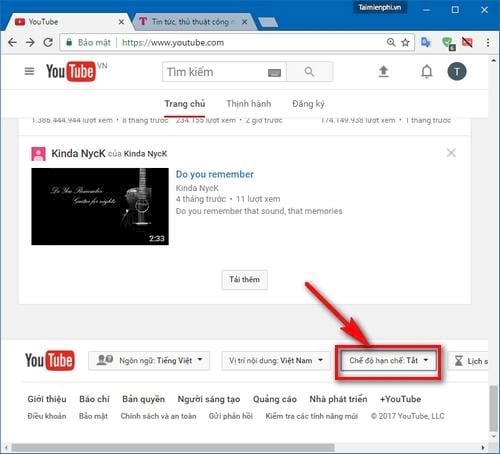
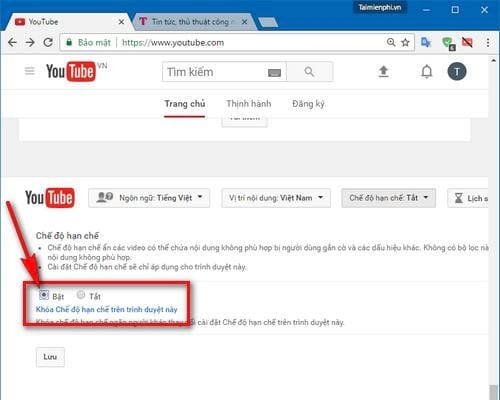
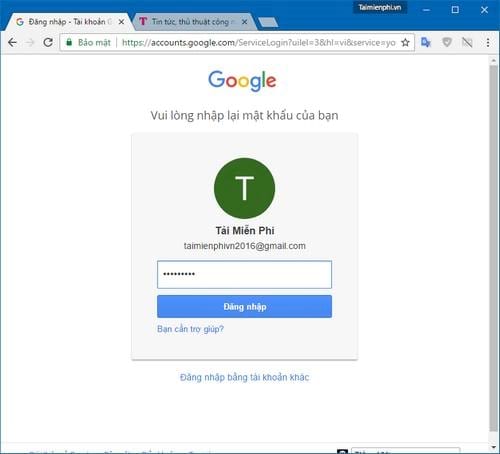
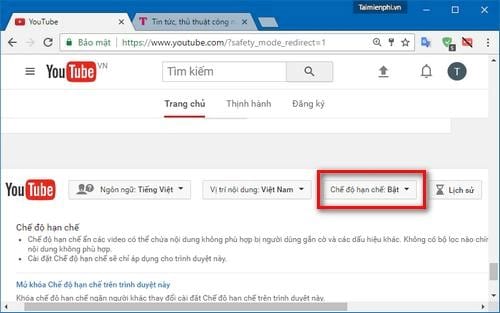
The screenshots below show YouTube's older desktop layout, where the setting appeared at the bottom of the page and could be locked to a browser. The current profile-menu route above is the one to use.
Turn on Restricted Mode in the mobile app
- Open YouTube and tap your profile picture.
- Tap Settings > General.
- Turn on Restricted Mode.
On a supported TV app, open YouTube's Settings and select Restricted Mode or Safe mode. If the setting is grayed out, a family, school, workplace, device, or network administrator may control it.
What Restricted Mode can and cannot do
YouTube uses signals such as a video's title, metadata, language, automated analysis, and human-applied age restrictions to decide what is unavailable in Restricted Mode. YouTube also acknowledges that automated systems can make mistakes.
- It can reduce exposure to some mature, violent, sexual, or otherwise potentially inappropriate material.
- It does not review or guarantee the suitability of every video.
- It can block benign educational, news, health, or historical content that discusses mature subjects.
- It is easy for a person who controls the browser or device to turn off unless stronger account or device management is in place.
- It does not replace supervision, age-appropriate discussion, or reporting harmful material.
See YouTube's official Restricted Mode instructions for the current menu on each device.
Stronger option for young children: YouTube Kids
YouTube Kids provides separate content settings and parental controls. For the narrowest catalog:
- Open YouTube Kids and tap Settings.
- Complete the parent check or enter your custom passcode.
- Select the child's profile and open Edit settings.
- Choose Approve content yourself.
- Select the individual videos, channels, or collections the child may watch.
In Approved content only mode, the child cannot search freely. You can also turn Search off in other content modes, disable autoplay, pause or clear watch and search history, and block a video or an entire channel. The YouTube Kids parental-control guide explains the current options.
For desktop setup, see how to use YouTube Kids on a computer.
Use a supervised YouTube account for older children
A supervised Google Account can provide a transition from YouTube Kids to the main YouTube experience. In Family Link, parents can choose among YouTube content levels such as Explore, Explore more, and Most of YouTube, depending on eligibility and location.
- Open the Family Link app and select the child.
- Tap Controls, then YouTube or Content restrictions > YouTube.
- Choose the appropriate content level.
- Review history controls and device screen-time limits.
A supervised experience still uses automated filtering and is not a guarantee that every recommendation will match your family's judgment.
Block and report specific content
- In YouTube Kids, open the video's menu and choose to block the video or channel while signed in with the linked parent account.
- On the main YouTube home feed, use Not interested or Don't recommend channel to improve recommendations. These are preference signals, not security blocks.
- Use Report when content appears to violate YouTube's rules. Do not report a video simply because you personally dislike it.
- Clear or pause history if accidental viewing is distorting recommendations.
Practical family safety checklist
- Create a separate child or supervised profile instead of sharing an unrestricted adult account.
- Use an adult-only passcode that the child cannot guess.
- Disable autoplay for younger viewers.
- Keep devices in a shared area and periodically review recent viewing.
- Teach the child to stop and ask for help when a video is frightening, sexual, violent, or requests personal information.
- Combine account controls with device time limits. Network-level parental controls can add another layer; compare routers with parental-control features.
No filter is perfect. The safest setup for a young child is an allowlist of parent-approved content plus active supervision, not Restricted Mode alone.
Related Articles
 How to Enable Limited Video Mode on YouTube5 minutes read
 How to Enable Sensitive, Violent Video Restriction on YouTube3 minutes read
 Why Can't YouTube Automatically Block the Video of New Zealand Shootings That Have Been Re-up5 minutes read
 How to Report YouTube Videos with Inappropriate Content5 minutes read
 Guide to Hiding Videos 'Poor Presidents… and the Ending' on YouTube6 minutes read
 How to Remove Unwanted Video Suggestions on YouTube4 minutes read
Reader Comments 0
Sign in with email or Google to join the discussion.