Table of Contents
This practical guide explains how to always open favorites in a new tab on Edge. Follow the steps in order, review the requirements first, and use the troubleshooting notes when a setting or option does not work as expected.
How to always open favorites in new Edge tab
Step 1:
select the 3 dots icon and select Settings in the displayed list.
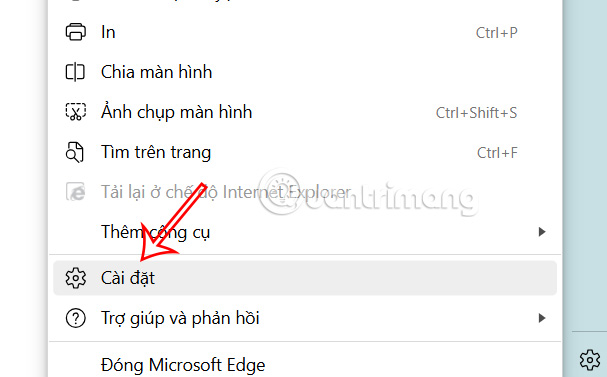
Step 2:
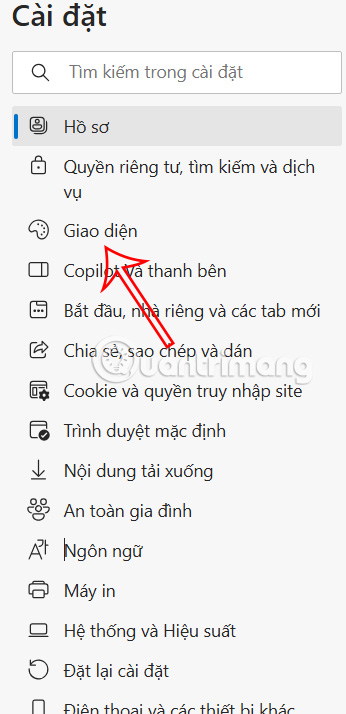
Go to the setup interface, we select the Interface item on the left side of the interface.
Next, look to the side and find Always open favorites in new tab and turn on this mode to always open favorites in new tabs on the Edge browser.
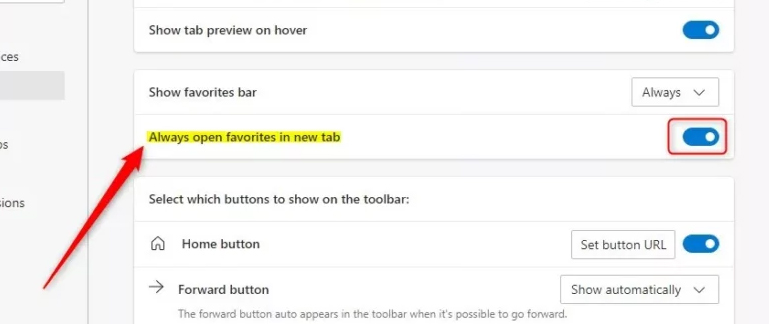
Once you enable this mode, when you open a new tab on Edge browser, your favorites will always be open for you to access immediately.
FAQ
How to always open favorites in new Edge tab?
select the 3 dots icon and select Settings in the displayed list.
What does this guide cover?
This guide explains always open favorites in a new tab on Edge, including the main steps, important details, and practical considerations.
Who is this guide for?
It is designed for readers who want a clear, practical overview and a reliable process they can follow without unnecessary complexity.
Related Articles
 How to Export Favorites to HTML Files from Microsoft Edge3 minutes read
 How to Hide Favorites Bar in Chromium Edge on Windows 104 minutes read
 How to Change the Profile Picture in Microsoft Edge Chromium5 minutes read
 How to Open Websites Automatically on Microsoft Edge3 minutes read
 Microsoft Changed the Decision, Will Not Force Windows 10 Users to Open the Default Link3 minutes read
 Instructions on Disabling New Tab Copilot on Microsoft Edge3 minutes read
Reader Comments 0
Sign in with email or Google to join the discussion.