What you will learn
- Separate temporary tabs from durable bookmarks.
- Group tabs around one task and close them deliberately.
- Create bookmark names and folders that support later retrieval.
- Restore or export important references without keeping every page open.
What you need
- A desktop browser such as Chrome or Edge.
- A browsing session with at least eight open tabs.
Treat the tab bar as a workbench, not an archive
Chrome provides tab search, tab groups and controls for reopening or organizing tabs.
Bookmarks can be created, edited and organized so useful pages remain available beyond the current session.
A page belongs in a tab while it contributes to an active decision. It belongs in bookmarks when its long-term value is clear. It belongs nowhere when it is a search result you can reproduce easily or a page you have already processed.
Name the purpose of the current session
Before reorganizing, write the task at the top of a note: for example, compare three laptops, prepare a client report or book a trip. Tabs that do not contribute to that purpose can be moved to another window, bookmarked for a later project or closed. This prevents unrelated reading from contaminating the active workspace.
- 1
Write the current task in one sentence.
- 2
Identify duplicate tabs.
- 3
Mark tabs that contain entered form data.
- 4
Separate reference pages from action pages.
- 5
Create one tab group or window for the task.
- 6
Save unfinished text or form data before closing anything.
Process tabs from left to right
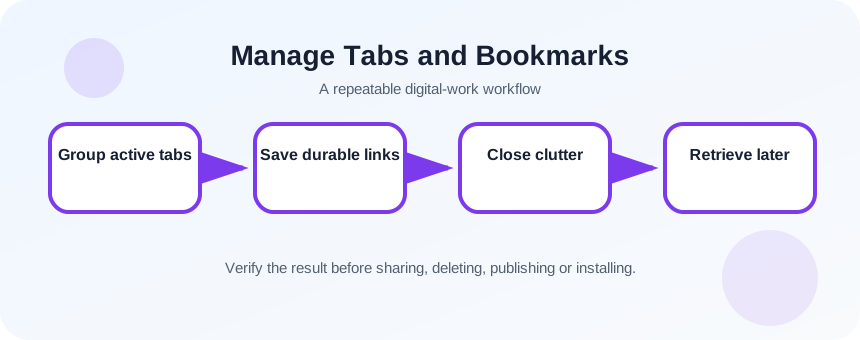
Review each tab once. Decide: act now, keep for this task, bookmark for later, or close. When bookmarking, rename vague page titles so the saved item describes why it matters. A folder called Client Alpha – Research is more useful than a giant folder called Useful.
- 1
Pin only pages used every day.
- 2
Group the current project tabs.
- 3
Close exact duplicates.
- 4
Complete or record action pages such as forms.
- 5
Bookmark durable sources with descriptive names.
- 6
Move unrelated research to a named folder or reading list.
- 7
Close the processed group when the task ends.
Build a small bookmark hierarchy
Use a few top-level categories such as Work, Learning, Finance and Travel, then project folders within them. Avoid reproducing a deep file system in bookmarks. A bookmark folder should reflect a continuing responsibility or current project. Periodically remove pages that redirect, duplicate better sources or no longer support a decision.
Browser sync can make bookmarks available on other devices, but it also means deletions and unwanted changes may synchronize. Export important bookmark collections before a major cleanup or account migration.
- 1
Create four top-level folders.
- 2
Move ten bookmarks into the correct folders.
- 3
Rename five unclear bookmark titles.
- 4
Export bookmarks or confirm sync settings before mass deletion.
Test whether the system supports return visits
Close the project group, then attempt to resume the task using only the bookmark names and your note. You should know which source is authoritative, which page contains the next action and which items were intentionally discarded. If you reopen a large group and still cannot tell where to begin, the labels need more context.
- The active tab count fits on screen without constant hunting.
- Bookmarks describe their purpose rather than copying vague page titles.
- You can resume the project without reopening unrelated pages.
Close a 12-tab session safely
Turn one cluttered session into a small active set and a retrievable bookmark folder.
- 1
Choose a real browser window with at least 12 tabs.
- 2
Write the session purpose.
- 3
Group relevant tabs.
- 4
Bookmark three durable sources with new names.
- 5
Close duplicates and completed pages.
- 6
Reopen the project from the saved folder.
Common mistakes to avoid
- Using pinned tabs for pages needed only once.
- Bookmarking every search result instead of the best source.
- Keeping form pages open without saving entered information.
- Creating one enormous bookmark folder with no project context.
Key takeaways
- Tabs are temporary; bookmarks are durable.
- Process pages according to the task they support.
- Descriptive names matter more than a large collection.
Frequently asked questions
Should I use tab groups or separate windows?
Use tab groups for related work within one browser profile. Separate windows help when tasks require different layouts or when you need to share one window during a meeting.
Will closing a tab delete my bookmark?
No. A bookmark is stored separately. Closing an unbookmarked page may still be recoverable from history, but do not rely on history for important references.
Sources and further reading
- Manage tabs in ChromeGoogle Chrome Help
- Create, find and edit bookmarks in ChromeGoogle Chrome Help
Ready to continue?
Mark the lesson complete so your Learning Path progress stays current on this device.