Table of Contents
Quick answer
This detailed guide shows you how to count words in Excel, applying it to cells, columns, and rows using built-in formulas and functions. It helps you work quickly and accurately, optimizing your workflow and improving productivity.
Excel doesn't have a specific formula for counting words, but you can use the LEN function to count characters, including spaces. Since each space separates two words, you can count the number of spaces and then add one to get the total number of words.
HOW TO COUNT WORDS IN EXCEL, IN CELLS, ROWS, AND COLUMNS
First, let's understand the function of each function:
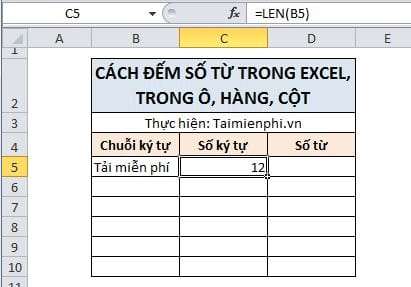
- LEN function : Counts the number of characters in a string, including spaces.
Syntax :LEN(ô)
Example : Count the number of characters in cell B5.
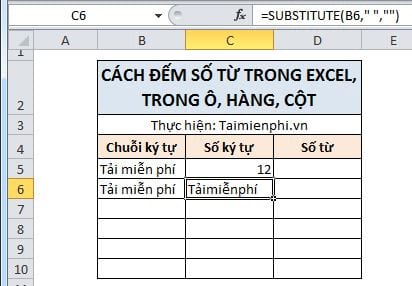
- SUBSTITUTE function : Replaces the old character with the new character.
Syntax : SUBSTITUTE(text or cell, old character, new character)
Example : Replace the space in cell B6 with an empty character.
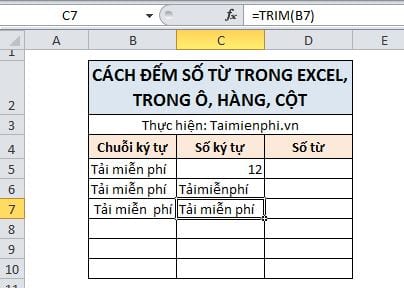
- TRIM function : Removes excess whitespace in a cell, including leading, trailing, and between words.
Syntax : TRIM(cell)
Example : Remove leading spaces and extra spaces between "free" and "fee" in cell B7.
Count the number of words in a cell.
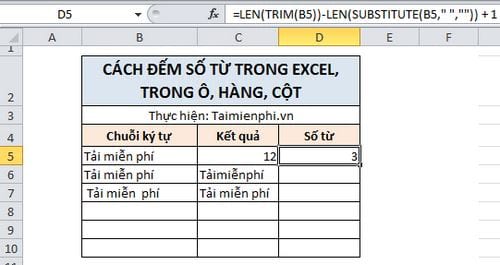
Combine the three functions to count the number of spaces, then add one to get the number of words:
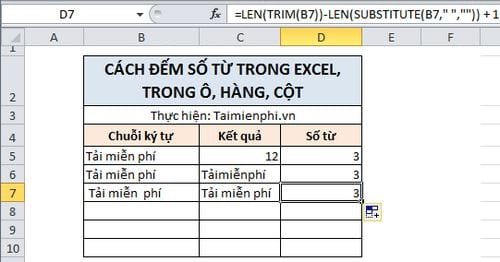
Formula: =LEN(TRIM(B5)) - LEN(SUBSTITUTE(B5, " ", "")) + 1
The results are shown in the image below.
Formula analysis
- LEN(TRIM(B5)) : Counts the number of characters in cell B5 after removing extra spaces using TRIM.
- LEN(SUBSTITUTE(B5, " ", "")) : Counts the number of characters in cell B5, but excludes spaces thanks to SUBSTITUTE.
- The difference between the two functions above : Given the number of spaces in the cell. Add 1 to get the word count.
Applying the formula to cell B7, even with extra spaces, the result is still accurate.
Count the number of words in a data range.
To count the number of words in a data range, we use a sum function such as SUMPRODUCT or SUM. The sum of the word counts from the cells in the data range is the sum of the results.
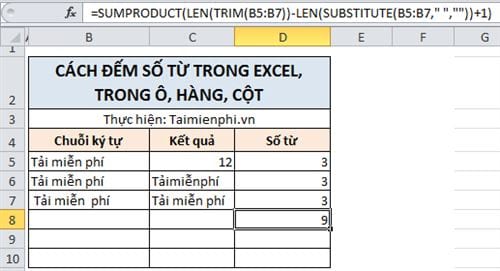
Formula: =SUMPRODUCT(LEN(TRIM(data range)) - LEN(SUBSTITUTE(data range, " ", "")) + 1)
or
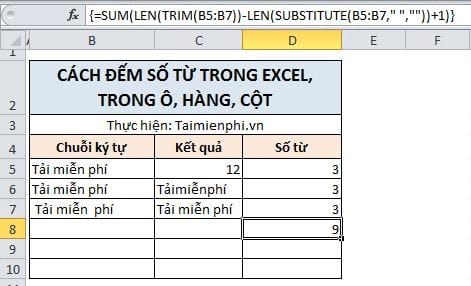
=SUM(LEN(TRIM(data range)) - LEN(SUBSTITUTE(data range, " ", "")) + 1)
Example: Count the numbers from cell B5 to cell B7.
- SUMPRODUCT function.
- SUM function: For the SUM function , you need to press Ctrl + Shift + Enter instead of just Enter for the function to calculate the array.
The above is a guide on how to count the number of words in a cell and data range in Excel. Hopefully, this article helps you use the counting function in Excel easily. If you encounter any difficulties, please leave a question, and the TipsMake technical team will assist you.
Additionally, you can also find instructions on how to count words in Word 2016, 2013, and 2010 here.
If you want to learn about the DATEDIF function , please refer to the previous article for a better understanding and effective use of this function.
Related Articles
 How to Handle Cells, Columns, Rows in a Spreadsheet in Excel4 minutes read
 MS Excel 2007 - Lesson 10: Modify Columns, Rows and Cells5 minutes read
 How to Convert Columns into Rows and Rows into Columns in Excel3 minutes read
 Complete Tutorial of Excel 2016 (Part 6): Change the Size of13 minutes read
 How to Freeze Cells in Excel4 minutes read
 How to Change the Size of Rows, Columns, Cells Equally in Word, Excel5 minutes read
Reader Comments 0
Sign in with email or Google to join the discussion.