Table of Contents
To update a compatible iPhone to iOS 26, open Settings > General > Software Update, select the available iOS 26 upgrade, and follow the prompts. Before you begin, back up the phone, connect it to power, and make sure you have a stable Wi-Fi connection and enough free storage.
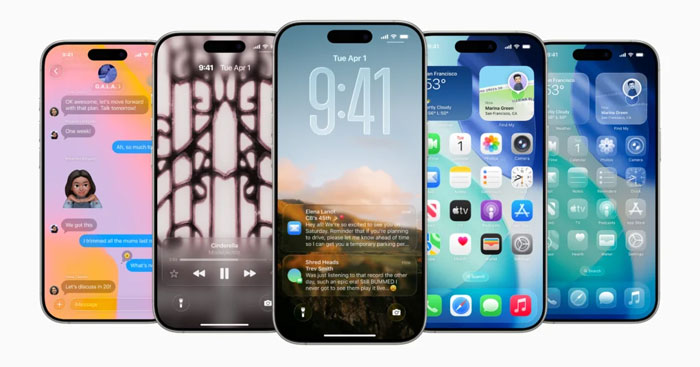
Check whether your iPhone supports iOS 26
iOS 26 supports the following iPhone families:
- iPhone 17, iPhone 17 Pro, iPhone 17 Pro Max, and iPhone Air
- iPhone 16e, iPhone 16, iPhone 16 Plus, iPhone 16 Pro, and iPhone 16 Pro Max
- iPhone 15, iPhone 15 Plus, iPhone 15 Pro, and iPhone 15 Pro Max
- iPhone 14, iPhone 14 Plus, iPhone 14 Pro, and iPhone 14 Pro Max
- iPhone 13, iPhone 13 mini, iPhone 13 Pro, and iPhone 13 Pro Max
- iPhone 12, iPhone 12 mini, iPhone 12 Pro, and iPhone 12 Pro Max
- iPhone 11, iPhone 11 Pro, and iPhone 11 Pro Max
- iPhone SE (2nd generation) and iPhone SE (3rd generation)
Being able to install iOS 26 does not mean every feature will be available. Apple Intelligence and some camera or visual features require newer hardware, while language and regional availability may also vary. If you use an older device that cannot install iOS 26, install the newest security update offered under Software Update; this is more useful than forcing an unsupported version. TipsMake also explains why security updates remain important on older iPhones.
Prepare your iPhone before updating
Back up important data
Create a current backup so you can recover your settings and files if the installation is interrupted. You can use Settings > [your name] > iCloud > iCloud Backup > Back Up Now. For a computer backup, connect the iPhone to a Mac and use Finder, or use the Apple Devices app on a supported Windows PC. iTunes remains relevant on older systems that still use it.
Use power and a stable connection
Connect the iPhone to a charger before starting. A reliable Wi-Fi connection reduces the chance of a stalled download, and several gigabytes of free storage may be required. If Software Update reports that space is insufficient, review the storage recommendations under Settings > General > iPhone Storage instead of deleting data at random.
Allow enough time
The download and installation time depends on the device, available storage, connection speed, and demand on Apple's servers. You can continue using the phone while the update downloads, but the device will restart and be unavailable during installation.
How to install iOS 26
- Open Settings and select General.
- Tap Software Update and wait while the iPhone checks for an update.
- If iOS 26 appears as an optional major upgrade, select it. Review the update information, then tap Update Now or schedule it for later.
- Enter the device passcode if requested and accept Apple's terms. Keep the phone connected to power while it downloads, prepares, and installs the update.
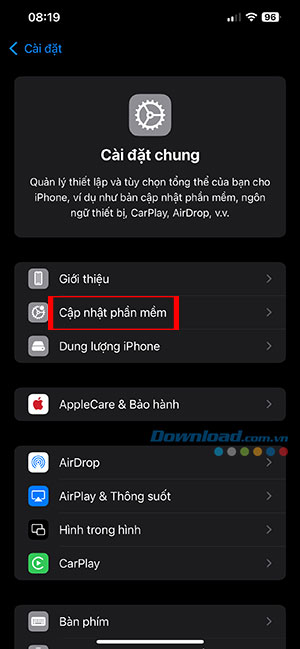
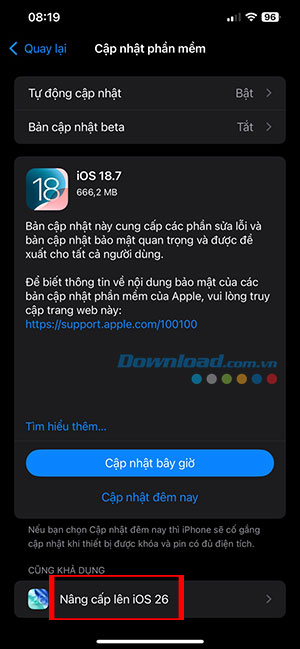
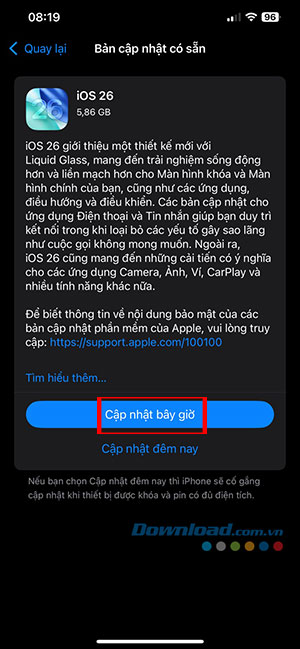
If the update does not appear, confirm that the phone is compatible, restart it, and check again. Managed devices may be subject to an organization's update policy. A beta profile can also change which build is offered, so remove beta enrollment if you want the standard public release.
Notable iOS 26 changes
- Redesigned Phone app: Calls, contacts, recents, and voicemail are easier to reach from a consolidated layout. Hold Assist can alert you when a live representative returns to the call.
- Live Translation: Supported conversations in Phone, FaceTime, and Messages can be translated as they happen. Availability depends on language, region, and compatible hardware.
- Group-chat polls: Participants can create a poll in Messages instead of collecting choices across a long conversation.
- Message filtering: Messages from unknown senders are separated to reduce interruptions and make suspicious texts easier to review.
- Visual Intelligence: On supported iPhones, content shown on the screen can be identified or searched. Owners of unsupported models can compare Visual Intelligence alternatives for older iPhones.
- Photos navigation: Library and Collections are separated again, reducing the amount of scrolling needed to move between the photo grid and organized groups.
- Camera controls: A simplified interface puts common photo and video controls closer to the main view. Some models can also warn when a dirty lens may affect image quality.
- Communication Safety: Supported FaceTime calls can pause video when sensitive imagery is detected. Processing is designed to occur on the device.
- Lock Screen and alarms: New clock and wallpaper treatments expand customization, while the snooze duration can be adjusted rather than being fixed at nine minutes.
- Screenshot actions: Compatible devices can search for objects or ask supported services about content captured in a screenshot.
After the update
Leave the iPhone connected to power for a while after installation because background indexing, photo analysis, and app updates can temporarily use more energy. Check that calls, messages, photos, and important apps work before deleting any backup. If battery life remains poor after the initial settling period, work through these iOS 26 battery-drain checks rather than immediately erasing the device.
Finally, open Settings > General > Software Update once more to check for a follow-up point release. These smaller updates often include compatibility, stability, and security fixes.
Related Articles
 Is It Possible to Download New Features for Windows 113 minutes read
 9 Things to Do Before Updating to Windows 118 minutes read
 Errors Encountered When Updating Windows 10 May 20196 minutes read
 6 Settings Should Be Turned Off Immediately After Updating to iOS 174 minutes read
 Windows 11: Complete Guide: 5 Ways to Fix Touchpad/Trackpad Not Working7 minutes read
 The Process of Updating iOS 10 Failed, This Is a Fix5 minutes read
Reader Comments 0
Sign in with email or Google to join the discussion.