Table of Contents
Live Translate on iOS 26 serves as a feature that allows you to translate text or speech in real time.
Live Translation On iOS 26 is a powerful tool for breaking down language barriers, and when paired with AirPods, the experience becomes more convenient and natural than ever.
Below this guide will learn how to use the Live Translate feature when using AirPods, how it works, specific instructions and some notes to help you get the most out of this feature.
IOS 26.1 beta adds new languages for AirPods Live Translation and Apple Intelligence
IOS 26.1 beta 1 was released on September 22 and brings significant improvements to AirPods Live Translation and Apple Intelligence thanks to new language support. Here are the details.
IOS 26.1 adds 5 new languages for AirPods Live Translation, 8 languages for Apple Intelligence
Last week, when iOS 26 and AirPods Pro 3 were released to the public, Apple mentioned that new supported languages would soon be available for Apple Intelligence and AirPods Live Translation.
IOS 26.1 beta 1 expands supported languages on both fronts.
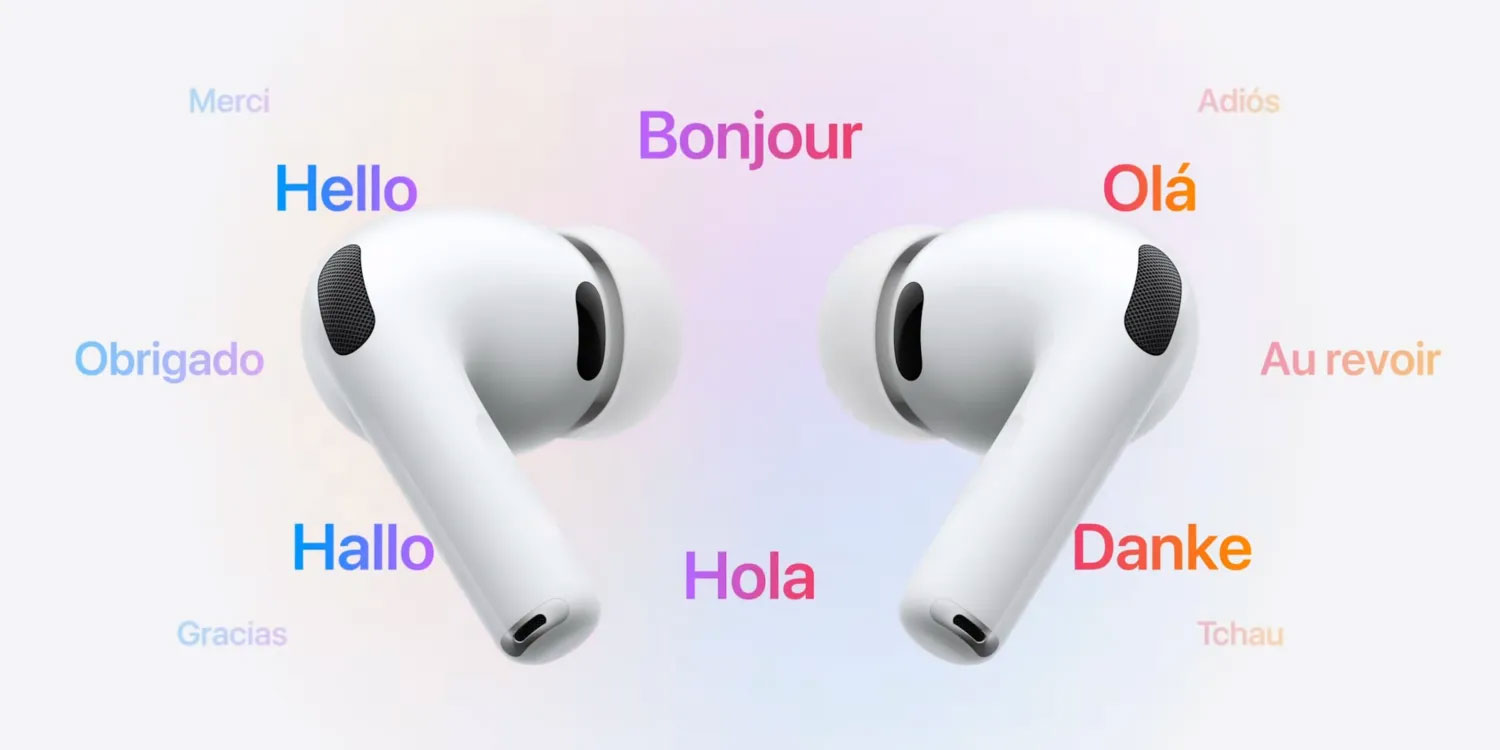
With AirPods Live Translation, iOS 26.1 now supports:
- Chinese (Simplified Mandarin)
- Chinese (Traditional Mandarin)
- Italian
- Japanese
- Korean
These languages add to the existing supported languages of English (US and UK), French, German, Portuguese (Brazil), and Spanish.
Additionally, the expanded Apple Intelligence suite will be available in more languages.
Apple's event won't promise upcoming Apple Intelligence features IOS 26.1 brings Apple Intelligence support for 8 new languages:
- Chinese (Traditional)
- Danish
- Dutch
- Norwegian
- Portuguese
- Swedish
- Turkish
- Vietnamese
So far, there haven't been any completely new Apple Intelligence features discovered in iOS 26.1 beta 1 other than the new languages. Regardless, these language expansions are a big step forward for users around the world who haven't been able to use Apple Intelligence in their native language.
What is Live Translate with AirPods?
Live Translate on iOS 26 is a feature that allows for real-time translation of text or speech, built into apps like Messages , FaceTime , and Phone . When using AirPods (including AirPods 2, AirPods 3, AirPods Pro, AirPods Pro 2, or AirPods Max), you can hear the voice translation directly through the headphones, making the conversation smoother and more natural. This is especially useful when you are in a public place or need to focus on the translated voice without being distracted by background noise.

This feature uses artificial intelligence (Apple Intelligence) to process data right on the iPhone, ensuring privacy and speed. AirPods act as an audio output device, transmitting clear AI voice translations, helping you understand the content without looking at the iPhone screen.
Currently, Live Translate supports languages such as English, French, German, Spanish, Japanese, Korean, Portuguese (Brazil) and Chinese (Simplified). Apple has announced plans to add Vietnamese by the end of 2025, promising to bring a great experience to Vietnamese users.
Live Translate on iOS 26 when combined with AirPods offers a modern, convenient and private way to communicate. You can chat with people who speak other languages without worrying, with translation delivered directly through the headphones. Make sure your iPhone and AirPods are updated to experience this feature. When Vietnamese is supported by the end of 2025, Vietnamese users will have more opportunities to enjoy this great tool!
How does Live Translate with AirPods work?
When using AirPods, Live Translate works by converting speech or text into the language of your choice, then playing the translation through the earbuds as an AI voice. Here's how it works in key apps:
- In Messages : When you text with someone who speaks another language, your iPhone will translate the message, and you can hear the translation through your AirPods if audio is turned on. This is useful when you want to confirm the message content by voice.
- In FaceTime : During video calls, AirPods will play translated captions, allowing you to hear what's being said without having to read the captions on the screen. You'll still hear the original voice of the person you're talking to, but the translation will be played separately through the AirPods.
- In Phone : During a call, AirPods play AI-voiced translations of both parties' speech. For example, if you speak Vietnamese and the other person speaks Japanese, you'll hear the Vietnamese translation through your AirPods, while the other person gets the Japanese translation through their phone speaker or headphones.
Processing takes place on the iPhone, no internet connection required (if the language has been downloaded), and AirPods ensure clear, private audio.
How to use Live Translate with AirPods
To use Live Translate with AirPods, you need:
- IPhone running iOS 26 (iPhone 11 and later, preferably iPhone 15 Pro or later).
- Apple only announced AirPods Pro 3, AirPods Pro 2, and AirPods 4 With Live Translation. You must have these Apple headphones to use Live Translation.
- Set the language to translate in the Translate App.
Here are detailed instructions
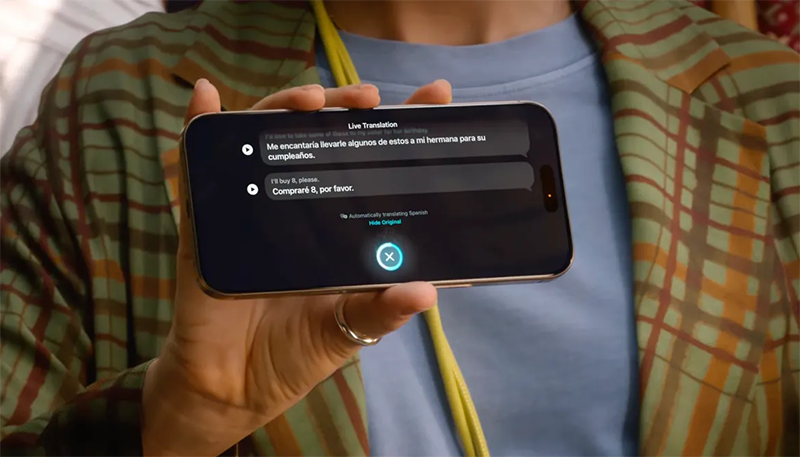
Translate Live in Messages with AirPods
-
Step 1: Put AirPods in your ears .
-
Step 2: Activate Live Translation In one of two ways:
-
Tap/hold on AirPods Pro 3 using the default gesture to open translation.
-
Or enable manually from iPhone:
-
Go to Settings > AirPods > Live Translation .
-
Select The source language (what the other person is saying) and The target language (what you want to hear).
-
-
-
Step 2: When the other person says:
-
Apple Intelligence Will translate that speech and play the translation right in your ear.
-
On iPhone, the translation will also be Displayed as text , and you can have your iPhone read your response aloud.
-
Benefits of Live Translation with AirPods
Using AirPods with Live Translate has many advantages:
- Private audio experience : Hear clear translations through AirPods without disturbing those around you.
- Better focus : AI voice through AirPods makes it easy to follow content in noisy environments.
- Convenient on the go : No need to look at the screen, you can listen to translations on the go.
- Seamless integration : AirPods work seamlessly with iOS 26, ensuring a seamless experience.
Some notes
- Make sure your AirPods are fully charged to avoid interruptions.
- The feature works best on AirPods Pro or AirPods Max thanks to noise cancellation, making it easier to hear translations.
- Vietnamese will be supported by the end of 2025, so for now You should use supported languages.
- If you're having audio issues, check your Bluetooth connection or update your AirPods firmware via Settings > Bluetooth > AirPods > Firmware Update .
FAQ
How do you use live translate feature on airpods: step-by-step guide?
In practical terms, live Translate on iOS 26 is a feature that allows you to translate text or speech in real time.
What should you check before getting started?
Review the requirements, compatible device or software version, and any warnings described in the guide before making changes.
What should you do if the steps do not work?
Repeat the steps in order, confirm that your app or system is up to date, and review the troubleshooting details provided above.
Related Articles
 Apple May Bring Live Translation Feature to Airpods Headphones4 minutes read
 Google Translate Launches Real-time AI Translation Feature and Foreign3 minutes read
 How to Use Conversation Awareness and Live Listen on AirPods8 minutes read
 How to Turn on Live Listen Mode on Airpods5 minutes read
 Detailed Comparison of Airpods Pro 3 vs Airpods Pro 2: Should You: Key Facts6 minutes read
 Google Translate May Have a 'Language Learning' Feature to Compete4 minutes read
Reader Comments 0
Sign in with email or Google to join the discussion.