Table of Contents
iOS 26 adds a Clear appearance that makes compatible Home Screen app icons and widgets translucent. To turn it on, touch and hold an empty area of the Home Screen, select Edit > Customize, and tap Clear. You can then choose Light, Dark, or Auto for the clear effect.
Turn on clear app icons
- Update the iPhone to iOS 26 or later.
- Go to the Home Screen and touch and hold the wallpaper until the icons begin to jiggle.
- Tap Edit in the upper-left corner.
- Select Customize.
- In the appearance panel, tap Clear.
- Choose Light, Dark, or Auto. Auto changes the appearance with the system's light and dark mode.
- Tap outside the panel or swipe up to finish.
The setting applies to the Home Screen as a whole rather than to one selected app.
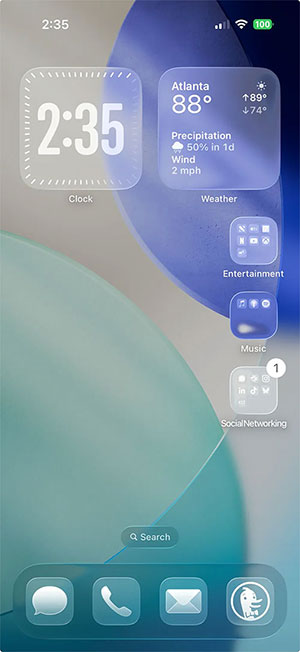
Choose Light, Dark, or Auto instead
The same Customize panel offers other appearance choices:
- Light: uses the light version of compatible icons and widgets.
- Dark: uses a darker appearance where supported.
- Auto: changes between light and dark appearances with the iPhone's system setting.
- Clear: applies the translucent Liquid Glass-style look.
- Tinted: applies a selected color to compatible icons and widgets.
A third-party app may not look identical to an Apple app because its developer controls the icon artwork and supported appearances. Dark icons should be chosen for visibility or preference; they are not a substitute for iPhone battery settings.
Apply a color tint
- Touch and hold the Home Screen, then choose Edit > Customize.
- Tap Tinted.
- Use the color and saturation controls, or select the eyedropper to sample a color from the wallpaper.
- Choose the light, dark, or automatic tint behavior if those options are shown.
Check the contrast between the tint, wallpaper, icon symbols, and labels. A coordinated palette is less useful if similar colors make apps difficult to identify.
Make icons larger and hide labels
In the Customize panel, choose the larger icon size when available. Larger icons omit the app-name labels and can create a cleaner Home Screen, but users who recognize apps by their written names may prefer the standard size.
Rearrange apps around a wallpaper
- Touch and hold an empty area until the icons jiggle.
- Drag an app or widget to an open position.
- Move it to the edge of the screen to place it on another page.
- Tap Done or swipe up when the layout is complete.
Recent iOS versions allow empty spaces between groups, but icons still align to the Home Screen grid and cannot overlap. Use the empty areas to keep a subject in the wallpaper visible or move important apps within easier reach.
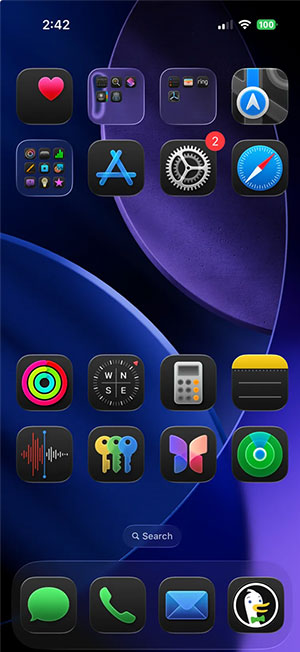
If the Clear option is missing or looks different
- Check the software version: open Settings > General > Software Update and confirm the iPhone is on iOS 26 or later.
- Restart after updating: the appearance panel may not load correctly immediately after a system update.
- Review accessibility settings: Settings > Accessibility > Display & Text Size > Reduce Transparency makes transparent interface elements more opaque and can reduce the clear effect.
- Try another wallpaper: a busy or low-contrast image can make translucent icons look muddy even when Clear is active.
- Expect app differences: some third-party artwork does not blend with the clear style as evenly as Apple's icons.
Apple's Home Screen customization guide lists the current appearance controls.
Video tutorial
Related Articles
 How to Make Transparent Icons on iPhone: Step-by-Step Guide3 minutes read
 How to Put the Icon Between the Taskbar and Make the Taskbar Transparent on5 minutes read
 This Little Trick Can Make Your Widget Invisible on iOS 143 minutes read
 How to Make a Transparent Background in Canva for Free6 minutes read
 How to Make Taskbar Transparent on Windows 11 with4 minutes read
 How to Transparent Taskbar in Windows 104 minutes read
Reader Comments 0
Sign in with email or Google to join the discussion.