Table of Contents
IOS 26 is here, and while everyone's been talking about Liquid Glass and fancy features like call screening, live translation, and Spatial Scenes, there's a lot more to it than meets the eye.
IOS 26 is here, and while everyone's been talking about Liquid Glass and fancy features like call screening, live translation, and Spatial Scenes, there's a lot more to it than meets the eye. Sure, those upgrades are flashy and useful, but they don't tell the whole story. The update also quietly fixes some of the most common iPhone bugs.
8. View estimated charging time
Know when your iPhone will be ready to go
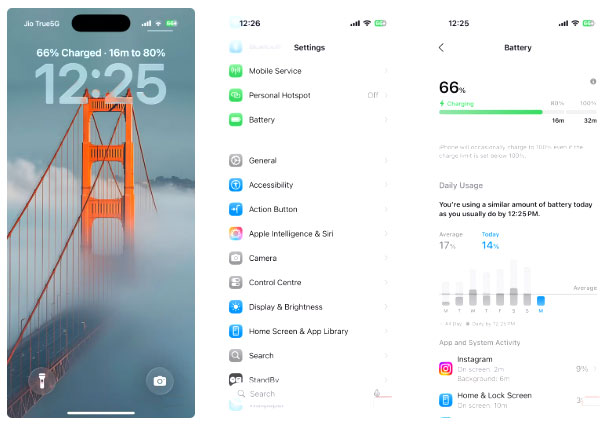
Charging your iPhone is something most of us do every day, sometimes multiple times. And every time you plug it in, one thing you want to know is how long it will take to fully charge.
IOS 26 quietly addresses this daily annoyance by displaying estimated charging times right on the lock screen. You can also go to Settings > Battery To see when your iPhone reaches 80% and 100%.
7. Better spam detection
Enjoy a clean inbox
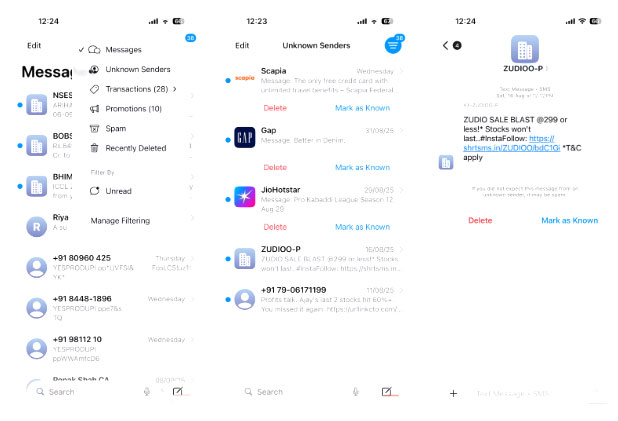
Another feature of iOS 26 that has been on Android phones for a long time is spam filtering. Spam messages are annoying and can appear at the worst times with annoying promotions or suspicious links. iOS 26 makes this a much less annoying problem by improving the way unwanted messages are filtered.
Now, when a message comes in from someone who isn't in your contacts, your iPhone will automatically move it to a separate folder. These messages won't even trigger a notification or show up on your lock screen. This way, your main inbox will only show important conversations.
6. Easily select specific text in a message
Focus on what matters
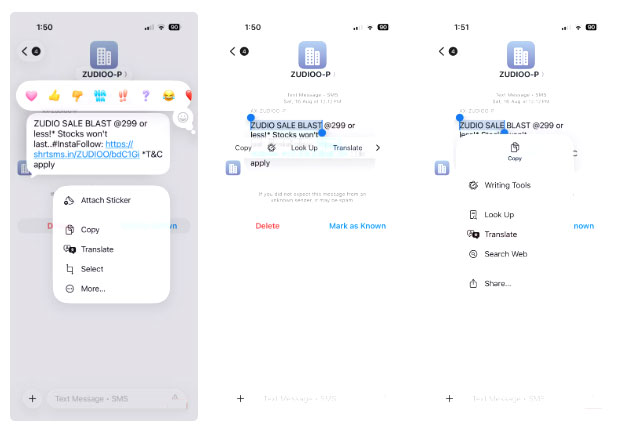
Sometimes you don't need to copy an entire message, just a small portion. Maybe it's an important detail in a long text, a chunk of an address, or a single sentence you want to translate. Until now, pressing and holding on a message only allowed you to copy the entire bubble, which can be annoying when all you need is a small portion.
IOS 26 fixed this with a simple update. Now, when you press and hold on a message, a Select Option will appear next to Copy . Tap it to highlight the exact text you want in the bubble. From there, you can easily copy it, translate it, or even search for more information on the web.
5. View a contact's call history
Track all calls with the people who matter most
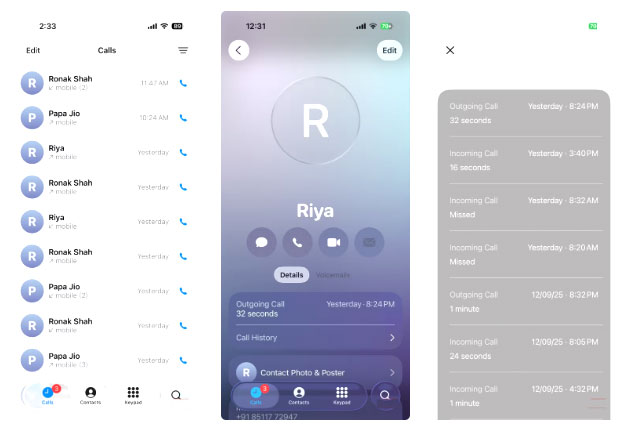
Previously, viewing a specific contact's call history meant endlessly scrolling through the entire call log. However, that's no longer the case with iOS 26.
Now, if you want to check the number of calls you've made to a friend, family member, or colleague, it's easy. Just open the contact card, tap Call History , and you'll see a complete list of incoming, outgoing, and missed calls, all neatly organized with date and time.
4. Turn off "Tap Recents to Call" feature
Prevent unwanted calls
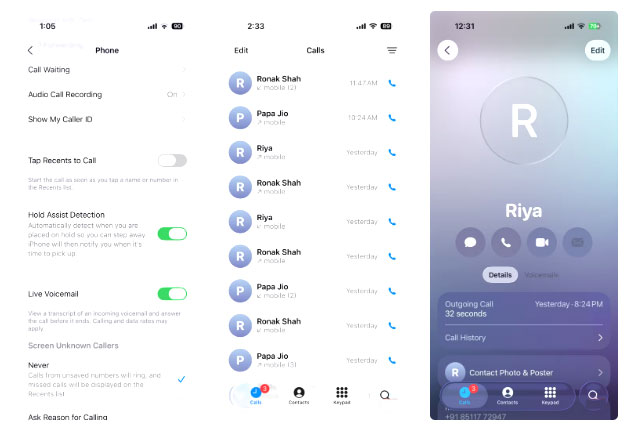
Go to Settings > Apps > Phone , and you'll see a toggle for Tap Recents to Call . Turn this off and your iPhone will no longer initiate a call when you tap a number or contact in Recents . Instead, you'll see the contact's info, from which you can call, text, or FaceTime. This simple tweak can save you many awkward situations.
3. Set custom ringtone
Finally no need for complicated solutions
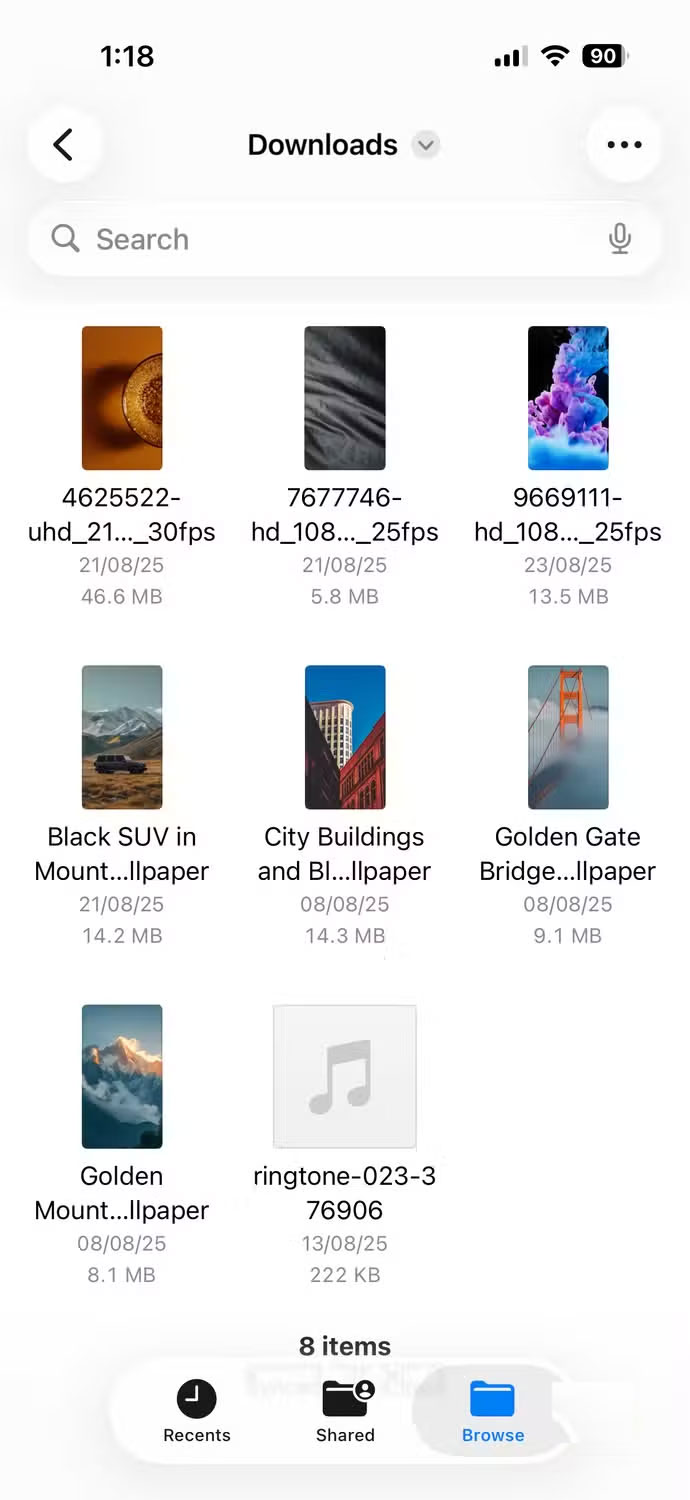
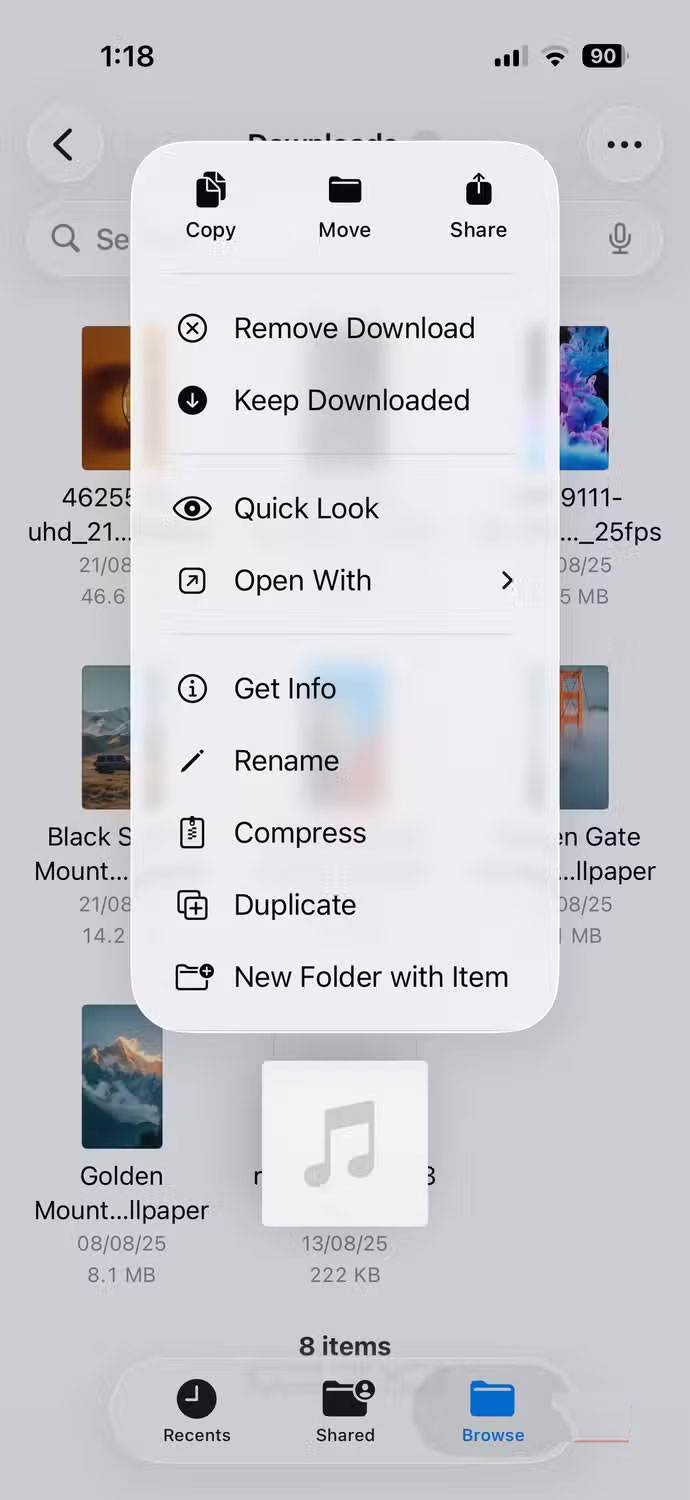
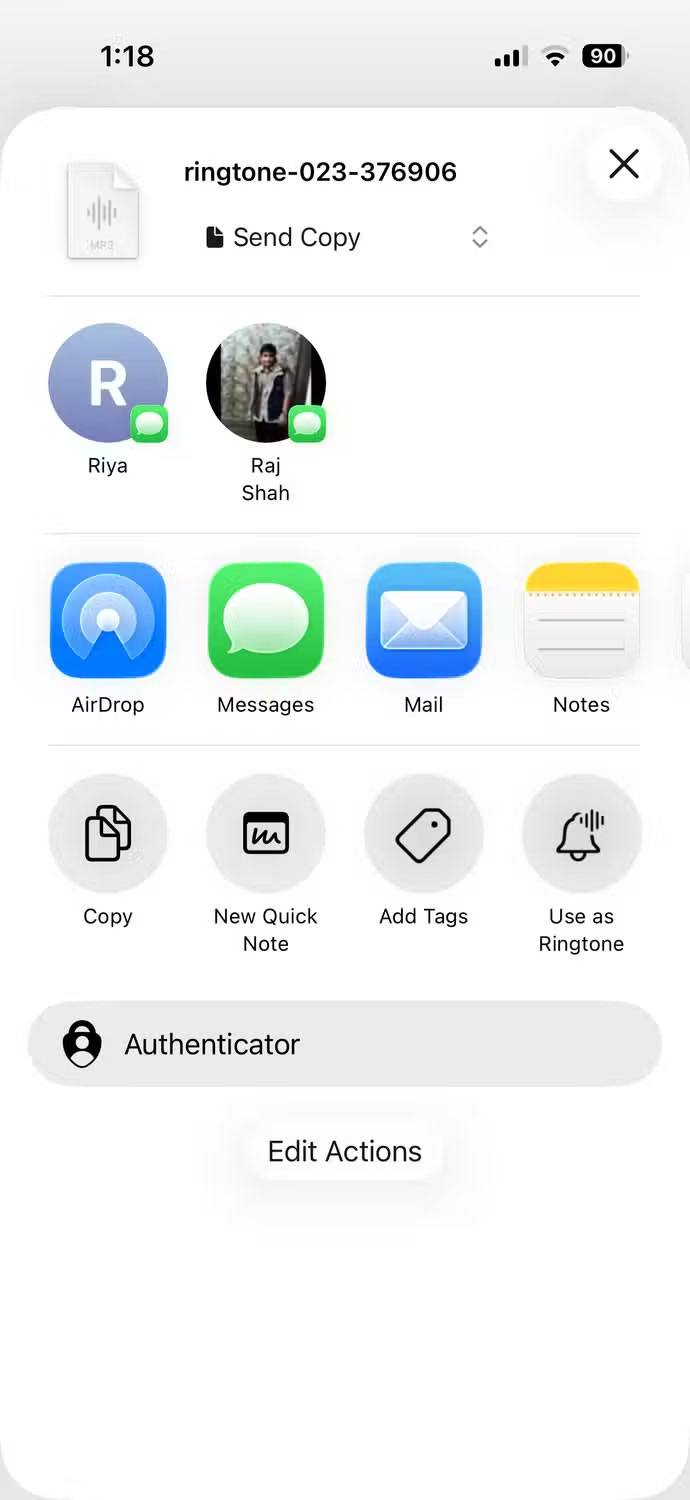
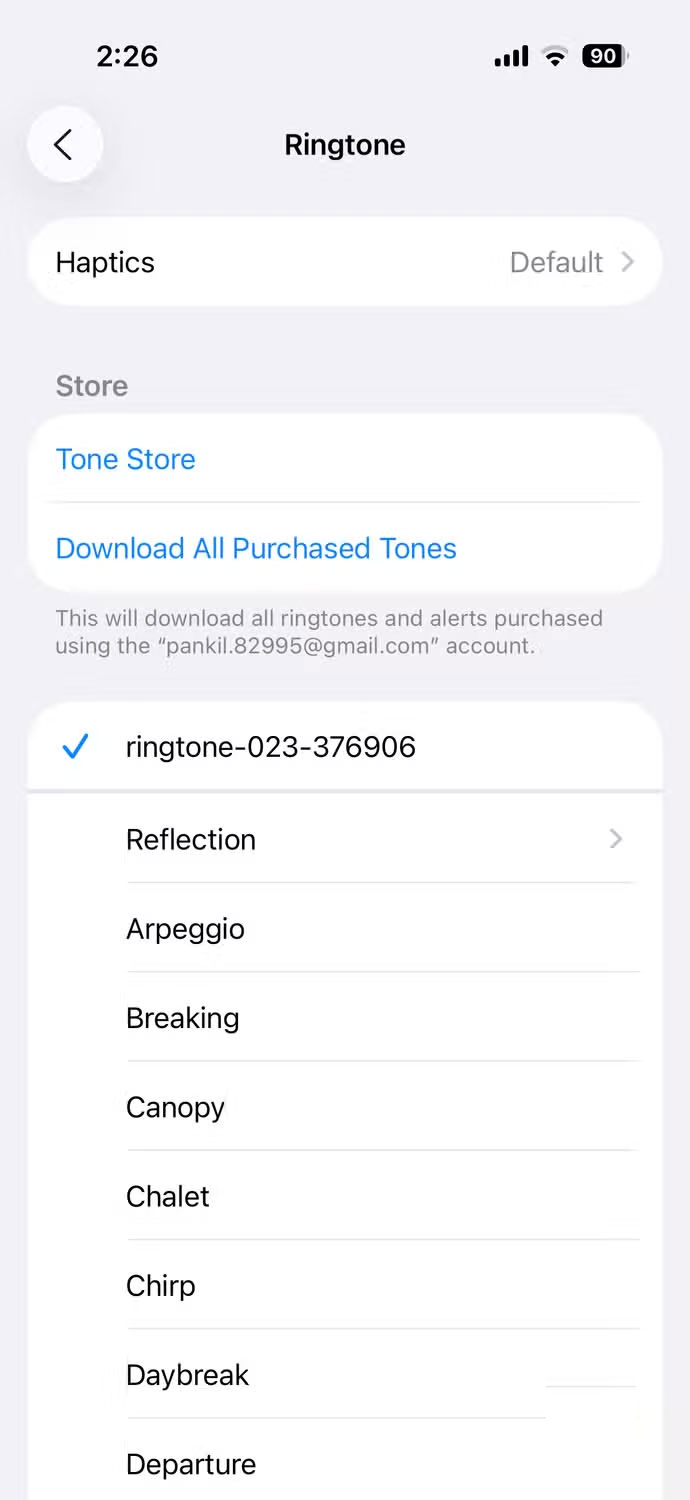

With iOS 26, you can now set any MP3 or M4A audio file under 30 seconds long as your ringtone. To do this, download a ringtone to your iPhone, open the Files app on your iPhone, and find the file. Tap and hold the file, tap Share In the pop-up menu, and select Use as Ringtone . That's it!
2. Get dirty lens warning
Sometimes we overlook the little things.
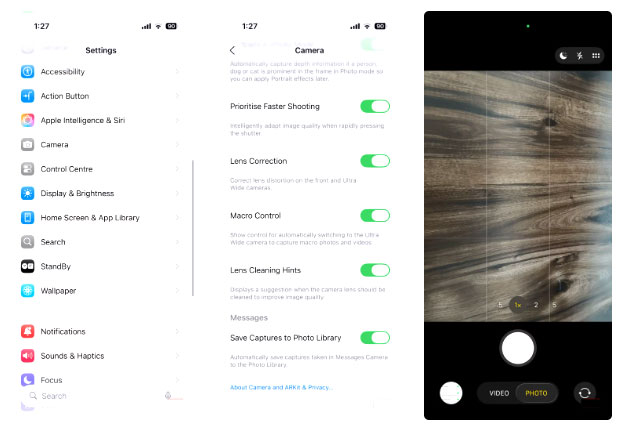
IOS 26 now saves you from this headache with a simple but clever feature. If your iPhone detects that your lens is obscured by fingerprints, dust, or dirt, it will warn you before you take a photo. This little feature helps keep your photos sharp and avoids the need for reshoots or annoying post-processing. To enable it, go to Settings > Camera And turn on Lens Cleaning Hints .
1. Customize snooze alarm options
Wake up your way with flexible snooze settings
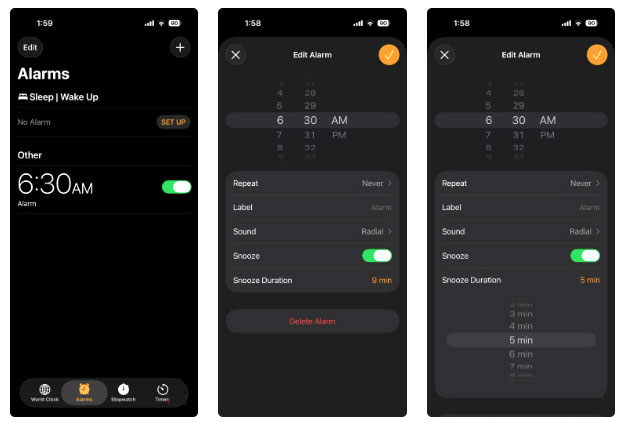
IOS 26 finally gets rid of the old limitation. You can now customize the snooze duration to fit your morning routine. Open the Clock app, set an alarm, tap Snooze Options , and choose a duration between 1 and 15 minutes. The default is still 9 minutes, but you can easily change it to whatever duration works best for you.
IOS 26 is packed with a ton of big new features, but the real magic is in the small, quiet improvements, the details that longtime iPhone users will really appreciate. It's proof that Apple isn't just after flashy upgrades; it's also focusing on what matters most.
FAQ
What should you know about the options in this guide?
In practical terms, iOS 26 is here, and while everyone's been talking about Liquid Glass and fancy features like call screening, live translation, and Spatial Scenes, there's a lot more to it than meets the eye.
Which option is the best choice?
The best choice depends on your priorities, compatibility, budget, and the specific features discussed in the comparison.
What should you compare before deciding?
Compare core features, limitations, ease of use, compatibility, and long-term value before making a decision.
Related Articles
 The 6 Most Annoying Problems on iPhone X and How to Fix It9 minutes read
 Solve the Top 10 Most Annoying Problems on the Web9 minutes read
 Reveal Einstein's Problem Solving Formula: How to Solve Problems6 minutes read
 7 Annoying iPhone Settings to Change8 minutes read
 How to Use iPhone as Wireless Modem for Laptop5 minutes read
 The Reward of $ 1 Million for Anyone Who Solved the Problem Has4 minutes read
Reader Comments 0
Sign in with email or Google to join the discussion.