Table of Contents
If your iPhone feels slow, start by restarting it, checking available storage, updating iOS and affected apps, and testing whether the problem occurs everywhere or only in one app or website. Clearing a browser cache can help a slow or broken webpage, but it is not a general performance cure and does not need to be done on a fixed schedule.
Work through the steps below in order. Avoid “cleaner” apps that promise to speed up iOS by deleting system files; iOS manages most temporary storage itself.
1. Identify what is actually slow
- Only one website: test another site and another network, then reload or clear that site's browser data.
- Only one app: force-close that app, reopen it, check for an update, and contact its developer if the issue continues.
- Internet tasks: compare Wi-Fi and cellular service. A slow connection is not necessarily a slow phone.
- The entire interface: check storage, temperature, battery health, and iOS updates.
- Immediately after an update: give the phone time on power and Wi-Fi to finish indexing, photo analysis, and other background work.
Do not repeatedly force-close every app. Close an app when it is unresponsive or clearly malfunctioning; routine app switching is designed to be managed by iOS.
2. Restart the iPhone
A normal restart clears temporary system state and is a low-risk first step. Turn the iPhone off through Settings > General > Shut Down or use the model's button combination, wait about 30 seconds, then turn it on again.
If the screen is frozen and a normal shutdown is impossible, use Apple's force-restart sequence for your exact model. A force restart does not erase data, but it should be reserved for an unresponsive device.
3. Check free device storage
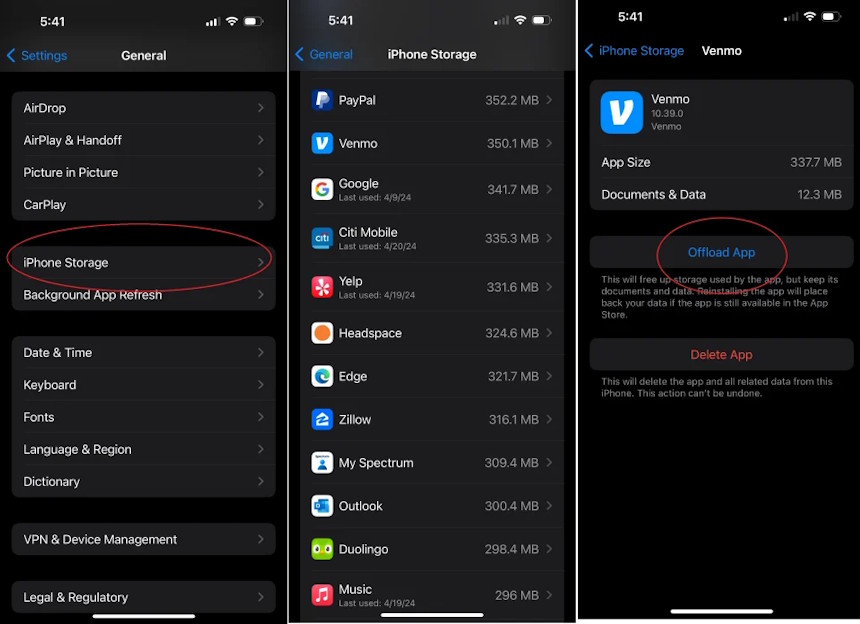
Open Settings > General > iPhone Storage. Apple recommends keeping at least 1 GB free to avoid slowdowns, but more headroom is useful for updates, photos, and large apps.
- Review Apple's storage recommendations.
- Delete downloaded videos, duplicate files, and other content you no longer need.
- Remove large message attachments only after confirming they are backed up.
- Use Offload App for an app you rarely use when you want to keep its documents and data.
- Use Delete App only when you also want to remove its local data.
Offloading removes the app binary but preserves its documents and data so it can be reinstalled later if the app remains available. It is not identical to clearing every cache, and the reclaimed space varies. Apple's iPhone storage guide explains the available controls.
4. Update iOS and apps
Back up important data, connect to power and Wi-Fi, then check Settings > General > Software Update. Install an available update if the device supports it. In the App Store, select your profile and update the app that is slow or crashing.
After a major update, temporary heat, battery use, or reduced responsiveness can occur while background tasks complete. If possible, leave the phone connected to power and Wi-Fi for a while before judging performance.
5. Check temperature and network conditions
iPhone can reduce performance when it becomes too hot or too cold. Move it to a moderate environment, stop charging or intensive gaming temporarily, remove it from direct sun, and let it return to a normal temperature. Do not place it in a refrigerator or freezer.
For slow browsing or downloads, toggle Airplane Mode off and on, reconnect to Wi-Fi, test another network, and restart the router if you control it. A weak cellular signal can also make online apps feel sluggish.
6. Check battery health
Rechargeable batteries lose capacity and peak-performance capability as they chemically age. Open Settings > Battery, then choose Battery Health on newer models or Battery Health & Charging on supported older models.
Read any Peak Performance Capability or Service message. If iOS recommends service, an Apple or authorized service provider can evaluate the battery. Replacing a degraded battery may restore performance when power-management limits are involved; changing unrelated settings will not repair an aged battery. Apple explains the relationship in its battery and performance documentation.
7. Clear Safari data only for web problems
If Safari pages load incorrectly, show stale content, or remain slow after network checks, you can clear website data:
- Open Settings > Apps > Safari.
- Select Clear History and Website Data.
- Choose the time frame and, if offered, the profile to clear.
- Confirm the action.
This removes browsing history, cache, cookies, and related website data for the selected scope and can sign you out of sites. It does not change AutoFill information. To remove website data while keeping history, use Safari > Advanced > Website Data > Remove All Website Data.
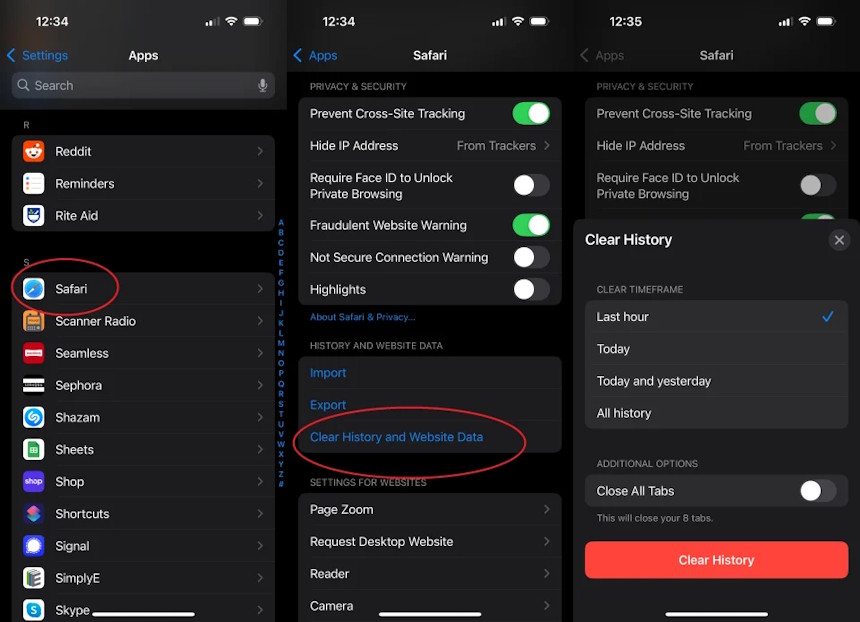
For current details and privacy effects, see Apple's Safari history, cache, and cookies guide. Chrome and Firefox have their own browsing-data menus inside their apps; select only the cache category unless you also intend to remove history, cookies, or saved credentials.
8. Offload or reinstall one problematic app
Open Settings > General > iPhone Storage, choose the affected app, and select Offload App. Reinstall it by tapping its icon. If that does not help, confirm that its data is synced or backed up before deleting and reinstalling it, because Delete App can remove local documents and settings.
9. Use Reset All Settings only after simpler checks
If system-wide problems continue, back up the iPhone and consider Settings > General > Transfer or Reset iPhone > Reset > Reset All Settings. This does not erase personal media, but it resets system settings such as network, privacy, keyboard, and Apple Pay configurations. Read the confirmation screen carefully.
Do not choose Erase All Content and Settings unless you intend to wipe the device and have a verified backup.
When to request service
- The iPhone remains slow after a restart, sufficient storage, and current software.
- It shuts down unexpectedly, overheats during light use, or displays a battery Service message.
- Touch input, storage, cameras, or other hardware behaves inconsistently.
- The slowdown began after a drop, liquid exposure, or an unauthorized repair.
Apple's official slow-iPhone checklist covers storage, Low Power Mode, temperature, network conditions, touch response, and battery health. A backup made before troubleshooting or service protects against data loss.
Related Articles
 iPhone Is Slow If Updated to iOS 11.2.2?3 minutes read
 iPhone, iPad Are Slow or Suspended, This Is a Fix6 minutes read
 How to Shoot and Edit Slow Motion Videos on iPhone7 minutes read
 FaceID Will Be Less Accurate for iPhone X to Be Shipped4 minutes read
 This Is the Details of What Happens When the Old iPhone Is Slowed by Apple3 minutes read
 Does Your iPhone Charge Longer Than Usual? Here's How to Fix It3 minutes read
Reader Comments 0
Sign in with email or Google to join the discussion.