Table of Contents
Need to translate data or text in Canva Sheets?. Read the key facts, context, and practical takeaways.
Need to translate data and text in Canva Sheets? Translating content in Canva data tables is now incredibly simple with a built-in translation tool, eliminating the need for additional translation tools. Below is a guide on how to translate Canva Sheets data tables.
How to Translate a Selected Cell in Canva Sheets
Step 1:
You need to prepare your Canva Sheets data, then click on the cell you want to translate and click the Actions button in the toolbar.

Now, in the menu interface, we click on the Translate tool to proceed.

Step 2:
On the left side of the interface, select the language you want to translate to . Then choose the text style you want to use for the translation. Finally, click Translate at the bottom.

Step 3:
Immediately afterward, the user will see the translated content, which will be inserted directly into the location of the selected text for translation.
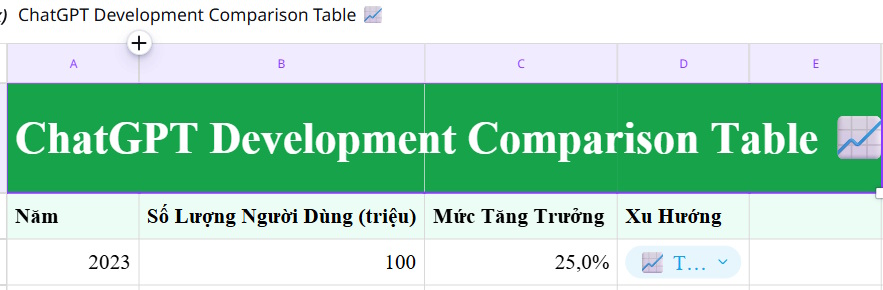
Instructions for Translating an Entire Cava Sheets Page
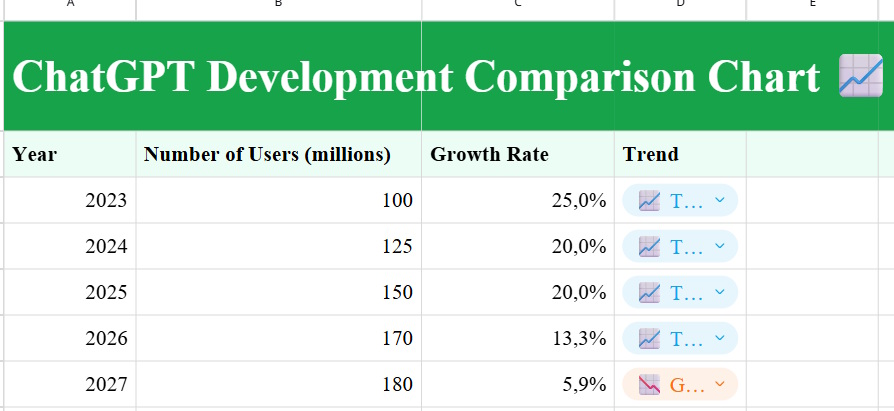
We select the document to be translated, then choose Actions , then Translate . Next, select the language to translate to, and below, click Select to translate page to proceed.

As a result, users will see the Canva Sheets spreadsheet translated into the selected language in the new spreadsheet.
FAQ
What is the main point of guide to translating canva sheets data tables?
Need to translate data or text in Canva Sheets? Read the key facts, context, and practical takeaways.
Why is this development important?
Key takeaway: Need to translate data or text in Canva Sheets?
What are the key takeaways?
Translating content in Canva data tables is now incredibly simple with a built-in translation tool, eliminating the need for additional translation tools.
Related Articles
 How to Use AI to Create Functions and Formulas in Canva Sheets5 minutes read
 How to Create Data Sheets in Canva3 minutes read
 How to Create a Spreadsheet Chart in Canva Sheets4 minutes read
 How to Translating Presentation Slides in Canva AI3 minutes read
 Create Data Tables at Lightning Speed in NotebookLM5 minutes read
 Instructions on Creating Canva Sheets Using Magic Write: Explained5 minutes read
Reader Comments 0
Sign in with email or Google to join the discussion.