Table of Contents
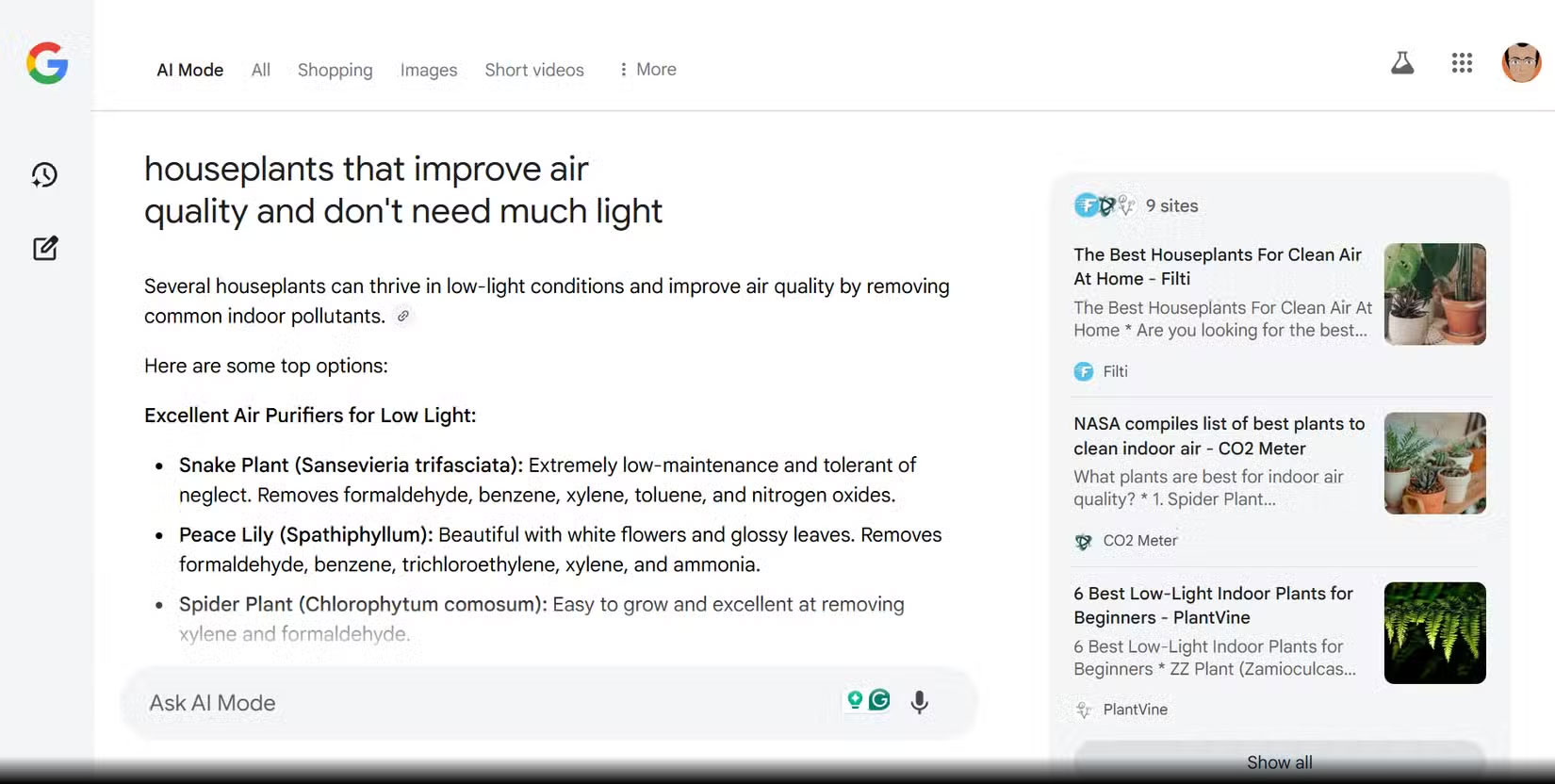
AI Mode is a dedicated Google Search view for asking a question and following up on the answer. AI Overviews appear as summaries in ordinary Search results. If you want to ask several questions about one photo or topic, open AI Mode when it’s available.
Start a search and ask a follow-up
- Run a search on Google and choose the AI Mode tab, or open AI Mode from the Google app.
- Ask a specific question and include the constraints that matter. For example, ask how two options compare for the use you have in mind.
- Use the follow-up box to refine the answer. Open the linked pages to check important facts or to confirm that they actually support the summary.

Ask about an image
On a supported Google app, use the camera or image control to take or select a photo. Ask about a visible detail, such as which titles are readable on a bookshelf. Check unclear text against the photo or another source before relying on the answer.

Availability and search history
Features can vary by country, language, account, and device. If a tab or input control is missing, check the Google Search help page for AI Mode. If you want to review or delete prior searches, check AI Mode history and the account’s activity settings.
For a task that only needs matching images, try reverse image search with Google Lens. If you want a page of web links, see how to show web links in Google Search.
Related Articles
 What is Google AI Mode? How does it work?
 Google deploys AI Overviews, will it kill hundreds of millions of websites?
 How to Ask Questions About Photos in Google AI Mode
 Google's AI-powered note-taking tool can now create explainer videos
 How to Avoid Fake Support Numbers in AI Search Answers
 How to enable AI mode in Google search
Reader Comments 0
Sign in with email or Google to join the discussion.