Table of Contents
The quickest way to reverse-search an image on an iPhone is to open it in the Google or Chrome app and use Google Lens. Lens can search an entire picture or a selected area, helping you identify an object, find visually similar images, compare products, or trace where an image appears online. Results are clues rather than proof of an image's origin, so verify important claims with the page that published it.
Search a web image in Chrome
- Open the webpage in Chrome and touch and hold the image.
- Choose Search Image with Google Lens. If that option is not shown, open the image itself or use the Share menu.
- Adjust the selection box to search the whole picture or focus on one object.
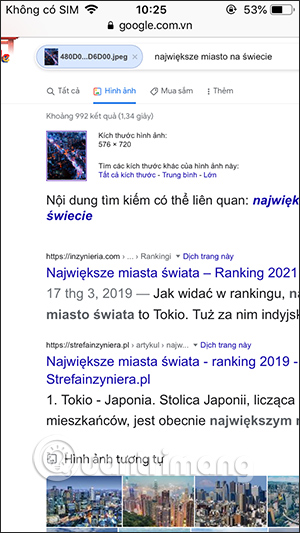
- Review visual matches, pages containing similar images, and any extracted text.
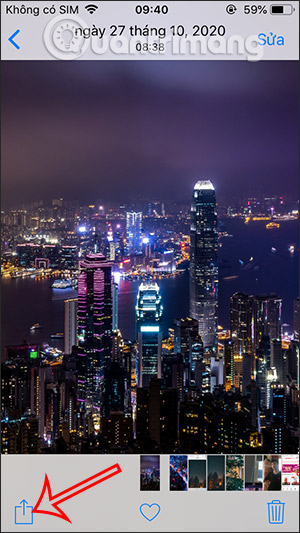
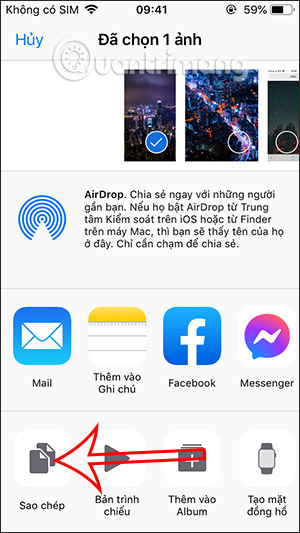
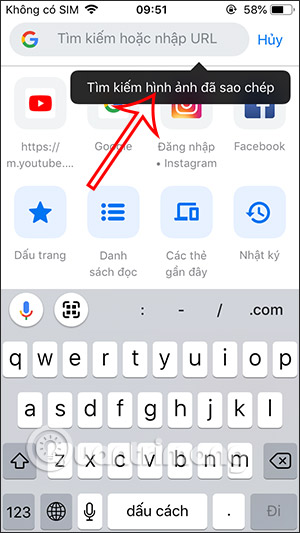
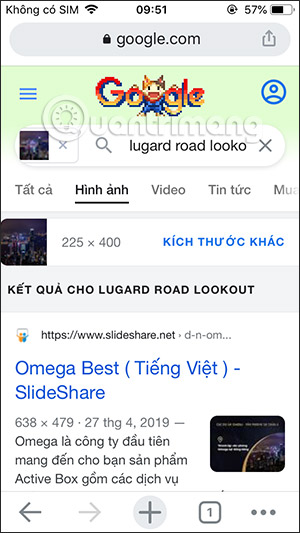
The exact menu wording depends on the Chrome version. Copying an image and pasting it into the address bar may work in some versions, but the Lens command is clearer and more reliable when available.
Use Google Lens in the Google app
- Open the Google app and tap the Lens camera icon in the search field.
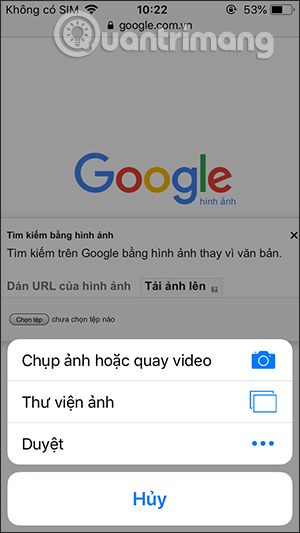
- Allow access to selected photos or the photo library if you want to upload an existing image. You can also take a new photo.
- Select the picture, crop the search region if needed, and wait for matches.
- Switch among relevant result types, such as visual matches, products, text, or translation.
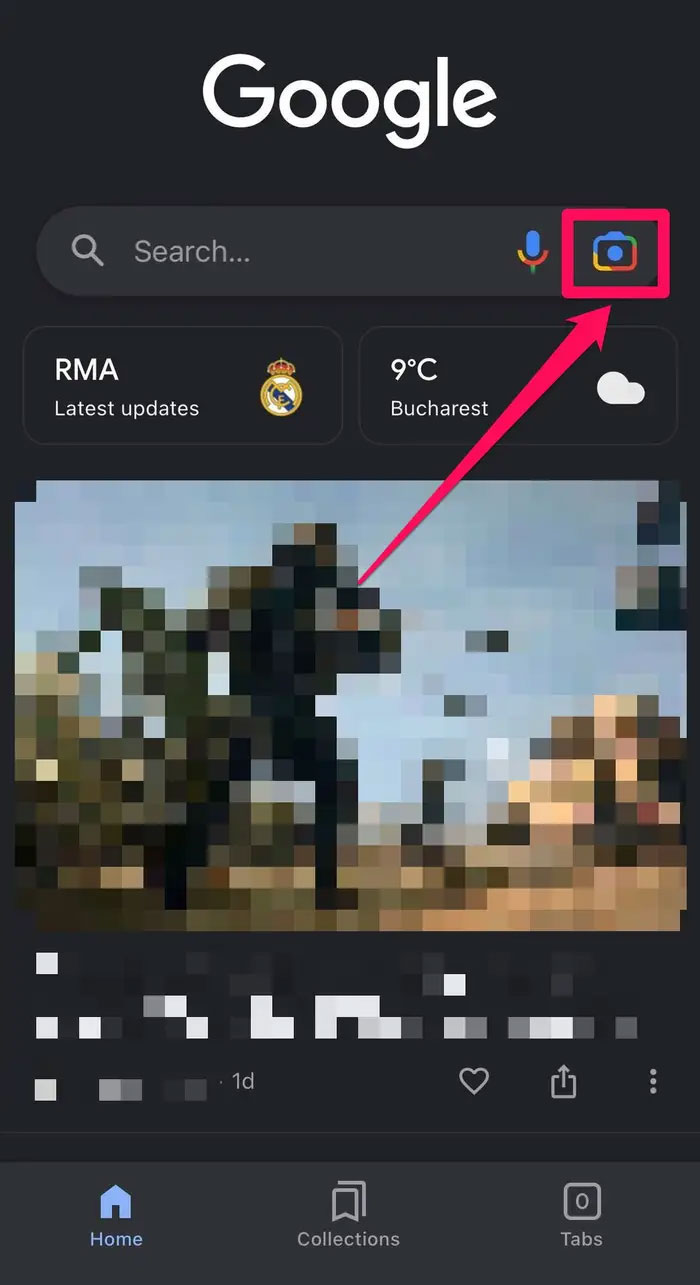
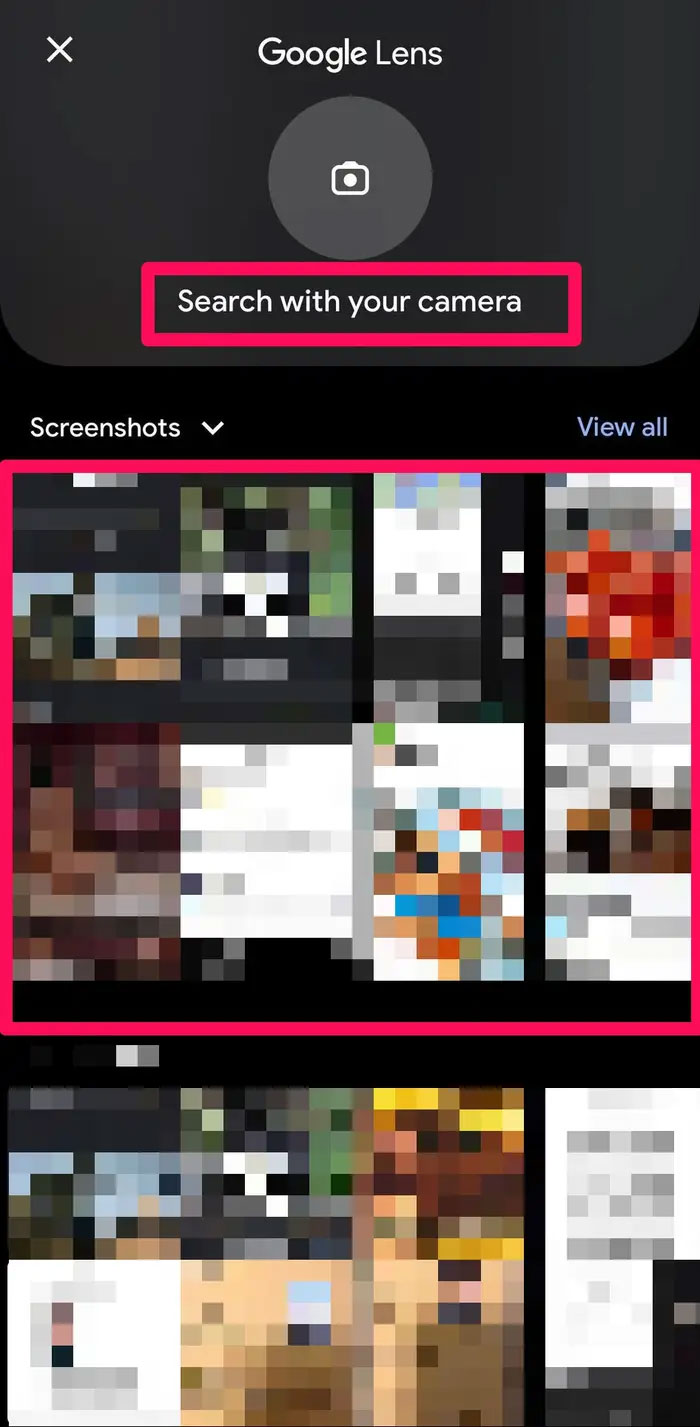
Grant only the photo access you need. On supported iOS versions, choosing selected photos limits the app to images you approve instead of the entire library.
Reverse-search an image from Safari
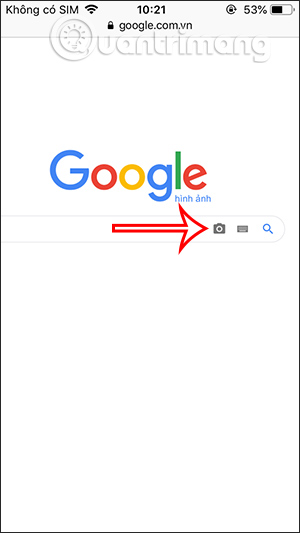
Current Google pages may show the Lens icon directly in Safari:
- Open Google in Safari and tap the Lens icon in the search field.
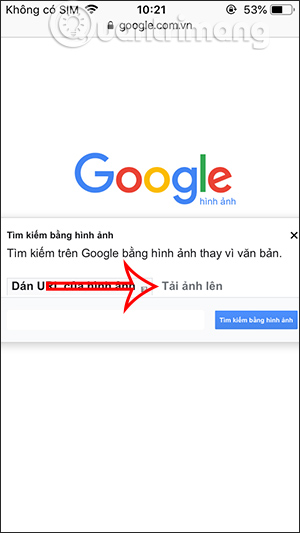
- Choose a photo, take a picture, or select a file when prompted.
- Adjust the search area and review the results.
If the mobile page does not expose image upload, request the desktop site from Safari's page menu, open Google Images, and use the camera or Lens icon. Interface details can change, so use this as a fallback rather than the first method.
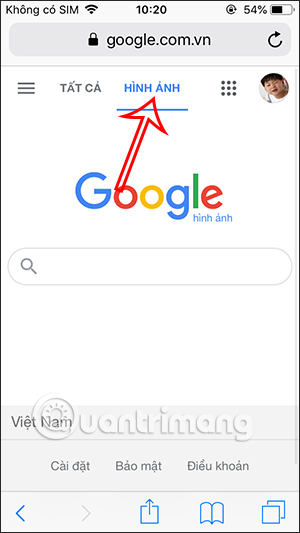
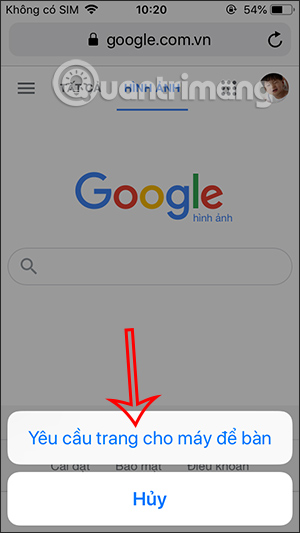
Search a screenshot without exposing the whole image
Crop a screenshot before uploading when it contains names, messages, faces, account details, or other private information. You can also narrow the Lens selection to the object you want to identify. The service still receives the uploaded image or selected region, so do not submit confidential documents merely to identify a logo or product.
Use a dedicated reverse-image-search app
Third-party apps such as Reversee can send an image to one or more search engines and provide cropping or rotation tools before the search.
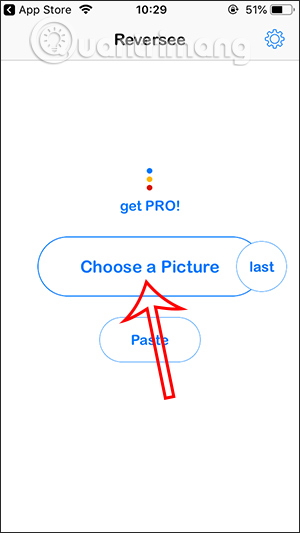
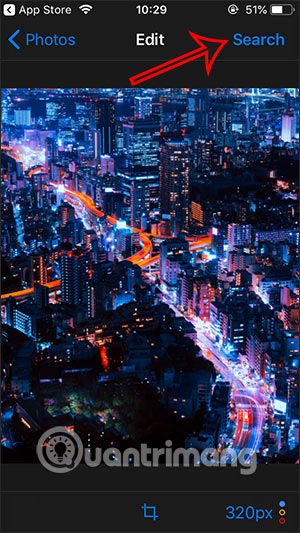
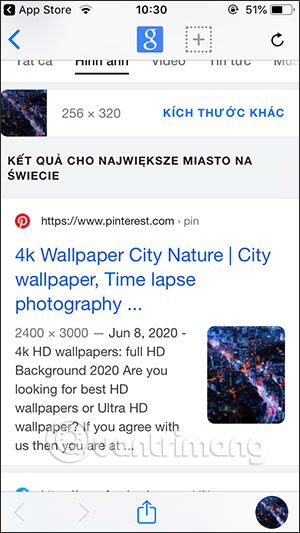
Before granting access, check who publishes the app, which search services receive the photo, whether uploads are retained, and whether the app contains subscriptions or tracking. A dedicated app is convenient for frequent searches, but it is unnecessary when Chrome, the Google app, or Safari already meets your needs.
CamFind and Veracity
CamFind has offered camera-based object recognition, while Veracity has focused on submitting photos from the library or supported cloud storage. Availability and features can change; verify the current App Store listing and privacy label before installation. Avoid assuming that an edited or cropped match establishes the first publisher.
Ways to get better matches
- Crop out borders, captions, and unrelated objects.
- Search the full image first, then repeat with the most distinctive area.
- Try more than one engine for an obscure or heavily edited image. TipsMake lists additional online reverse-image-search tools.
- If text is visible, extract it with Lens and search a distinctive phrase in quotation marks.
- For a social-media image, compare upload dates and inspect the linked page instead of relying only on thumbnail similarity.
- Use TipsMake's broader search-by-image guide when you also need Android or desktop steps.
What reverse image search can and cannot prove
A match can reveal earlier copies, higher-resolution versions, product listings, landmarks, or related pages. It cannot by itself prove who created an image, whether a caption is true, or whether two similar people or products are identical. Check publication dates, context, metadata where available, and credible primary sources before drawing a conclusion.
Related Articles
 How to Search by Image on a Computer or Phone9 minutes read
 How to Create AI Images in Google Search Using Text Descriptions: Practical6 minutes read
 How to Search Photos on Opera Via Google Images5 minutes read
 Interesting Search Engines on Google That You May Not Know Yet10 minutes read
 Extract Google Search Engine from Windows Phone 8.14 minutes read
 Microsoft Stopped Supporting Google Search Application on Windows Phone3 minutes read
Reader Comments 0
Sign in with email or Google to join the discussion.