Table of Contents
The “Windows cannot connect to the printer” message usually means Windows cannot reach a shared printer, the Print Spooler is stuck, or the installed driver does not match the printer. Note the full error code, then work through the checks below in order.
Check the printer and network first
- Confirm the printer is powered on and has no paper, ink, or hardware warning.
- For a Wi-Fi or Ethernet printer, make sure the PC and printer are on the same network and that the printer's IP address has not changed.
- For a printer shared by another Windows PC, make sure the host PC is awake and that you can open
\HOST-PCin File Explorer. - Restart the printer, the PC, and—if it is a network printer—the router or switch.
If the printer connects but documents remain queued, the problem is probably the spooler rather than the network. Our basic Windows printing guide can help verify the normal print workflow.
Restart the Print Spooler
- Press Windows + R, enter
services.msc, and select OK.
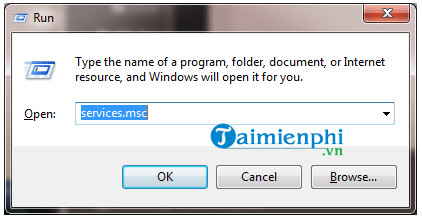
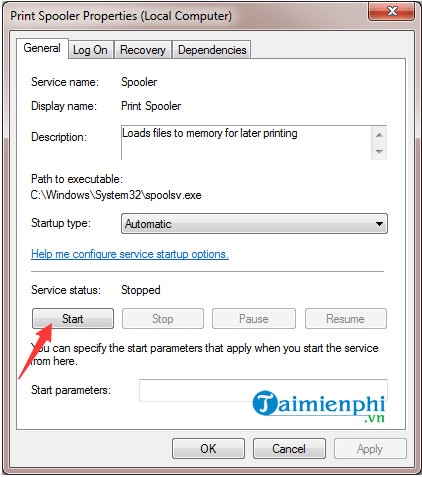
- Double-click Print Spooler.
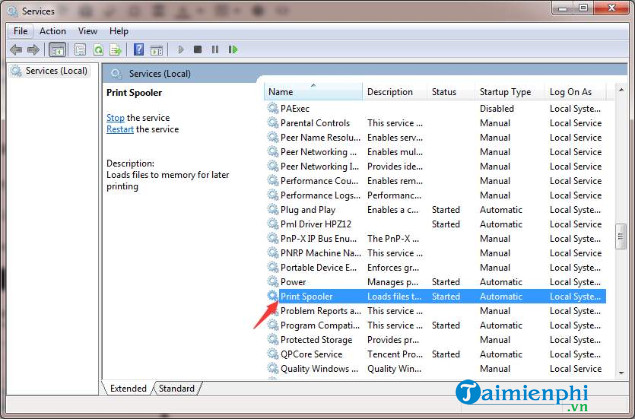
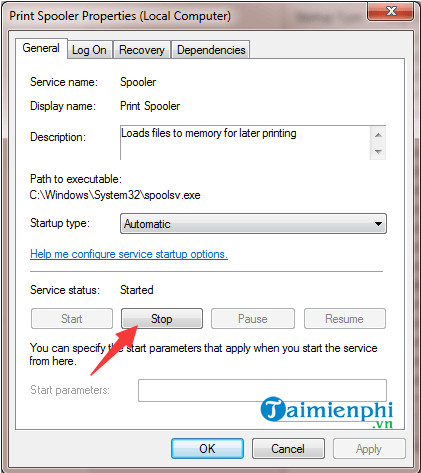
- Select Stop, wait a few seconds, then select Start. Set Startup type to Automatic if it is disabled.
- Select OK and try adding or using the printer again.
Remove and add the printer again
Open Settings > Bluetooth & devices > Printers & scanners in Windows 11, or Settings > Devices > Printers & scanners in Windows 10. Select the problem printer, remove it, restart Windows, and choose Add device.
If automatic discovery fails, choose Add manually. Use the appropriate option:
- Shared printer: enter a UNC path such as
\HOST-PCPrinterShare. The share name must match the name configured on the host. - Network printer with its own IP address: choose the TCP/IP option and enter the current printer IP address.
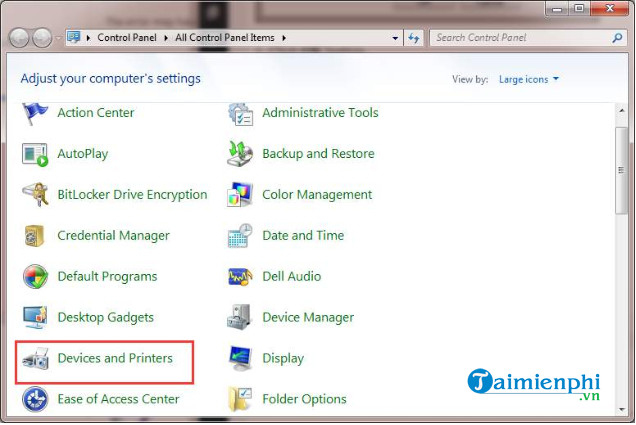
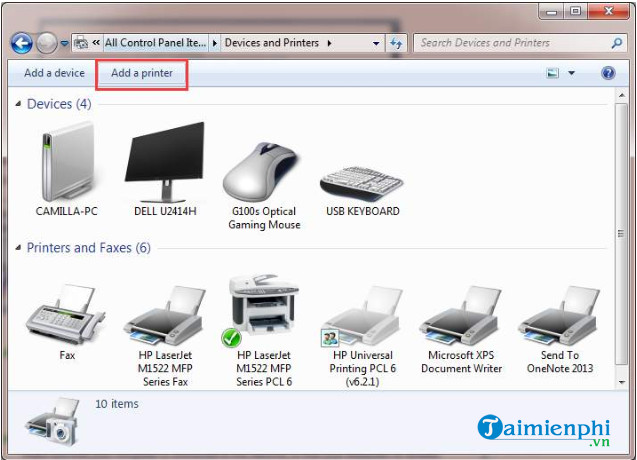
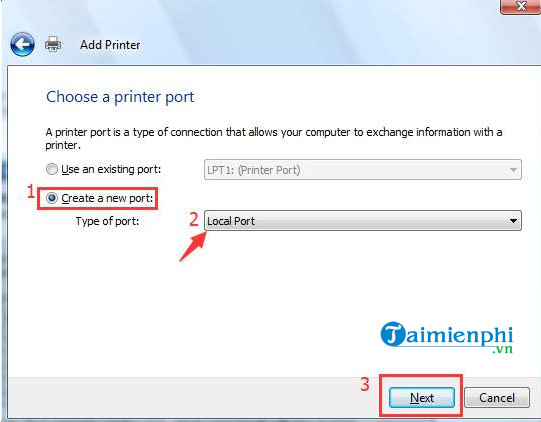
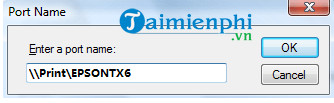
The older Control Panel wizard shown in these screenshots may look different on current Windows versions, but the Add manually choices serve the same purpose.
Reinstall the correct printer driver
Download the current driver for your exact printer model and Windows architecture from the printer manufacturer's support site. Avoid generic driver-download sites.
- Remove the printer in Settings.
- Press Windows + R, enter
printui /s /t2, and press Enter. This opens the printer driver properties dialog on editions where Print Management is not installed. - Select the driver package for the affected printer and remove it only if no other installed printer needs it.
- Restart Windows, install the manufacturer's driver, and add the printer again.
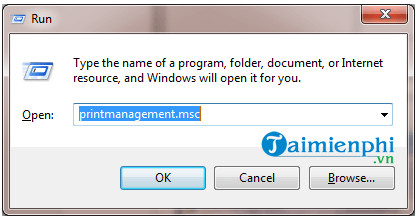
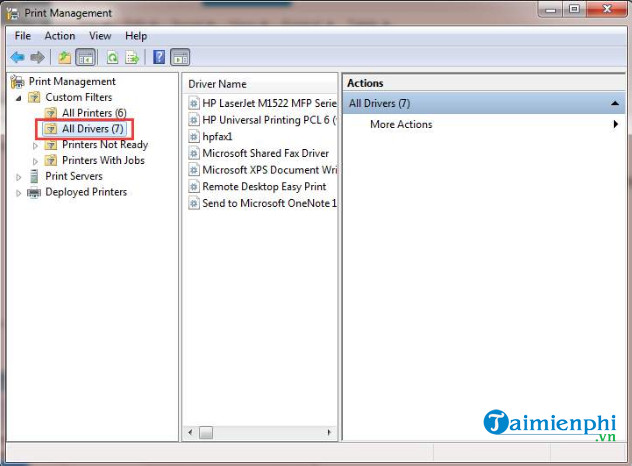
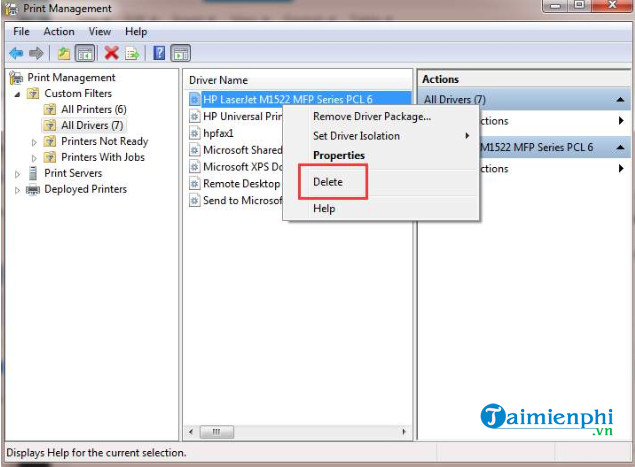
For a model-specific example, see installing a Canon LBP 2900 printer on Windows.
If a shared printer still will not connect
- On the host PC, confirm Network discovery and File and printer sharing are enabled for the current network profile.
- Check that the intended account has permission to use the printer share.
- Install pending Windows updates on both the host and client PCs, then restart both.
- If the error began after an update, record the KB number and error code before making further changes.
Do not copy mscms.dll between system folders or delete Print Provider registry keys as a routine fix. Those legacy steps can damage a working print subsystem and are unnecessary for most Windows 10 and 11 connection problems.
Related Articles
 How to Fix Windows Cannot Connect to the Printer Error6 minutes read
 How to Fix Windows Errors Not Connected to the Printer9 minutes read
 Instructions for Fixing the Error 'Windows Cannot Connect to the Printer'4 minutes read
 Instructions to Fix Windows Cannot Connect to the Printer Error Explained6 minutes read
 How to Rename the Printer on Windows 104 minutes read
 Instructions on How to Fix the Error of the Computer Not5 minutes read
Reader Comments 0
Sign in with email or Google to join the discussion.