Table of Contents
Press Windows + R, type winver, and press Enter to see the Windows 10 version and OS build. For the edition, installation date, Windows Feature Experience Pack, and 32- or 64-bit system type, open Settings > System > About.
Method 1: Use winver
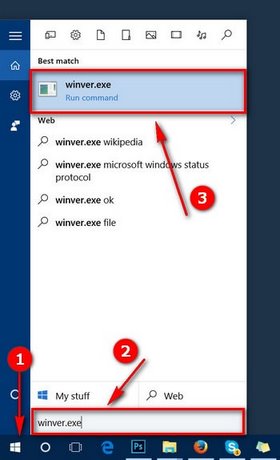
- Press Windows + R.
- Enter
winverorwinver.exeand select OK.
The About Windows dialog lists the Windows release and OS build currently running. It does not list previously installed versions.
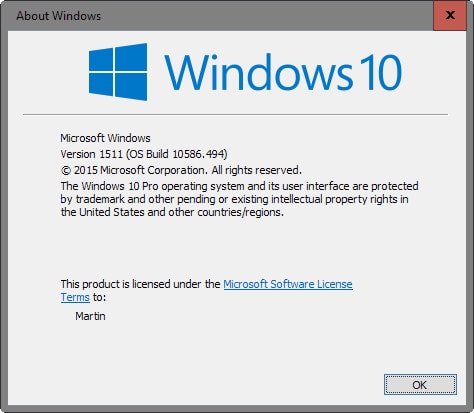
When requesting technical support, copy the edition, version, and full build number exactly as shown. Do not include the registered owner or organization if that information is private.
Method 2: Check Settings > About
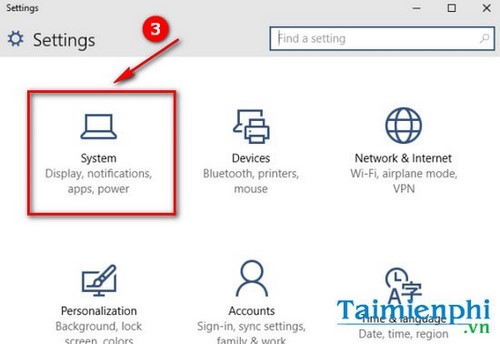
- Open Start and choose Settings, or press Windows + I.
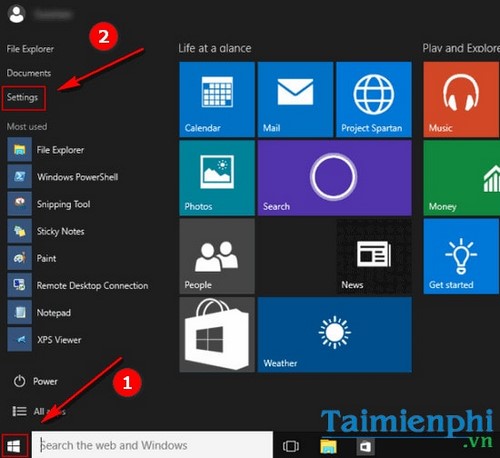
- Select System.
- Scroll to the bottom and choose About.
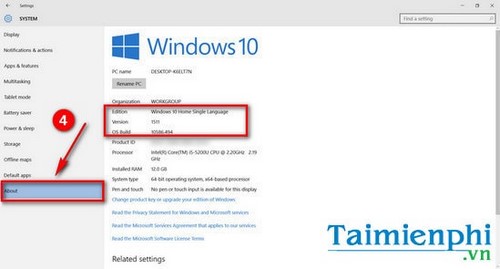
Windows specifications
- Edition: Home, Pro, Enterprise, Education, or another licensed edition.
- Version: The feature-update release, such as 22H2.
- Installed on: The date associated with the current installation or feature update.
- OS build: The base build plus cumulative update revision.
- Experience: The Windows Feature Experience Pack version, when shown.
Device specifications
The System type line tells you whether the installed operating system is 64-bit or 32-bit and identifies the processor architecture. This is the value to check before downloading architecture-specific software or drivers.
For more hardware fields, see TipsMake's guide to checking Windows 10 system configuration.
Method 3: Use System Information
- Press Windows + R.
- Enter
msinfo32and press Enter. - In System Summary, review OS Name, Version, and System Type.
This view also lists the PC model, BIOS mode, processor, installed memory, and other details that can help with driver or compatibility troubleshooting. TipsMake's System Information guide explains the additional fields.
Method 4: Use Command Prompt
Open Command Prompt and run:
systeminfoLook for OS Name, OS Version, and System Type. The output may take a moment while Windows collects system and update information. Unlike winver, systeminfo is convenient for copying into a support ticket, but review the full output first because it includes the computer name and other environment details.
What version, build, edition, and architecture mean
| Field | What it identifies | Why it matters |
|---|---|---|
| Edition | Feature and licensing set, such as Home or Pro | Determines whether features such as domain join or Local Group Policy are available |
| Version | Windows feature-update release | Helps determine lifecycle and application compatibility |
| OS build | Exact servicing level | Helps match known issues and cumulative updates |
| System type | 32-/64-bit OS and processor architecture | Determines which drivers and some application packages are compatible |
Windows 10 support status
Version 22H2 was the final feature version of standard Windows 10, and support for most Windows 10 editions ended on October 14, 2025. Microsoft maintains current edition and build information on the Windows 10 release information page.
Some LTSC editions follow separate lifecycles, and eligible enrolled devices can receive Extended Security Updates. Do not decide support status from the build number alone; match the edition, version, and servicing program to Microsoft's current lifecycle information.
What to include when asking for help
- Windows edition and version
- Full OS build number
- 32- or 64-bit system type
- PC manufacturer and model, if the issue is hardware-related
- The exact error message and when it occurs
Exclude the product key, device serial number, account email, IP address, and other sensitive identifiers unless a trusted support channel specifically requires them.
Related Articles
 How to Check Windows 11 Version5 minutes read
 How to Check the Current Driver Version of the Computer3 minutes read
 How to Check the Version of macOS in Use4 minutes read
 How to Check Your Java Version in the Windows Command Line6 minutes read
 How to Check TPM Version Before Upgrading to Windows 116 minutes read
 How to Check Which Version of Windows Your Computer Is3 minutes read
Reader Comments 0
Sign in with email or Google to join the discussion.