Table of Contents
"No Internet, secured" means the PC has joined a protected Wi-Fi network but Windows cannot reach the internet. The fault may be the router or internet service, a stale IP or DNS configuration, a VPN, or the wireless adapter—not necessarily IPv6.
Find out whether the problem is the PC or the network
- Try the same website on another device connected to the same Wi-Fi. If every device is offline, restart the modem and router and check for an ISP outage.
- On the affected PC, turn Wi-Fi off and on, then restart Windows. Temporarily disconnect VPN software and any manual proxy.
- Open several sites. If only one fails, the connection itself may be working.
- If possible, test Ethernet or a phone hotspot. This separates a Wi-Fi problem from a wider Windows problem.
You can also identify the router address with this guide to the default gateway. If the PC can reach the gateway but not the internet, focus on the router, ISP, DNS, or VPN.
Run the Windows network troubleshooter
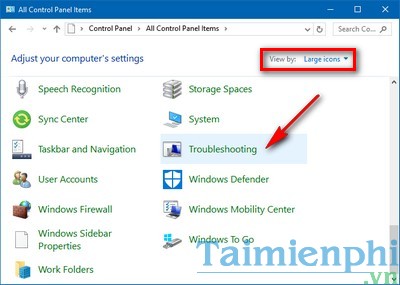
On current Windows 10 builds, open Settings > Network & Internet > Status and select Network troubleshooter. The older Control Panel route shown below also works on many systems.
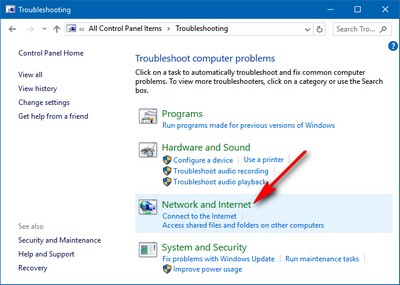
Choose Network and Internet.
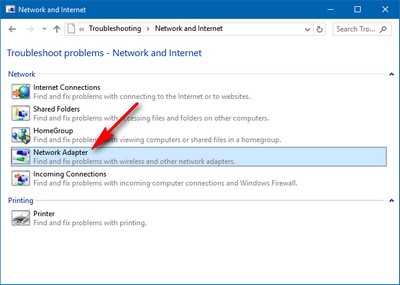
Run the Network Adapter troubleshooter and apply only fixes that match the active adapter.
Forget and reconnect to Wi-Fi
Open Settings > Network & Internet > Wi-Fi > Manage known networks, select the network, and choose Forget. Reconnect and enter the password again. This replaces a damaged saved profile without changing the router.
Refresh the IP and DNS configuration
Open Command Prompt as administrator, run these commands one at a time, and then restart:
ipconfig /release
ipconfig /flushdns
ipconfig /renew
netsh winsock reset
netsh int ip reset
/release briefly disconnects the PC. If ipconfig shows an address beginning with 169.254, Windows did not receive an address from the router; the related 169 address troubleshooting guide explains what to check next.
Check adapter properties without disabling IPv6 by default
Right-click the network icon and open the network settings. The older Network and Sharing Center route is illustrated below.
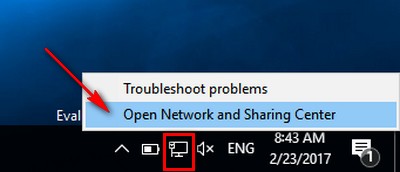
Select the active connection.
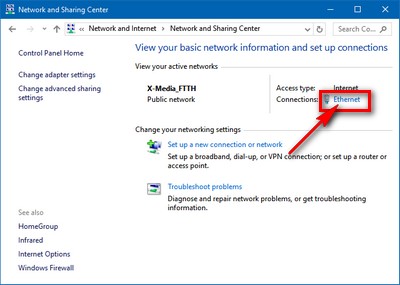
Open Properties.
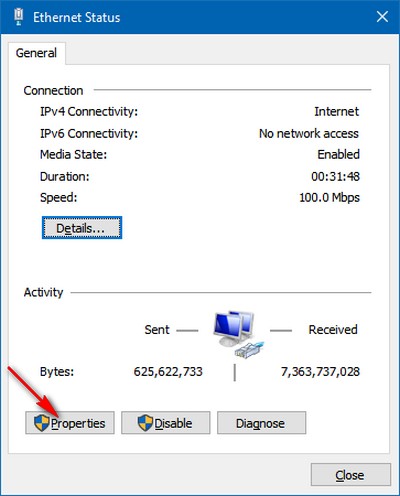
Confirm that Internet Protocol Version 4 (TCP/IPv4) is enabled. On a typical home network, both the IP address and DNS server should be obtained automatically unless the router administrator supplied fixed values.
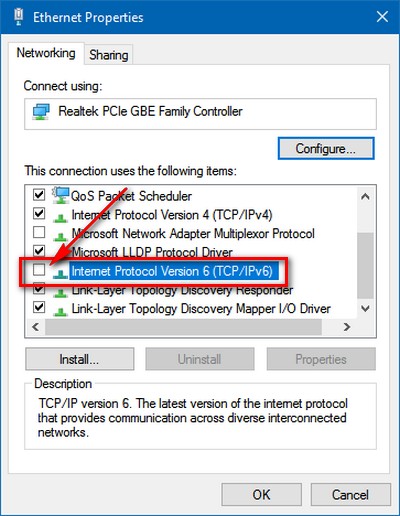
Do not permanently turn off IPv6 as a general fix. The original workaround did so, but it can break services and only hides some configuration problems. A very short test may help diagnose a faulty VPN or router, but re-enable IPv6 afterward and fix the underlying component.
Update or reinstall the network adapter
Open Device Manager > Network adapters. First choose Update driver, or install the current driver from the PC or adapter manufacturer's support page. If the issue began after a driver update, open Properties > Driver and use Roll Back Driver when available. Avoid third-party driver-download utilities.
Use Network reset as the last software step
Go to Settings > Network & Internet > Status > Network reset. This removes and reinstalls network adapters and returns networking settings to their defaults. Record custom IP, VPN, Hyper-V, or virtual-switch settings first because they may need to be recreated. Restart after the reset.
If Wi-Fi still fails while other devices work, follow the broader Windows Wi-Fi troubleshooting sequence; most isolation steps also apply to Windows 10. Persistent failures on every network may indicate a damaged adapter.
Related Articles
 The 'Connected with Limited Access' Error in Windows4 minutes read
 How to Fix UWP Application Disconnected from the Internet6 minutes read
 How to Fix 'Your Wi-Fi Network Isn't Secure' Error on Windows5 minutes read
 Fixing the Limited Wi-Fi Error on Windows 103 minutes read
 Correct the 'the Default Gateway Is Not Available' Error on2 minutes read
 VPN Errors: Summary of Common VPN Error Codes6 minutes read
Reader Comments 0
Sign in with email or Google to join the discussion.