Table of Contents
After a period of use, many people often encounter an error reporting that After Effects is out of memory, affecting your video processing.
After Effects is a professional video editing software that many people choose to use. However, after a period of time, many people often encounter an error that says they are out of memory in After Effects, affecting your video processing. There are many reasons that lead to out of memory errors in After Effects. Below are instructions on how to fix the After Effects out of memory error.
How to fix out of memory error in Adobe After Effects
Restart After Effects
First of all, you should try restarting the application to fix any existing errors in the software. If restarting the application does not work, you can restart your computer and open After Effects again.
Update graphics card driver
Using an outdated graphics card driver can cause incompatibility and program errors. Update your graphics card driver to the latest version to fix this error.
- 5 basic ways to update drivers for your computer
Step 1:
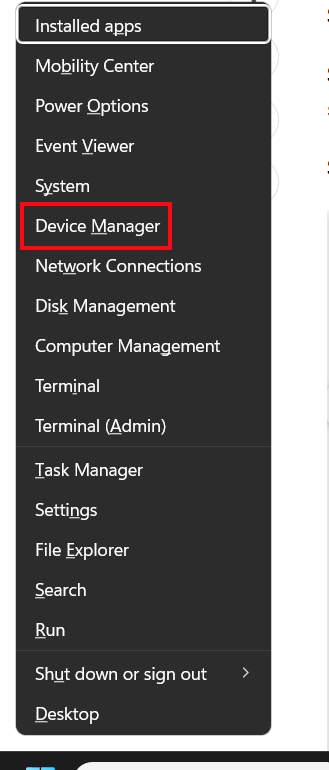
Press The Win + X key combination And select Device Manager From the displayed list.
Step 2:
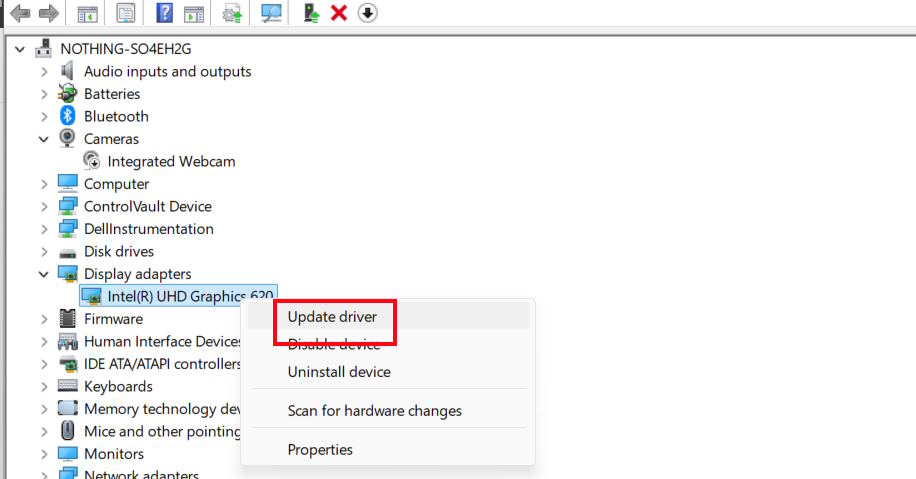
Expand The Display adapters section , then right-click on the graphics card and Select Update driver .
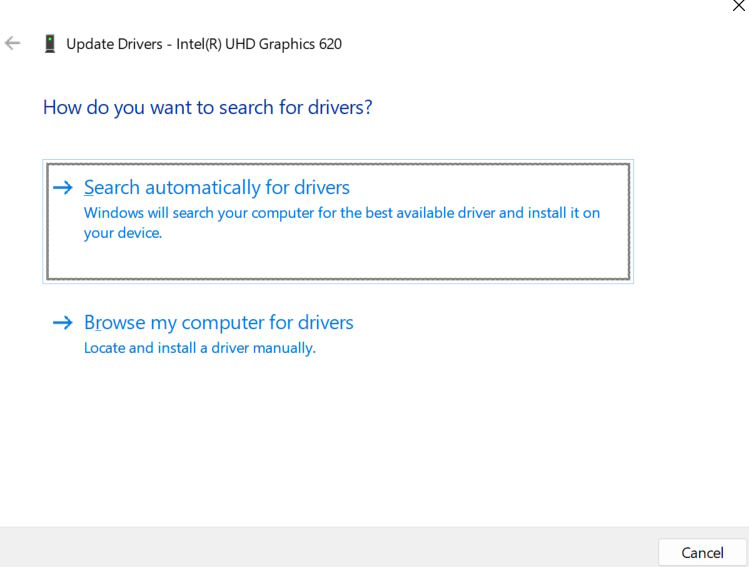
Now you click Search automatically for drivers To check for the new version of this driver and update.
Update After Effects to the new version
An outdated application can also cause the After Effects low memory warning error. In this case, try updating After Effects to fix the error.
Access Help on the software interface, then select Updates to check for new versions of the software and update.
In case the new version has an error, we go back to the old version. Open the Creative Cloud application, then select the Apps tab and scroll down to Find Additional Apps. Here, select View Previous Versions to review the old version of the application and proceed to reinstall the old version.
Adjust settings on After Effects
Some settings in the application also cause After Effects memory errors. Try adjusting some settings in the application to fix this error.
- Disable any third-party plugins.
- Turn off Mercury Transmit: Go to Edit > Preferences > Video Preview and uncheck Enable Mercury Transmit.
- Clear layer cache: Hold down the Shift key and click Preferences, then uncheck Enable Layer Cache.
Free up computer memory
The problem may be that your computer is out of memory, resulting in no more memory to open and use After Effects features. Please use the tools or software below to clean up the memory on your computer.
- How to use Storage sense Windows to free up disk space
- How to Clean Windows PC Using Command Prompt
FAQ
How do you fix out of memory error in adobe after effects: step-by-step guide?
In practical terms, after a period of use, many people often encounter an error reporting that After Effects is out of memory, affecting your video processing.
What should you check before getting started?
Review the requirements, compatible device or software version, and any warnings described in the guide before making changes.
What should you do if the steps do not work?
Repeat the steps in order, confirm that your app or system is up to date, and review the troubleshooting details provided above.
Related Articles
 Adobe After Effects 2021.22.0 - Adobe After Effects6 minutes read
 A Beginner's Guide to Adobe After Effects5 minutes read
 Download Link for Adobe After Effects 32bit, 64bit FULL Standard Free: Explained6 minutes read
 Should I Choose Adobe After Effects or Premiere Pro Video10 minutes read
 How to Fix BSOD Memory Management Error7 minutes read
 How to Handle a Computer Error Message Your Computer Is Low on11 minutes read
Reader Comments 0
Sign in with email or Google to join the discussion.