Table of Contents
If a watermark was added to your own video by mistake, the cleanest fix is to reopen the original editing project and export again with the correct plan, template, or settings. Online removal tools are a fallback: they cannot recover pixels that were hidden by the mark, and their reconstructed or blurred area may be visible when the background moves.
Use these tools only on video you created or are authorized to modify. Removing a copyright notice, stock-preview watermark, creator credit, broadcaster logo, or platform mark from someone else’s work can violate license terms or the law. Purchase or request an unwatermarked source instead.
Choose the least damaging method
- Re-export: best quality when you still have the project and source files.
- Crop: reliable for a small corner mark, but changes framing and resolution.
- Cover: place your own authorized caption, graphic, or border over a mark in your own footage.
- Blur: useful for obscuring private details, timestamps, faces, or license plates without pretending to reconstruct the background.
- Object removal: estimates missing pixels and works best on a static, simple background.
Make a short test before uploading a long file. Confirm file-size, duration, resolution, download, and pricing limits on the current site; “free” can mean a preview, a limited number of exports, or reduced quality.
1. Dewatermark.ai
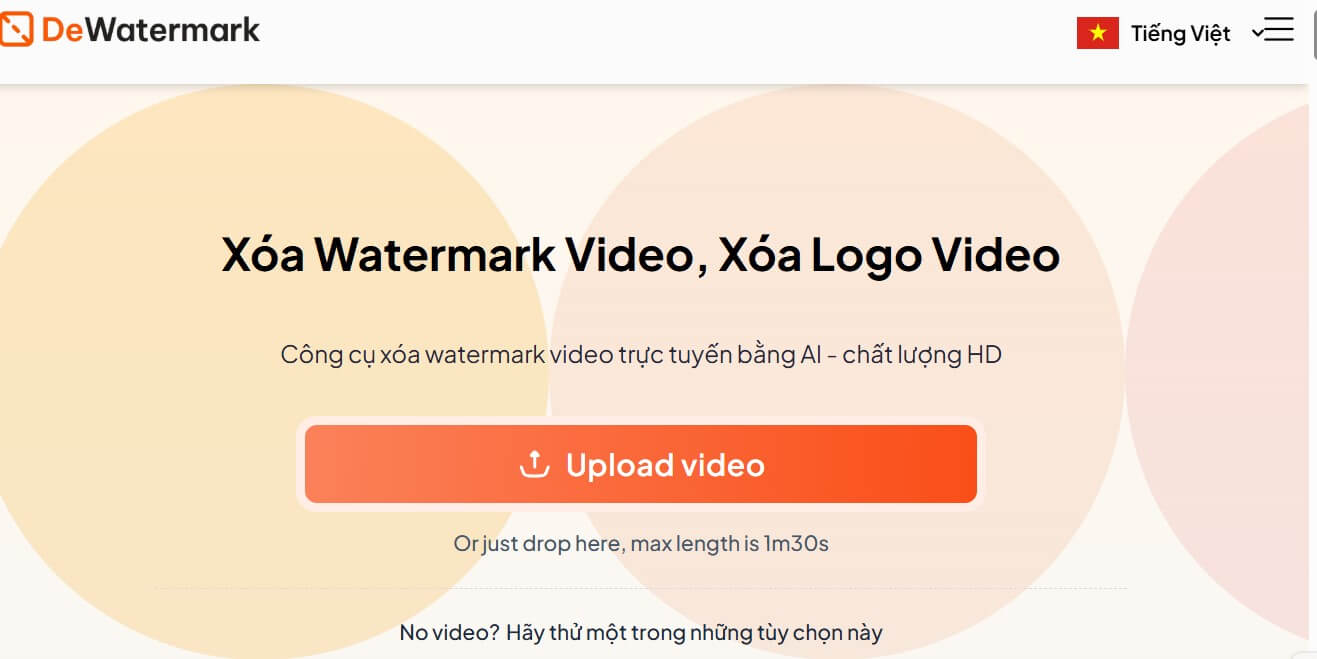
Dewatermark.ai Video Watermark Remover automatically detects text and logo overlays and uses AI to reconstruct the selected area. Its current workflow offers a short preview before processing or downloading the full result, and full use may require credits.
Best for: a small, static mark over a plain or slow-moving background. Check hair, hands, patterned clothing, camera movement, and scene cuts frame by frame; these are common places for reconstruction artifacts to appear.
2. Apowersoft Online Video Watermark Remover
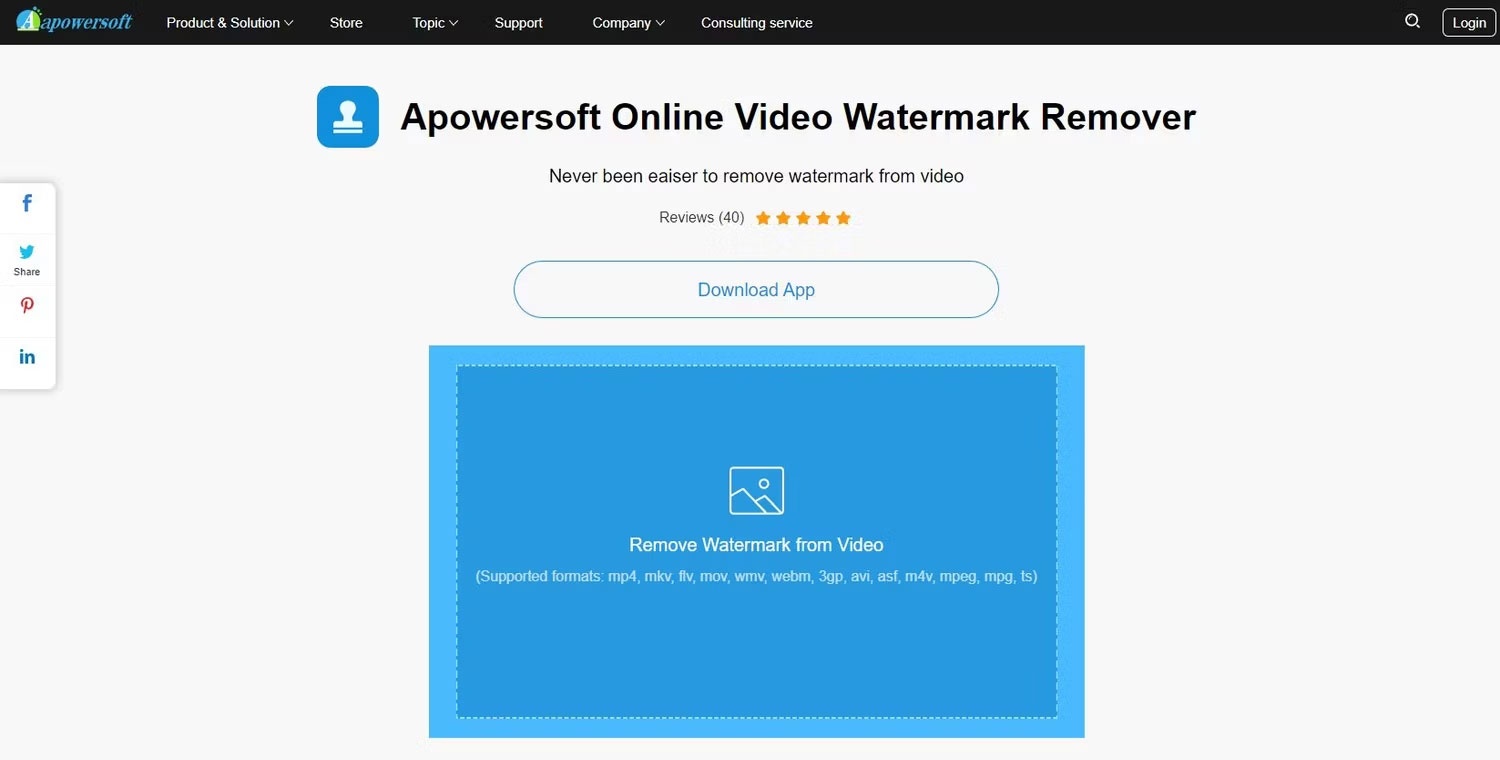
Apowersoft’s online remover lets you upload a video and mark one or more rectangular areas for processing. The result is generated from nearby image information rather than restoring the original covered detail.
Best for: stationary overlays that remain in one region. Verify the current supported formats and plan limits before uploading. If the mark moves, a fixed box can damage clean portions of the frame.
3. 123apps Remove Logo
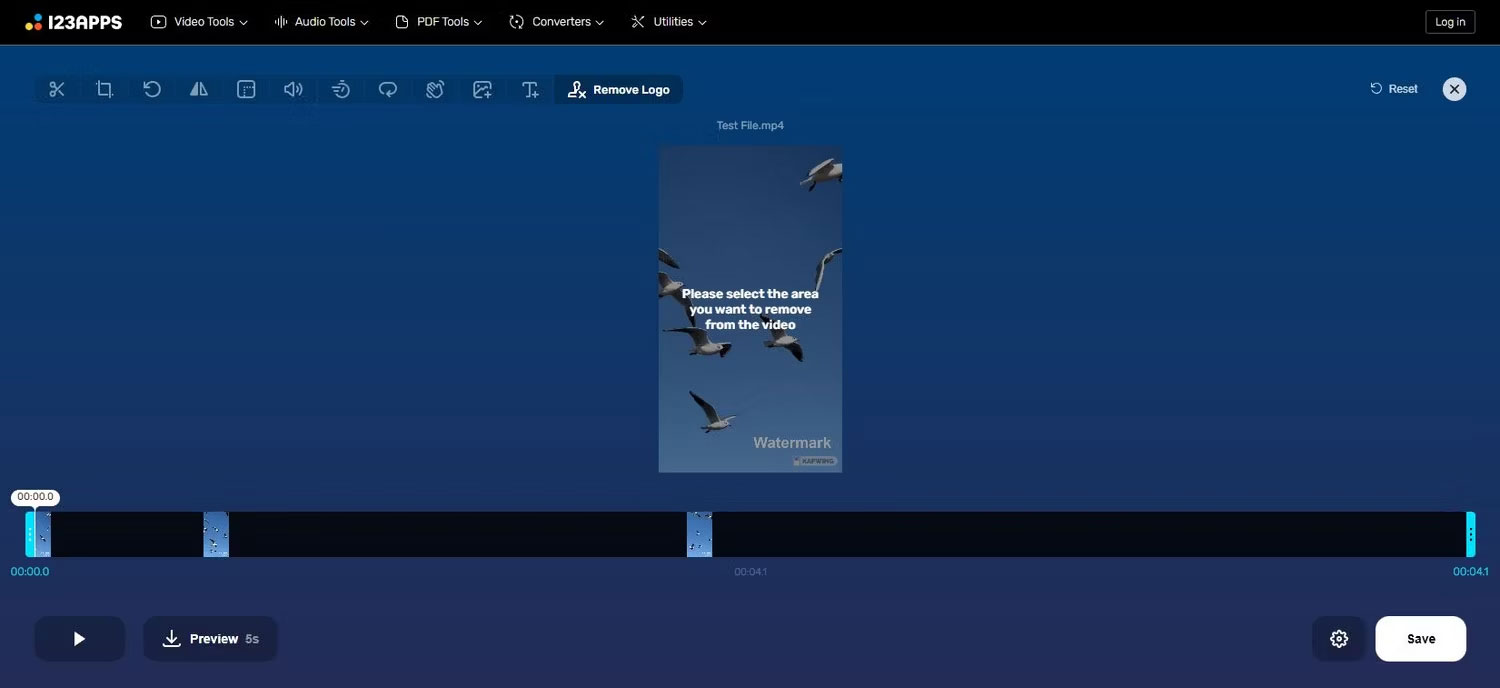
123apps Remove Logo provides blur and removal controls inside a broader browser editor. You can also crop, trim, rotate, or resize the clip in the same workflow. The editor offers free output at a limited resolution, while higher-resolution options may be paid.
Best for: short clips that need both a corner crop and basic editing. Preview the full timeline to make sure the selected area remains aligned after cuts or framing changes.
4. PickFrom Blur Video
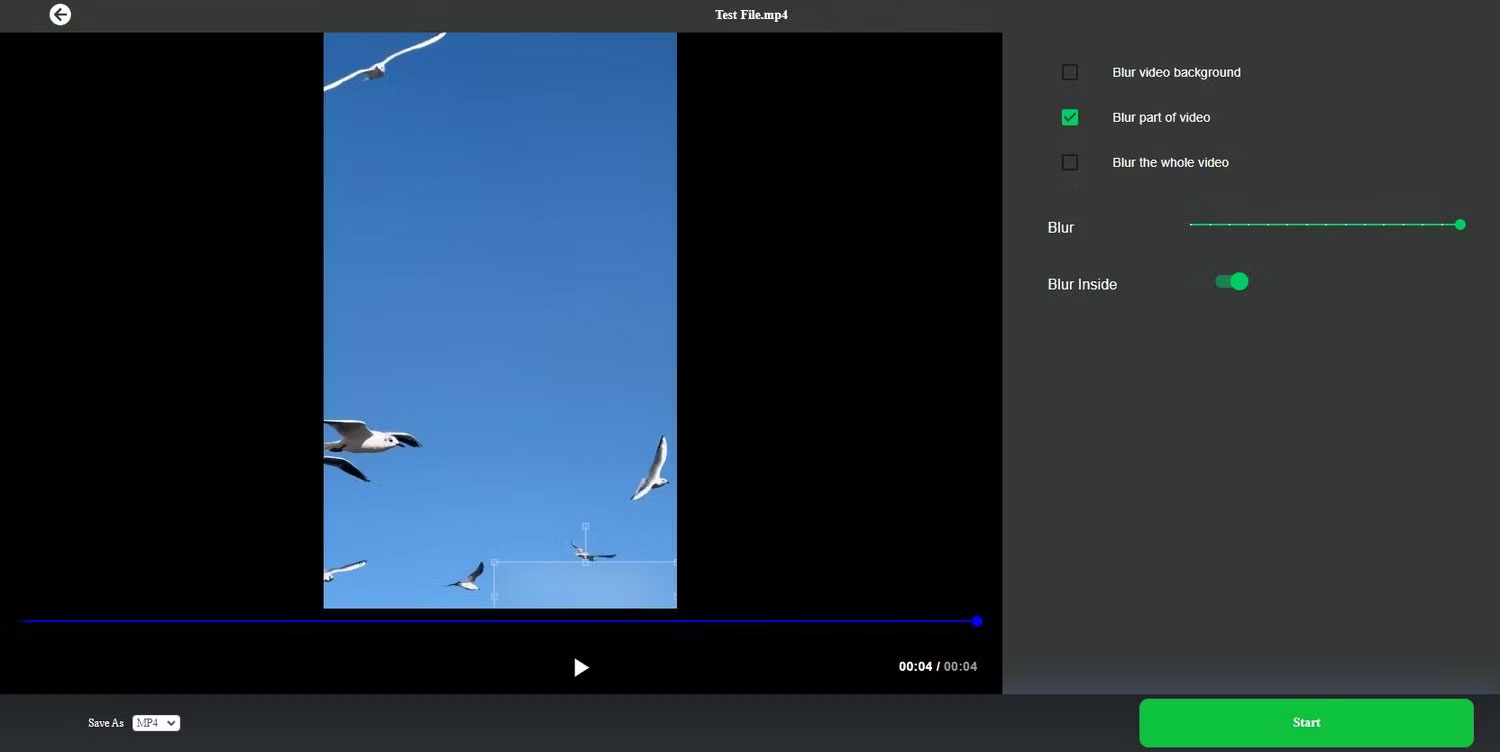
PickFrom Blur Part of Video hides an area with blur rather than inventing replacement pixels. That is often the more honest and visually stable choice for private information, faces, number plates, usernames, or timestamps in footage you own.
Best for: obscuring information where a visible blur is acceptable. Set the box slightly larger than the target and inspect every frame. If the target moves, a static blur will not follow it automatically.
5. BeeCut Online Watermark Remover
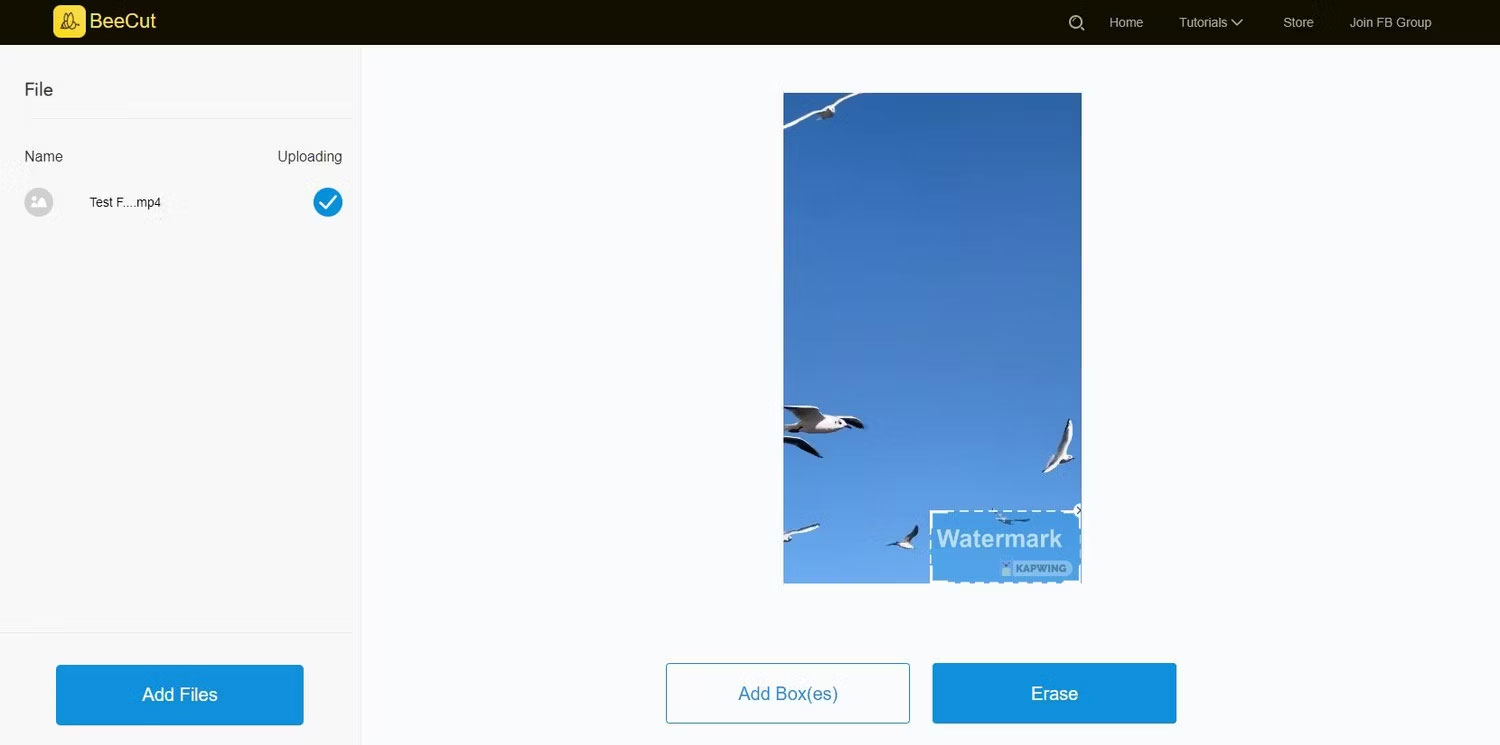
BeeCut’s online remover accepts images and video and uses adjustable boxes to identify regions for processing. Multiple boxes can help when your own export contains more than one accidental overlay.
Best for: small, fixed areas on relatively uncomplicated footage. Keep an untouched copy of the source; cloud processing can fail, compress the output, or produce inconsistent frames.
6. Media.io Video Watermark Remover
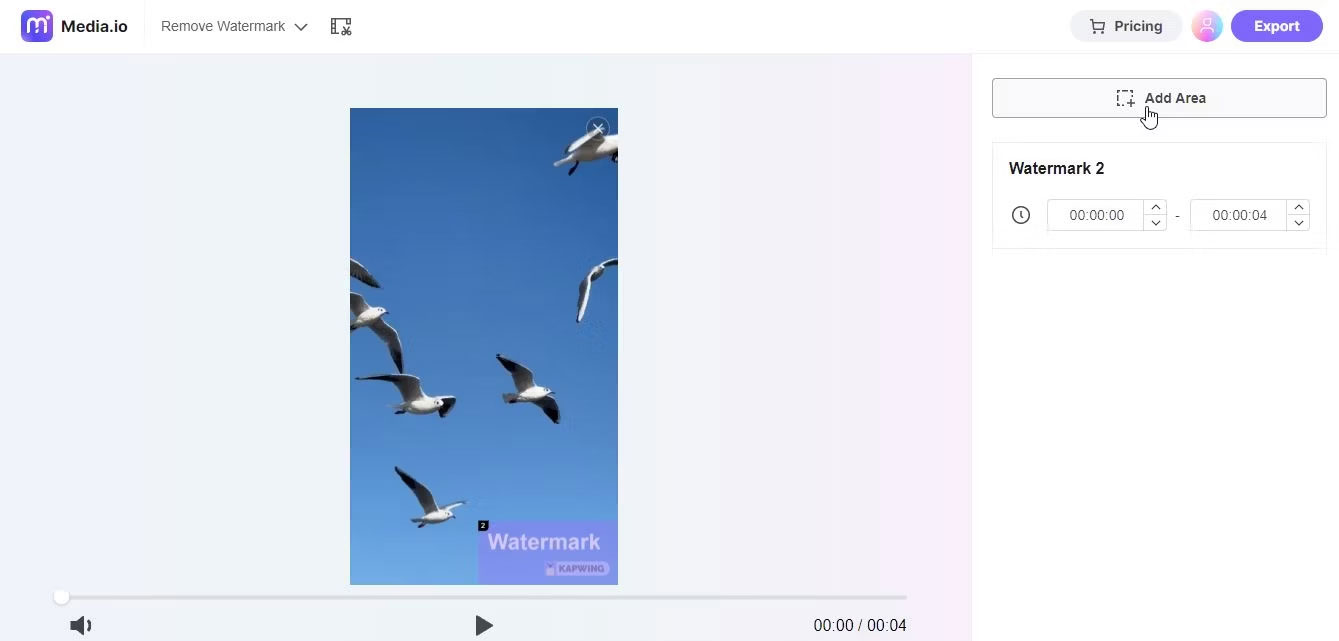
The service named “Medio.io” in older versions of this list is actually Media.io. Its current video eraser marks an unwanted area and uses AI-assisted processing to fill it. Free usage is limited and conditions can differ between the web tool and AniEraser apps; test whether the export resolution or a new service watermark meets your needs before processing a long clip.
Best for: evaluating AI removal on a short authorized clip before deciding whether a paid export is worthwhile.
Privacy checks before uploading a video
An online editor sends the video to a third-party server. Do not upload confidential work, unreleased client footage, student records, medical information, identity documents, intimate media, or security-camera footage unless the organization explicitly permits that service.
- Read the current privacy and file-retention policy.
- Check whether uploads are used to train models or shared with subprocessors.
- Remove audio or unrelated sections before upload when possible.
- Use a short test segment instead of the complete source.
- Delete the online project after downloading and validating the result.
How to evaluate the output
- Watch at full size, not only in a small preview.
- Pause around cuts, fast motion, textured backgrounds, and objects crossing the edited area.
- Check whether the service changed resolution, frame rate, aspect ratio, audio sync, or color.
- Compare the first and last frames; some tools apply the effect for only part of the timeline.
- Keep the original file and document why you were authorized to remove the mark.
If you still have the editing project, use a local, watermark-free editor instead of reconstructing the picture. TipsMake compares free video editing software for computers and phones. For a quick crop or trim that does not require object reconstruction, the TipsMake online tools may be sufficient.
Related Articles
 5 Top Free Online Video Watermark Removal Tools: Top Picks and Buying Guide9 minutes read
 How to Edit Videos Online: Online Video Editing Services7 minutes read
 Click: How to Add a Watermark to Photos6 minutes read
 How to Delete Watermark, Simple Stamp Removal with Paint5 minutes read
 4 Free Online Tools to Add Text to Videos7 minutes read
 9 Fun and Free Online Painting Tools9 minutes read
Reader Comments 0
Sign in with email or Google to join the discussion.